- AdGuard DNS offers free public profiles that block ads, trackers, and malicious websites, with standard, unfiltered, and family protection options.
- It can be manually configured on Windows, macOS, Android, and iOS, using classic DNS or encrypted protocols such as DNS-over-HTTPS and DNS-over-TLS.
- The AdGuard DNS Dashboard allows you to view detailed statistics, control access by device, and create custom filtering rules based on your subscription.
- The AdGuard and AdGuard VPN apps integrate the use of encrypted DNS and make it easy to combine ad blocking, privacy, and centralized device management.
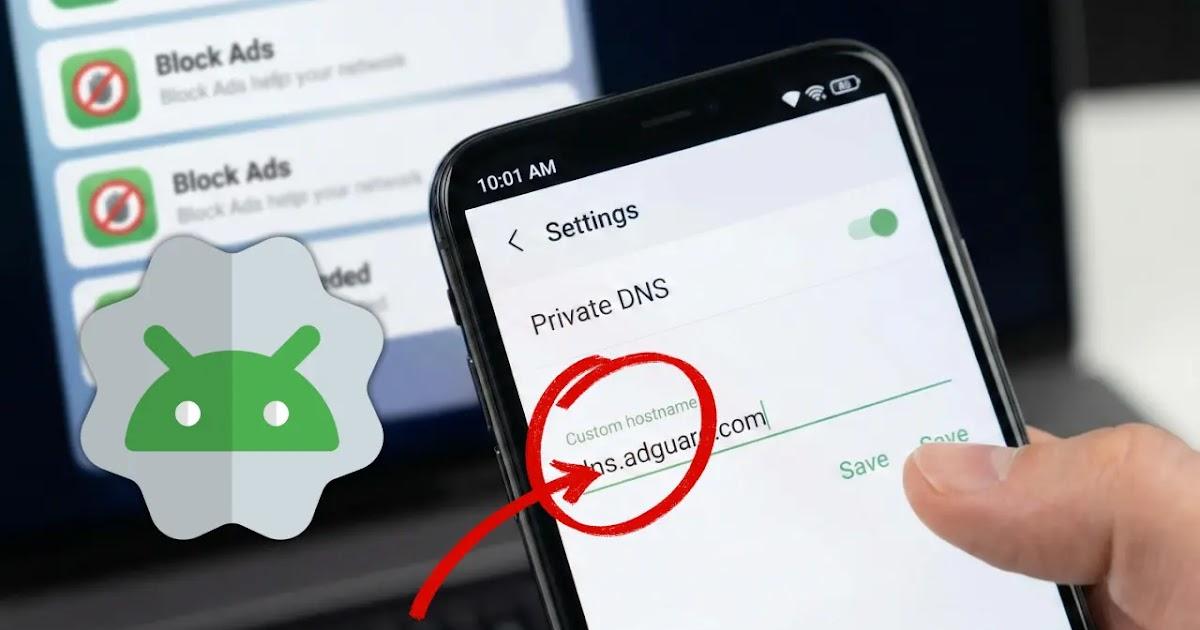
If you're fed up with intrusive ads, trackers that monitor your every click, and suspicious websites that sneak in without permission, setting up AdGuard DNS as your name server is one of the simplest and most effective ways to gain privacy without any hassle. You don't need to install any unusual apps, root your phone, or pay for subscriptions: just change a few network settings and you're good to go.
Furthermore, AdGuard DNS doesn't just block ads: it also offers different filtering profiles, real-time statistics, and advanced options for those who want detailed control over what is blocked and what isn't. From a hidden setting on Android that allows the use of encrypted DNS, to specific configurations for Windows, macOS, iPhone, or even its own app and web panel, there's a wide range of possibilities to tailor protection to each device and each type of user.
What is AdGuard DNS and why does it improve your privacy?
AdGuard DNS is a free, public DNS service focused on privacy and content blocking , maintained by AdGuard, a company also known for its ad blocker and VPN. Instead of simply translating domains into IP addresses, its servers use filter lists to prevent certain domains from resolving.
When a device uses AdGuard DNS, requests to advertising, tracking, or malicious websites receive a modified or empty response, preventing ads from downloading and tracking scripts from contacting their servers. This results in fewer banners, fewer pop-ups, and fewer marketing profiles about you.
What's interesting is that AdGuard offers the service in several modes or profiles to adjust the level of protection. You can choose between a standard profile focused on ads and trackers , another without any filtering, and one geared towards families that adds adult content blocking and activates safe mode on compatible browsers.
Furthermore, the company supports several protocols: plain DNS (unencrypted), DNS-over-HTTPS (DoH), DNS-over-TLS (DoT), DNS-over-QUIC, and DNSCrypt . These encrypted protocols prevent third parties, such as your internet service provider or a public Wi-Fi network, from easily spying on the websites you visit or manipulating your DNS requests.
In many cases, the most effective approach is to combine DNS-level ad blocking with encrypted DNS , thus improving both browsing privacy and the security of your queries. On modern systems like Android, Windows 11, and some routers, enabling these options is becoming increasingly easy.
AdGuard DNS profiles: standard, unfiltered, and family protection
Each AdGuard DNS profile is based on a different set of IP addresses and hostnames, with a specific level of filtering. This allows you to use one type of protection on your personal mobile device and another on a child's computer, for example, without mixing policies.
The Default profile primarily blocks ads, trackers, and certain known threats . It's the most balanced option for those who want to browse with fewer ads but without overly aggressive restrictions.
The Unfiltered profile offers clean DNS resolution without domain blocking . It's intended for those who simply want to leverage AdGuard's infrastructure, or for cases where filtering might cause compatibility issues with specific services. It can also be used for performance testing.
Finally, the Family Protection profile adds to all of the above a specific block of adult content and inappropriate categories , as well as attempting to activate SafeSearch mode in search engines when possible. It is very useful for tablets or mobile phones used by minors, or for devices shared at home.
In all cases, AdGuard DNS provides IPv4 addresses for traditional configurations and hostnames for encrypted protocols such as DoH or DoT. For example, the standard version uses a hostname like dns.adguard-dns.com , while the unfiltered and family profiles are based on domains like unfiltered.adguard-dns.com or family.adguard-dns.com.
If you're looking for a middle ground, the standard profile is usually the best option for personal devices. Family mode makes more sense for children's devices, and the unfiltered profile is only useful if you want to test the infrastructure without affecting the content being loaded or if you need full compatibility.
Setting up AdGuard DNS on Windows step by step
In Windows, you can use AdGuard DNS in the traditional way, by entering IP addresses as DNS servers, or take advantage of modern features like encrypted DNS with DNS-over-HTTPS . In Windows 11, this second option is the most appealing, as it improves privacy and prevents traffic manipulation.
To configure AdGuard DNS in Windows 11, the general process is as follows: First, access your network and internet settings , either from the Settings panel or the network icon in the taskbar. Once there, select whether you are connecting via Wi-Fi or Ethernet, depending on your connection type.
Within the active connection settings, you'll find a section dedicated to DNS. There, you can choose manual DNS assignment , enable IPv4, and enter one of AdGuard's IP addresses as the preferred server—for example, the one corresponding to the default profile. Windows then allows you to enable DNS over HTTPS and select a manual template, where you enter the AdGuard DoH URL (for example, the endpoint that begins with https://dns.adguard-dns.com/dns-query in the case of the standard profile).
Once the changes are saved, the system will begin using AdGuard DNS for both unencrypted queries and protected HTTPS requests , provided the applications respect the system's network configuration. If you want to use a different profile, simply change the IP address and hostname to those used in unfiltered or family mode.
In earlier versions of Windows, where native DoH support is more limited, you can also configure it from the network adapter properties by simply entering the AdGuard IPs as the preferred and alternate DNS servers. Filtering will work, although without system-level encryption.
How to use AdGuard DNS on macOS
On macOS, the simplest method is to manually configure DNS through the system's Network settings. There's no need to install additional applications if the unencrypted version of the service is sufficient.
To apply this, simply open System Settings, go to the Network section, and select your active connection, either Wi-Fi or wired. There you'll find a section for DNS servers . You can delete the default ones (usually those provided by your internet service provider) and add the IP addresses corresponding to the AdGuard profile you want, for example, the set of addresses assigned to standard mode.
After saving the changes, all DNS queries from your Mac will be sent to AdGuard, which will block ads, trackers, and malicious websites according to its filter lists. If you need to switch profiles, simply replace the IP addresses with those from unfiltered or family mode.
If you want to take it a step further and use encrypted DNS on macOS, you can use configuration profiles or tools that support DNS-over-HTTPS or DNS-over-TLS , or even AdGuard's own apps that integrate ad blocking and advanced DNS protection, but for many users, the classic DNS setting already represents a significant improvement.
AdGuard DNS on Android: the private DNS trick
Android, starting with version 9, includes a feature called Private DNS which, when properly configured, allows you to block ads and improve privacy without installing apps or using a VPN. This setting is somewhat hidden, but it activates in less than a minute and has a very direct impact on the user experience.
The Domain Name System (DNS) translates the URLs you type into your browser into IP addresses. By default, these queries are usually handled by internet service providers (ISPs), allowing them to track your browsing habits and, in many cases, use them for targeted advertising or analytics.
By changing the default DNS and using a server like AdGuard's with DNS-over-TLS support , requests travel encrypted and pass through filters that block ad and tracking domains. In practice, when an app tries to contact an ad server, the mobile device receives an empty or modified response, and the ads are not downloaded.
This not only improves privacy but also reduces data consumption and can make some pages and applications load faster , as it eliminates heavy advertising scripts and unnecessary external connections. However, the website design may still include advertising space, so you'll sometimes see empty areas where banners used to be.
To configure AdGuard DNS as a private DNS server on a compatible Android device, go to Settings and look for the Connections, Network & Internet section or something similar. There you'll usually find an option called Private DNS . Once there, select the Private DNS provider's hostname option and enter the AdGuard hostname, for example, dns.adguard-dns.com for the standard profile.
After saving, all phone connections will be routed through AdGuard DNS over TLS, applying the appropriate filtering. This change is reversible: if you encounter problems with a specific Wi-Fi network, you can revert to automatic settings at any time.
It's important to keep in mind that this system has limitations. DNS blocking isn't usually as effective against ads embedded in video platforms like YouTube, which use more complex mechanisms. And on public Wi-Fi networks with captive portals (airports, hotels, cafes), the private DNS can prevent the login page from appearing, forcing you to temporarily disable it to connect.
Connect Android to AdGuard DNS from the web panel and the app
In addition to private DNS settings, AdGuard offers a dedicated AdGuard DNS app and a web panel (Dashboard) at adguard-dns.io that allow for more controlled device linking and additional features.
To connect an Android device through the panel, the first step is to access the Dashboard and use the Connect New Device option . In the device type dropdown, select Android, give the device a name, and continue with the wizard.
In the AdGuard app usage section, you can choose from several ways to configure the device: configure it directly if you're browsing from the mobile device you want to protect, scan a QR code with that device, or copy a configuration identifier and paste it into the corresponding app. This identifier is used to link the device to your cloud DNS server.
The AdGuard DNS app uses VPN-like protocols: you'll need to allow the creation of a local VPN profile for protection to activate. From the main screen, simply tap Activate to start protection whenever you need it. Because it works at the network level, the blocking applies to all applications on the device.
The main appeal of the official app is that it allows you to easily use encrypted DNS , choose from several protocols supported by AdGuard (such as DoH or DoT), and combine DNS filtering with a very effective system ad blocker, without having to touch advanced operating system menus.
AdGuard on Android with the AdGuard Ad Blocker app
Another popular option is to combine AdGuard DNS with the AdGuard Ad Blocker app , a comprehensive ad blocker that works system-wide. This app includes a built-in DNS protection module that allows you to select custom servers.
The usual process involves installing the app on the device you want to protect and, once open, going to the shield icon in the bottom bar. Inside, go to the DNS Protection section and then to DNS Server. Scrolling down, you'll see the Custom Servers section and the option to add a new server.
At that point, you can copy one of AdGuard's DNS addresses, such as those for DNS-over-HTTPS, and paste it into the server address field. If you're unsure which protocol to choose, AdGuard itself recommends DoH as a balanced option , as it combines good performance and privacy.
Once added, the new server appears in the list of custom servers, and you can select it to be used as the default by the app. Simply tap its name or the corresponding selector, and then tap Save and Select.
From that point on, the device will use AdGuard DNS through the app, with system-level DNS filtering and ad blocking. It's a very comprehensive solution if you're looking for fine-grained control over filters, lists, and statistics , and you don't mind relying on an additional app that creates a local VPN profile.
Using AdGuard DNS with AdGuard VPN
Many VPN services don't support their own encrypted DNS or don't allow customization, which means some domain name traffic can remain visible or be manipulated. AdGuard VPN, however, integrates the ability to use AdGuard DNS as a private DNS server within the VPN tunnel itself.
To set it up, install the AdGuard VPN app on the device you want to protect, and once open, access the settings menu at the bottom. In the app's settings section, you'll see a section dedicated to DNS Server , where you can select built-in servers or add a custom one.
If you choose the custom option, simply enter an AdGuard DNS address, preferably in DNS-over-HTTPS format for maximum privacy. After saving and selecting the added server, the VPN will start using it for all DNS queries within the tunnel.
This approach is especially interesting if you need to combine VPN and encrypted private DNS into a single package, reducing DNS leaks and maintaining ad and tracker filtering even when connected to servers in other countries.
Advanced configuration from the AdGuard DNS Dashboard
In addition to basic setup and apps, AdGuard DNS offers a web-based control panel where you can manage servers, devices, and advanced filtering options. One of its most powerful features is the ability to view highly detailed statistics on your devices' DNS activity.
The Dashboard lets you see, for each device, which sites it has tried to connect to, which requests have been blocked, when, and by what rule . You can also group statistics by date, country, or device, and even access more detailed views for in-depth analysis.
Another important section is dedicated to access control in AdGuard DNS v2.5 and later versions. Before introducing a future feature for connecting via dedicated IPv4 addresses , the company has added security parameters to prevent malicious use, such as DNS amplification attacks that generate unwanted traffic.
These access settings include the fields for Permitted Clients, Unpermitted Clients, and Disallowed Domains . In the first, you can specify which clients (for example, by IP address or identifier) are authorized to use your DNS server; in the second, block specific clients; and in the third, define domains that will not be able to access the server even if the other rules allow it.
By customizing these parameters, you turn your AdGuard DNS server into a kind of smart protector that only accepts requests according to your criteria. Blocked requests won't even appear in the query log, which, in pay-per-volume environments, can also help you avoid incurring charges for unauthorized traffic.
User rules and IP logging
The Dashboard also allows you to define additional user filtering rules to further refine server behavior. AdGuard has been increasing the number of available rules depending on the subscription type, so basic and personal accounts have a modest limit, while team and enterprise plans handle thousands or tens of thousands of rules.
For example, a basic subscription might include around 100 custom rules, while a personal plan allows for approximately 1.000 configurable rules . Team plans offer several thousand rules, and enterprise solutions can reach 50.000 rules or more, covering complex environments with many specific domains.
Additionally, in the server's advanced settings section, there's an option to check a box to log the IP address associated with each DNS query . If you enable this option, the source IPs will be recorded in the filtering log, allowing you to better analyze which devices are generating each type of traffic. This is useful for auditing and monitoring, but it also means storing more sensitive information, so it's worth considering from a privacy perspective.
Taken together, these capabilities make AdGuard DNS more than just a simple ad-blocking server: it's a management and monitoring platform that can be tailored to both simple home use and more demanding environments, provided you're willing to spend a little time configuring it.
Ultimately, choosing AdGuard DNS is a convenient way to gain control over what goes in and out of your devices: it reduces advertising noise, limits tracking, improves the privacy of queries, and offers advanced analytics tools for those who want more than just a simple "set it and forget it" approach. Whether through private DNS settings on Android, manual configuration on Windows and macOS, or the AdGuard apps and web dashboard, you have plenty of options to tailor the level of protection to your needs and those of your family.