- Windows 11 includes powerful built-in utilities for cleanup and repair.
- There are third-party tools that automate and improve maintenance.
- Creating backups and restore points is key before major changes.

Si If you use Windows 11 regularly, you've probably wondered more than once how to keep your computer in perfect condition, optimize its performance, or fix those issues. that appear without warning after an update. Microsoft's operating system is one of the most popular in the world, and as such, it has a wide range of tools, both built-in and third-party, designed to help you perform maintenance, repair, and optimization tasks safely and effectively.
You don't need to be a computer expert to get your computer up and running. In fact, there are multiple solutions and utilities, created by both Microsoft itself and independent developers, that make maintaining Windows 11 much easier. In this article, you'll find a detailed compilation of the best tools to keep your PC running like new, along with practical recommendations and tips to get the most out of them.
Why is maintenance important in Windows 11?
Continued use of the operating system It can cause unnecessary file accumulation, errors, update-related issues, and even the possible presence of malware. If periodic maintenance tasks are not performed, both the performance and stability of your computer may be affected. Keep Windows 11 clean and optimized It is crucial to avoid slowdowns, unexpected failures or even data loss.
Furthermore, Windows 11 itself includes utilities that make these tasks easier., and there are many external applications that provide extra control and automation, allowing everything from advanced repairs to deep system cleaning.
Integrated tools: maintenance without installing anything else
Before you rush into third-party software, you have a number of native Windows 11 utilities at your disposal that more than handle the most common cleaning and repair tasks.
Storage sensor
El Storage sensor It is one of the most powerful features built into Windows 11 to free up space. Allows you to automatically delete temporary files, manage content stored in the cloud and get rid of cache and other junk that accumulates. You can access it from System > Storage and configure when and how you want the cleaning to be done.
Disk Cleanup
Another classic and effective option is the Disk Cleanup. This tool allows you to delete temporary Internet files, error reports, old caches and much more.. Just type 'Disk Cleanup' into the taskbar search box and run it. You can select which file types you want to delete, thus optimizing the use of the main hard drive.
Cleaning recommendations
Within the storage section of the system settings, you will find the Cleaning recommendationsHere, Windows suggests deleting temporary files, large files, unused files, files synced to the cloud, and apps you haven't used in a while. It's an excellent starting point for safely freeing up space..
Resetting and repairing applications
Many modern Windows 11 apps offer the ability to be repaired or restored from settings. This option is especially useful if an app is causing problems. without losing your data or having to completely uninstall it.
Windows Security and Malware Analysis
We can't forget the Windows security (formerly known as Windows Defender), Microsoft's built-in antivirus. With it you can perform quick or complete scans for viruses, Trojans or any malicious software. that may have sneaked onto your computer. Plus, you have advanced options for performing on-demand scans of specific folders or even offline scans.
PC Manager: The Official All-in-One Solution
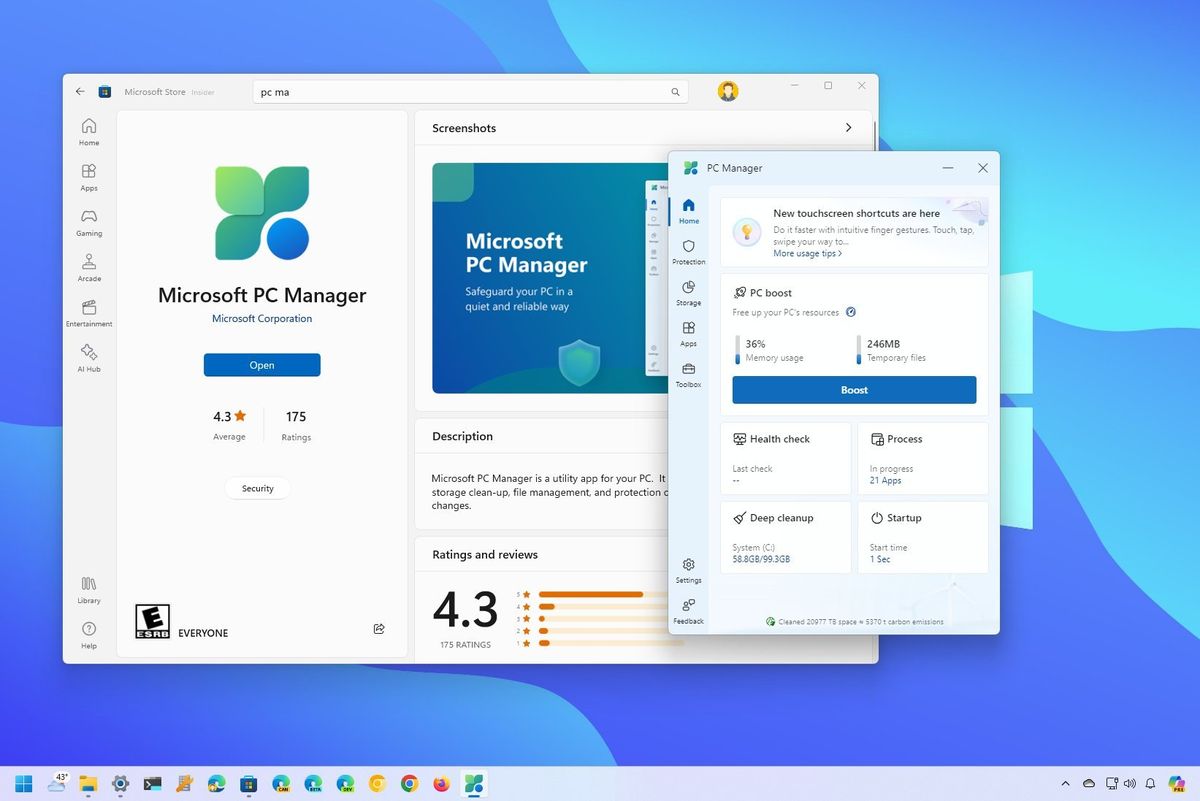
Microsoft has recently launched PC Manager, an application that unifies cleaning tools, storage management, system health checks, and threat protection into a single interface. This utility allows you to speed up the performance of your PC.: by deleting unnecessary files and optimizing the systemIt also allows you to manage storage, clearing out old updates, caches, and other leftovers.
It also includes functions for block pop-ups y check system health and scan for malware, integrating protection features with Windows Defender. The interface is very simple, with a side panel where all the options are grouped and quick access to data about the health and general status of the computer.
To use it, simply download it from the Microsoft Store (as soon as it's available for all users in Spain) and run it. It's compatible with both Windows 10 version 1809 and Windows 11.

Official tools to repair and maintain Windows 11
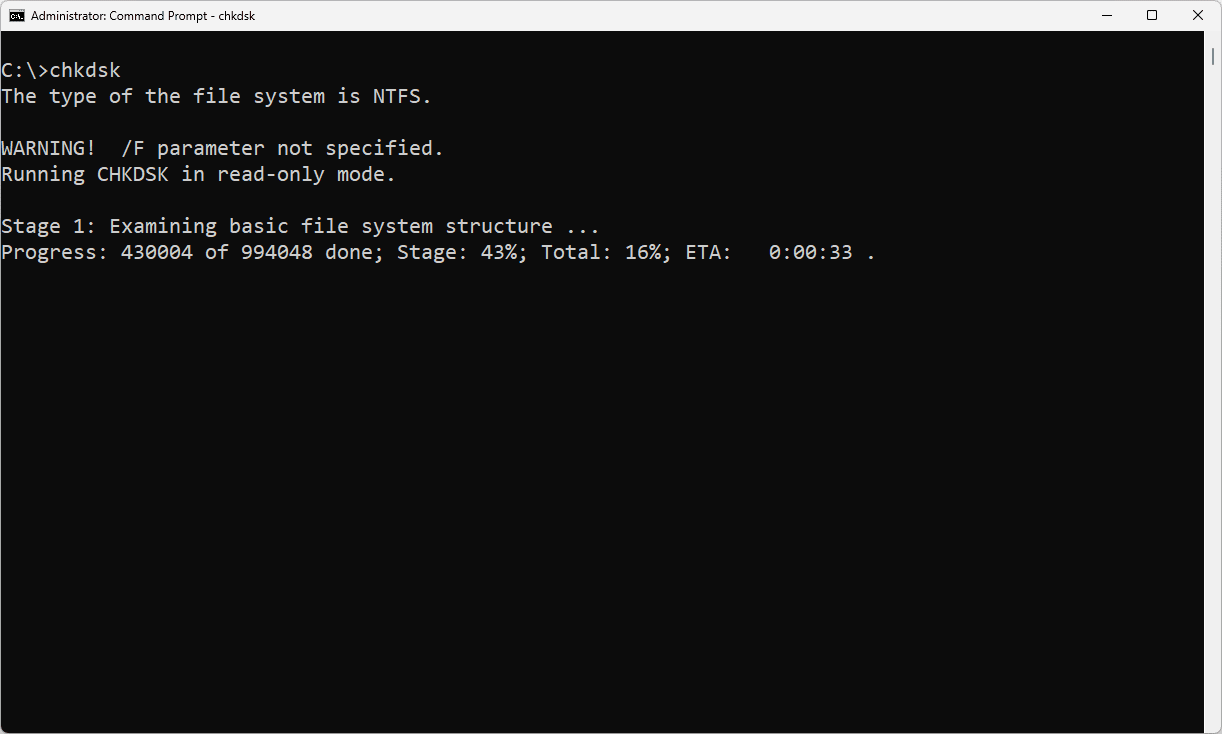
Beyond cleaning, there are tools that allow repair and fix deep problems related to system files, services, updates, and the Windows registry itself. The most notable are:
Command Prompt: SFC, DISM, and CHKDSK
El Symbol of the system allows you to run advanced commands to identify and resolve problems:
- SFC / SCANNOW: Finds and repairs corrupted system files.
- DISM: It has several options (ScanHealth, CheckHealth, RestoreHealth and StartComponentCleanup) that restore Windows images y solve system-related problems.
- CHKDSK: Scans and repairs the hard drive for physical or logical errors.
Windows Startup Repair
La Startup repair Helps troubleshoot serious problems when Windows won't boot properly. It is accessed through the recovery options, allowing restore operating system without having to reinstall it from scratch.
Windows troubleshooter
The system incorporates a utility for automatically detect and correct common problems (Network, Windows Update, Bluetooth, video playback and more), facilitating tasks that previously required manual intervention.
Microsoft Update Health Tools
This set of utilities, distributed as KB4023057, is intended to keep Windows Update running properlyIf your computer isn't receiving updates properly, you may want to check whether Microsoft Update Health Tools is installed and running.
Third-party tools: extra solutions and automation
There are multiple third-party utilities that take Windows 11 maintenance to the next level. Some stand out for their ease of use, others for their power or their ability to automate complex processes.
Reset Windows Update Tool
This tool was created to solve Windows Update problems, but has evolved into a comprehensive maintenance suite. Allows you to reset Windows Update components, delete temporary files, perform disk checks, restore network settings, and manage restore points.
Windows Maintenance Tool
Developed by the community and available for free on GitHub, automates the execution of common tasks using scriptsIts greatest strength is the grouping of useful diagnostic, repair, and cleanup commands, accessible from a simple, numbered menu-based interface. It's ideal for avoiding tedious menu navigation and performing quick repairs after a problematic update.
EASEUS Partition Master
One of the reference utilities for manage disk partitions and repair boot problemsIts interface is suitable for users of all levels and allows you to repair the MBR, change and manage partitions, resolve disk errors, and optimize boot. Highly recommended if you need to make changes to your hard drive structure or if your system won't boot properly.
FixWin for Windows
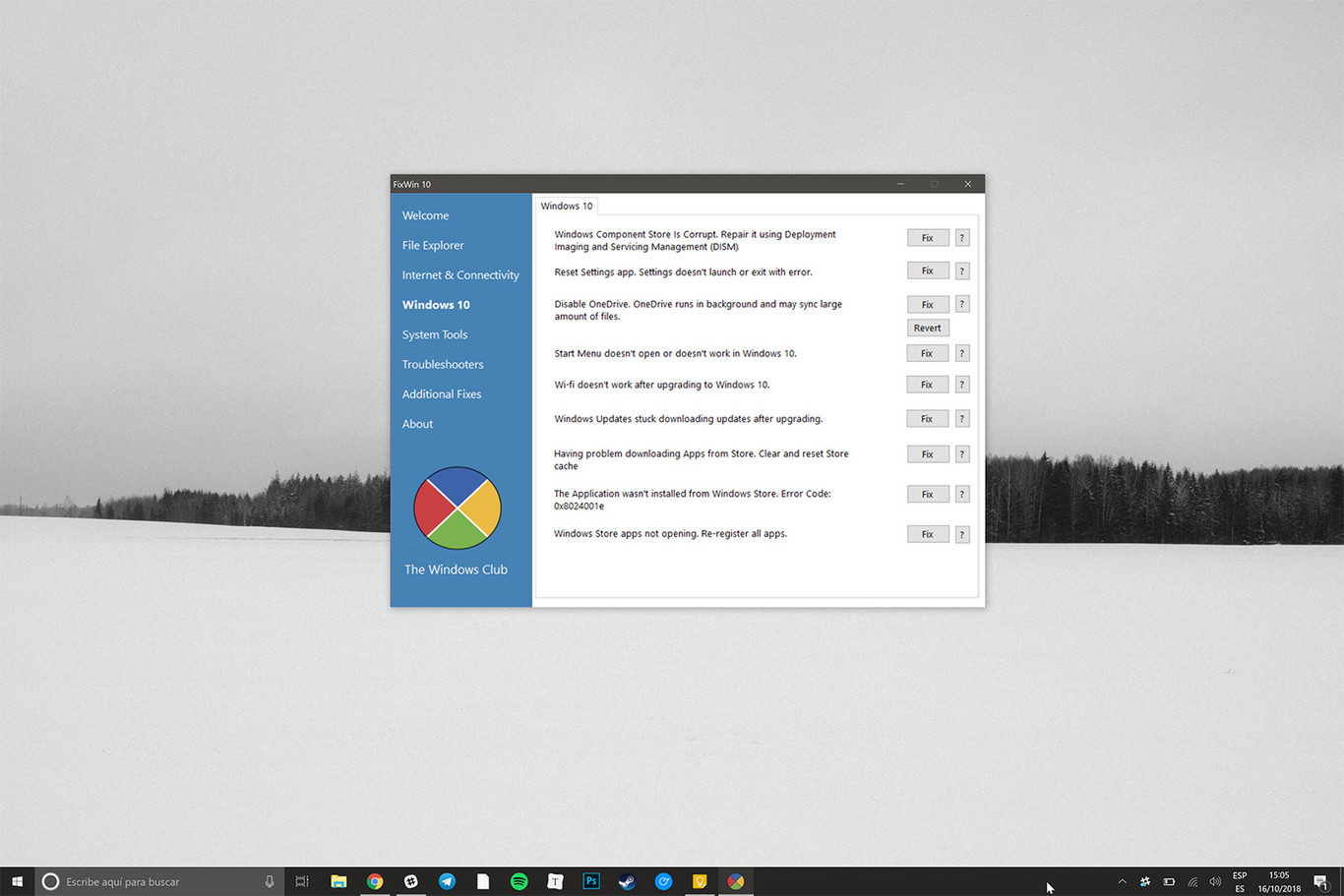
It is a portable and free tool that fixes many of the most common Windows 11 issues, both hardware and software-related. It divides its functions into six categories, ranging from File Explorer to system repair, networking, and issues with the app store.
Tweaking Windows Repair
Ideal for those looking for restore original Windows settings and troubleshoot common errors (permissions, firewall, updates, registry settings, etc.). Its advantage is the ability to make in-depth adjustments from a single application.
Ashampoo WinOptimizer
If you are looking for an all-in-one solution for clean, optimize, and protect privacyThis software stands out for its ease of use, task automation, and protection of sensitive data. Its cleaning system helps keep Windows agile and secure.
Ultimate Windows Tweaker
For those who want Fully customize your device and perform quick repairs. This free utility allows you to revert accidental changes and safely adjust multiple system parameters, adding a layer of protection against misconfiguration.