- A dedicated IP address is a unique, static address that bypasses CAPTCHAs and facilitates access to secure corporate networks.
- It is integrated into the Express Pro plan and available as an add-on for users of the Basic and Advanced levels.
- It can be deployed on up to 14 simultaneous devices, including Windows, macOS, Linux, Android, and iOS.
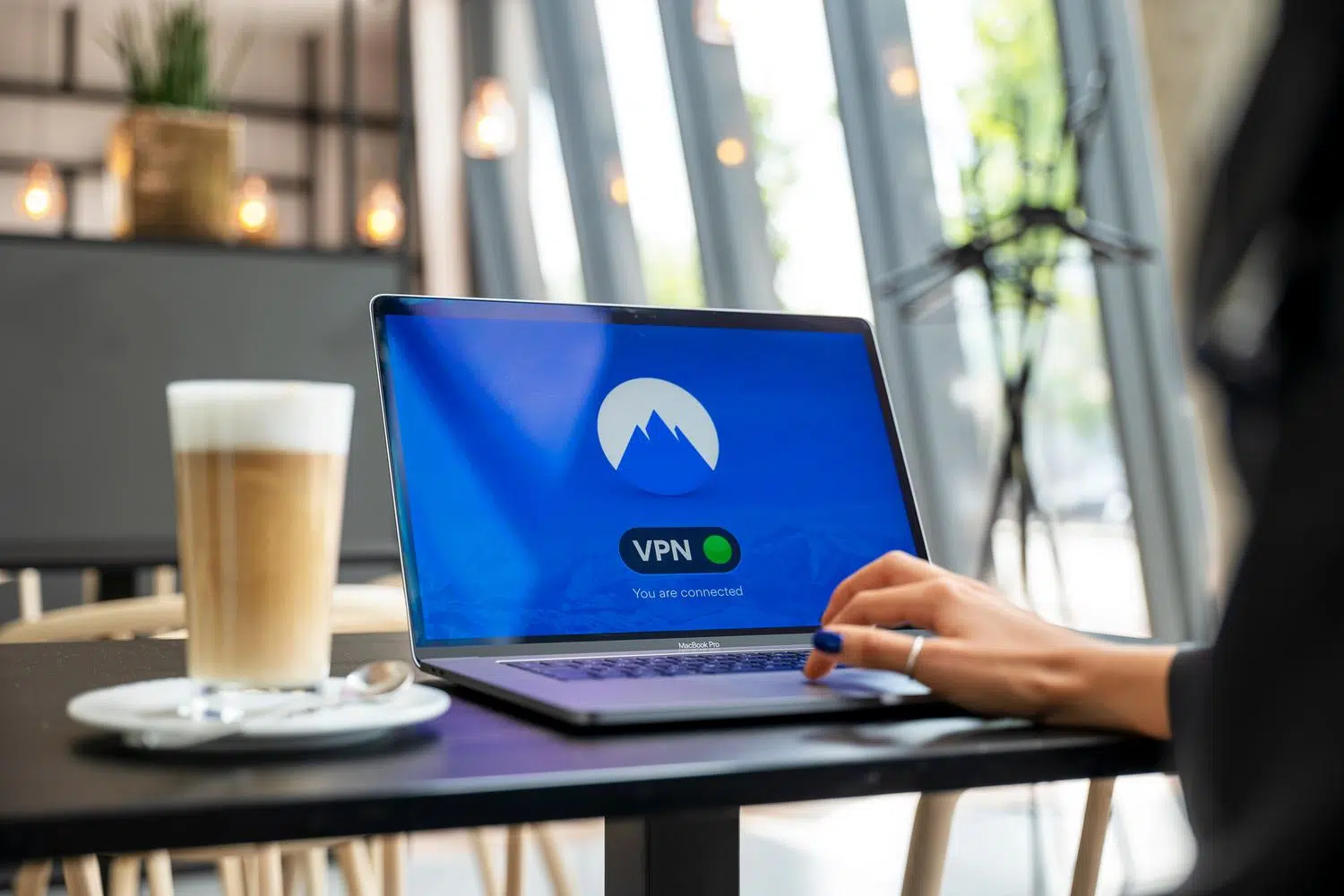
You've probably experienced this before: you try to log into your bank account or your company's website, and suddenly the system throws an endless CAPTCHA at you or blocks your access simply because you're using a VPN. This happens because shared IPs sometimes have "bad neighbors" that make websites suspicious of the connection. To solve this problem, ExpressVPN offers the option of having a dedicated IP address, which is essentially a digital ID card just for you.
Having a static IP address doesn't mean you're sacrificing your anonymity, as the service uses zero-knowledge encryption technologies and blind tokens so that not even the company itself can link that address to your real identity. It's the perfect blend of the stability of a fixed connection and the impenetrable privacy you seek when browsing the web without leaving a trace.
What exactly is a dedicated IP address and how does it differ from others?
Unlike dynamic or shared IP addresses, where hundreds of people use the same gateway, a dedicated IP address is exclusive to a single user . This eliminates IP reputation issues, making your browsing experience much smoother and free of annoying interruptions. Furthermore, because it's a static address , it doesn't change every time you connect, which is ideal for those who need their network administrator to add their IP address to a trusted whitelist.
Supported devices and platforms

The great thing about this system is that you're not limited to just one device. You can use your unique IP address with the ExpressVPN app for Windows, macOS, Linux, Android, and iOS , and even through browser extensions. The service allows you to maintain an active connection on up to 14 devices simultaneously , ensuring that everyone browses using the same encryption and the same fixed digital identity.
How to get your dedicated IP address
Depending on your current service status, the process for obtaining a dedicated IP address varies slightly. If you're a new user , you have two options: choose the Express Pro plan , where a dedicated IP address is included, or subscribe to the Basic or Advanced plans and select the paid add-on during the purchase process. Please note that if you purchase the subscription through Google Play or the Apple App Store, this dedicated IP address option will not be available.
If you're already a customer with a Basic or Advanced plan, you don't need to start from scratch. Simply go to the "My Subscription" section on the website, find the add-ons section, and add the dedicated IP address to your current plan. The cost will be prorated based on the remaining time on your subscription. Express Pro users already have a dedicated IP address assigned, but please note that only one dedicated IP address is allowed per account.
Step-by-step setup guide per device

On Android devices
Once you have the app installed and configured, go to the Add-ons tab and find the Dedicated IP widget, then tap "Settings." The next step is to choose the server location; remember that the location is fixed and you won't be able to change it later. After that, you'll need to create a unique access code . This code is vital: write it down twice and save it in a secure location like ExpressKeys, because if you lose it, ExpressVPN can't recover it and you'll lose access to your IP address.
On iOS devices (iPhone and iPad)
The process on Apple is very similar. Go to the Add-ons tab, tap Settings next to Dedicated IP, and select your preferred location. Just like on Android, create your passcode and confirm it. After completing the setup, it may take about 20 minutes to receive a notification that your IP address is active and ready to be selected from the server list.
Use on other devices (Desktop and Mobile)
If you've already set up your IP address on one device and want to use it on another, you don't have to repeat the entire process. Simply go to the Add-ons section, select Dedicated IP, and choose the "Unlock with passcode" option . Enter the code you previously saved, and that's it! The IP address will appear in your list of locations, allowing you to connect instantly.
Available locations and limitations
Currently, you can choose your dedicated IP address in a wide variety of countries. These include Spain (Madrid), the United States (with multiple cities such as New York, Los Angeles, and Miami), the United Kingdom, Germany, France, Japan, Australia, and Canada, among others. It's important to note that, due to high internet censorship in some countries, dedicated IP addresses may not function correctly in certain regions.
Troubleshooting and frequently asked questions

If you find you can't connect, the first thing to check is that the VPN protocol is configured in Lightway (either TCP or UDP ), as this is required for the dedicated IP address to work. If your connection status shows as "LOCKED ," it means the app has detected the IP address but needs you to enter the access code to validate it.
Regarding validity, your dedicated IP expires at the same time as your general subscription. However, be aware: if you go more than two months without connecting (or one month if you have a monthly plan), the IP could become inactive. As for refunds, you have the same 30-day money-back guarantee as the standard service if you're not satisfied.
This tool is the ultimate solution for those seeking a balance between professional stability and complete privacy , enabling seamless integration across multiple platforms and eliminating the access barriers imposed by the most restrictive websites. By properly managing your access code and choosing the right location, you transform your connection into a unique and secure gateway to the digital world.