- Error 0xc00007b is usually caused by corrupted dependencies or 32/64-bit mismatches.
- Repair .NET, Visual C++ and DirectX and check disk with CHKDSK.
- Test compatibility, elevated permissions, and registry tweaks if persists.
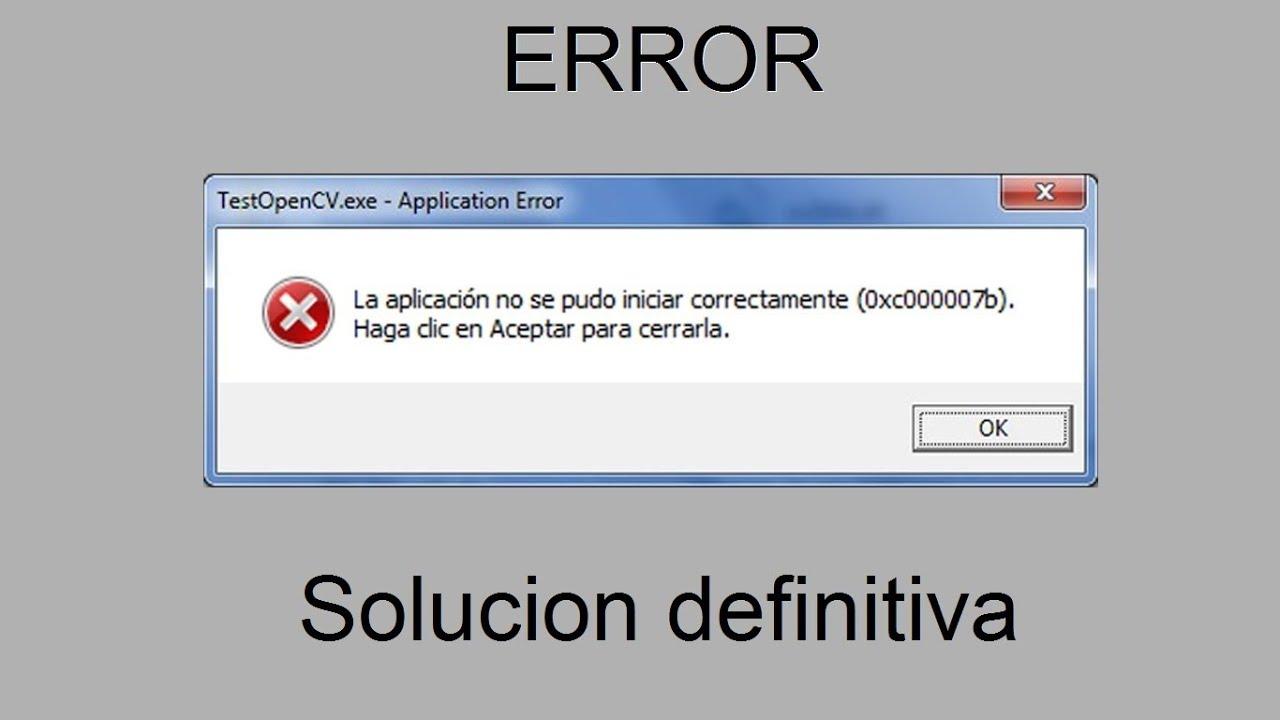
If you see the message “The application was unable to start correctly (0xc000007b)” when opening a program or game in Windows, don't worry: it's a common error with several possible causes and solutions that anyone can easily find. In this guide, I'll explain how to diagnose and fix error 0xc00007b in Windows 10 step by step, from the quickest to the most advanced solutions.
We've compiled and consolidated the most reliable solutions shared by Microsoft support and specialized technical guides. You'll find methods for resetting components, repairing critical libraries (.NET, Visual C++, and DirectX), checking the disk, adjusting compatibility, and more— all in one place and explained in detail.
What is error 0xc000007b and why does it appear?
This message usually appears when starting an app or game: “ The application was unable to start correctly (0xc00007b) ”. Sometimes you will see other similar codes (0x80070002, 0x80070005, 0x80070057, 0x80004005…) that point to related causes such as corrupted files, permissions, or broken dependencies.
The most common reasons are an incorrect mix of 32-bit and 64-bit versions between the system and the application, damaged runtime components (Microsoft Visual C++, .NET Framework, DirectX), corrupted system files , or even side effects of a Windows update.
In short: it's not a single problem but a set of typical scenarios. The key is to start small and gradually increase the difficulty, from quick fixes to specific repairs of the affected components.
Quick fixes you should try first
Before getting into more technical processes, it's worth trying a few simple steps that are often sufficient. They are quick, safe, and require no additional tools.
1) Restart your computer
It seems obvious, but it often resolves temporary issues with services and libraries. A restart clears transient states and can restore the stability needed for the app to start.
2) Run the application as administrator
The error may be due to insufficient permissions. Try running the executable with elevated privileges : right-click on the shortcut > Properties > Compatibility tab > check “Run this program as an administrator”, apply and accept.
3) Reinstall the application
If there are corrupted or missing program files, reinstalling is usually the easiest solution. First, uninstall from Control Panel > Programs and Features , restart if prompted, and then install the latest version of the program or game.
Advanced Windows Component Repairs
If the problem persists, a dependency is likely corrupted or outdated. The .NET Framework, Visual C++ packages, and DirectX are essential for many apps to function . Check out our Windows maintenance tools.
4) Repair or reinstall .NET Framework
Many apps based on .NET technologies rely on this framework. When .NET is not properly installed or updated, errors such as 0xc00007b can occur . In Windows 10, it cannot be uninstalled manually, but you can enable features and repair the issue.
- Open the search engine, type “Control Panel” and enter. Go to Programs and Features.
- Click on "Enable or disable Windows features".
- Brand ".NET Framework 3.5 (includes .NET 2.0 and 3.0)” and confirm with OK; Windows will download and install what is needed.
You can also download the latest version of .NET from the official Microsoft website. After installation or repair, restart your PC and check if the app now opens correctly.
5) Reinstall the Microsoft Visual C++ Redistributable Packages
These packages contain runtime libraries used by countless programs. If any of them are corrupted or incorrectly installed, the system may throw error code 0xc00007b . Proceed as follows:
- Open Control Panel > Programs and Features.
- Uninstall all items that begin with “Microsoft Visual C++…Redistributable".
- Download the latest redistributables (x86 and x64) for Visual Studio from Microsoft and install them. Reboot when finished to ensure they are registered correctly..
6) Reinstall/update DirectX with the web installer
If the problem occurs when launching games, the cause may be DirectX. Install the “DirectX End-User Runtime Web Installer” (dxwebsetup.exe) from Microsoft and run it to validate and install any missing files.
This method is common when game platforms don't provide details about the error but suspect DirectX. The wizard detects missing components and adds them automatically.
7) Run CHKDSK to check the disk
Physical or logical problems on the system drive can affect critical files. Use CHKDSK to check and repair sectors and file system errors.
- Search for “cmd”, right click on “Symbol of the system” and choose “Run as administrator".
- Email:
chkdsk c: /f /rand press Enter. Confirm with “Y” if it asks you to schedule it for the next reboot. - Restart your PC and let CHKDSK complete the process. Don't interrupt the scan and back up your important data. before using this tool.
This analysis can take some time, especially with "/r" because it checks for bad sectors. Patience helps rule out storage as the source of the problem.
8) Launch the app in compatibility mode
When the app is older, it may conflict with modern versions of Windows. Try compatibility mode and running it as administrator.
- On the shortcut or executable, right-click > Properties > Compatibility tab.
- Brand "Run this program in compatibility mode for” and choose an older version (for example, Windows 7).
- Also mark “Run this program as administrator”, Apply and Accept.
Try again. If the problem was a compatibility issue, the app should start normally.
9) Change the LoadAppInit_DLLs value in the Registry
Some environments load DLLs at process startup using this key. If it's incorrectly enabled, it can interfere with the app . Set the value to 0.
- Press Windows + R, type regedit and accept.
- Navigate to: HKEY_LOCAL_MACHINE \ SOFTWARE \ Microsoft \ Windows NT \ CurrentVersion \ Windows.
- In the right pane, double-click LoadAppInit_DLLs and set its value to 0. Accept and restart.
Before modifying the Registry, create a system restore point . An incorrect change can cause instability , so follow the steps carefully.
10) Update Windows
The updates include fixes for .NET, system components, and compatibility. Go to Settings > Update & Security > Windows Update and check for updates . Install them and restart.
In addition to new features, these updates fix dependencies and libraries that many applications need to function properly.
When the problem is architecture: 32-bit vs. 64-bit
If your Windows is 32-bit, you won't be able to run 64-bit applications. This mismatch is a common cause of error code 0xc00007b . Check your system architecture in Settings > System > About.
If you need 64-bit apps, consider upgrading your system to 64-bit. This process involves a clean installation of Windows, so you will lose data if you don't back it up beforehand.
First, create a backup of your important files. You can use any tool you prefer or third-party utilities (some guides mention options like MiniTool ShadowMaker for backups and cloning). The essential thing is that your data is safe.
Next, create a Windows 10 installation drive using the official tool and boot from the USB drive to install the 64-bit edition . Once finished, reinstall your programs and try the application that was failing again.
Other useful actions and particular cases
In addition to the solutions above, there are further steps that can make a difference in certain situations. I recommend reviewing them if you haven't yet resolved the issue.
Reinstall Windows VC Runtimes comprehensively
If you suspect the runtimes are severely corrupted, you can perform a thorough cleanup and reinstall them all. First, uninstall all VC++ Redistributables from Control Panel (Appwiz.cpl), restart, and clean the component store.
- Open PowerShell (Admin) or “Command Prompt (Admin)".
- Run:
Dism.exe /online /Cleanup-Image /StartComponentCleanupand wait for it to finish.
Next, reinstall the Visual C++ packages (x86 and x64) or a reliable all-in-one package. If you're using a bulk installer (with a .bat file), run it as administrator and wait for it to complete the installation of all components.
xinput1_3.dll file and why you should touch it with tweezers
Some guides suggest manually replacing xinput1_3.dll (usually located in C:\Windows\SysWOW64) if you suspect it's corrupt. The idea is to download it and copy it over the existing file , but this carries risks:
- Loading third-party DLLs may breaking dependencies or introducing untrusted files.
- The safest way to restore it is reinstalling DirectX with the official web installer, which installs the correct version for your system.
If you still decide to replace it manually, make a copy of the original and create a restore point. My recommendation is to prioritize the official path with dxwebsetup.exe.
Compatibility and Permissions: Try again with fine-tuning
Check that the executable file isn't blocked by the system (right-click > Properties > General tab > " Unblock " if it appears). Also, check that your antivirus software isn't preventing it from running during installation and the first boot.
Check the disk periodically
If CHKDSK found errors or bad sectors, consider a more thorough hardware diagnostic. A faulty disk can corrupt libraries and cause recurring 0xc00007b errors . Back up your data and consider replacing the disk. If you're detecting low disk space, see how to clear the low disk space warning before proceeding.
Create a restore point before major changes
Before modifying the Registry or uninstalling system components, create a System Restore point from Control Panel > System > System Protection. This will allow you to revert to a previous state if something goes wrong.
Quick questions and practical notes
Why does a different code sometimes appear? Because the root cause of the failure may be different (permissions, missing file, incorrect execution time), but the final symptom is similar: the app does not start.
Does updating Windows help even if everything is up to date? Yes, it often updates .NET and internal dependencies. Even a cumulative update can fix libraries your app needs.
What about game launchers? In some cases, the launcher itself only provides the generic code. Reinstalling DirectX using dxwebsetup.exe usually resolves missing components.
What if nothing works? Repeat the critical steps (Visual C++, DirectX, .NET) with restarts in between and check the 32/64-bit architecture. If the problem persists, an in-place repair of Windows or a clean installation may be the solution.
If you've followed this entire process, you'll have covered basic restarts, running as administrator, reinstalling the app, repairing .NET, reinstalling Visual C++ and DirectX, disk verification, compatibility and registry adjustments , and reviewing the system architecture. With this approach, the vast majority of 0xc00007b errors are resolved without the need for more drastic measures.
