- VLC includes hidden tools for free video editing: filters, cropping, watermarking, and audio/image correction.
- The player allows you to convert formats, rip DVDs and Blu-rays, record your desktop or webcam, and manage podcasts and online radio.
- It also plays YouTube videos, incomplete or compressed files, and offers local network streaming and remote control via a web browser.
- Keyboard shortcuts, bookmarks, and advanced subtitle management make VLC a complete all-in-one multimedia center.
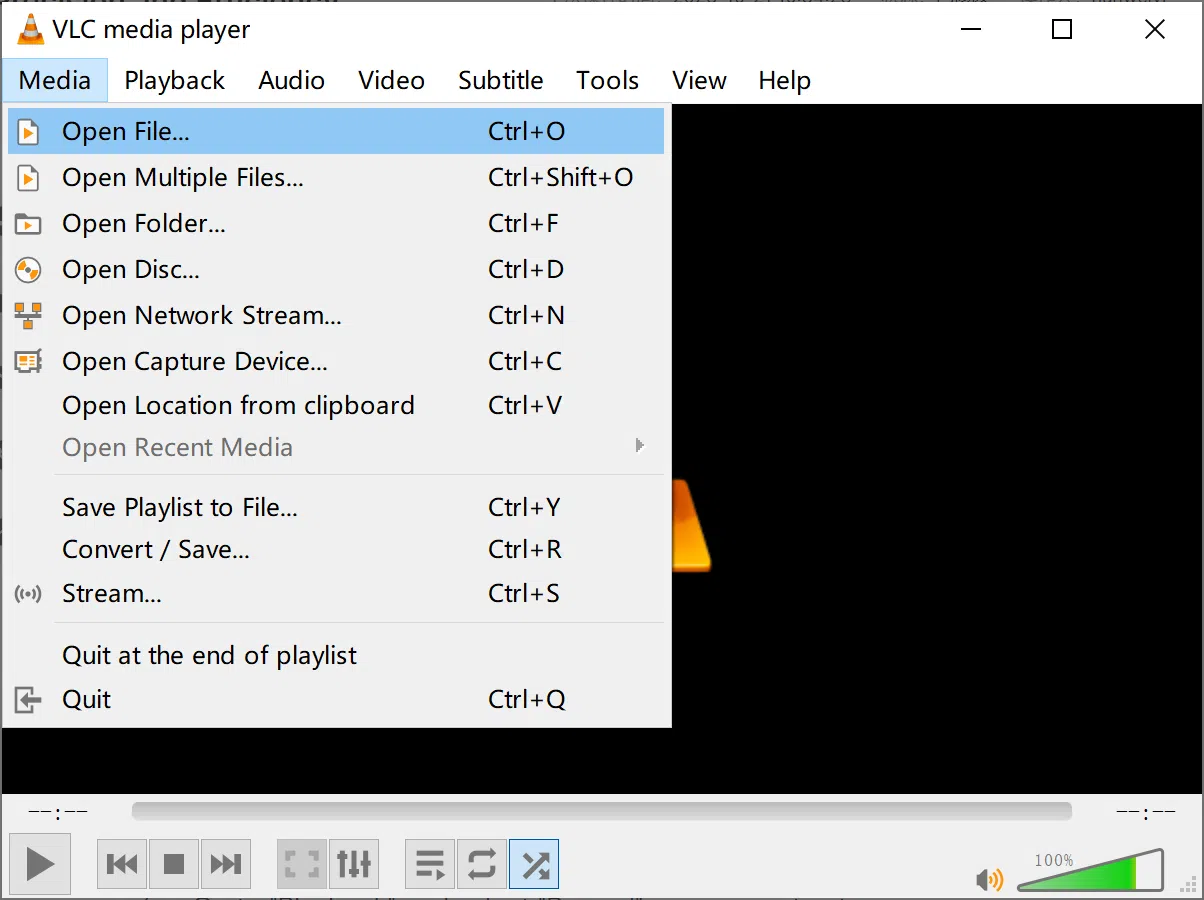
If you use your computer daily, you probably already have VLC Media Player installed and use it only to quickly open videos and music . The interesting thing is that, behind its simple appearance, VLC is almost a multimedia Swiss Army knife capable of doing things many users can't even imagine.
Beyond playing almost any format, VLC hides a host of features perfect for free video editing : trimming clips, adding watermarks, color correction, converting files, screen recording, ripping DVDs and Blu-rays, managing podcasts, playing and "hunting" YouTube videos, and much more. All without paying for licenses, without ads, and without having to install half a dozen additional programs.
VLC as a free mini video editor: much more than a player
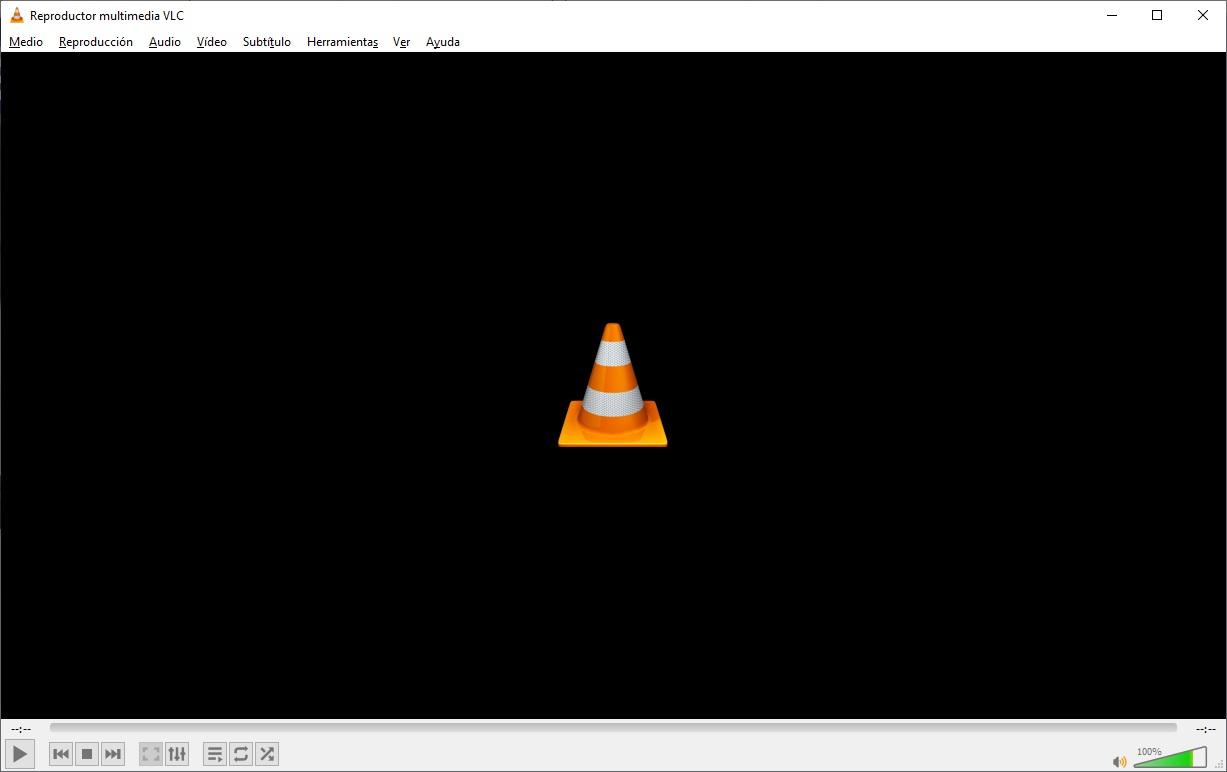
Most people stick to the basics: pressing play and little else, but VLC integrates several editing tools that cover the essentials for polishing your videos without getting into complex professional programs.
With just a few clicks you can adjust the brightness, contrast, saturation, sharpness or color of your recordings, correct out-of-sync audio, trim specific parts of a video and even set them as a moving desktop background if you fancy something a bit more geeky.
Furthermore, thanks to its open-source and cross-platform nature, everything you're about to see works on Windows, macOS, and Linux , and many things also work on Android or iOS, without having to struggle with strange codecs.
Audio and video effects: fix, enhance, and customize your clips
One of the most powerful, yet often overlooked, features is VLC's "Effects and Filters" panel for audio and video editing . It's located in the Tools menu and functions as a small, real-time editing panel.
In the video tab, you can adjust parameters like brightness, contrast, gamma, and saturation —ideal for rescuing dark, overexposed, or dull-colored recordings. Everything is applied live to the playback, so you'll see instantly if you're happy with the result.
You also have controls to add sharpness, crop the image, rotate the video, or change the perspective , which is useful if you recorded with your phone tilted or if you want to frame a specific area of the scene.
In the audio section, you have a graphic equalizer with several preset modes (rock, jazz, pop, etc.) and manual controls, very practical for improving flat dialogues or music with too much bass.
Finally, in the synchronization tab, you have the option to adjust the offset between image, audio, and subtitles . If the sound arrives before or after what you see on screen, you can correct it precisely without having to edit the original file.
Trim video clips in VLC, recording only what you want
VLC doesn't have a typical "timeline" like a professional editor, but it allows you to trim videos by saving only the parts you want using its recording function.
The trick is to open the video, skip to the point you want to save, and activate the recording option while it plays . When you reach the end of that segment, stop the recording, and VLC will create a new file with just that fragment.
This method is perfect for extracting short clips from long videos without installing other software , for example to keep only a specific moment from a movie, a highlight from a gameplay video, or the key part of a tutorial.
If you need to cut multiple pieces from the same font, you can repeat the process as many times as necessary . You'll end up with several separate files, each with its own fragment, completely independent of the original file.
For very advanced work you might want to switch to a dedicated editor, but for quick cuts, VLC is a free, lightweight and surprisingly accurate solution if you use the progress bar and playback controls.
Add a watermark or permanent text to your videos
If you share videos on social media, you'll want to be able to add a logo or a small watermark to personalize your content . VLC can do this without the need for more complex editing software.
From Tools > Effects and Filters, in the video effects tab, you'll find the overlay section, where you can insert a PNG logo or add custom text . You can choose its position and transparency level so it doesn't overpower the image.
The watermark is applied while VLC plays the file, so if you combine this with the recording function to export the playing video , you'll get a final clip with that logo or text permanently embedded in every frame.
It's an ideal solution for sellers, content creators, or anyone who shares videos with customers and wants to always have a small stamp with their name or brand on hand.
Take screenshots of a video instantly
Another useful feature, especially if you create tutorials or need still images, is the ability to capture frames with a keyboard shortcut . On Windows and Linux, this is done with Shift+S, and on macOS, it's usually CMD+ALT+S.
By pressing the combination, VLC generates an image of the exact frame seen on the screen and automatically saves it in the folder configured for snapshots (by default it is usually Images or the user folder, depending on the system).
This is great for creating thumbnails, illustrating articles, or saving specific moments from a movie without having to resort to external editors or manual screen cropping.
Use a video as an animated wallpaper
If you fancy customizing your desktop, VLC lets you set any video as a live wallpaper . It's more of a novelty than a professional tool, but it works surprisingly well.
Configure the video output to DirectX mode (or the equivalent for your system), save the changes, and restart VLC. The next time you play a video, you can activate it as an animated background from the video menu , replacing the typical static desktop background.
It's not the most recommended option for laptops with limited battery life or underpowered computers, but as a striking visual trick or to give your PC a visually appealing background , it can look spectacular.
Record your computer screen as if it were a screen capture device
VLC also acts as a simple screen recorder, ideal for explaining to someone else how to do something on the PC or showing a technical problem without complicating things with heavier programs.
From the capture device's opening menu, you can select desktop or screen mode and set the recording frame rate . For explanations and normal use, 15 fps is usually sufficient; if you're showing something with more movement, 30 fps will look much smoother.
Next, you choose the output profile (for example, MP4) and the destination file, and VLC will start recording everything that happens on your desktop . When you're finished, you stop playback and you'll have a video ready to share.
It doesn't reach the level of professional game capture tools, but for quick and free screencasts it works perfectly on Windows, macOS or Linux.
Record from your webcam: simple video without extra software
If your webcam didn't come with a decent recording program or you simply don't want to install anything else, VLC can capture video and audio directly from the webcam and microphone.
In the capture device menu, choose the appropriate mode (usually DirectShow on Windows) and select your camera and audio source . Then you can adjust parameters such as resolution, frames per second, or, if you prefer, let the webcam software handle these settings.
You have two options: have VLC play back live what the camera captures and manually record fragments , or directly launch a conversion/save so that everything you capture goes into a continuous file.
It's a quick way to record video messages, short presentations, or social media clips without going through more comprehensive, but also more cumbersome, solutions.
Convert video and audio files without installing converters
Another little-known gem: VLC includes a format converter for audio and video that, while not replacing very advanced tools, solves most everyday needs.
From the conversion/save menu, you can add one or more files and choose the output profile (MP4, MP3, OGG, etc.) and the desired codec . For further refinement, you can modify options such as resolution, bitrate, or audio and video codecs.
The system also applies to physical discs: once you select a DVD, CD or Blu-ray, you can choose which video and audio tracks you want to "dump" to a file , creating a digital copy to watch without always depending on the disc.
Thanks to this, VLC effectively becomes a free file converter and ripper , saving you from installing yet another program just to change formats.
Rip DVDs, CDs and Blu-rays to create digital copies
If you still have a good collection of physical discs, it's great that VLC can extract the content from video DVDs, music discs, or even Blu-ray discs , leaving a digital copy on your hard drive.
Simply go to the disc section in the conversion tool, specify the media type (DVD, CD, Blu-ray), and select the tracks and chapters you want to save. Then set the output format and start the conversion.
It's ideal for taking movies and music on your laptop, mobile phone or tablet without having to carry the case around and without always needing an optical drive on hand.
Play and “download” YouTube videos with VLC
VLC can also play online content, and one of its star uses is loading YouTube videos from their URL directly into the player , without opening the browser.
Simply copy the video URL, open the network location option in VLC, and paste the link there to start playback . This allows you to use VLC's filters, equalizer, and other features on the streaming content.
If you want to save the file, you can go to the codec information and copy the direct video stream address that appears in the location field. Pasting it into your browser will allow you to save it as a local video file directly from the browser.
It's not as straightforward as using a dedicated download website, but the whole process is done with tools you already have installed, and with the added benefit of controlling the playback flow yourself.
Play incomplete and compressed files without decompressing them
Another very practical feature is that VLC can open video files even if they are incomplete or still inside a ZIP, RAR, or ISO archive . This saves you a lot of time on quick checks.
If you are downloading a large file and the download has already progressed sufficiently (approximately 10%), you can open it directly with VLC to check if the content is correct without waiting for the entire process to finish.
Similarly, if a video is compressed, simply drag the compressed file to the player and VLC will attempt to play it internally, without manual decompression and without taking up extra space with temporary copies.
Playlists, podcasts and online radio
Besides video, VLC is a superb manager for podcasts and online radio stations . It might not be the first thing that comes to mind when you hear "VLC," but the feature is there and it works really well.
From the playlist view, in the Internet section, you can add the RSS feed URLs of your favorite podcasts . Once added, you'll see a list of available episodes and can play them just like any local file.
Something similar happens with radio stations: if you know the address of the streaming station, simply open its network URL and save it to your media library to always have it on hand in your playlist.
In this way, VLC also becomes your online audio hub , compatible with podcasts, radio and other streaming streams, all from the same interface where you watch your videos.
If you have more than one device at home, you can use VLC as a streaming server on your local network . This means that one computer acts as the "server" for the content and another as the "client" that plays it remotely.
Using the stream option, you choose which file or playlist you want to share, configure the broadcast method, and other devices on the network can connect to view that content , as long as they use VLC or another compatible client.
In addition, VLC offers a web interface that, once activated, allows you to control the player from the browser on your mobile phone, tablet, or another computer . Simply enable the web interface, set a password, and allow access through your firewall.
Then, by entering the corresponding local address (for example, http://localhost:8080/ on the computer itself) you can pause, skip, change tracks or load new files without being physically in front of the main computer.
Bookmarks, advanced subtitles, and visual curiosities
VLC is also full of small details that, if you know them, make life much easier when viewing and editing content . One of them is the custom bookmarking system.
While watching a video, you can open the bookmark manager and create reference points at specific moments . Later, by double-clicking on that bookmark, you'll jump directly to that scene—perfect for reviewing key parts of a tutorial or your favorite moments from a movie.
Subtitle handling is also very polished: you can add SRT files manually, drag them onto the player, or simply put them in the same folder with the same name as the video so that VLC loads them automatically.
From the keyboard you can advance or delay the subtitles in real time , activate or deactivate them, change tracks when there are several and adjust the timing until it is synchronized with what you see.
And if you want something more extravagant, VLC includes filters like ASCII-art output, which displays videos with text characters instead of pixels , or visual tricks like capturing your own screen and playing it back within the player, creating that "Inception" effect of infinite windows.
Keyboard shortcuts for editing and managing VLC at full speed
All of the above becomes much easier if you learn a few basic keyboard shortcuts . You don't need to memorize them all, just the ones you use most often.
For example, you can enter and exit full screen, pause, advance frame by frame, turn subtitles on or off, change the audio track, raise or lower the volume, or even change the playback speed with very simple combinations.
There are also shortcuts to quickly open files, network media, physical disks, the effects and filters window , the bookmarks manager, or the playlist, saving you a good number of clicks once you get used to it.
All these features make VLC much more than just a quick and easy media player . If you explore its menus and try out its hidden tools, you'll see that you can edit, convert, capture, rip, and manage almost all your multimedia content without spending a penny or cluttering your computer with redundant programs.