- Difference between the router's global SSID and the Windows 11 local network profile.
- Using the Registry Editor to modify the system's ProfileName key.
- Exclusive customization for the local team without affecting other connected devices.

If you've noticed that your computer's Wi-Fi network name is a bit generic, or you simply want to get more organized, you're probably looking for a way to change it. The first thing to understand is that there's a fundamental difference between the network's SSID (the name broadcast by your router and seen by all devices) and the local network profile that Windows 11 saves on your computer.
Many users mistakenly believe that accessing their router's settings is the only way to change the network profile name in Windows Control Panel. However, if you need a different name to appear on your network profile without affecting other mobile devices or laptops in your home, there are specific tricks. Below, we'll explain how to customize your network profile name in Windows 11 without pressing a single key on your router.
The problem of name management in Windows 11
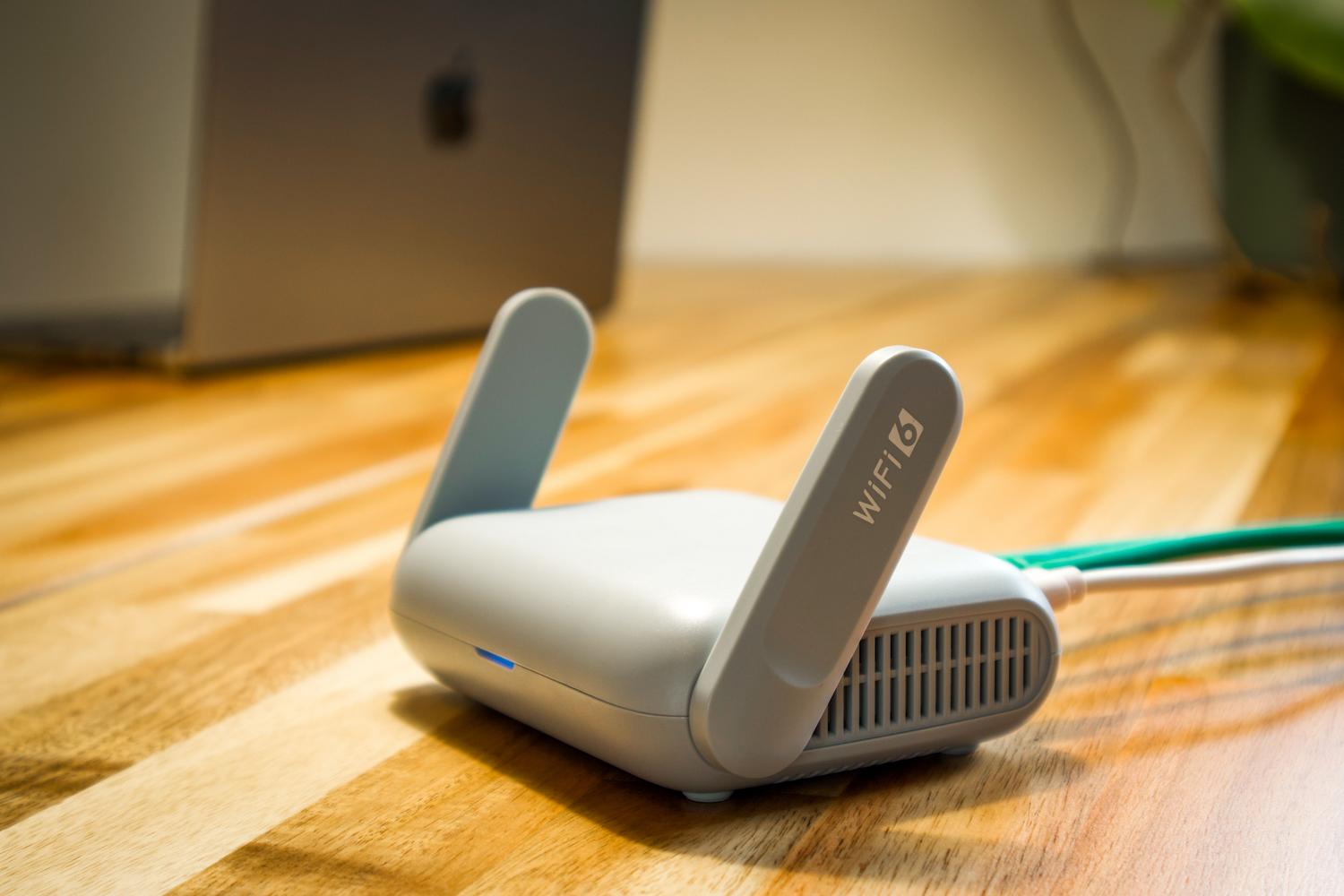
Unlike previous versions, Microsoft has simplified the network interface, leaving many of us a bit confused. To change a network profile name without modifying the router, we can't use the standard Settings menu, as it only displays the SSID name. To do this, we need to use the Windows Registry Editor (regedit), where the system stores connection identities.
Detailed steps to rename your network profile

To complete this process, you must follow a very specific path within the system to avoid breaking anything. It's essential that you're comfortable navigating the registry folders, as they are the core of your PC's configuration .
- Press Windows key + R, type regedit and press Enter to open the editor.
- Navigate through the folders by following this path:
HKEY_LOCAL_MACHINE\SOFTWARE\Microsoft\Windows NT\CurrentVersion\NetworkList\Profiles. - Inside the "Profiles" folder, you'll see several subfolders with long, strange names (unique identifiers). You must click on each one until you find the value called ProfileName that matches your current Wi-Fi name.
- Once located, double-click on ProfileName and type the new name you want to appear in your system.
- Accept the changes and restart your computer or disconnect and reconnect to the network for the change to take effect.
This method is completely safe as long as you don't modify any other registry keys. The best part is that it only affects your computer , so the router will continue broadcasting with its original name, and no one else in your home will notice the change.
Alternatives and important considerations
If you're a little intimidated by the registry, you should know that there isn't a "Change Name" button in the Windows 11 graphical interface for local profiles. However, it's important to understand that if you want to change the password or the global name, you would need to access the router's gateway using its administrative IP address.
Remember that if you format your computer or reinstall the operating system, these changes will be lost, since the network profile is created again based on the information sent by the router at the time of the initial connection.
Keeping an organized record of your connections by editing the registry allows you to quickly identify which network you are connected to, especially if you have several repeaters or similar networks in your area, thus achieving a much cleaner management of your digital environment without altering the global configuration of your network hardware.