- Memory integrity is a virtualization-based security feature that protects the system kernel against malicious code.
- Its operation depends directly on hardware virtualization being enabled in the computer's BIOS.
- There are several methods to check its status, from the Windows Security graphical interface to advanced tools such as msinfo32 or WMI.

You've probably come across the term " kernel isolation" while navigating your computer's security settings. It's simply an extra layer of protection that uses virtualization to create a secure environment, preventing malicious software from infiltrating the operating system kernel, which is essentially where all of Windows' functionality is built.
This technology, technically called HVCI (Hypervisor-Protected Code Integrity) , is crucial for preventing dangerous attacks like the infamous WannaCry. By moving trust decisions from the kernel to an isolated space, it reduces the likelihood that corrupted or vulnerable drivers will open the door to ransomware or Trojans that want to take complete control of your machine.
Quick ways to check the protection status

If you want to know if your kernel is protected without any hassle, the easiest way is to go to Windows Security . Once there, navigate to the Device Security section and click on Kernel Isolation Details. You'll see a switch that clearly indicates whether memory integrity is enabled or disabled.
For those who prefer a more technical approach or need a detailed report, running the msinfo32.exe command is the best option. By opening System Information and scrolling to the bottom of the System Summary, you can read the status of Virtualization-Based Security (VBS) . If it says it's running, you're on the right track; if it appears as enabled but not running, there's likely a configuration issue.
If you're an advanced user or manage multiple computers, you can use the Win32_DeviceGuard WMI class via PowerShell. Running the Get-CimInstance command will give you accurate information about available security properties , the status of the integrity policy, and whether the memory integrity service is actually running on the hardware.
Technical requirements and activation in the BIOS
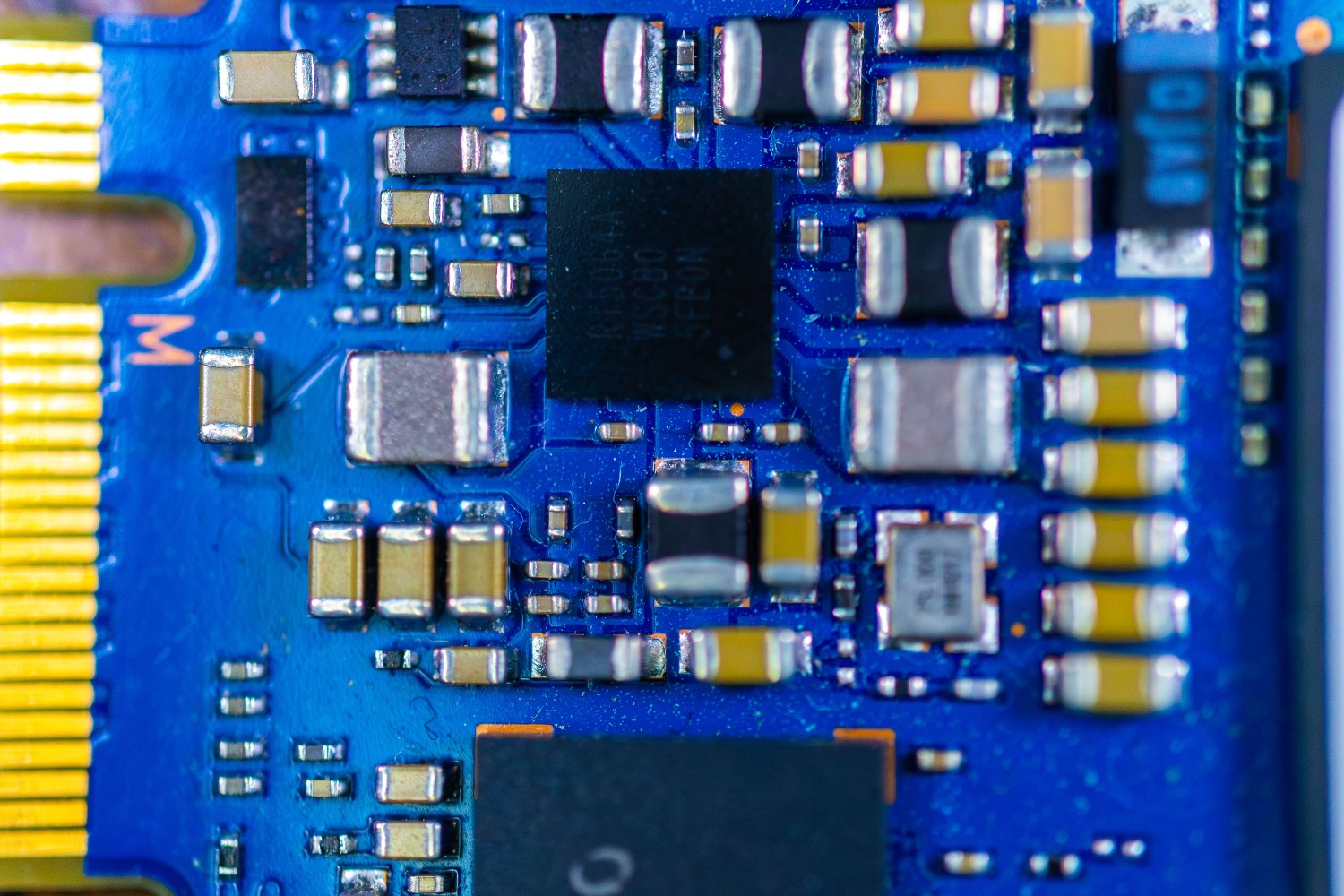
Simply clicking the "Activate" button in Windows isn't enough; the hardware has to be up to the task. For everything to work, you need a modern processor (like an 8th-generation Intel or an AMD Zen 2 or later) and at least 8 GB of RAM. Most importantly, hardware virtualization must be enabled in the BIOS/UEFI, as this is the foundation upon which all this isolation is built.
To enable this option, you must restart your PC and enter the BIOS (usually by pressing F2, F10, or Delete). On Intel systems, look for options such as Intel Virtualization Technology (VT-x) and the Execute Disable Bit. If you have an AMD processor, the key is to enable SVM Mode (Secure Virtual Machine) and NX Mode. Once the changes are saved, Windows should be able to start the hypervisor correctly.
Conflict resolution and incompatible drivers

It's very common that when you try to activate the feature, the switch appears grayed out or Windows displays a warning about incompatible drivers . This happens because some older drivers don't comply with HVCI security standards and could cause a blue screen of death if forced. The solution is to click on "Check for incompatible drivers" to identify the culprit.
Once you've identified the problematic driver, the best course of action is to update it using Device Manager or by downloading the latest version from the manufacturer's website. If the driver belongs to a program you no longer use, the best option is to uninstall the software completely. In extreme cases, if the system becomes unstable, you can use Command Prompt in the Recovery Environment to disable the feature via the registry.
Advanced management through the Windows Registry
When the graphical interface fails or you need to deploy the configuration across an enterprise, the Registry Editor is the ultimate tool. By navigating to the path HKLM\\SYSTEM\\CurrentControlSet\\Control\\DeviceGuard\\Scenarios\\HypervisorEnforcedCodeIntegrity, you can change the value of the Enabled key from 0 to 1 to force activation.
Security can also be managed through Enterprise Application Control , using the dedicated wizard or the PowerShell cmdlet Set-HVCIOptions. For those using Hyper-V virtual machines, it is vital that the VM is Generation 2 and that the host has nested virtualization enabled for memory integrity to function within the guest as well.
Ensuring active memory integrity provides a robust barrier against malware, though it requires compatible hardware and up-to-date drivers. From a simple check in security settings to deep tweaks in the BIOS and registry, ensuring kernel isolation is operational is a key step in maintaining the stability and security of any Windows 11 system.
FAQ
Where can I check if memory integrity is enabled in Windows 11?
You can check this by going into Windows Security, navigating to Device Security, and opening the Kernel Isolation Details.
Why does the memory integrity switch appear grayed out?
This usually happens when there are incompatible device drivers or when hardware virtualization is not enabled in the BIOS.
What is security-based virtualization (VBS)?
It is a function that uses the Windows hypervisor to create an isolated virtual environment that protects the operating system kernel from attacks.
How can I fix a blue screen after enabling memory integrity?
You need to access the Windows Recovery Environment and use the Command Prompt to change the value of the Enabled key to 0 in the registry.
Which processors are compatible with the HVCI function?
It is compatible with 8th generation Intel processors or later, AMD Zen 2 or later, and Qualcomm Snapdragon 8180 or higher.
Is it possible to enable memory integrity using commands?
Yes, it can be done by modifying Windows Registry keys using the reg add command or by using PowerShell with the Win32_DeviceGuard class.
What to do if msinfo32 indicates that the VBS is enabled but not running?
It is necessary to verify that virtualization is enabled in the BIOS and that the Windows Hypervisor Platform is installed on the system.
