- Rufus allows you to bypass hardware restrictions such as TPM 2.0, Secure Boot, and RAM requirements.
- Version 4.6 of the tool is essential for installing the 24H2 update on older CPUs without SSE4.2 instructions.
- Installing the system on unsupported hardware may lead to stability risks, lack of drivers, and absence of automatic updates.
Having a computer that's a bit outdated doesn't necessarily mean you have to give up on the latest technology. Many of us face the dilemma of wanting to try out the newest features of Windows 11, but when trying to install it, we run into the wall of Microsoft's official requirements , such as the dreaded TPM 2.0 chip or the latest generation processors.
The good news is that there are very solid alternatives for giving that computer a second life. Although there are countless contradictory tutorials and some outdated methods, the most reliable and secure option today is to use Rufus, a free and lightweight tool that allows us to prepare a custom installation medium to bypass those restrictions that are blocking our path.

What is Rufus and why is it key to this process?
For those unfamiliar with it, Rufus is a tiny program, barely a couple of megabytes in size, designed primarily for burning ISO images to USB drives. However, its true magic lies in the fact that it doesn't just copy files; it allows you to customize the Windows installation automatically. Thanks to its latest versions, especially 4.6, the software includes a feature called Registry Tweak that modifies the registry during the USB creation process.
This is vital now that the 24H2 update has arrived. Microsoft has tightened the rules, and now, for example, it's mandatory for the processor to support SSE4.2 (POPCNT) instructions . If your CPU is older than 2011, it most likely doesn't have them, which would force the system to emulate them in software, slowing down the PC by between 30% and 70%. However, Rufus has implemented a specific "setup.exe" container to try to circumvent these limitations and allow the system to boot even on very old hardware.
Detailed steps to prepare your installation USB

The process is quite simple and doesn't require you to be a computer expert. First, download the latest version of Rufus from its official website or GitHub; you can use the installable version or the portable version if you don't want to leave any trace on your hard drive. Once you open the program, connect your USB drive (which must be empty, as all data will be erased ) and select the official Windows 11 ISO image you downloaded from Microsoft.

Clicking the "Get Started" button will open a customization window where you can select the necessary options. The most important is to enable the option to remove the TPM 2.0 and Secure Boot requirements . It's also highly recommended to check the box to bypass the online Microsoft account requirement, allowing you to create a local account from the start and skip the 4GB RAM check if your computer is truly underpowered.
Once everything is configured, Rufus will begin working and you'll see a progress bar. When the program indicates that the device is "Ready," you'll have a "released" installation USB drive . All that remains is to restart your PC, boot from the USB drive (adjusting the partition scheme to GPT for UEFI or MBR for older BIOS systems), and follow the installation wizard's steps as if your PC were fully compatible.
Risks and considerations: it's not all sunshine and rainbows
Although technically possible, forcing the installation of Windows 11 on unsupported hardware violates Microsoft's license terms, and this comes with certain risks you should be aware of. The most obvious risk is the lack of automatic security updates ; you may have to manually download new ISOs every time there's a major change to prevent the system from becoming outdated.
Additionally, you may experience general system instability or driver issues, as manufacturers don't design Windows 11 drivers for CPUs that are ten years old. There's also a possibility that future cumulative updates will re-enable requirements checking, leaving you with a frozen or unstable system . Of course, since it's not an official installation, Microsoft won't provide any technical support if something goes wrong.

Alternatives if you prefer not to take risks
If after reading about the risks you feel it's too dangerous, there are other options. A very sensible choice is to stay on Windows 10 , as it will continue to have official support until October 2025 (with possible extensions for businesses), giving you time to save up for a new PC. If you're looking for something lighter, there are modified builds like Tiny11 , which remove telemetry and lower requirements, although they do require relying on third parties.
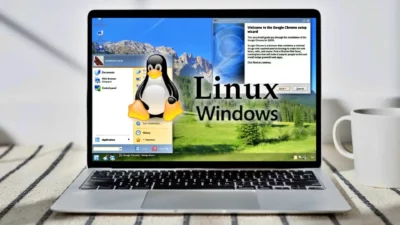
For the more adventurous or those who simply need to browse and write, migrating to Linux is the best decision. Distributions like Linux Mint, Zorin OS, or Ubuntu are free, consume very few resources, and work wonderfully on older hardware, restoring speed to computers that Windows 11 could eventually overwhelm.
Installing Windows 11 on an older computer using Rufus is a brilliant technical solution that allows us to bypass TPM, Secure Boot, and CPU restrictions like SSE4.2, even enabling the use of the 24H2 version. While the process is simple and allows for the creation of local accounts without an internet connection, it's crucial to understand that we sacrifice official stability, driver support, and the security of automatic updates, leaving staying on Windows 10 or switching to a Linux distribution as viable alternatives.