- Check compatibility with case, socket and connectors before purchasing and installing the AIO liquid cooler.
- Plan the radiator position and airflow to protect the pump and optimize temperatures.
- Follow a logical installation order: backplate, radiator, fans, block, and cabling.
- Adjust BIOS and perform regular maintenance of dust and thermal paste to extend the life of the system.
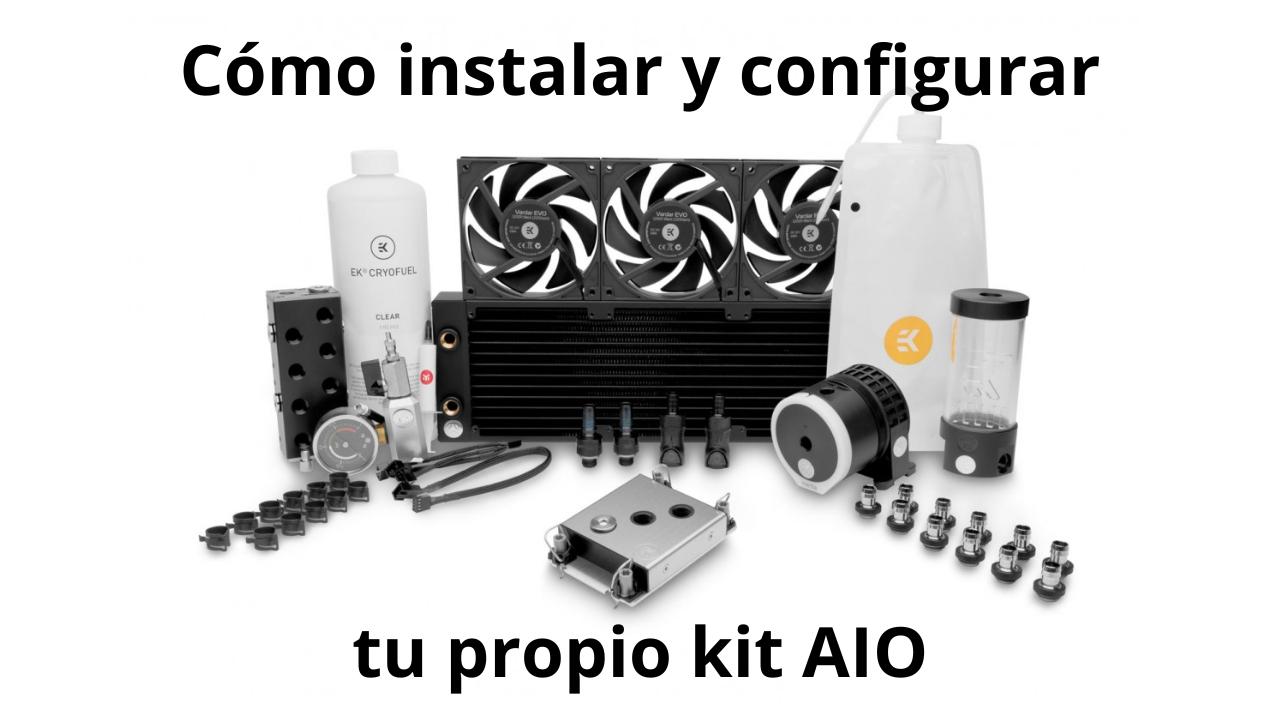
If you've never installed an AIO liquid cooler before, it's normal to think that when you open the box there are too many parts, tubes, and cables for it to be easy. The reality is that All-in-One kits are designed precisely so that anyone can install them with a little patience, a screwdriver, and by following a logical order.
In the following lines, you'll find a comprehensive guide explaining how to choose, prepare, install, and configure an all-in-one (AIO) cooling system in your PC, what to check when you turn it on for the first time, what maintenance it needs, and what helpful tips and tricks to avoid noise, leaks, or overheating. Everything is explained in simple, everyday Spanish, but with the level of detail a technician would use when building their own system.
What is an AIO system and what advantages does it have?
An AIO (All-in-One) liquid cooling kit combines a radiator, pump, CPU block, tubing, and coolant into a single unit , all factory-sealed so you don't have to refill or bleed anything. Its purpose is to draw heat away from the processor and dissipate it more efficiently and quietly than many air cooling solutions.
Compared to a custom liquid cooling system, an AIO offers superior reliability and fewer headaches : the tubing comes pre-assembled, there are no fittings that can loosen, no reservoirs to refill, and no realistic risk of a hose coming loose and soaking your components with liquid if you do a proper assembly.
Compared to an air cooler, a good AIO (All-in-One) typically offers better temperatures and a cleaner look , especially in cases with windows. That said, there are high-end air coolers capable of matching or outperforming some mid-range AIOs, so the advantage isn't absolute, but in most mid-to-high-end systems, the AIO liquid cooler ultimately makes the difference.
In addition to performance, many users choose these solutions for their aesthetics and the possibilities of ARGB lighting , LCD screens integrated into the pump (as in the ROG RYUJIN series) or control software that allows adjusting ventilation curves and lighting effects with considerable precision.
Compatibility before buying and installing an AIO
Before you start screwing anything together, the most important thing is to make sure the AIO liquid cooler you want to install is compatible with your case, motherboard , and CPU . Skipping this step is the fastest way to end up having to return the product.
First, check that the kit includes the correct brackets for your socket . Typically, they come with brackets for Intel LGA1700/1200/115x and AMD AM4/AM5. Threadripper (TR4/sTRX4) processors usually require specific blocks, so if you have an HEDT platform, double-check this.
The second key point is the radiator size and the case space . Most AIOs are available in 120, 140, 240, 280, or 360 mm lengths, and the case should clearly indicate the lengths and thicknesses it supports at the front, top, and rear. Be aware that some radiators have an integrated reservoir and are slightly longer than their nominal length.
It's also important to consider the height of the RAM and the VRM area if you're going to mount the radiator on the top of the case: certain very bulky VRM heatsinks or memory modules with tall heatsinks can collide with the radiator or the fans.
Finally, check the motherboard manual to confirm that you have connectors for pumps and fans : ideally you should have AIO_PUMP and CPU_FAN/CPU_OPT, as well as several CHA_FAN connectors for case fans or hubs included with the kit.
Tools and prior preparation
Installing an AIO cooler in the hands of someone with some experience usually takes no more than 10-15 minutes of actual assembly , and for someone doing it for the first time, around half an hour if they follow the steps carefully. The basics you'll need are quite simple.
Have a Phillips screwdriver handy , preferably a magnetic one so you don't have to chase screws around the case. If you're replacing an existing heatsink, you'll also need isopropyl alcohol (≥ 90%) and a microfiber cloth or lint-free wipes to clean off the old thermal paste.
If your block doesn't come with pre-applied thermal paste, prepare a tube of decent quality thermal paste . Cable ties or Velcro straps are very useful for keeping cables tidy and preventing airflow obstruction. And if you want to do it by the book, use an anti-static (ESD) wrist strap or, at the very least, touch the unpainted chassis every so often to discharge any static electricity.
Regarding electrical safety, the correct procedure is to turn off the PC, disconnect the power cable from the power supply, and press the power button for a few seconds to discharge any residual charges in the PSU capacitors.
Always keep your AIO and motherboard manuals handy, because in many cases they include very clear diagrams of sockets, backplates and connectors that will save you from doubts in the middle of assembly.
Choosing the position and orientation of the radiator
In an AIO system, there's always a small amount of air inside the loop, and its position affects noise, pump lifespan, and thermal performance . The trick is to position the radiator so that the air bubble remains at the top of the radiator and not at the pump.
If your case allows it, mounting the radiator at the top as an exhaust is one of the most balanced options: the hot air rises, the radiator is above the pump, and the liquid flows without bubbles constantly circulating around the block area.
When the radiator is mounted at the front, it's generally recommended to run the tubing downwards so that the highest point in the circuit is at the top of the radiator , not the pump. This minimizes gurgling and cavitation problems, which, besides being noisy, can negatively impact performance.
Mounting a 120mm radiator at the rear is possible, but it usually offers slightly lower performance and more noise than front or top configurations, so it is only recommended when the case does not offer other alternatives or a very specific build is required.
Before screwing anything in, do a "dry test" inside the case to check that the tubes aren't under stress, don't make too many bends, and don't hit rear fans, RAM, or VRM shrouds . Avoiding unusual stress will extend the life of the assembly.
Prepare motherboard, socket and CPU
With the radiator chosen, it's time to prepare the CPU area. If you're coming from an air cooler, you'll need to remove the old cooler and disconnect its fan from the CPU_FAN connector first.
Once the processor is exposed, thoroughly clean the top metal surface (IHS) using isopropyl alcohol and a soft cloth until no traces of paste or stains remain. Avoid touching this surface with your fingers after cleaning to prevent spreading grease.
The next step is to prepare the backplate and socket brackets . For Intel LGA1700/1200/115x, a specific backplate included in the AIO kit is usually used. This is placed behind the motherboard and secured with spacers and screws from the front.
On AMD AM4/AM5 platforms, however, the motherboard's original metal backplate is usually reused . Typically, only the upper plastic brackets are removed, the AIO spacers are screwed onto the original backplate, and the area is ready for the water block.
If your case has a window behind the motherboard tray, you can install the backplate without removing the motherboard. Otherwise, you'll have to remove the motherboard from the chassis , which might seem like a hassle but makes the job much easier and reduces the risk of overtightening.
Prepare the radiator and fans
Before attaching the radiator to the case, it's advisable to mount the fans and decide on the direction of airflow . Fans typically have two markings on their frame: one arrow indicates the direction of blade rotation, and the other indicates the direction of airflow.
When the radiator is placed at the front, it most commonly works as an air intake : fresh air enters from outside the case, passes through the radiator and improves CPU temperatures at the cost of raising the overall internal temperature by a few degrees.
If it's mounted on the top, it should logically function as an exhaust , expelling the heat accumulated in the radiator and aiding the overall airflow within the case. The CPU might run 1-3°C hotter than with a front-mounted radiator, but the temperatures of the other components are usually better.
Most builds use a push configuration : the fans push air across the radiator. You can also use push-pull setups (fans on both sides) if the kit and case allow it, although this usually increases noise and isn't always worth it.
When screwing the fans to the radiator, use the long screws provided and tighten them in a crisscross pattern, without forcing them. The goal is to secure them firmly but without stripping the threads or deforming the fan frame or radiator fins.
Mounting the radiator in the PC case
With the fans already attached, position the radiator on the chosen area of the case, aligning the radiator holes with the chassis mounting holes . It's easy to misalign one of the screws, so take a moment to double-check the alignment and orientation of the tubes.
Start by inserting all the fixing screws, but don't tighten them completely . Once each screw is slightly inserted, tighten them again in a crisscross pattern to ensure the radiator is properly seated and not wedged in a corner.
If the box includes magnetic filters on the top or front, you may need to remove the filter to easily access the mounting holes and then replace it on the metal frame.
Make sure the fan cables come out towards the motherboard side; this will make cable management easier, allow you to hide them better, and, above all, ensure they reach the connectors or hub you use without problems.
Before continuing with the block, gently move the tubes to check that they are not bent excessively and that they have a smooth path from the pump to the radiator , without being stretched to the limit or touching the side panel of the case.
Thermal paste and CPU block assembly
Now it's time to install the heart of the system: the block that combines the pump and the contact surface with the CPU . It's best to proceed carefully here, because improper thermal paste application or uneven tightening can ruin the kit's performance.
First, remove the clear plastic protector that comes stuck to the base of the block. It seems silly, but more than one person has left it on by mistake and seen their temperatures skyrocket immediately.
If the AIO cooler comes with pre-applied thermal paste, you don't need to add anything else. If it doesn't come with paste or you want to use your own, apply a pea-sized amount (4-5 mm) to the center of the IHS on Intel CPUs, or a thin line (8-10 mm) on larger Ryzen CPUs to better cover the surface.
Place the block on the CPU, aligning the holes or tabs of the mounting system with the spacers or pins you prepared earlier, and hold it with your hand with light but steady pressure while you begin to put in the screws.
Tightening the screws has its trick: always do it in a cross pattern (top left corner, bottom right corner, top right corner, bottom left corner, for example), giving alternating half turns until you feel a slight stop. Don't tighten one completely and leave the others loose, because you could create uneven pressure on the CPU.
In models with a magnetic LCD screen (such as the ROG RYUJIN II), it is usually necessary to first remove the screen housing , secure the pump with the screws and, once it is securely fastened, replace the magnetic housing with the logo oriented as you prefer.
Electrical connections: pump, fans and lighting
With all the hardware in place, comes the less physical but equally important part: properly connecting each cable. Each kit may vary slightly, but essentially you'll always have at least one cable for the pump and one per fan , plus the ARGB cables if the system has lighting.
The pump usually has a 3- or 4-pin connector . If your motherboard has an AIO_PUMP header, connect it there; it's the ideal option because that header is typically designed to provide a constant voltage or specific control for pumps. If you don't have one, you can use CPU_FAN or CHA_FAN, then configure the fan curve in the BIOS to run at a fixed speed.
Some AIO coolers power the pump directly from the power supply via a SATA or Molex connector and only use a thin 3-pin cable to connect to the motherboard to report the RPM. In that case, you must connect both: the SATA cable for the actual power and the thin cable to the connector specified by the manufacturer.
Radiator fans are usually 4-pin PWM. The easiest way is to connect them to a fan splitter or hub included in the kit, and then run a single cable from that hub to CPU_FAN or CPU_OPT, so the motherboard can control all the fans simultaneously and avoid "CPU Fan Error" errors at startup.
If the kit includes RGB or ARGB lighting, you'll find 5V 3-pin (ARGB) or 12V 4-pin (classic RGB) connectors. It's crucial not to mix or force connectors : connecting a 5V ARGB to a 12V header can fry the LEDs. Check the markings on the board and use the included adapters or controllers if necessary.
First start and basic checks
Before closing the side panel and completing the assembly, it is advisable to perform a first test power-up with the case open to see and hear how the entire AIO assembly behaves.
Turn on your computer and enter the BIOS/UEFI (usually by pressing Delete or F2). In the fan monitoring section, you should see RPM readings for the pump and radiator fans ; if either reads 0, check the corresponding connector.
Leave it on for a few minutes and check for any obvious leaks (very rare in a new AIO) and for any constant gurgling noise from the pump . It's normal to hear some small bubbles at first, because movement during assembly has displaced air pockets, but that noise should disappear within minutes or hours.
Once you've booted into the operating system, use a monitoring tool (such as HWiNFO on Windows or lm-sensors on Linux) to check the CPU temperatures at idle and under light load. After a few minutes of normal use, you can run a more demanding test (benchmarks or stress tests) to see if the temperature remains within reasonable limits.
If you notice unusually high temperatures even though the pump seems to be working, the block might not be properly tightened or aligned with the CPU , or the thermal paste might not have been applied correctly. In that case, you'll need to remove the block, clean it, and repeat the process.
Pump and fan settings in BIOS/UEFI
Once you've confirmed that everything starts up as it should, it's advisable to enter the UEFI and optimize the pump and fan curves to balance performance and noise to your liking.
Most manufacturers recommend running the pump at a constant speed close to 100% , either in DC or PWM mode depending on the connector type. This reduces the risk of cavitation, maintains a stable liquid flow, and generally generates less intermittent noise.
For the radiator fans you can create a progressive curve, for example keeping them at 20-30% up to about 40ºC CPU, going up to 40-60% around 70ºC and leaving 70-100% for high loads or temperatures close to 85-95ºC.
If your AIO cooler displays the liquid temperature via a USB controller and the motherboard software allows it to be used as a reference, you can base the fan curve on the coolant temperature instead of the CPU temperature, achieving a more stable response and less RPM "sawtooth" fluctuation.
Don't forget to check the CPU_FAN error message in the BIOS. If the pump is in AIO_PUMP mode and the radiator fans are connected to a hub connected to another header, make sure CPU_FAN is receiving an RPM signal or adjust the threshold/warning to prevent an error at every boot.
AIO control and monitoring software
Many modern kits (Corsair, NZXT, Cooler Master, ASUS ROG, etc.) include an internal controller connected via USB to the motherboard, accompanied by their own Windows software from which you can manage the entire system.
These utilities allow real-time monitoring of liquid temperature, pump RPM and each fan speed , creation of custom sensor curves, controller firmware updates, and even synchronization of lighting with other components.
If your AIO cooler doesn't come with dedicated software, you can use the motherboard's built-in tools or generic monitoring programs to keep a constant eye on temperatures, voltages, and speeds . You'll be able to react quickly to even the slightest anomaly (like a pump at 0 RPM).
It's a good idea to run some CPU benchmarks or stress tests after configuring everything, both to see if the temperature has actually been reduced compared to the previous heatsink and to check the acoustic behavior of the equipment under full load.
If you notice persistent gurgling or strange noises even after a few hours of operation, double-check the position of the radiator and the placement of the case; sometimes simply tilting the chassis slightly is enough to move the bubbles to the radiator and leave the pump alone.
Periodic maintenance of an AIO liquid cooler
Although AIOs are sealed systems, they are not "set it and forget it" forever. They require minimal external maintenance to continue performing like new and prevent overheating over time.
The first thing to do is dust removal : every 2-3 months it's a good idea to check the radiator, fans, and case filters. Dust accumulates between the fins and drastically reduces airflow, raising temperatures by several degrees even if the pump isn't the problem.
It's also a good idea to check from time to time that the radiator is still securely attached and the tubes aren't taut . With temperature changes and movement of the equipment, some screws may loosen over time.
Regarding the CPU, every so often (for example, every couple of years or if you notice abnormally high temperatures) you can remove the block, clean off the old thermal paste, and apply new paste . The paste can dry out over time and lose its heat transfer capacity.
Do not attempt to open or refill the circuit of a standard AIO unless explicitly instructed by the manufacturer, as these are typically sealed systems that will void the warranty if tampered with. If performance deteriorates significantly and the kit is already quite old, it is sometimes more sensible to replace it.
If you hear an occasional gurgling sound, you can turn off your PC and tilt the tower a few degrees to help the small bubbles rise to the top of the radiator . As long as it's not a continuous, loud noise, it's usually normal and temporary.
A well-chosen, properly installed, and carefully maintained AIO liquid cooling system can provide years of quiet and efficient service , keeping your processor cool even during long gaming or heavy work sessions, and giving your PC a modern and tidy look that has little to do with old stock coolers.
