- Spotify offers lossless audio in FLAC format up to 24-bit/44,1-48 kHz for Premium users on the desktop app.
- It is essential to manually configure the "Lossless" quality and, on Windows, take advantage of the Exclusive Mode for bit-perfect playback.
- Actual quality depends on the original recording, internet connection, device compatibility, and the type of connection with headphones or speakers.
- Spotify Connect allows you to enjoy lossless audio on external devices, but it is often necessary to adjust the quality from the desktop app.
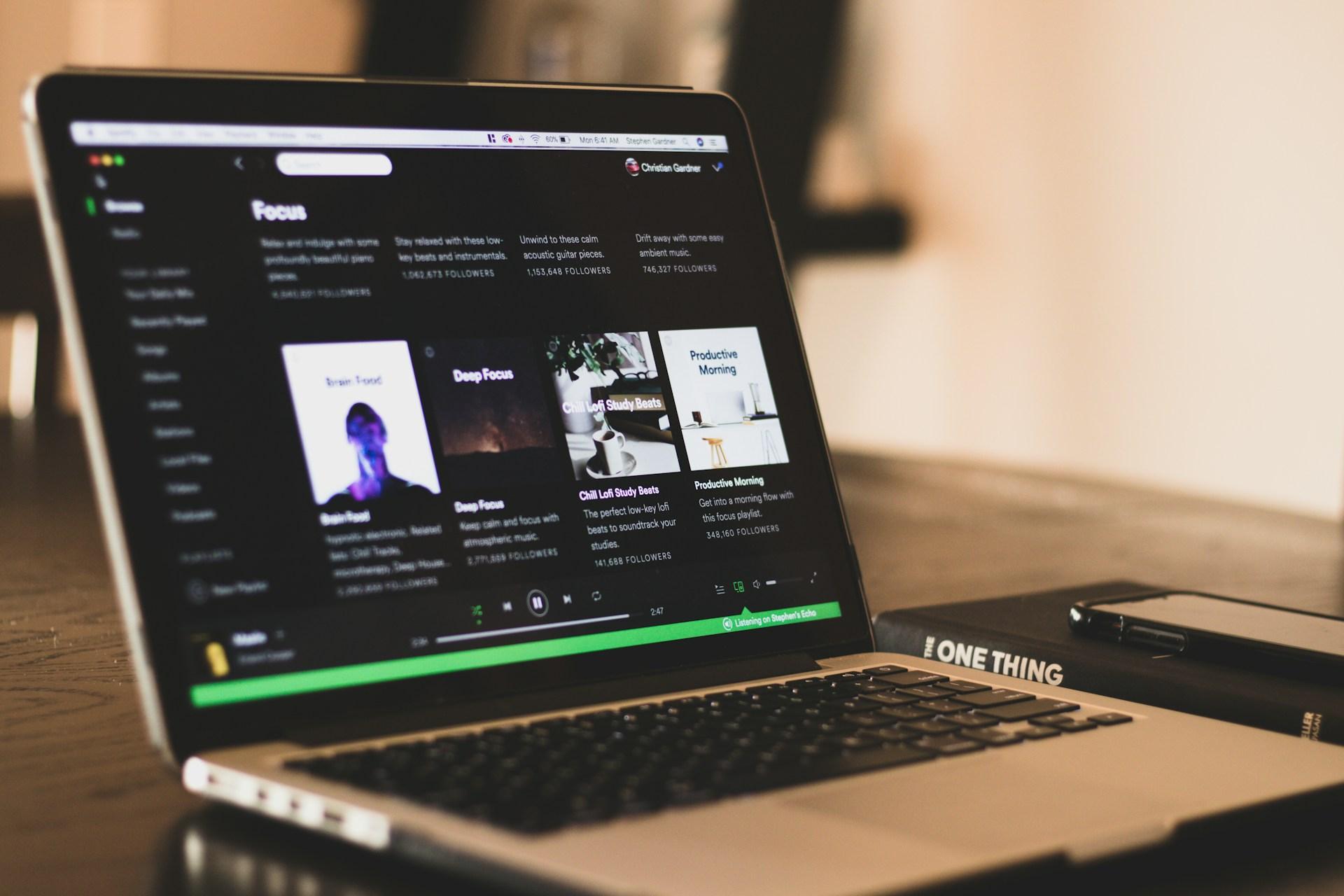
If you use Spotify on your computer and you like to pay attention to every detail of the sound, you've probably wondered how to listen to music without any loss of quality from your PC . The good news is that Spotify already offers lossless audio in FLAC format and specific tools to get the most out of it on your desktop, but you need to know how to configure it properly and be aware of what might limit the result.
In the following lines you will find a very complete guide to get your equipment ready: from understanding what lossless audio on Spotify really is , what you need in terms of account and devices, how to activate the appropriate quality on your PC and other devices with Spotify Connect, to how to take advantage of extras like Exclusive Mode and what to do if you don't notice a difference or something isn't working properly.
What does it mean to listen to lossless music on Spotify from a PC?
When we talk about "lossless" music on Spotify, we're referring to FLAC audio files up to 24 bits and 44,1 or 48 kHz , depending on the content. This means the signal doesn't undergo the lossy compression typical of traditional streaming codecs, so the information from the recording studio remains virtually intact.
The company describes this quality as "Lossless Audio" or enhanced CD quality , with a data rate far exceeding that of the Low, Normal, High, and Very High quality levels we were already familiar with. While most users were listening to music at a maximum equivalent to 320 kbps, with lossless mode, the bitrate increases significantly, similar to that of an audio CD, but in a lossless compressed format.
In practice, this means that many more nuances are preserved, with more detail in the high frequencies, greater depth in the bass, and more natural vocals . However, for this leap in quality to be truly noticeable, simply changing a button in the settings isn't enough: you need suitable equipment and a playback system that doesn't "corrupt" the signal along the way.
It's important to note that Spotify's lossless quality is limited to 24-bit/44,1kHz or 24-bit/48kHz , which is lower than what some competing platforms call Hi-Res Lossless (with even higher resolutions). Even so, for the vast majority of listeners, this quality is more than sufficient and far superior to what was previously offered by the standard service.
Requirements for using Spotify Lossless Audio on a computer
Before diving into settings and menus, it's important to check if your PC meets the minimum requirements for lossless audio playback . There's no point in fiddling with the configuration if your device or app version doesn't support it.
First, Spotify requires a Premium account to access lossless audio. This quality is not available to free plan users, who are limited to the standard lossy audio quality and ads.
Secondly, you need a recent version of the Spotify desktop application for your computer . The service itself states that at least version 1.2.67 or higher is required on PC to enable "Lossless Audio" mode in the audio quality settings.
Finally, it's important to know that this lossless option doesn't apply to all content . Spotify clarifies that the lossless audio format isn't available for music videos, podcasts, or audiobooks; in these cases, another type of standard compression is used, even if you have "Lossless" selected in the settings.
Audio qualities available on Spotify and what changes with “Lossless”
Spotify offers several streaming qualities that you can select depending on your connection and whether you prioritize data usage or sound quality . On computers, mobile phones, and tablets, the usual options are as follows:
- AutomaticThe app automatically adjusts the quality based on the stability and speed of your network connection.
- Low: equivalent to about 24 kbit/s, designed for very limited connections.
- Normal: approximately 96 kbit/s, basic quality for data saving.
- High: around 160 kbit/s, enough for most casual use.
- Very high: equivalent to about 320 kbit/s, the compressed quality that until now was considered “premium”.
- No loss: FLAC format files up to 24 bits/44,1 kHz (and even 24 bits/48 kHz in the case of Spotify HiFi), without lossy compression.
The "Lossless" mode is the most demanding in terms of both data and storage. Tracks take up to ten times more space than in standard quality, which is especially noticeable when you download albums and playlists for offline listening.
That's why it's recommended to use lossless quality, especially when streaming over Wi-Fi at home or work , and for downloads, provided you have a good wired connection. For mobile data, it makes sense to use a lower quality setting, both due to data consumption and the physical limitations of Bluetooth itself if you're listening with wireless headphones.
How to enable lossless quality on Spotify for PC
Once you have verified that your account and desktop application meet the requirements, the next step is to manually activate lossless quality on your computer , as it is not enabled by default even if you are a Premium user.
The process on the Spotify desktop app is very simple: first, open the application and go to the settings menu . To do this, click on your profile picture or name in the top corner and select the Settings option from the dropdown menu.
Within the settings, scroll down to find the section called “Audio Quality” or “Media Quality ,” depending on the app version. There you will see several settings related to streaming and downloads, both over Wi-Fi and mobile data (if you also use mobile data).
In the Streaming Quality section, select the “Lossless” option from the dropdown menu . This setting tells Spotify to use FLAC files up to 24-bit/44,1 kHz or 24-bit/48 kHz when your network and device allow it, instead of conventional compressed qualities.
If you also download music to your PC for offline listening, it's advisable to select the lossless audio option in the "Download" section . This way, the songs you save locally will maintain the highest available quality and won't depend on a real-time internet connection.
Recommended settings for WiFi, data, and downloads
The fact that Spotify lets you choose audio quality separately depending on your connection type gives you room to intelligently balance data usage and quality . The company itself and many experienced users recommend certain guidelines.
For playback at home or in the office, the most logical thing to do is activate lossless quality when listening over Wi-Fi . This way you can enjoy all the audio detail without worrying about using up your data allowance, assuming your wired connection has a reasonable speed.
Spotify recommends a stable connection of at least 1,5 to 2 Mbps for smooth, lossless listening without interruptions or excessive buffering. Almost any modern fiber optic connection easily exceeds this speed, but if your Wi-Fi is unstable, you might experience pauses or loading times; learn how to reduce Wi-Fi latency.
However, when streaming using your mobile data plan, many experts recommend using a more moderate quality setting, even if you have a generous data allowance. On the one hand, data consumption skyrockets with lossless quality; on the other, if you're listening with Bluetooth headphones while commuting, the wireless connection itself will be the bottleneck, and you won't experience the full potential of your music.
Regarding downloads, it makes sense to also select the lossless audio option for content you save offline , but disable the ability to download songs using your mobile network. This forces downloads to happen only over Wi-Fi, saving data and maintaining maximum fidelity when listening offline.
Spotify Exclusive Mode on Windows: what it is and why it improves quality
Spotify has added a very interesting feature to its Windows desktop application for discerning users: Exclusive Mode . This option is designed to ensure that the audio signal leaves the program exactly as it was mastered, with bit-perfect playback.
When you activate this Exclusive Mode, the Spotify app sends the data stream directly to your selected DAC or audio interface , preventing the operating system from resampling, changing formats, or digitally altering the volume. This minimizes manipulations that could degrade the signal or introduce artifacts.
The platform itself notes that, without Exclusive Mode, the computer can modify the audio by adjusting sample rates, mixing sounds from other applications, or manipulating the digital output level . With the mode enabled, Spotify takes direct control of the chosen audio device to deliver the stream exactly as intended.
This approach is specifically designed for those who frequently play high-quality formats, such as FLAC up to 24 bits , and use dedicated external equipment (DACs, audio interfaces, USB amplifiers, etc.). The goal is to achieve the most transparent reproduction possible, something highly valued by audiophiles.
Conversely, while Exclusive Mode is active, no other application will be able to output sound through the same device . If you're listening to music on Spotify with this mode enabled and you receive a Windows notification or want to play a video in your browser, you won't hear anything through that same device until you deactivate it or switch to a different output.
How to activate Exclusive Mode in the Spotify app for Windows
If you want to configure your Windows PC to get the most out of lossless audio, you should combine "Lossless" quality with Exclusive Mode and a few additional settings . The process is relatively simple and is done within the Spotify application itself.
First, make sure your DAC, audio interface, or external sound card is connected and properly recognized by the system. Once that's done, open the Spotify desktop app on Windows and log in with your Premium account.
Next, go to Settings and scroll down to the Playback section. In the Audio Output section, you'll find a drop-down menu where you can choose the device you want Spotify to use for audio output, independent of the operating system's default device.
Select the output that corresponds to your DAC or audio equipment you'll be using, and right below you'll find the option to activate "Exclusive Mode" . Enabling it will allow Spotify to claim that device exclusively and block mixing with other applications.
The company itself recommends complementing this mode with some extra settings: on the one hand, checking the option that “forces the volume of the audio device” , which locks Spotify's internal volume control to the maximum and forces you to regulate the intensity from the physical control of your speakers or amplifier, avoiding losses due to digital attenuation.
On the other hand, it's advisable to disable "Normalize Volume" and the Equalizer within Settings > Playback. Any type of dynamics processing or equalization alters the original signal, so if your goal is the most faithful reproduction possible, it's best to leave the signal clean and only make adjustments outside of Spotify.
Exclusive Mode limitations and features that are disabled
To maintain bit-perfect signal integrity, Spotify sacrifices some convenience features and track mixing when Exclusive Mode is enabled. This isn't a bug, but a deliberate design choice.
For example, crossfade between songs and automix mode are disabled . Both features require the app to internally process the audio to mix tracks, apply transitions, and overlap segments, which would break the idea of direct, unaltered data transmission.
It's also important to note that Exclusive Mode is not compatible with podcasts or videos within the app . If you try to play these with the mode enabled, Spotify will display a notification indicating that you must disable it if you want to continue listening.
If you don't use professional audio equipment or aren't interested in locking the output device to a single app, you can always opt for the other improvement Spotify has introduced: the ability to choose a specific audio output device for the app without having to enter Exclusive Mode. This way, you can separate Spotify's audio output from the rest of the system without cutting off sound to other applications.
Spotify Connect, external devices, and how to achieve lossless quality
One of the strengths of the Spotify ecosystem is Spotify Connect , which allows you to send music from your mobile phone or PC to other compatible devices (speakers, sound bars, televisions, AV receivers, etc.) without the need for cables and without the transmission going through classic Bluetooth.
In the context of lossless audio, this is especially relevant, because Spotify Connect is designed to handle streams up to 24 bits on compatible devices , provided the firmware and connection allow it. However, there are some important nuances when configuring the quality on these devices.
First, it's essential to check that your external device supports the lossless format . The manufacturer's documentation or the device's internal settings usually indicate compatibility with FLAC and Spotify Connect in high quality (see what to look for when buying a Smart TV ). Additionally, it's advisable to check that the firmware is updated to the latest version.
Even if you've selected "Lossless Audio" in the Spotify app on your phone or computer, that doesn't automatically guarantee that a third-party device is playing at that quality . In some cases, the quality settings aren't transferred correctly, or the device defaults to a lower quality setting.
Many users have found that the most reliable way to force the correct quality is through the Spotify desktop application . For example, if you're using a device like the NVIDIA SHIELD TV Pro connected to your sound system, a trick that often works is:
- Open the Spotify desktop app on your computer and make sure it's up to date.
- Go to Settings → Streaming Quality and select the “Lossless” option.
- While your external device (e.g., the SHIELD) is playing via Spotify Connect, change the quality settings there.
- Skip to the next song and check on the device's Spotify interface that the "Lossless" label or indicator appears.
This type of maneuver causes the desktop application to "push" the correct settings to the external device. If you still notice that lossless mode is not appearing, it's advisable to check the device's own settings and, if necessary, contact the manufacturer to confirm what it actually supports.
How the type of connection affects headphones and speakers
Another key aspect for enjoying the best quality on Spotify from your PC is how you connect your headphones or speakers to your computer or external device . Even if the app is sending lossless audio, an improper connection can drastically limit what you hear.
The general recommendation is that, if you're interested in maximum fidelity, you should opt for wired headphones or speakers . A good quality analog jack output, a USB DAC, or a dedicated audio interface usually yields better results than a standard Bluetooth connection, especially with lossless FLAC files.
The reason is that Bluetooth has a significant bandwidth limitation and, in most cases, uses lossy codecs (SBC, AAC, aptX, etc.) that further compress the signal, negating many of the advantages of lossless playback. Even more advanced codecs do not currently offer a completely lossless experience under realistic conditions.
This doesn't mean wireless headphones sound bad, but it does mean you won't get the full potential of Spotify's lossless audio when using Bluetooth. In noisy environments, like the street or public transport, the practical difference will be even less noticeable, because ambient noise masks many of the fine details.
If you're using an AV receiver, an amplifier with a digital input, or active speakers with a built-in DAC, the ideal solution is to establish a direct digital connection (e.g., USB, HDMI, or optical) from the device running Spotify to the audio equipment, provided both are compatible with the 24-bit resolutions offered by the service.
Factors that can affect lossless playback on Spotify
Even with the best-looking settings, several factors can influence the final quality you perceive when listening to lossless music on Spotify from your PC. It's worth reviewing them one by one to avoid frustration.
First, there's the quality of the original recording . If a record's master isn't particularly good, or if the production is heavily dynamically compressed, converting to a lossless format won't work miracles. The improvement will be more noticeable in carefully crafted and well-produced recordings.
Secondly, we must consider the device's compatibility with the lossless format . If you're using a device that internally always resamples at a specific frequency or only accepts certain resolutions, the system may be performing conversions that limit the result, even if the source file is high-quality FLAC.
The third point is the stability and speed of your internet connection . Spotify recommends a relatively modest connection, between 1,5 and 2 Mbps, for smooth, lossless streaming, but if your Wi-Fi network is unstable or congested, you may experience interruptions, buffering pauses, or automatic quality reductions if the system detects problems. Check out our network performance analysis to understand metrics and diagnostic tools.
Finally, the type of connection between the playback device and your headphones or speakers plays a crucial role, as we mentioned earlier. A poor Bluetooth implementation, a low-quality cable, or a very noisy internal sound card can negate some of the advantages of lossless audio.
What to do if you can't activate or don't notice lossless audio
It's not uncommon that, even after following the steps, you might find that you can't activate lossless mode or, worse, that you have it activated but feel there's no significant difference compared to the previous quality. In these cases, there are several points worth checking before giving up.
If the "No Loss" option doesn't appear in the desktop app, first check that your account is indeed Premium and that there haven't been any issues with payment or renewal. Then, make sure the application is updated to the latest version, especially on Windows or macOS.
When the problem is playback errors, dropouts, or excessive buffering in lossless mode , a quick fix is to try temporarily reducing the quality in the app's settings. If lowering the quality from "Lossless" resolves the issues, your internet connection or Wi-Fi network is likely not stable enough.
In these cases, in addition to relocating the router or using a wired Ethernet connection on your PC, you can also choose to leave the quality mode on "Automatic ," allowing Spotify to dynamically adapt to the available bandwidth. You won't always have the maximum, but you'll gain in smoother playback.
If the symptom is that you're listening in lossless format but don't notice any difference compared to before , consider whether the equipment you're using is capable of revealing those improvements: simple Bluetooth headphones or very basic PC speakers can make the leap barely perceptible.
Finally, on external devices with Spotify Connect, if you find that lossless mode isn't activating even though everything seems correct, try adjusting the settings in the desktop app and the trick of changing the quality while the device is playing, as mentioned earlier. Sometimes, the key is to force the synchronization of these settings from your computer.
Listening to lossless music on Spotify from your PC is perfectly possible these days, and with the right setup, it can make a significant leap in sound quality, especially if you have a good DAC, wired headphones, and a stable network. Understanding how audio quality works, how to take advantage of Exclusive Mode on Windows, the role of Spotify Connect and wired connections, and what factors limit the experience will allow you to fine-tune every link in the chain to truly get the most out of your Premium subscription and stop missing out on the music you love.
