- Native tools do not merge; they only extend with contiguous space and require NTFS.
- Third-party managers allow you to join without deleting, move space, and handle non-adjacent cases.
- To extend C:, it is usually better to shrink D: and extend C: than to merge and lose the drive.
- On servers, prioritize security (rollback/UPS) and plan with backup and maintenance window.
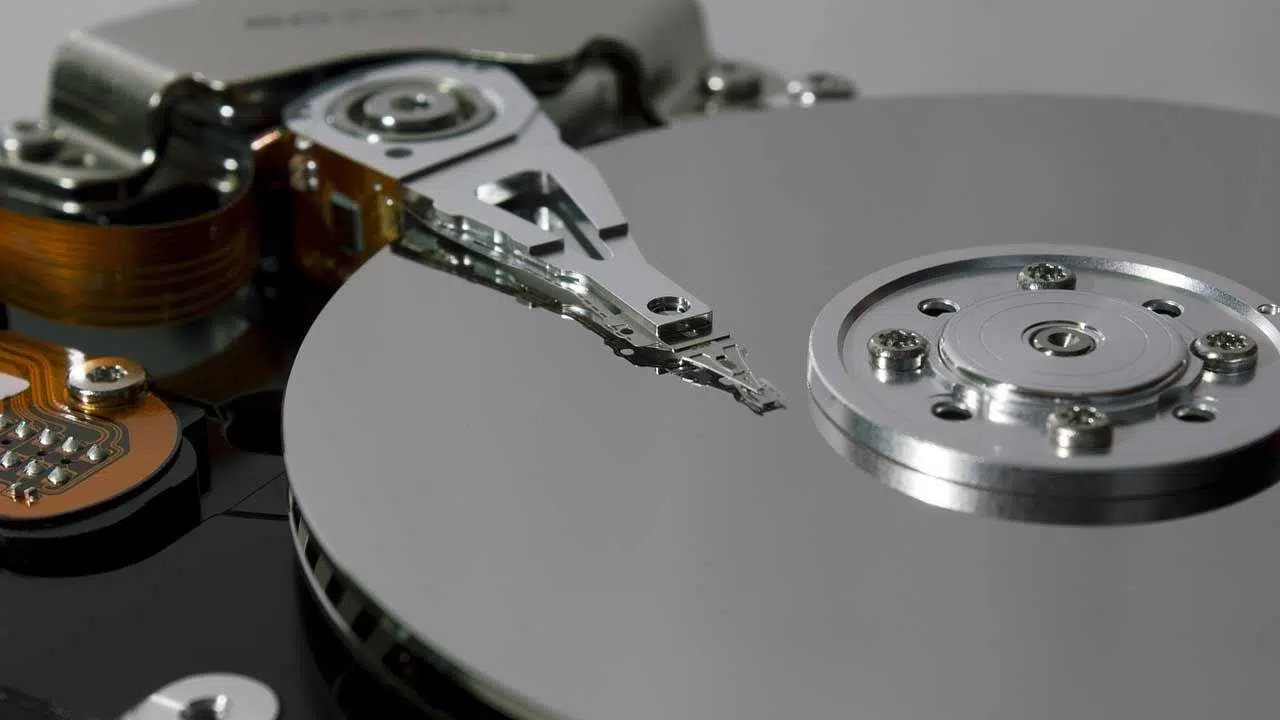
If you've ever run out of space on your C: drive or found yourself bothered by too many volumes, you may have considered merging them into a larger one. Merging NTFS partitions in Windows is possible with both native tools and specialized software, but each method has limitations and risks that you should be aware of before modifying your disk.
The goal of this guide is to help you decide on the best approach for your situation and implement it step by step, without any surprises. Here you'll find requirements, restrictions, methods with and without software, alternatives for extending C: drive, and considerations for Windows Server , as well as other related tasks such as moving and resizing partitions.
What does merging partitions entail and why do it?
By “merging” you combine 2 (or more) volumes into one larger one, with the idea of gaining usable free space in a single unit or reducing the number of unit letters that complicate your day-to-day life.
Common reasons that are repeated in real-world scenarios: expanding the C drive when it runs out of space and everything slows down; centralizing large amounts of data (e.g., games) to simplify things; or locating files faster by having fewer partitions to search.
However, this isn't always the best idea: to expand C: it's often preferable to shrink D: and extend C: with the freed space instead of deleting and merging, so you avoid breaking paths, shortcuts, and services that pointed to the disappearing drive.
Essential prerequisites
Before you begin, it's a good idea to check several technical conditions that make the difference between a smooth process and a nasty surprise. First, verify that the partitions to be merged are contiguous (next to each other on the disk) and that they share the same file system (NTFS or FAT32).
If there is an intermediate partition (including those created by Windows during installation) or unallocated space in between , native tools will not be able to merge directly; some third-party managers may be able to move that space or allow non-adjacent merges with additional steps.
Back up important data to another physical drive, ensure a stable power supply, and run disk health checks (CHKDSK and SMART if necessary). Use the DISM tool to repair Windows . Defragmenting mechanical partitions before moving large blocks of data can speed up and stabilize the process.
If you are going to work on the system partition (C:), take extra precautions: ideally, operate the system without booting (WinPE or a Live environment like GParted) to avoid file locks and reduce the risk of corruption.
Limitations of native Windows tools
Neither Disk Management nor Diskpart offers a "Merge" button. They only allow you to extend a partition to the adjacent unallocated space to its right. This means that to indirectly "merge," you must first delete the adjacent right partition to make it unallocated space, and then extend the left partition.
These tools add further restrictions: the destination partition must be NTFS , the partitions must be of the same type (primary or logical), and they do not support merging non-adjacent volumes. If you delete a drive with installed programs, they will stop working even if you move the files.
How to do it with Disk Management (native method)
This method is simple and free, but it involves deleting the adjacent partition to the right to free up space. Only use it if that drive is empty or you don't mind losing its contents (back it up first if needed).
- Open Disk Management: right-click the Start button and choose “Disk Management” (or run diskmgmt.msc).
- On the adjacent right partition (e.g., D:), right-click and select “Delete Volume…”. Confirm.
- Now right click on the left partition (e.g. C:) and choose “Extend Volume…”.
- Follow the wizard to add contiguous unallocated space.
Keep in mind that, although the process is quick, it doesn't merge two partitions while preserving both : in practice, you're extending one and sacrificing the other. If you want to keep the data from both, consider using specialized software.
How to do it with Diskpart (command line)
Diskpart achieves the same results as the graphical console, with the same limitations. It's useful on servers or in environments without a GUI, but it can't merge two volumes without deleting one first . Again, back up only what's necessary.
- Open CMD as administrator (Win + X > “Command Prompt/Terminal (Admin)”).
- Run diskpart and locates disks and volumes.
diskpart
list disk
select disk 0
list volume
select volume D
delete volume
select volume C
extend
exit
The `extend` command only works when there is unallocated space adjacent to the right of the selected partition. It cannot be used to merge partitions separated by another partition or to combine different disks.
Merge without losing data: recommended partition managers
To combine partitions while preserving data and with greater flexibility, there are partition managers that simplify the task. IM-Magic Partition Resizer, NIUBI Partition Editor, and EaseUS Partition Master are the most common names and offer free versions for home use.
These tools allow, among other things, merging adjacent partitions without deleting them beforehand , moving unallocated space to join non-contiguous volumes, and working with NTFS or FAT32 partitions (depending on the program).
IM-Magic Partition Resizer (Free on PC)
IM-Magic stands out for its focus on security: it integrates rollback technology that reverts changes in the event of power outages or interruptions, and allows you to cancel the operation mid-process. The fusion process runs in just a few minutes and preserves data, with a highly guided workflow.
Typical IM-Magic guide: 1) Start the program and choose “Merge Partition” on the destination volume (e.g., C:). 2) Select the partitions to merge (e.g., C: and H:) and define where the resulting volume will be located. 3) Apply and confirm; the computer may restart to complete the task.
It's a particularly convenient option if you're looking for a 100% freeware tool for Windows 11/10/8/7/Vista/XP on your PC. A paid version is available for Windows Server.
NIUBI Partition Editor (Free Home Edition)
NIUBI offers advanced features with multiple protections: 1-second reversal , "Virtual Mode" for previewing and "Cancel at any time", plus hot cloning . It's fast thanks to its data movement algorithm and provides wizards for merging and resizing.
Advantages of merging in NIUBI: It merges NTFS or FAT32 , left or right, primary or logical drives, and can move unallocated space to merge non-adjacent drives. When combining contiguous volumes, it moves all files to a folder at the root of the destination partition, preserving the structure.
Usual steps: 1) Right-click > “Merge volume” on one of the two partitions; 2) select both and confirm; 3) press “Apply” to execute the actual changes.
EaseUS Partition Master (Free Domestic)
EaseUS is very popular for its intuitive interface and because it shrinks, moves, and merges partitions without data loss in most cases. It also includes extra utilities: system migration to SSD/HDD , MBR to GPT conversion, and switching between compatible file systems.
One practical advantage: its guided partition merging wizard is accessible to novice users, with fewer restrictions than native tools and without the need to first delete the partition to be merged.
Other useful alternatives
There are other veteran partition managers worth keeping an eye on. MiniTool Partition Wizard is powerful, and its free edition imposes fewer limitations than others, making it ideal for home use.
AOMEI Partition Assistant is another well-known option that allows you to merge partitions without data loss , manage SSDs/HDDs, migrate OS, and maintain compatibility with most common file systems.
DiskGenius adds advanced-level utilities: convert MBR/GPT, dynamic disks, rebuild MBR , repair partition table, scan for bad sectors, SMART support, and secure file erasure.
Active@ Partition Manager recognizes multiple formats (FAT, NTFS, XFS), creates FAT/exFAT/NTFS partitions, and converts MBR to GPT with an intuitive interface . It also supports various image formats.
Paragon Partition Manager is free for non-commercial use and stands out for its simplicity with wizards . Compatible with NTFS, FAT32, and HFS, it covers most everyday needs.
Special cases: non-adjacent partitions, types and paths
If the partitions to be merged are not adjacent, some programs can move the unallocated space to place it next to the destination partition. The workflow is usually: delete/move the intervening volume (if applicable), move the free space, and finally, merge.
Keep in mind that after merging or deleting a volume, paths, shortcuts, and services pointing to that drive letter may break. If you used D: to install applications or for game data, recalibrate paths or consider shrinking D: and extending C: instead of deleting it.
Regarding file systems, native tools restrict the extension to NTFS . Third-party managers often also support FAT32 for merging and resizing, although NTFS is recommended for Windows.
Windows Server: Release Notes for 2012/2016/2019/2022/2025
Windows Server supports more demanding scenarios, including RAID volumes. For servers, the practical recommendation is to use NIUBI Partition Editor Server or IM-Magic Partition Resizer Server , as they offer security (rollback) and speed.
Disk Management in Server 2012/2016/2019/2022 shares the same limitations : no "Merge" button, you need to delete the adjacent right volume and you can only extend to NTFS, with type equality (primary/logical).
Server-specific best practices include: a maintenance window , UPS backup to prevent outages, CHKDSK validation, and, if possible, pre-testing on a clone. NIUBI's 1-second rollback technology and its security modes are especially valuable here.
Want to expand C:? Better than merging
Merging C: and D: might sound tempting, but it involves losing D:. The least intrusive strategy is to shrink D: and extend C:; this way only the sizes change, no partitions disappear, and no paths are broken.
Using a partition manager: 1) Shrink D: to create unallocated space; 2) if the space is to the right of D:, move D: so that the space is next to C:; 3) extend C:, absorbing that space. All of this without deleting D: or losing its drive letter.
Related operations: resize, move, and defragment
Shrinking a partition creates contiguous unallocated space. It's straightforward and requires no special conditions, other than not trying to shrink it below the size it currently occupies.
Extending a partition requires contiguous unallocated space (to the left or right, depending on the tool). If it isn't available, you'll first need to move volumes to bring it together.
Moving a partition allows you to shift it across a free gap so that all unallocated space is concentrated and can then be extended or merged more easily.
Before performing major operations on mechanical disks, it's advisable to defragment them , and it's always a good idea to run a CHKDSK or disk health utility to avoid surprises during intensive read/write operations.
Physical limits: cannot merge between disks
It is not possible to "merge" C: on disk 0 with a data partition on disk 1. The size of a physical disk is fixed and no partitioning tool can combine spaces between different devices.
Realistic options: move a partition from disk 0 to another disk and, after verification, delete it to free up space that you will extend over C:; or clone the disk to a larger drive and then extend partitions with the additional space.
Risks and good security practices
Working with partitions always carries some risk. A crash, an inopportune restart, or a power outage can cause damage. Minimize the risk by creating backups off the affected disk , using a UPS, and disabling sleep/hibernation and automatic restarts by Windows Update during the operation.
If the tool offers rollback or "cancel at any time" technologies , take advantage of them. When prompted, allow a restart to complete tasks that require unmounting volumes in use.
Notes and extras to keep in mind
Some managers include interesting features: migrating OS to SSD , converting MBR to GPT without reinstalling, converting between compatible file systems, repairing partition tables, checking for bad sectors, or deleting files irretrievably.
If your computer is heavily fragmented, old, or has SMART errors, consider replacing the hard drive with a new one before making major changes. Help communities and forums can be useful for specific questions, although official guides for each tool are usually more accurate.
Quick FAQ
Does deleting a volume erase data? Yes. “Delete Volume” in Disk Management destroys the data on the volume. Ensure you have a backup before doing so.
Can you merge C: and D: without losing any data using native tools? No. Native tools require deleting D: before extending C:. Third-party file managers allow you to merge while preserving data, but they check paths and programs installed on D:.
What if there's a recovery partition in the middle? You might be able to move it with some programs, or you'll have to rethink your strategy: move unallocated space , resize, or resort to another combination of steps.
With all of the above, you now have the complete map: from the limitations of Windows to the safe shortcuts of the best file managers. Choose the method that best suits your needs , prepare the ground (backup, power, disk health), and execute it without rushing; in most scenarios, you'll be able to do it without losing data and with complete control over the outcome.
