- Different levels of security ranging from locking individual cells to full book encryption.
- Full control over which elements users can modify, allowing selective data editing.
- Implementation of passwords and read-only modes to prevent accidental alterations or unauthorized access.
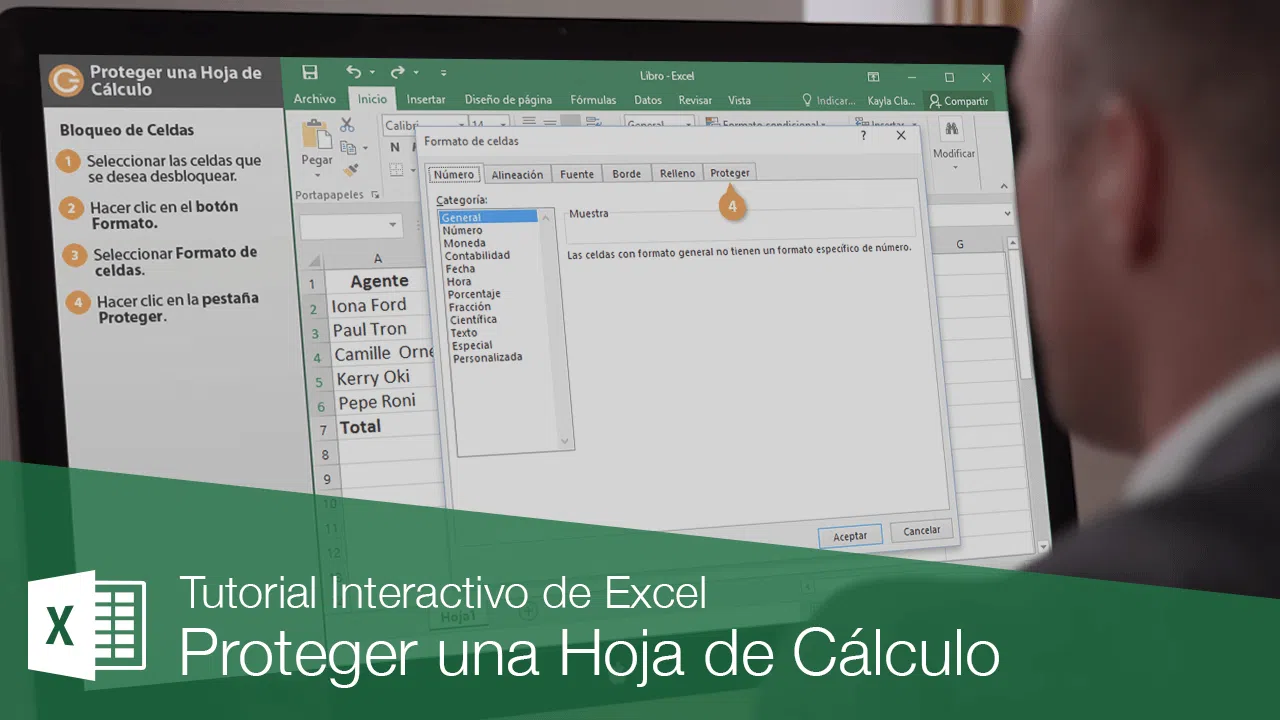
When you work with important data, whether at the office or for personal projects, you realize that a single wrong click can jeopardize your entire work. Ensuring data integrity is crucial to prevent someone from accidentally deleting a complex formula or changing a critical number, which is why Excel offers a range of tools to protect your documents.
It's not just about setting a password and that's it; it's about understanding that there are different levels of security depending on who will be using the file. From letting people fill in certain fields but not touch the rest, to encrypting the entire file so that no curious person can even open it, the software has options for every possible scenario.

Individual sheet protection and cell control
If you want your colleagues to be able to enter data but not modify the formulas, the best solution is to protect the sheet. First, it's important to know that, by default, all cells are marked as locked, but this doesn't take effect until you activate general protection. So, the first step is to unlock the editable ranges by selecting the cells, going to Format Cells, and, in the Protection tab, unchecking the Locked box.
Once you've done that, go to the Review tab and select the Protect Sheet option. This is where things get interesting, as you can customize user permissions , allowing them to do things like use autofilter, sort data, or edit graphic objects without being able to alter the cell structure. If you want to add another layer of security, you can set a password so that no one can remove the protection without your permission.
Another very useful trick is using hidden cells. If you have a secret business strategy or calculation in a formula and you don't want it to appear in the top bar, you can check the " Hide" box in the cell formatting settings . This way, the user will see the final result, but the "magic" behind the number will remain hidden, thus protecting your intellectual property.

Complete book protection and encryption
Sometimes protecting a single sheet isn't enough; you need the entire file to be a fortress. This is where protecting the workbook structure comes in . By enabling this option from the Review tab, you prevent malicious or careless users from adding new sheets, renaming them, moving them, or worse, unhiding sheets where you store the Excel databases used for reference.
If confidentiality is paramount, encryption is the best option. Protecting a single sheet of paper is not the same as encrypting the entire document using AES-256 . To do this, go to File, Info, and choose Protect Workbook, then select Encrypt with Password. This applies symmetric encryption principles to convert the content into a complex code that is virtually impossible to read without the correct key.
For situations where you only want people to view the information without the risk of someone accidentally changing a comma, there's the option to " Always open in read-only mode ." This is ideal for weekly reports or process manuals, as the system will warn the user that the file shouldn't be edited, drastically reducing accidental errors.

Key management and security best practices
A common problem is that, with so many passwords, it's easy to forget one. The first thing you should know is that Microsoft can't recover your passwords if you lose them, as the software doesn't store password protection. While there are third-party programs that can try to recover them, they aren't always reliable and can be dangerous for your computer.
To avoid these unpleasant surprises, the smartest thing to do is use an external password manager . These tools allow you to generate strong passwords and store them in an encrypted vault, making it easy to securely share access with other team members without having to send the password via chat or email, which is where leaks usually occur.
It's important to understand that locking cells isn't an advanced cybersecurity measure, but rather a way to prevent unintentional modifications . For true security against hackers or intruders, file encryption is the only reliable solution, while protecting individual sheets is more a matter of organization and preventing user errors.
Mastering these tools allows any Excel workbook to evolve from a simple data table into a robust system where confidential information and complex formulas are secure, allowing only authorized individuals to make necessary changes and maintaining data integrity at all times.
