- Software calibration and SDR balance adjustment are essential to prevent the desktop from looking grayish.
- Setting the full dynamic range on the GPU panel corrects the lack of saturation in deep colors.
- The use of custom color profiles and power management prevents unexpected brightness fluctuations.
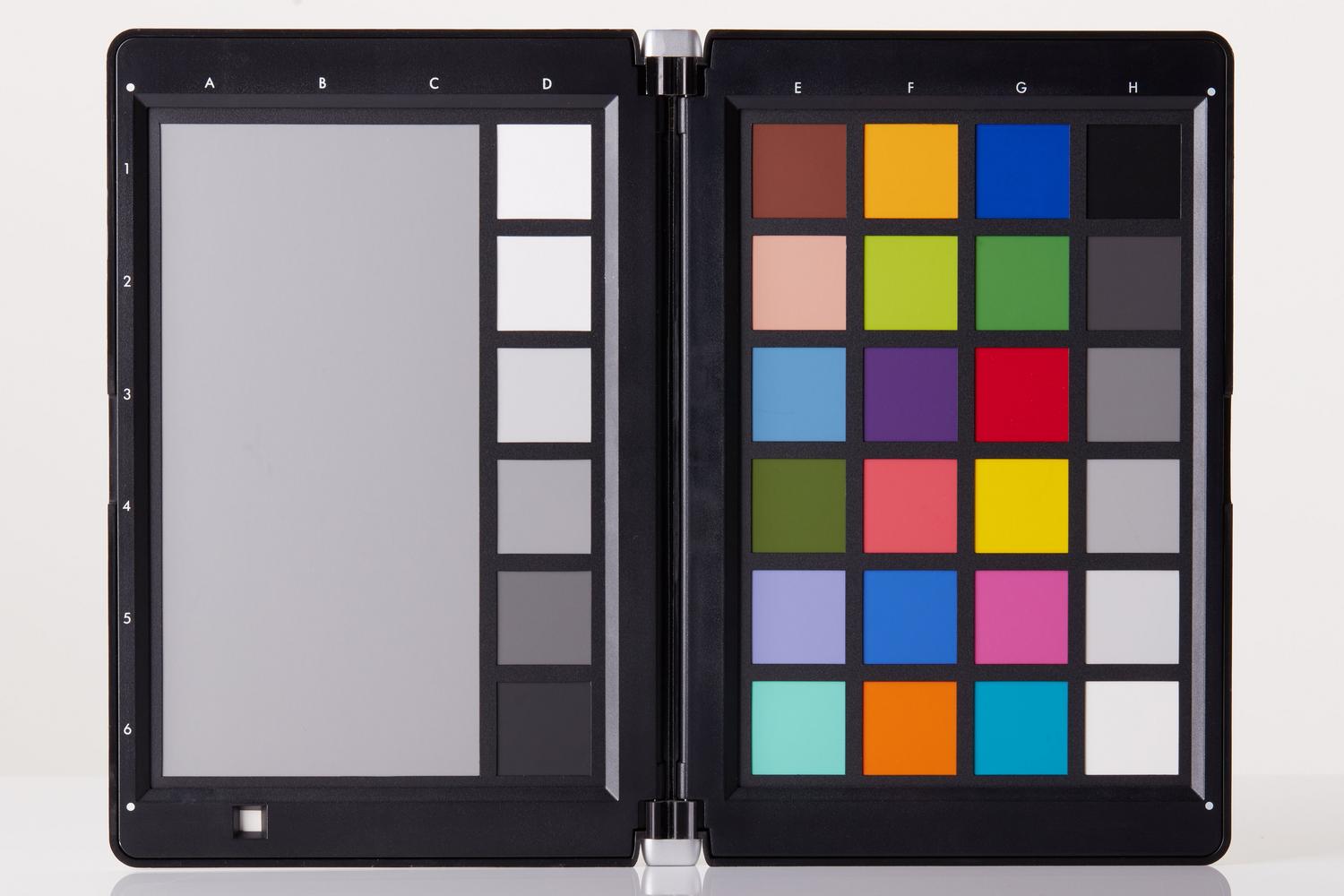
If you've bought a really cool monitor with HDR support but, when you activate it, you notice that your Windows desktop looks like it's been washed with bleach, you're not alone. It's a super common problem where colors look washed out and the brightness seems pointless, making the visual experience pretty mediocre outside of games or movies.
The problem is that Windows sometimes struggles to properly handle standard definition (SDR) content conversion when high dynamic range (HDR) mode is enabled. This results in an image that appears grayish or overly bright, as the system attempts to force an HDR signal onto elements not designed for it, creating that annoying low-saturation effect.
Basic system settings and calibration
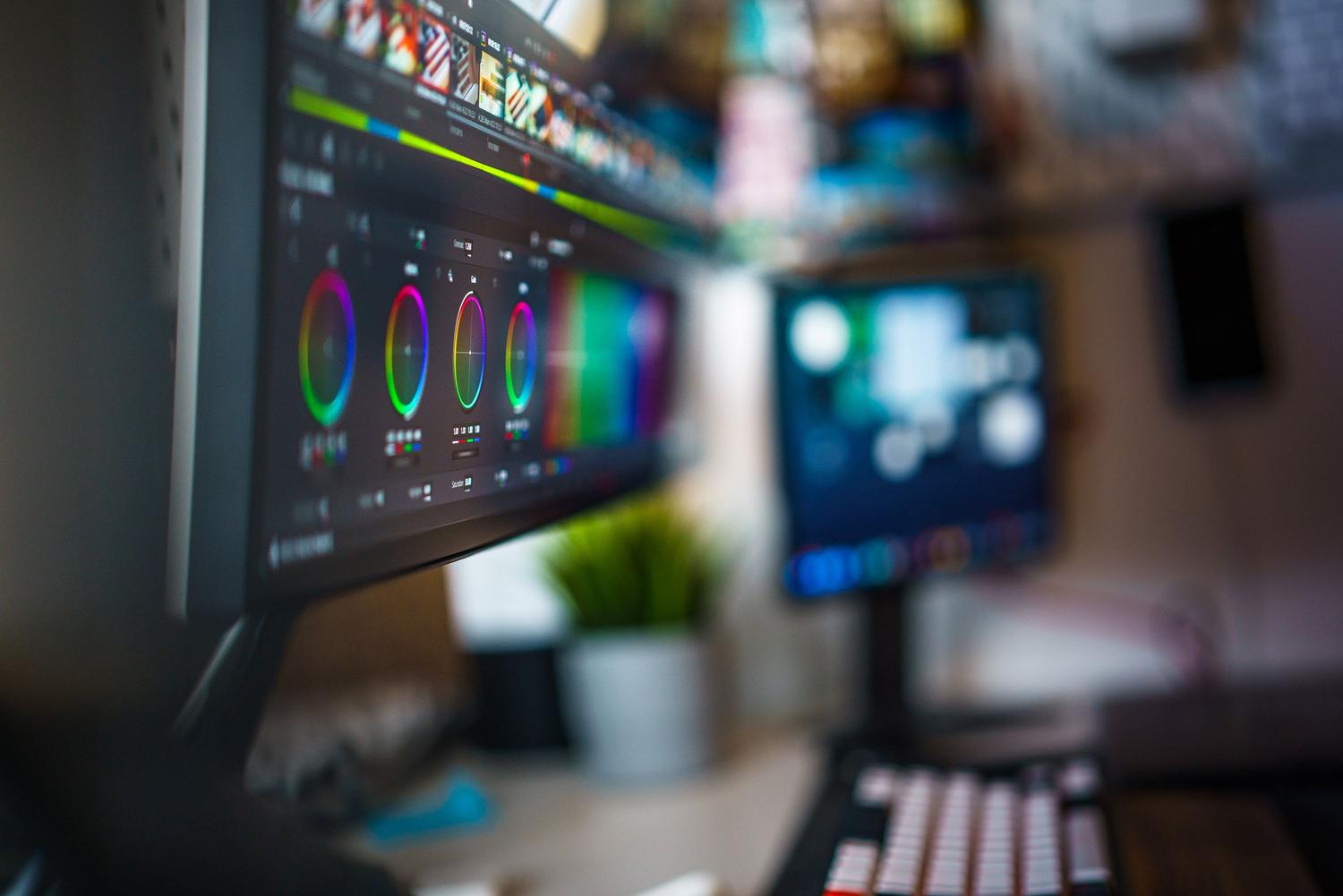
To begin solving this problem, the first step is to ensure your monitor is properly configured. One of the best tools is the Windows HDR Calibration app , available in the Microsoft Store. With it, you can create a custom color profile by adjusting black and brightness levels until the on-screen symbols blend seamlessly with the background, ensuring that the peak luminance point matches your hardware's actual specifications.
If, after calibrating, you still feel the desktop is too bright or washed out, go to your display settings and look for the HDR/SDR Brightness Balance section . By adjusting this control, you can balance the intensity of older content so it doesn't look dazzling or washed out, ensuring consistent visual quality across all open windows.
Advanced optimization via graphics card
If you have an NVIDIA or AMD GPU, there's a trick that makes all the difference. Sometimes, the system sets the color range to "Limited," which kills the blacks and makes everything look blurry. In the NVIDIA Control Panel, go to "Change Resolution" and make sure the output dynamic range is set to "Full ." For AMD, verify that the pixel format is set to full RGB and the color depth to 10 bpc.
For those seeking more vibrant colors, the NVIDIA Panel offers the option to adjust desktop color settings . Increasing the Digital Vibrance to 60% or 70% can bring dull colors back to life, while fine-tuning the contrast and brightness manually can eliminate the flat image feel that some non-HDR-certified displays produce.
Resolving hardware and power conflicts
There are situations where the brightness fluctuates or strange color bands appear. If you notice that the color is incorrect, try switching from an HDMI cable to a DisplayPort cable , as it usually handles HDR bandwidth better. In extreme cases with HDMI, reducing the refresh rate to 30 Hz or lowering the resolution can help stabilize the color signal and eliminate visual artifacts.
On laptops, HDR is often disabled when using battery power to conserve energy, which can leave colors undersaturated after restarting. It's advisable to go into the power options and uncheck the box to disable HDR when running on battery. Additionally, if you have a Dolby Vision -certified monitor and find the brightness insufficient, try disabling this mode to force the HDR10 standard, which on some models unlocks higher brightness levels.
Quick tricks and practical tips
If you don't want to be navigating menus every five minutes, remember that the Win + Alt + B shortcut lets you instantly toggle HDR on and off. This is ideal for those who prefer to enjoy SDR mode on the desktop and only activate HDR when launching a compatible video game.
To avoid flickering or abrupt brightness changes when moving the mouse over black text, make sure you don't have any automatic brightness adjustments or dynamic power saving enabled in your monitor's OSD menu. Keeping your graphics drivers up to date is vital, as recent versions of WDDM fix many of these tone mapping errors.
Achieving perfect HDR results involves combining Microsoft's official calibration with manual adjustments to the GPU panel and proper power management. By configuring full dynamic range and balancing the intensity of SDR content, you eliminate that washed-out look, restoring deep blacks and vibrant colors for a truly immersive viewing experience.