There's nothing more frustrating than trying to plug in a USB drive or mouse and realizing your computer's USB port has given up the ghost. Whether the connector is physically loose, only works if you move the cable at a specific angle, or the system doesn't even detect that anything is plugged in, these kinds of problems are commonplace in hardware maintenance.
The good news is that, although it might seem like the end of the world, the vast majority of these problems can be fixed without having to throw your computer out the window or spend a fortune on a new motherboard. From simple Windows adjustments to surgical interventions with a soldering iron, there are multiple ways to restore the functionality of your ports and extend the life of your machine.

Why do USB ports stop working?
The most common cause is undoubtedly wear and tear from heavy use . Constantly inserting and removing devices bends or breaks the internal metal tabs, and the mechanical pressure eventually fractures the solder joints that connect the connector to the motherboard. In desktop PCs, front ports are especially vulnerable because they are typically subject to more vibrations and jerking than rear ports.
We also have to consider electrical and environmental hazards . A power surge can fry the USB controller chip, rendering the port unusable even if it appears perfectly fine. Furthermore, humidity, accumulated dust, and grease create corrosion processes that interfere with data transmission, causing intermittent or nonexistent connections.
Steps for an accurate diagnosis
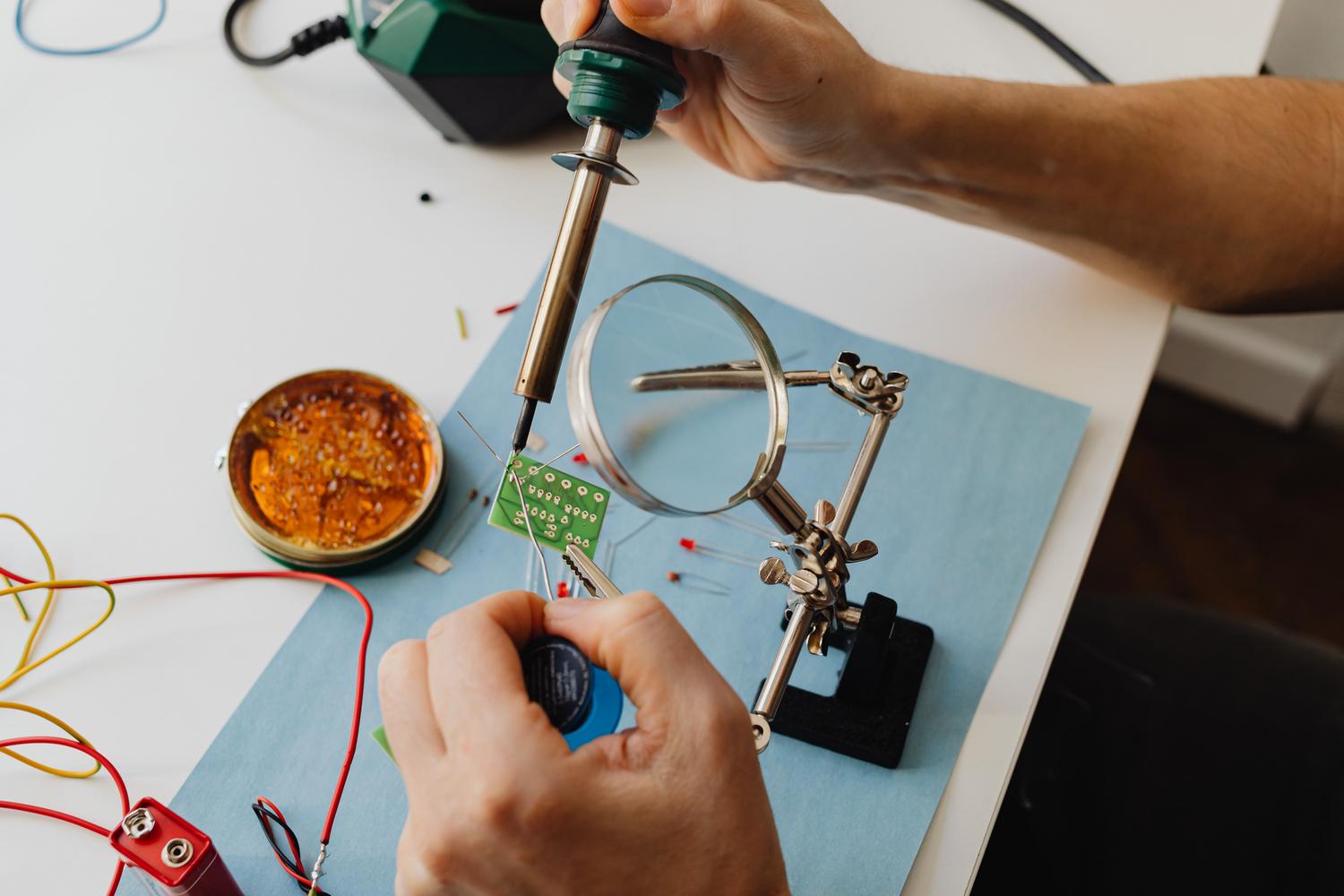
Before you even get out the soldering iron, you need to play detective to pinpoint the problem. First, rule out the peripheral itself as the issue; try the device on another computer or check if you have an unrecognized USB drive . If the problem persists in the port, a visual inspection with a magnifying glass or microscope is essential to detect bent pins, embedded dirt, or cracked solder joints.

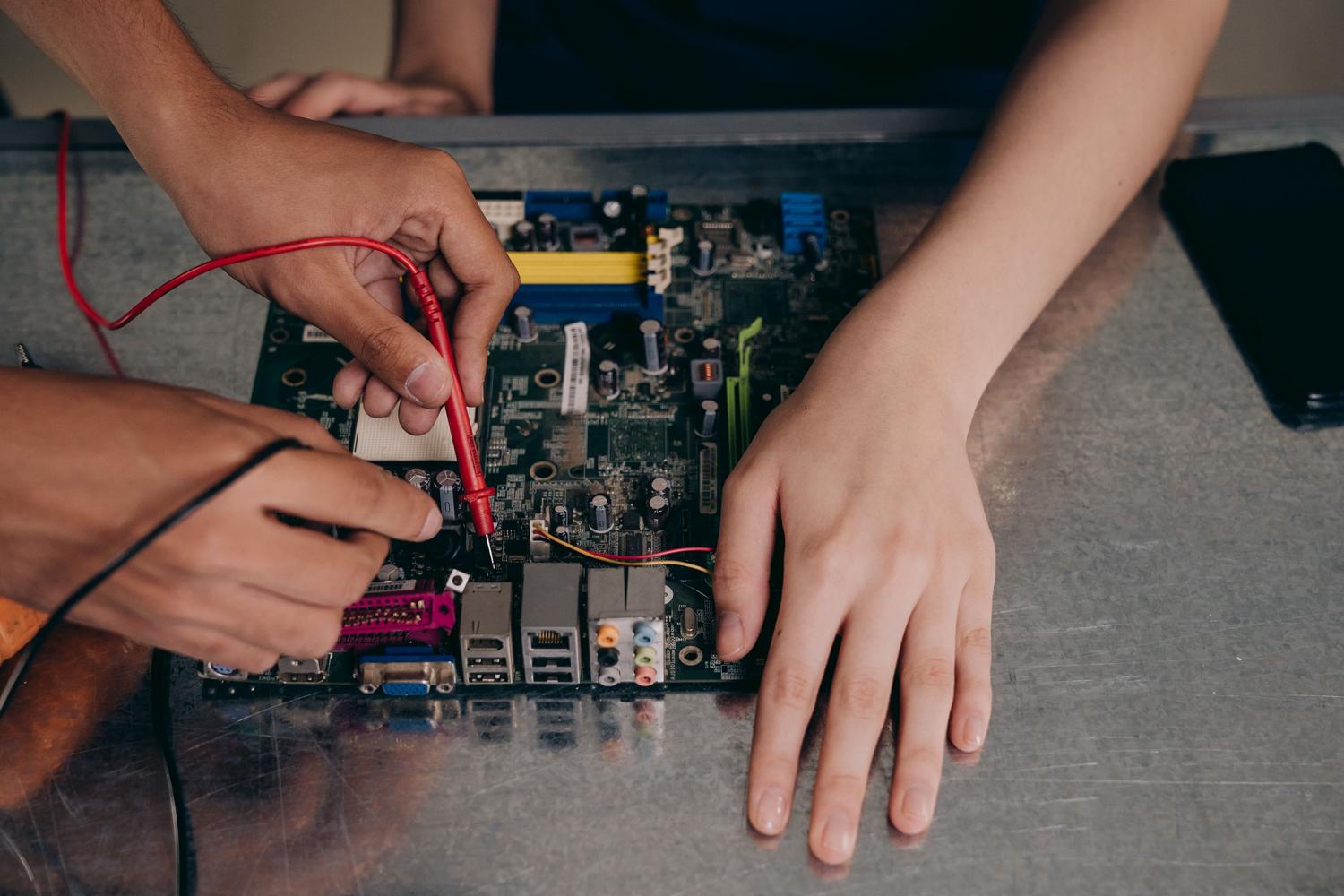
At the electronic level, using a multimeter allows you to check the electrical continuity between the port and the board. If the device receives power (lights illuminate) but does not transfer data, the problem is usually on pins 2 and 3. If there is no current, the fault could be on pin 1 (5V power supply) or pin 4 (ground). In more complex cases, oscilloscopes are used to analyze whether the data signals are reaching the controller correctly.
Software and configuration solutions
Sometimes the hardware is intact and the culprit is the operating system. In Windows 10 or 11, it's very common for USB host drivers to become corrupted. An effective solution is to go to Device Manager, uninstall the Universal Serial Bus drivers, and restart your computer, especially if you're trying to figure out why Windows isn't recognizing your USB device and how to fix it.
Another common problem is USB selective suspend , a power-saving feature that turns off the port to conserve battery, especially on laptops. This can be fixed by changing the advanced power settings in the Control Panel and disabling selective suspend. Even if none of this works, a BIOS or UEFI reset can restore ports that were accidentally disabled at the firmware level.

Physical repair and microsoldering techniques
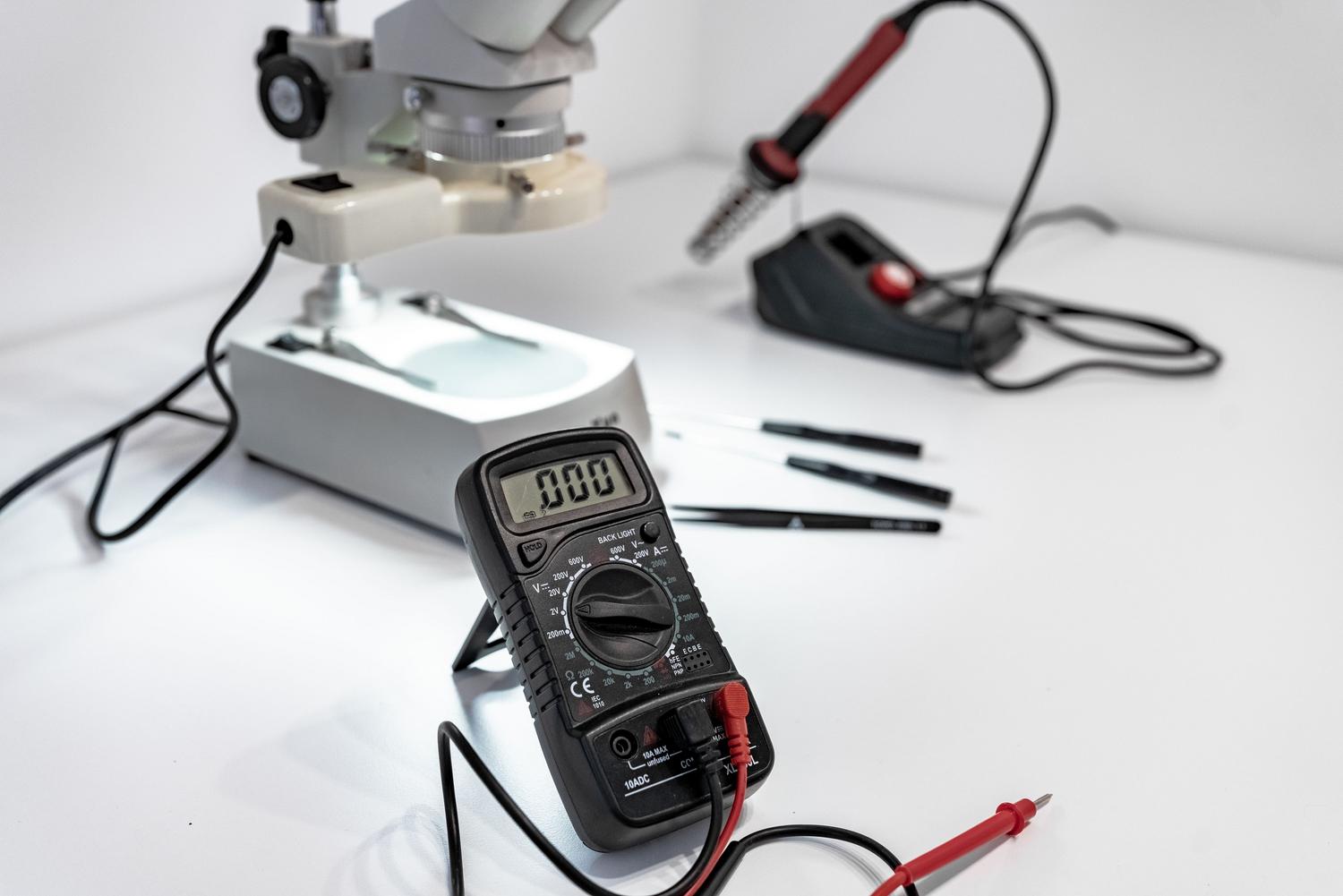
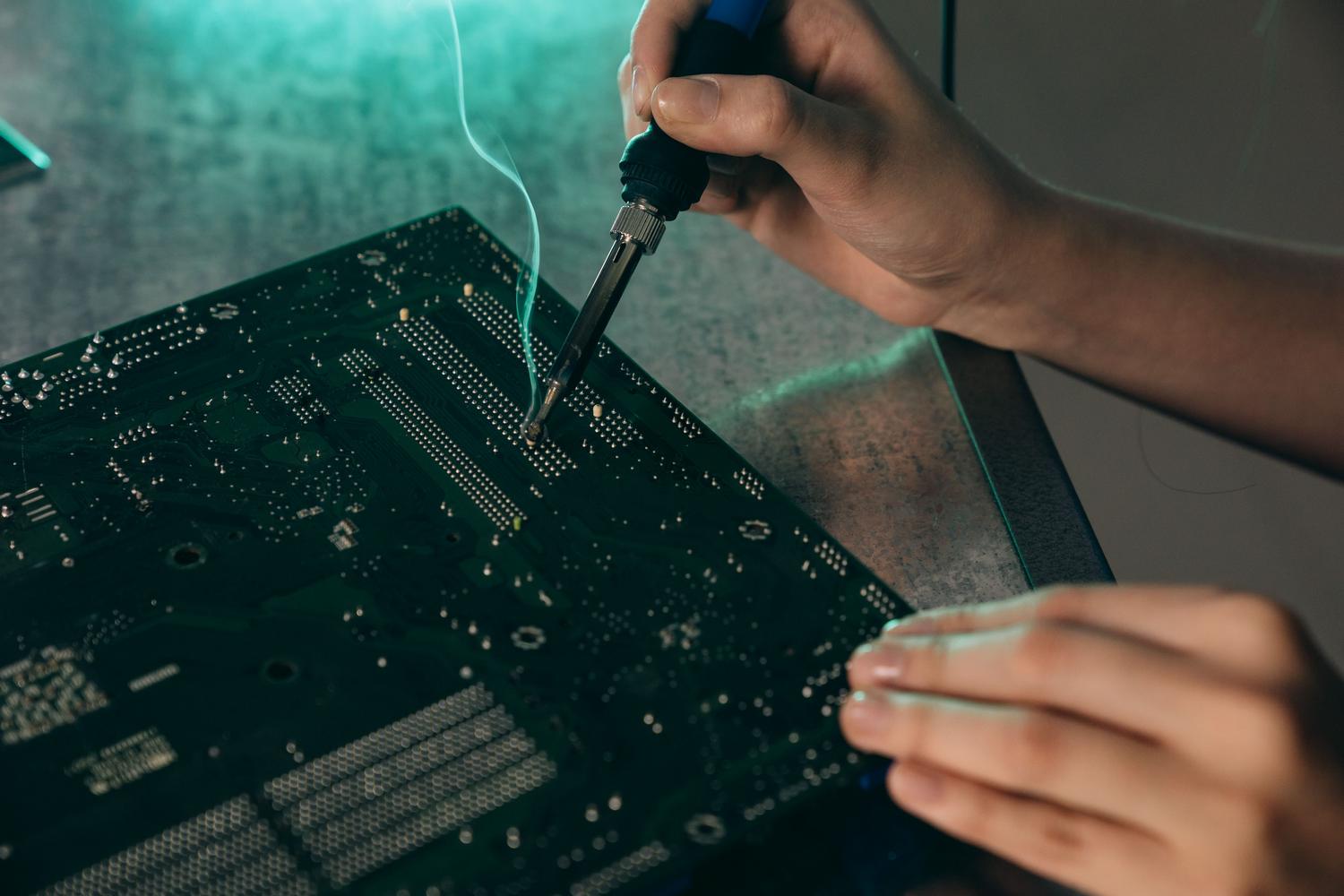
When the damage is mechanical, we enter the realm of electronics. If the port is loose, a hot air station is required to remove the damaged connector without damaging the copper traces. It is vital to work with controlled temperatures (generally between 310°C and 350°C) and use flux to ensure a clean and strong solder joint.
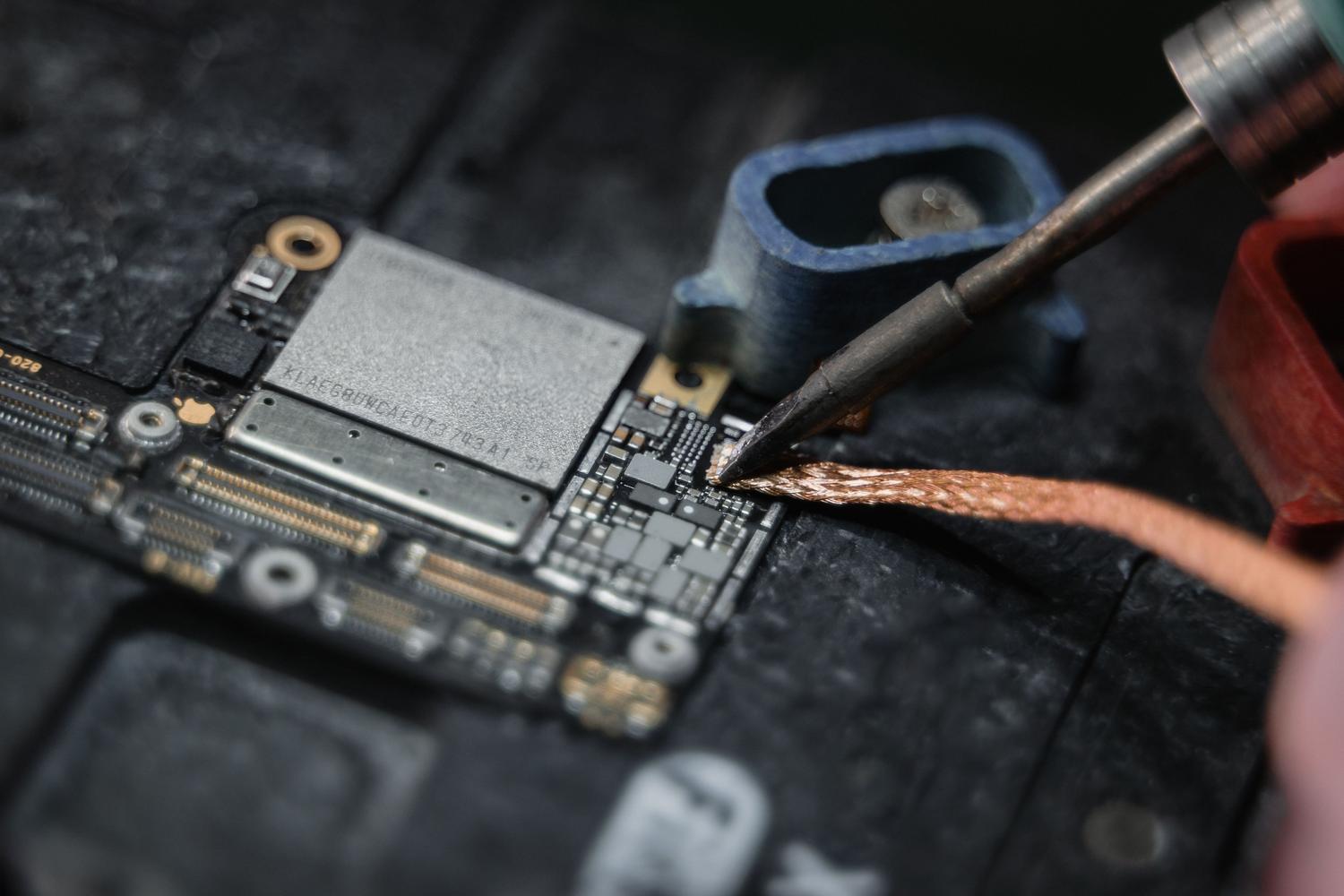
In situations where the port has torn away traces from the motherboard, a reconstruction using enameled copper wire is necessary . This process involves manually creating a bridge from the connector pin to the next viable point on the circuit. For failures in the controller chip, the solution is reballing or replacement of the BGA integrated circuit , a high-precision job that requires specialized machinery to avoid deforming the PCB.
Maintenance to prevent future breakdowns
To prevent this from happening again, it's best to avoid forcing the connector and not leaving USB cables dangling that could put pressure on it. Using voltage regulators protects the internal components from power surges that could burn out the controllers. Additionally, regular cleaning with compressed air prevents accumulated dust from causing short circuits or intermittent connections.
Keep in mind that repairing the connector is often up to 80% cheaper than replacing the entire board, in addition to preventing data loss and reducing electronic waste. The key is not to force the port when it starts to fail, as minor solder damage is much easier to fix than a completely ripped-off copper trace.
Restoring USB connectivity involves a logical analysis that begins with cleaning and checking drivers, escalating to physical intervention via microsoldering if the damage is structural. Whether by optimizing power management in Windows or rebuilding damaged traces on the motherboard, it's possible to restore functionality to any device, avoiding unnecessary expenses on new hardware and prioritizing specialized technical repair.
