- Configure privacy settings on social networks and apps to limit who sees your information and how they interact with you.
- Strengthen your security with VPN, pre-encryption of files, strong passwords, and two-factor authentication.
- Check permissions on your mobile device and browser, avoid unsecured public WiFi, and keep your devices free of malware.

Protect your online privacy It's no longer a whim of technology geeks: it's something basic for anyone who uses social networks, apps, messaging or simply browses the Internet daily.
Today we unknowingly share an enormous amount of personal dataPhotos, location, contacts, browsing habits, interests, work, even health and finances. The good news is that, with a few well-adjusted settings and some simple habits, you can regain considerable control over what these platforms know about you and who sees what.
Online privacy, anonymity, and types of threats
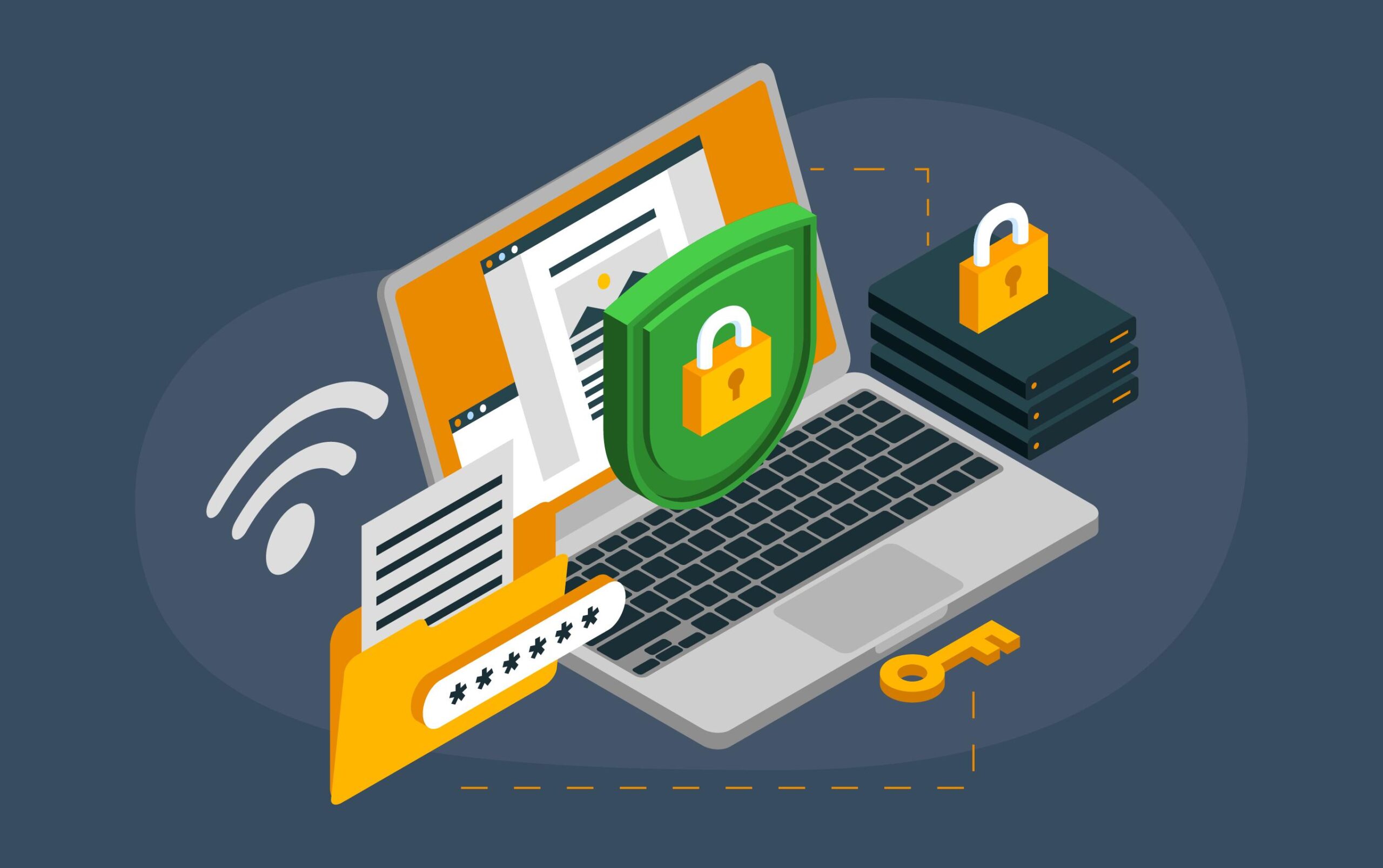
When we talk about online privacy and security We're not talking about a magic button that solves everything, but a combination of technologies, adjustments, and good practices that gradually reduce risks.
On the internet you encounter many types of threatsFrom governments that monitor part of the traffic, to companies that track every click for marketing purposes, to criminals, malware or groups of advanced attackers that try to spy on your communications or steal your accounts.
It is key to differentiate between two concepts that are often mixed up: privacy y anonymityPrivacy is about others not being able to see the content of what you do or share, even if they know who you are; anonymity is about them being able to see what you do, but not being able to associate it with you.
Ideally, we would have privacy and anonymity At the same time, but by default, when we use social networks, apps and cloud services, we usually have very little of both if we don't touch the settings and don't use specific tools.
To truly improve your digital situation, you should set yourself the following goals: clear objectivesDo you want to prevent your internet provider from spying on you, stop advertisers from tracking you, protect your accounts from theft, or hide your identity while browsing? Depending on that, the solutions you need can vary considerably.
VPN, anonymity, and pre-encryption of your data
The most delicate link in your digital security is your local Internet connectionThat is, the section that goes from your device to the router or access point you are using.
In that part of the chain, attacks like the following are especially effective: DNS spoofingTraffic spying, man-in-the-middle attacks, or session hijacking, which can allow an attacker to redirect websites, see what you do, or manipulate communication.
To minimize that risk, the most sensible thing to do is to use a VPN (red privacy virtual)A VPN creates an encrypted tunnel between your computer and a remote server, so that all traffic leaving your device is protected until it reaches that server, and no one on your same network (neighbors, users of the same public WiFi, or even dishonest Internet provider personnel) can see what you are doing.
Keep in mind that a VPN primarily provides privacy in the local sectionBut not necessarily complete anonymity: the VPN provider can know who you are, and unless it keeps no logs and is properly configured, your activity could be traced back to you.
If your priority is to hide your IP address and be more anonymous, you can use a service of anonymization like TORThe TOR project redirects your traffic through several distributed nodes, so that the website you visit does not see your real IP address, but rather that of an exit node.
Tor, however, doesn't work like a VPN: it only protects the traffic of the applications you configure to use its proxy, and the content that leaves through the exit node travels back as plain text or "normal" encrypted data, depending on the website or service you're using. In other words, Tor is better at hiding your identity, but it doesn't encrypt the entire path end-to-end.
Another key area is the files you upload to the cloud. Any file you leave in an unencrypted online storage service can end up being accessed, copied or modified by third parties. That's why it makes a lot of sense to adopt the "pre-encryption" or PIE rule: encrypt your data before uploading it.
With file encryption tools like AES Crypt, 7-Zip, Cryptomator, AxCrypt or GnuPG You can protect sensitive documents (personal documents, backups, financial information, etc.) with a strong password, so that even if someone gains access to the cloud server, they cannot open them without that key.
Social media is a real magnet for personal dataPhotos, friends list, relationships, interests, geolocation, opinions… and they are also a goldmine for social engineering campaigns and frauds.
It's worth repeating one idea: if a service is free, the product is often free too. it's youThe platforms make their business by selling advertising based on very detailed profiles of each user, built from all that information.
In addition to commercial collection, someone with malicious intent can use social media to impersonate your identityto prepare targeted scams or gain your trust by learning about you and your environment.
Fortunately, all major networks include options for Privacy settings They're quite comprehensive. The trick is to spend a few minutes on them, carefully review each section, and update them regularly because the platforms introduce changes quite frequently.
Facebook: Control what they see and how they find you
On Facebook, the key point is in the menu of "Settings and privacy"where you can go to "Settings" or "Privacy Shortcuts" to review the most important settings.
In the section on how they can find you and contact With this app, you can limit who can send you friend requests, contact you by email or phone number, and view your friends list, as well as reduce the visibility of your public profile so that strangers see as little as possible.
Another fundamental block is that of the privacy of publicationsHere you choose whether what you share will be visible to everyone, only your friends, a custom group, or only to you. It's also a good idea to review the timeline and tagging section to approve posts you're tagged in before they appear on your profile.
In the "Your activity" area, you can manage all your past interactions: review and delete old posts, clear your activity log, and control what connected applications and websites They have access to your Facebook account and what specific data.
X (formerly Twitter): audience, location, and contacts
In X (Twitter) the relevant settings are in the menu of "Settings and privacy", within the "Privacy and security" section.
There you can decide if your posts will be public or protectedIf you select the protected account option, only approved followers will be able to see your tweets, reply to them, or interact with them normally.
In the "Audience and tags" options you can control who can tag you in photos or mention you, and in "Content you see" you can filter notifications or results that contain offensive words, newly created accounts, or profiles that you consider unwanted.
Don't forget to check the section on location information to disable the use of exact location in your tweets, and the "Visibility and contacts" area, where you can prevent being found by email or phone, thus reducing tracking and spam.
Instagram: Profile visibility and interactions
Instagram has its own menu of "Settings and privacy" both in the app and on the web, from which you can quite protect your activity.
The first thing to consider is whether you want your account to be public or privateWith a private account, only the followers you approve will see your photos, stories, and Reels; it's the best option if you're not interested in massive exposure.
In the "Who can see your content" section, in addition to general visibility, you can use tools such as the list of "best friends" in stories to share things only with a very small circle, or to block specific accounts that you don't want interacting with you.
In the settings group for how others can interact with you, you can limit comments, direct messages, replies to stories, tags, and mentions, and even review and revoke permissions. third-party applications connected to your profile.
Finally, in the "Account Center" you can view initiated sessions, devices and locations, activate suspicious login alerts, and strengthen the access security with two-step authentication.
LinkedIn: well-measured professional visibility
LinkedIn is primarily a professional network, but that doesn't mean you should expose all your employment and contact information without filters.
From the "Settings and privacy" menu, you can access the visibility section to define who sees your profile, your recent activity, your contacts, and the data you publicly display about yourself, your company, or your career.
Another key section is "Data Privacy", where you adjust who can contact you, whether you accept messages from any member or only from your connections, and how your data is used to show you ads or suggestions.
It's also a good idea to periodically review the "Login and security" section, checking active devices and sessions for suspicious activity, and the notifications sections to decide who you want to receive alerts from and in what format.
TikTok: private account, interactions and devices
TikTok, very popular among young users but increasingly used by all ages, offers many options for Privacy & Security in "Settings and privacy" > "Privacy".
From there you can convert your profile into private accountso that only followers you approve will be able to see your videos, your follower list, and your basic account information.
In the visibility section, it's also worth checking if you allow the use of location services and adjust the app permissions from the system (camera, microphone, contacts, storage…), leaving only those that are strictly necessary.
Within the interactions section, you can limit who can comment, mention, tag, send you direct messages, or use your videos in duets and other platform-specific features, as well as manage the list of blocked accounts.
If you go back to "Settings and privacy" and enter "Security" you will be able to see the list of devices with open session in your account and close those you don't recognize, something very useful to cut off unauthorized access.
OnlyFans: Profile and session control
On OnlyFans, a subscription platform for exclusive content, the panel of Configuration It includes a specific section on "Privacy and Security".
There you can decide how you manage the private content, what type of subscription you associate it with (followers, restricted, etc.) and what profile elements you display, such as recent activity or special subscription offers.
In the "Account" section, it is important to review the login sessions Actively close any you don't recognize to prevent anyone else from accessing your dashboard, your income, or your content.
WhatsApp: Visibility, Groups, and Sensitive Messages
WhatsApp, despite being a messaging app, also exposes quite a bit personal information if you don't adjust your internal options.
From "Settings" > "Account" > "Privacy" you can control who sees your profile picture, your last connection time, your info message and your statuses, choosing between everyone, only your contacts or nobody.
In that same menu you can disable the read receipts (the famous blue double check), limit who can add you to groups without your permission, and in chats set the "view once" option when sending photos or videos so that the recipient cannot save them, forward them, or take screenshots.
All messages travel with end-to-end encryption By default, but you can verify the encryption with each contact from the chat information, by comparing the code or scanning the QR code in person.
Beyond each specific app, your mobile and your browser They play a key role in filtering what data is shared and with whom.
Many recent Android devices have a combined panel of "Security and privacy" which displays a summary of the device's status, along with alerts when it detects potential risks and recommendations to improve your protection.
At the top of that screen you'll see a message like "All OK" if there are no problems, or something like "Device at risk" if any worrying elements are detected, briefly explained below.
From this panel you can usually review application permissions, malware detection, location services, data usage, screen lock, biometric authentication and other options, although the specific organization varies depending on the manufacturer.
In conventional web browsers, it's also worth reviewing the options for Privacy & SecurityIn Chrome, for example, you access it from the three-dot menu > "Settings" > "Privacy and security," where you can clear cookies and history, manage site permissions (camera, microphone, notifications, etc.), and review saved passwords; Firefox, Safari, and Microsoft Edge have similar menus (see what Edge features disabledwhere you can adjust the tracker blocking, the type of cookies you accept, automatic deletion of data when closing the browser and other specific functions.
If you want to go a step further, in addition to adjusting settings, you can choose browsers and search engines that fundamentally respect your privacy more (see our guide to the best web browsers).
For example, Brave is a browser that includes built-in blocking of intrusive ads, trackers, malicious scripts, and some control over cookies, in addition to offering advanced options such as integration with anonymous networks and, in its mobile app, the ability to add a VPN (for a fee). For example, Check out our Brave vs Vivaldi comparison to assess differences in privacy and performance.
Regarding search engines, alternatives such as DuckDuckGo They have become popular because they minimize the personal information they store: they don't associate searches with your IP address or keep a detailed profile, making it difficult for third parties to link your searches to your identity (read our browser privacy guide (to delve deeper).
Additionally, you can enhance your setup with extensions that strengthen security, always using common sense and avoiding installing things unnecessarily. ad blockers They help clean up browsing and reduce exposure to malicious advertising, while code blockers let you decide which scripts run on each page.
There are also specific extensions of VPN in the browser useful for specific tasks, and password managers that integrate to securely autofill credentials, generating robust and distinct keys for each site.
Best practices: less footprint, more control
Even if you adjust all the settings, your level of online privacy It will depend a lot on your daily habits.
On social media, it is highly recommended to minimize the information you provide in your profile: there is no need to tell your whole life story, or fill out questionnaires, surveys or games of the type "discover which character you are by answering these 20 questions", which are often used to better profile you or even deduce possible answers to your security questions.
It also helps to limit the use of the "like" button and compulsive sharing, as each interaction adds information to your profile. advertising profileAnd, whenever possible, avoid logging into other services using your Google, Facebook, or X account, because that further links platforms together.
Regarding email and phone, it's a good idea to reserve your Main address and your personal number for what's really important, and create disposable email accounts (or even an alternative number) for online store registrations, sweepstakes, and services you don't trust too much.
In messaging, prioritize apps that use true end-to-end encryptionWhatsApp applies it by default, while in Telegram, for example, you have to manually activate "secret chats" if you want no one else to be able to read the conversations, not even on the provider's servers.
Passwords, security questions, and logging out
A huge part of your privacy depends on the security of your accountsAnd that starts with the passwords you use.
The most effective strategy involves using a password manager that securely stores all your keys and allows you to generate long, unique, and random combinations for each service, without ever reusing them.
The master password for that manager must be very strong: for example, a long phrase made up of several words, with some intentional misspellings and interspersed symbols, that you only use for that purpose and never repeat anywhere else.
Many services also continue to use security questions To recover your account or authorize sensitive changes. To prevent someone from guessing your answers just by looking at your social media, you can use tricks like answering with the opposite of what's asked, or always adding a fixed filler phrase at the end of the correct answer, so they're easy to remember but almost impossible for someone else to deduce.
Don't forget to activate the Two-factor authentication (2FA) Whenever available: this could be through SMS codes, authenticator apps, or physical security keys. It's a small extra bit of time in exchange for a huge leap in protection against account theft.
And when you finish using a sensitive service (email, online banking, major networks, etc.), get used to using the option to Sign offInstead of simply closing the tab, you can take advantage of open sessions. This prevents someone from accessing your device or browser and potentially exploiting them.
HTTPS, malware, permissions, and WiFi networks
In addition to the VPN, it's worth making sure your website connections always use the same VPN. HTTPSThat is, HTTP encrypted using TLS, so that no one can easily read or manipulate what you exchange with each site.
Modern browsers display a padlock icon next to the address when the connection is secure; you can click on it to see details of the digital certificate and the protocol used (ideally TLS 1.3 or, at a minimum, 1.2).
A constant threat to your privacy is the malwareTo reduce risks, it is recommended to use a good, up-to-date antivirus program, activate real-time protection, schedule regular scans, and be very careful when downloading files, opening email attachments, or connecting USB drives from unknown sources (see our Windows PC privacy guide).
On mobile, calmly review the app permissionsMany apps request access to contacts, location, camera, or microphone when they don't actually need it to function. Disable anything that doesn't make sense and delete apps you don't use.
Finally, watch out for the public Wi-Fi networksThese networks are often a breeding ground for espionage attacks, fake access points, or session hijacking attempts. If possible, use your own mobile connection by sharing data from your phone or a portable router; if you have no choice but to use open Wi-Fi, activate a reliable VPN as soon as you connect and avoid entering credentials or banking information.
Protecting your online privacy isn't about one big change, but about gradually adjusting settings, tools, and habits to minimize the amount of data you expose and the chances of someone misusing it; with a good combination of Adjustments to social media and app settings, strong passwords, VPN, encryption, regular permission reviews, and some common senseYou can navigate the internet with much more peace of mind without leaving your digital life exposed.

Table of Contents
- Online privacy, anonymity, and types of threats
- VPN, anonymity, and pre-encryption of your data
- Configure privacy settings on major social networks
- Facebook: Control what they see and how they find you
- X (formerly Twitter): audience, location, and contacts
- Instagram: Profile visibility and interactions
- LinkedIn: well-measured professional visibility
- TikTok: private account, interactions and devices
- OnlyFans: Profile and session control
- WhatsApp: Visibility, Groups, and Sensitive Messages
- Privacy and security settings on Android and browsers
- Privacy-focused browsers, search engines, and extensions
- Best practices: less footprint, more control
- Passwords, security questions, and logging out
- HTTPS, malware, permissions, and WiFi networks