- Planning the route and function of each cable prevents crossings, tangles, and maintenance problems on the PC and desktop.
- Choosing a good case, a modular power supply, and using accessories like Velcro, cable ties, and cable channels greatly simplifies internal and external organization.
- Separating power and signal cables, hiding excess cables, and protecting them with power strips or UPS improves the safety, performance, and aesthetics of the setup.
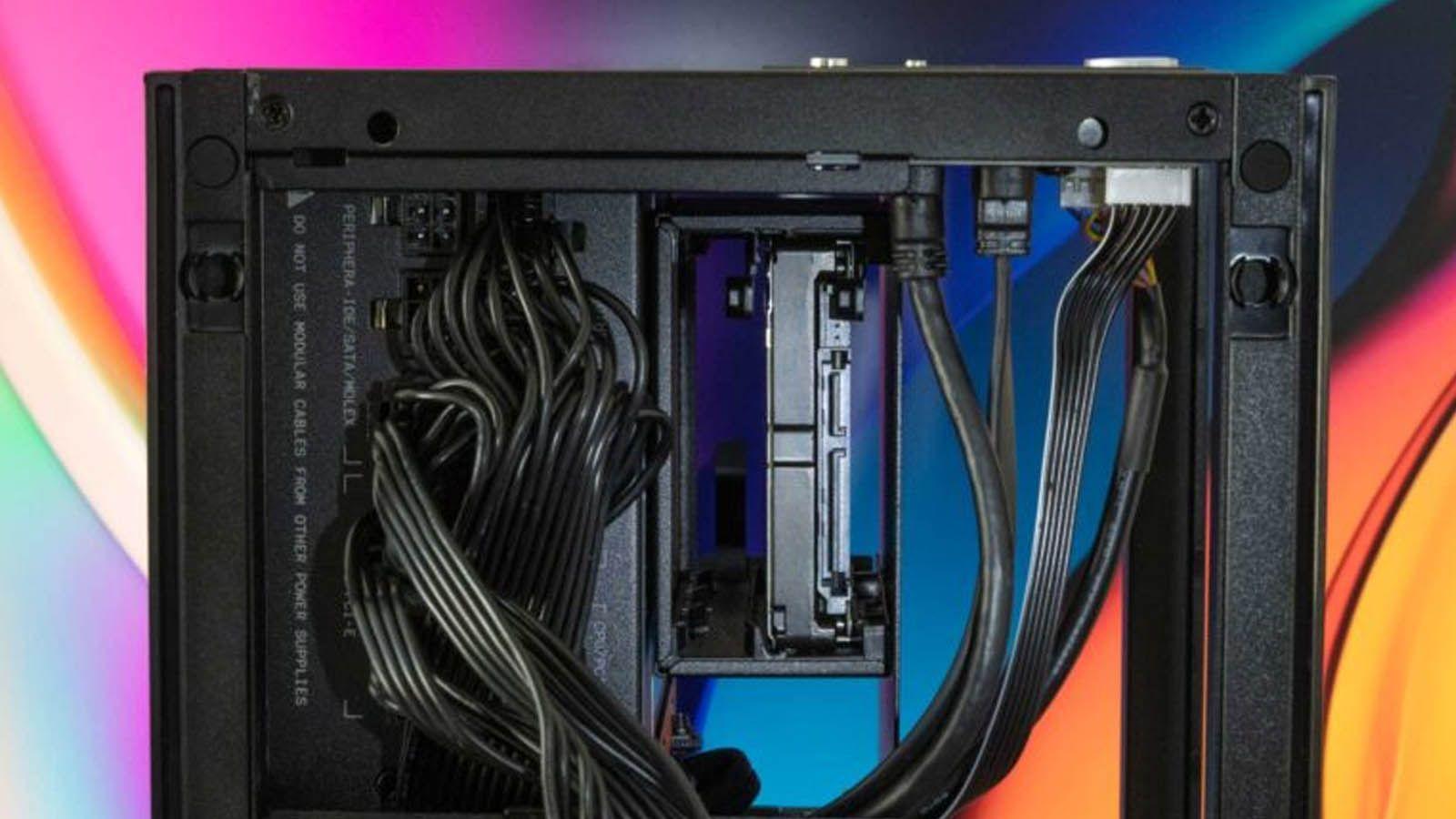
Living surrounded by technology also means dealing with something far less glamorous: piles of cables from your PC and other devices . While the dream of a completely wireless desktop is getting closer, we still rely on power cables, HDMI cables, USB cables, Ethernet cables , peripherals, and chargers of all kinds. If not properly managed, they end up in impossible knots, dangerous tangled messes, and a chaotic mess that's just tiresome to look at.
The good news is that taming that mess is much easier than it seems. With a little planning, some inexpensive accessories, and a bit of patience , you can transform both the inside of your PC and your entire desk: cleaner, safer, more comfortable to work in, and, if you're into gaming, much more visually appealing for photos, videos, or streaming.
PC cable care: why it's so important
When we talk about PC cable management and organization, it's not just about aesthetics. Proper cable management has a direct impact on daily convenience, component lifespan, and even system performance and electrical safety.
On the one hand, a clean tower interior and a clear desktop make any maintenance or upgrade task much easier : changing a graphics card, adding an SSD, installing more fans, or simply disconnecting a monitor is no longer an obstacle course. On the other hand, you reduce accidental jerks that can result in hard drives falling to the floor, damaged connectors, or broken USB ports.
There's also the issue of airflow and temperature inside the case . Poorly managed cabling creates veritable curtains that obstruct airflow from the front fans to the components, raising temperatures and, in the long run, shortening the hardware's lifespan. And don't forget interference: carelessly mixing signal cables with power cables can degrade image, network, or sound quality if the cables are loose or poorly shielded.
Finally, there's the visual aspect. In the midst of the setup craze, RGB lighting, and tempered glass, more and more users are looking for a PC that not only performs well but also looks good. A tidy interior, with well-routed cables, makes graphics cards, liquid coolers, and fans look spectacular, without a tangle of black tubing stealing the show.
Reduce cables to the bare essentials.
Before you start organizing like crazy, it's time to declutter. The first step is to review which cables and devices are truly necessary on your desk and which are just there "because they've always been there." We often maintain redundant connections without realizing it.
A classic example: printers that support Wi-Fi but remain connected to the PC via USB "just in case." If you rarely use it, you can leave it connected only to the network and free up a cable from your setup. The same applies to peripherals: if you're not a competitive gamer, a decent wireless keyboard and mouse will be more than adequate and save you two cables cluttering your desk.
There are also multiport charging cables with USB-C, micro USB, and Lightning outputs all in one cable. Instead of having three cables for three devices, you only need one cable to connect to a power strip with USB ports or a charger. It's easier to manage and reduces the total number of cables you have to keep track of.
Once you've decided which devices to keep, it's a good idea to separate them into two groups: devices you need to have within easy reach on your desk (monitor, keyboard, mouse, microphone, perhaps an audio interface) and everything that can go elsewhere (printer, NAS, external hard drives you don't use daily, secondary chargers, etc.). The fewer items on the surface, the fewer cables will be visible.
As an added bonus, if your phone supports wireless charging, an inductive charger on the table further reduces the need for dangling cables. You plug it in once and forget about plugging and unplugging it every day.
Initial planning: the key to good cabling
One of the most common mistakes when building a PC or rearranging your desk is connecting cables haphazardly. Before plugging anything in, it's worth taking a moment to plan where each cable will go and in what order you'll connect them.
Inside the tower, place all the power supply and fan cables in their approximate positions, but don't tighten or secure them yet . This lets you see which cable runs are obstructing, which cables tend to cross, and which areas will become cluttered. This "dry run" will save you a lot of trouble later.
On your desk, do something similar: think about the shortest and cleanest route between each device and the power strip or PC, trying to avoid cables dangling at mid-height or snaking in front of the screen. Mentally marking (or using sticky notes) where you want each thing to go helps you avoid hasty improvisation.
Furthermore, it's important to decide in advance which cables to group together and which to keep separate . Power cables (220V or power adapters) should ideally be kept separate, and signal cables (USB, HDMI, DisplayPort, Ethernet, audio, etc.) should be kept separate to minimize interference and quality issues.
This initial planning will also be invaluable in the future: if you ever change the graphics card, add RAM, install an SSD or add a capture card, having a well-thought-out cable structure makes everything much faster and you don't have to disassemble the entire tower every time.
Choose the right case and power supply
If you're building or upgrading your PC, there are two components that make a world of difference when it comes to cable management: the case (tower) and the power supply . Choosing the right ones here will save you hours of struggling with tangled cables.
As for the tower, regardless of whether it has tempered glass and is geared towards gaming, it's essential that it offers sufficient space and areas designed for cable management . Many modern cases incorporate specific cutouts, channels, and covers at the rear to neatly guide cables.
Mid-range and high-end models often include space to hide the power supply and its cables in a lower compartment, leaving the main motherboard area clear. If the case has rubber grommets over the cable pass-throughs, even better: they help conceal the holes and protect the cable sleeves.
For the power supply, it's best to opt for modular or semi-modular models . With modular units, you only connect the cables you're going to use, so you don't have any excess cable hanging around. With semi-modular units, there are a number of fixed cables (the typical 24-pin motherboard and CPU connectors), and the rest are plug-in. In both cases, you reduce the amount of cable you have to store inside the case.
With a spacious case and a well-designed power supply, cable management becomes much more manageable, and not a battleground against meaningless bundles of cables occupying the entire chassis.
Tips for organizing cables inside your PC
Once you have the case open and the components installed, it's time for proper internal cable management. The golden rule here is to make the most of the space at the back of the case . Almost all modern cases have a space between the motherboard tray and the side panel designed precisely for hiding cables.
Route all the power supply cables (motherboard, CPU, PCIe for the graphics card, SATA, etc.) through the side or bottom cable grommets and guide them behind the power supply until you are as close as possible to the corresponding connector. Only then should you bring them back out through the nearest opening, so that only the bare minimum of cables remains visible.
To prevent them from getting tangled, it's very useful to bundle cables going to the same area together with small cable ties or Velcro straps. For example, all the SATA cables going to the drives, or all the fan cables that will end up at a hub or the motherboard. This way, you know that each "block" corresponds to a specific function.
Pay attention to cable tension . They shouldn't be so tight that they become strained or bent awkwardly, especially near the connectors. If any cable is too short to reach the desired length, consider replacing it with a longer one or finding a less strenuous route. A cable that's too tight is likely to come loose or break with the slightest movement.
When you're finished, check that no part of the cabling is blocking important airflow paths . If you have front fans drawing air in, ideally the space between them and the motherboard should be as clear as possible, without any "curtains" of cables hanging down the middle.
The rear of the chassis: the dark side you shouldn't neglect
The back of the box (the part you don't usually see) is where we tend to cheat the most: we pile up cables haphazardly, squeeze the lid shut as best we can, and that's it. But that's precisely the perfect recipe for ending up with crushed cable bundles, bent connectors , and a lid that's a nightmare to close again.
It's important to dedicate time to this hidden aspect. Distribute the cabling in small groups along the chassis , instead of creating a large clump in the center. A useful technique is to bundle a couple of cables together with a Velcro strap, attach them to one side, and repeat the process at different points, so that everything is flatter and easier to manage.
Many boxes already come with anchor points, tabs, and plastic guides on the back. Take advantage of them: they're not just for show. Threading Velcro straps or cable ties through these points secures the cables and prevents them from shifting and getting into the interior when you close the lid.
If the chassis has sufficient depth at the back (some models are designed precisely with this in mind), you can afford to bundle a bit more cable, but it's still advisable to maintain a minimum level of order so that when you open it up in a few months, you don't find an impossible-to-follow tangled mess.
Remember that this rear area is also where it makes the most sense to label the cables : it's not visible from the outside, it doesn't spoil the aesthetics, and the day you're unsure which cable corresponds to which fan, which hard drive, or which RGB strip, you'll be extremely glad you spent five minutes putting on a small label.
Useful accessories for cable management
Beyond what comes in the PC box, there are a few inexpensive accessories that make life much easier. The most basic are plastic cable ties , which allow you to quickly bundle cables. However, they have the drawback of being single-use: if you want to change something, you have to cut them.
That's why Velcro straps are becoming increasingly popular . They're reusable, easy to open and close, and much gentler on cables (they don't permanently constrict them). Some cable box manufacturers already include them, but they can also be purchased very cheaply in bulk.
Another very practical accessory is cable labels . These can be adhesive labels, small sleeves, or, if you want to be more precise, a label printer is best, allowing you to label each cable with the device name or the port it connects to. This is useful not only inside the PC but also for peripheral and desktop cables.
For outdoor use, there are spiral plastic tubes and flexible cable trunking that transform several loose cables into a single, tidy bundle. These are ideal for grouping, for example, the monitor's power cable, HDMI cable, and audio cable, and routing them together to the power strip or PC.
Finally, it's always a good idea to have an organizational kit handy with staples, cable ties, and clips that attach to the underside of the table, the legs, or the wall. They're perfect for securing cables that would otherwise be dangling or bumping into your legs.
Separate, group, and correctly identify cables
Good cable management hinges on three basic principles: avoid unnecessary cable crossings, group cables logically, and clearly identify them . It may sound obvious, but many disorganized installations fail precisely at these points.
Whenever possible, try to keep power cables (those going to the power strip, laptop adapters, external power supplies, etc.) separate from data and video cables. If they're too close together, especially with low-quality cables that have little shielding, interference or slight signal loss can occur.
As for grouping, it makes sense to do it by function: all the fan cables together, all the front panel cables, all the SATA cables , all the USB cables going to the same hub, etc. This "thematic" order means that as soon as you see a bundle, you know what type of connection you're dealing with.
For identification, it's a good idea to mark the cable at least at one end, and if you want to be extra precise, at both. A small label near the connector (for example, "HDMI Monitor 1," "USB Microphone," "NAS Ethernet") saves you from having to trace the entire cable every time you want to disconnect something. This is invaluable when the setup has been in place for a while and you can't remember what each component is.
If a peripheral device stops working tomorrow, it will be much easier to rule out the cable as the problem if you can locate it instantly and try unplugging and plugging it back in or changing ports without messing up the rest of the connections.
Hiding cables: boxes, conduits and tricks under the table
In an ideal world, all cables would be exactly the right length to reach from point A to point B, without a single centimeter to spare. In reality, most of the time we have extra meters. That's why it's so important to conceal and manage excess cable intelligently.
A very convenient option is a cable management box that can be placed on the floor or, even better, screwed to the underside of the table. Inside, you can hide the power strip and power adapters, leaving only a single cable running to the wall outlet.
If you don't want to or can't screw anything in, there are boxes designed to simply sit on the floor, and also power strips that come ready to be mounted on the wall or countertop . With any of these solutions, the floor stays much cleaner and you prevent your feet or chair from constantly getting caught on the cables.
When you need to wind up excess cable, avoid making excessively tight coils . A little winding is fine, but concentrating many meters of rigid cable in a very small space can add resistance, strain the cable, and, in extreme cases, generate more heat. It's better to make wide loops and secure them with Velcro inside a box or under a table.
If commercial solutions don't suit your needs, you can always build your own system : a small shelf under the desk for hard drives, a NAS, and a power strip; a metal tray-style rack screwed to the underside; or even an auxiliary drawer that doubles as a hidden power station. With a little ingenuity, you can achieve a very clean result without spending too much.
Electrical protection: power strips and UPS to protect the equipment
PC cable management isn't just about keeping them tidy. You also need to consider protection against power surges and outages , which can damage components or cause you to lose work suddenly.
At a minimum, it's advisable to use surge protectors , not just cheap, basic power strips. These include components capable of absorbing and diverting voltage spikes, protecting your power supply, monitor, and other connected devices.
If you work on important projects or simply don't want to take any chances, a UPS (uninterruptible power supply) is a very worthwhile investment. In addition to protecting against power surges and dips, it includes batteries that keep your PC running for a few minutes in the event of a power outage—enough time to save your work and shut down safely.
In any case, try to integrate the power strip or UPS into your organizational system: fixed under the table, inside a box, or on a small shelf , and not lying on the floor creating its own tangle of cables around it.
When choosing these devices, look not only at the number of sockets, but also at whether they include USB charging ports, individual switches, active protection indicators and, if you consider it relevant, safety and sustainability certifications (recycled content, verified recycling standards, etc.).
When you can't hide the cables: show them off in style
There are situations where, due to the room's layout or the type of wiring, it's impossible to hide all the cables . In those cases, instead of fighting the inevitable, you can make them part of the decor.
With a little creativity, you can create visual patterns with cables , for example, by using clips and cable ties to follow straight lines and well-defined angles along the wall. If they're all together and neatly arranged, they stop looking like a mess and become almost a design element.
In the world of consoles and living room setups, it's common to see installations where the console, TV, and soundbars are visible, but the cables are bundled together and run along one side of the cabinet , or neatly aligned vertically. Visually, there's a world of difference compared to simply leaving the cables hanging haphazardly.
However, these "out-of-the-way" solutions work best when you don't have to be constantly moving or changing cables . They're designed more for fixed installations (console, TV, sound system) than for peripherals that you plug and unplug daily.
If you combine elegant cable routing with good quality cables and, if you like, with colored sleeves or aesthetic braiding, the result can be surprisingly eye-catching, even in photos for social media or to show off your gaming setup.
Desktop cables and peripherals: total order in your setup
Beyond the PC's internal components, the other major battleground is the desktop. The goal here is to have only the absolutely essential cables visible on the table , and if they are visible, to keep them as straight and tidy as possible.
Start by deciding which essential peripherals will always be connected (keyboard, mouse, monitor, microphone, headphones, perhaps a fixed webcam) and which ones you'll only connect when you use them (external hard drives, camera, additional microphones, controllers, etc.). For the latter, you can reserve one or two accessible USB ports (for example, on the keyboard if it has a hub or on a small USB hub hidden under the desk).
For cables that need to be visible, such as a wired mouse cable, try to keep their path as short as possible and avoid them crossing in front of the screen . A cable organizer attached to the back edge of the desk helps guide these cables exactly where you want them.
If you use wired headphones, you can use a headphone stand with cable management , or route the cable behind the screen so that it only protrudes slightly. And if you usually charge your phone on a table, a single, well-managed cable or a wireless charging pad will prevent the entire front of your device from being cluttered with dangling cables.
Underneath the desk, make the most of the cable trunking, adhesive clips, boxes, and power strips we mentioned earlier. Ideally, if someone looks at your desk from the front, they shouldn't see a single cable running down to the floor, except for one: the one that goes from the power strip or UPS to the wall outlet.
Organizing and managing PC cables, both inside the tower and throughout the entire setup, requires time and a bit of planning, but the improvement is enormous: your system breathes better, you work more comfortably, you reduce electrical hazards, and the whole setup looks infinitely cleaner . If you take advantage of a good case and power supply, plan cable routing, separate power and signal cables, label everything, and combine cable ties, Velcro, cable boxes, and trunking, you'll go from struggling with a tangled mess of cables to having a desk you'll be proud to show off, and a PC ready for any future upgrade without any hassle.
