- Windows 11 Smart Charging protects your laptop's battery by limiting the maximum charge and preventing overcharging.
- The system uses algorithms that learn your usage patterns and adapts charging to extend battery life.
- Major manufacturers offer their own tools to customize charging limits and optimize battery performance.

Maintaining your laptop battery is a major concern for those who use laptops, tablets, and hybrid devices daily. New technologies are exploring smart solutions to extend the lifespan of these essential components, and one of the standout features in Windows 11 is Smart Charge. Since its introduction, more and more users are wondering how it works, what advantages it offers, and whether it's truly worth activating or configuring to get the most out of it.
Smart Charging in Windows 11 was designed with your peace of mind and the longevity of your devices in mind. Thanks to a series of algorithms and manufacturer-specific tools, this system optimizes battery charging , helping to extend battery life, protect it from overcharging, and prevent premature deterioration. If you're interested in learning how to get the most out of this feature and have all your questions answered, keep reading because we'll tell you absolutely everything.

What exactly is smart charging in Windows 11?
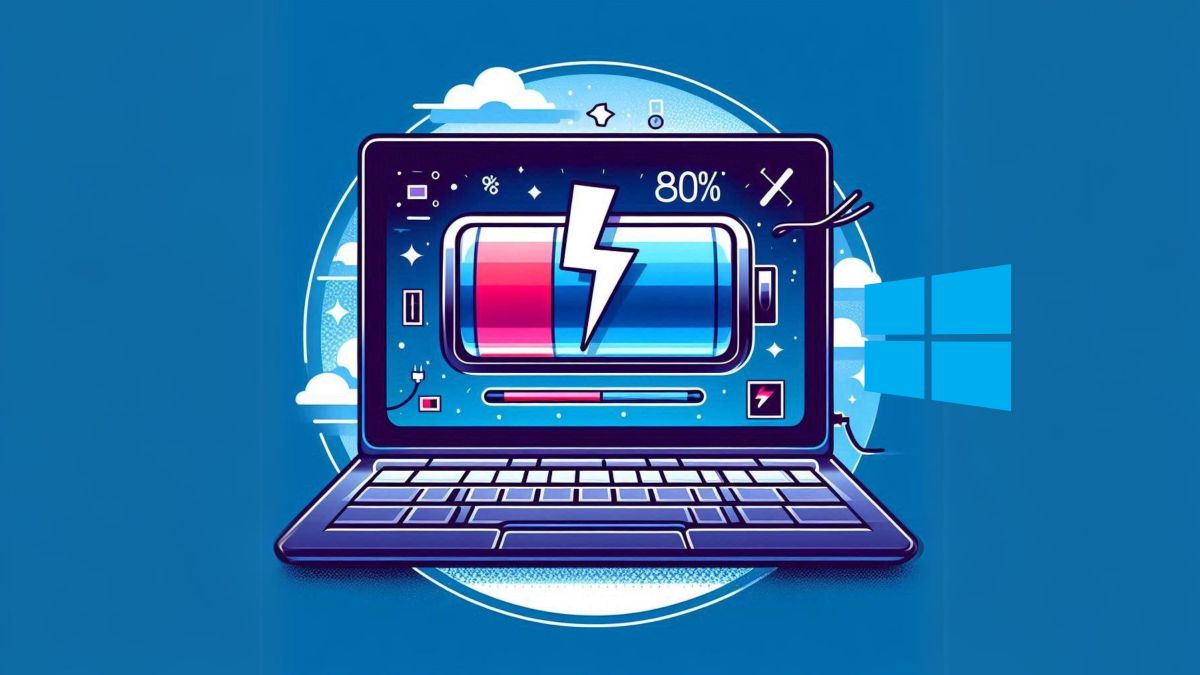
Smart charging is an advanced feature integrated into most modern laptops running Windows 11. Its main purpose is to optimize power management and protect the battery by dynamically and automatically adjusting the charging limit to prevent it from remaining at 100% for extended periods, which, as has been proven, accelerates battery wear.
In simple terms, the system detects when the device is plugged in for longer than usual or is used in high-temperature conditions. In these scenarios, smart charging limits the maximum battery level, typically to 80% , although this value and the exact behavior may vary depending on the manufacturer and model.
In this way, the battery is not subjected to unnecessary stress and it is avoided to keep it in a fully charged state – which, in the long run, accelerates its physical degradation and reduces its energy storage capacity.
When the feature is active, icons or visual indicators—for example, a heart over the battery symbol in the taskbar—usually appear to alert us that it's working. Additionally, if you hover over the battery, you may see messages like "Fully charged" even if the percentage is less than 100%; this is entirely intentional and is intended to protect the battery in the long run.

Why is smart charging important for the health of your battery?

Constantly charging to 100% causes cumulative wear on lithium-ion batteries , the most common type in modern portable devices. This effect is further exacerbated in hot conditions, which can lead over time to a significant reduction in battery life and, in extreme cases, to premature failure or battery expansion.
Smart charging helps mitigate this problem in several ways:
- Reduces stress on the battery by preventing it from being kept fully charged if not necessary.
- Extends battery life, since reducing the number of full charge cycles allows the original capacity to be maintained for longer.
- Optimize energy consumption, adjusting the energy supplied according to usage patterns and avoiding unnecessary consumption.
- Minimizes the risk of overheating and expansion, which is essential if the device remains plugged in on a desktop or in hot environments.
This system is essential for those who want to be worry-free and keep their laptop's battery in good condition, especially if they tend to use it plugged in for long periods of time. The feature works automatically and prioritizes safety and long-term performance, rather than always maximizing battery life.
How smart charging works and in what situations it is activated
Depending on the manufacturer and model, the implementation may vary slightly, but there are some common patterns. Smart charging is usually always enabled by default on most compatible devices and is activated in these scenarios:
- When the device is plugged in for extended periods without discharging.
- If sedentary usage patterns are detected, such as desk work or long meetings.
- At high temperatures that can accelerate battery deterioration.
Furthermore, if the user begins using the battery regularly and it discharges below a certain percentage (usually 20%) , smart charging is temporarily deactivated, allowing the battery to fully recharge. Once the previous usage pattern is resumed, or the system deems it appropriate, the function automatically reactivates to continue protecting the battery.
On devices like Surface or laptops from well-known brands (Dell, Lenovo, HP, MSI, Asus, Acer, LG, etc.), each one implements its own system with slight customizations, which even allows you to manually adjust the charging percentage limit or set exceptions for certain times.

Key benefits of using smart charging on your Windows 11 laptop
If you're still unsure about the benefits of this feature, here's a summary of the most notable advantages:
- You keep the battery healthy for longer, avoiding premature service visits or the need for replacement.
- Reduces the risk of damage from overload or expansion, something especially important for those who use their laptop connected all day.
- Energy savings are considerable, as the system learns your habits and adapts the recharge automatically.
- Does not affect the normal performance of the laptop; you can work completely normally, taking advantage of software-level optimizations.
- In most cases, users can customize the upload limit if they wish., adapting it to your specific needs.

Smart Charging in Windows 11 is a modern, convenient, and efficient tool for taking care of your laptop without sacrificing performance or battery life . If you work long hours at your desktop or simply want to avoid worrying about your battery's status, it's highly recommended to have it enabled.
How to activate, pause, or manage smart charging for each brand?
Most Windows 11 devices include this feature enabled by default, but there are times when the user needs to check or modify the behavior depending on the manufacturer. Each brand has its own management system and application, allowing for more or less advanced customization. Here's a practical and detailed guide for the major brands on the market:
Microsoft Surface
On Surface devices, smart charging is built into the system and typically activates automatically if it detects that the device has been plugged in for extended periods or when the temperature rises. In the Surface app, you can view the battery status, manually turn the feature on or off, and choose from:
- Charge to 100% (ideal for long trips, large meetings, or when you won't have access to an outlet).
- Adaptive mode, which allows smart charging to activate automatically based on detected usage.
- Limit load to 80% to maximize lifespan (not all models allow this manually).
You can temporarily pause smart charging for specific situations and even choose how long to maintain a 100% charge. This is useful for travel, important meetings, or extended use on the go.
MSI
On MSI laptops, the Dragon Center (or MSI Center) tool allows you to select different charging modes:
- Balanced, which limits the load to 80%.
- Better for the battery, further reducing the limit to 60%.
These options can be customized to the user's needs, adapting battery management to the way you use the device.
LG
LG laptops have the LG Smart Assistant app , where you can activate the "Extend battery life" function and easily limit charging to 80%, just by selecting an option in the power menu.
Dell
The Dell Power Manager application lets you manage charging limits from the Battery Information tab. You can select the "Primarily AC Use" mode to set the limit to 80%, or customize it by setting your preferred percentage.
Lenovo
With Lenovo Vantage, you can control all the power settings of your Lenovo laptop. Simply go to the battery section, find the option to limit charging, and set it to 80%.
Asus
The MyASUS tool allows you to choose between “Balanced Mode” (80%) or “Maximum Lifespan Mode” (60%) depending on whether you want to prioritize battery life or overall battery life.
HP
On many HP laptops, this option is available in the BIOS settings or in dedicated management tools. Look for options like 'Adaptive Battery Optimizer' or 'Battery Care Feature' to set limits, either with adaptive intelligence or a fixed percentage based on your needs.
Acer
The Acer Care Center app lets you adjust the maximum charge from the 'Battery Charge Limit' option. It's a quick and easy process to protect your battery and personalize your experience, whether you prefer longer battery life or extended battery life.
When to disable or pause smart charging?
Smart charging is highly recommended in most cases, although there may be specific situations where it's advisable to temporarily disconnect it. It's best to disable it when you anticipate the device won't be used for many hours without access to power, such as on long trips or during conferences , or when you want to maximize battery life without restrictions.
On almost all older systems, you can pause, disable, or modify this behavior by accessing the manufacturer-specific app or, in some cases, from the BIOS. Just remember to reactivate the feature when you return to your normal routine to continue protecting your battery.
Smart charging in Windows 11 has become an indispensable ally for those seeking peace of mind, autonomy, and maximum laptop durability. With just a few minutes of setup, you can forget about premature battery drain and use your device with the confidence that the system will take care of the rest.