- BitLocker encrypts entire disks and strengthens boot integrity with TPM and Secure Boot.
- Requirements: Pro/Enterprise/Education editions, TPM 1.2+, suitable partitions, and compatible UEFI/BIOS firmware.
- Differences with device encryption: automatic activation, HSTI/Modern Standby requirements, and key copying to Entra ID/AD.
- Management and recovery at scale with AD, GPO, MDM, and integration with enterprise security suites.
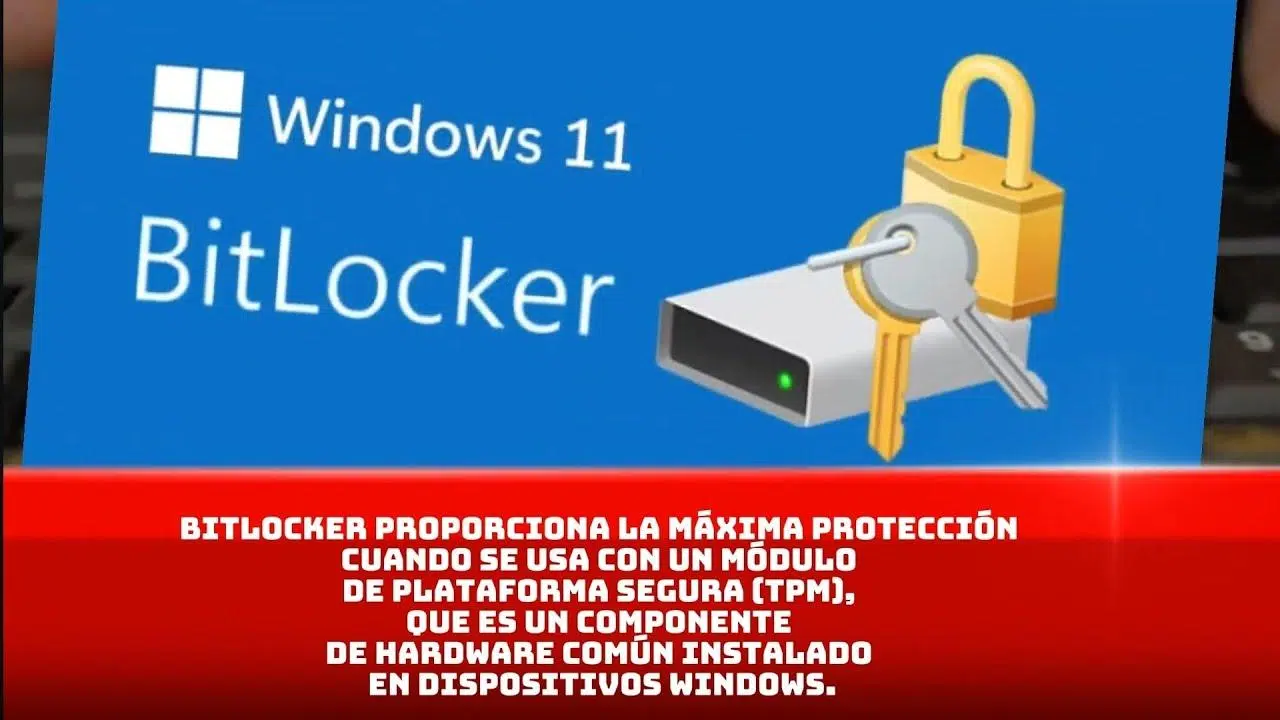
If you work with sensitive data on a laptop or desktop computer, encryption is no longer optional: it's a necessity. BitLocker is Microsoft's native solution for encrypting your hard drive and protecting your information against loss, theft, or computer removal. More than just a simple lock, it connects to the system boot process and hardware to prevent unauthorized access, even if someone tries to read the drive on another computer.
In recent years, remote work, mobility, and the use of external devices have increased. This raises the risk of data exposure if a device is lost or stolen . BitLocker addresses this by encrypting entire volumes with AES and integrating with the TPM chip, corporate policies, Active Directory, and Microsoft cloud services to safeguard recovery keys and apply controls centrally.
What is BitLocker and what problems does it solve?
BitLocker is a full disk encryption (FDE) technology built into Windows that protects data at rest. When enabled, all the contents of a drive (system or data) are stored encrypted; without the key or a valid protector, the files remain unreadable. It was designed to mitigate threats such as computer theft, disk removal, or offline attacks that attempt to read storage directly.
It works with 128-bit or 256-bit AES algorithms and modern operating modes such as XTS-AES (recommended by Microsoft in current versions) and, for compatibility, AES-CBC in certain legacy scenarios. The Volume Master Key (VMK) is protected with safeguards such as TPM, PIN, passwords, or USB boot keys and is only released if the boot environment passes integrity checks.
To achieve maximum protection, BitLocker relies on the Trusted Platform Module (TPM ). This chip validates that the boot chain (UEFI/BIOS, boot manager, critical files) has not been altered. If anything changes (for example, modified firmware), the device can request the recovery key before allowing booting. Encryption is also possible without a TPM, but this sacrifices the pre-boot integrity check and requires a bootable USB key or a password (the latter is discouraged because it is vulnerable to brute-force attacks without a lock).
It's important to distinguish BitLocker from the device encryption feature found in certain hardware configurations. While standard BitLocker offers advanced controls and options, device encryption aims to automatically activate protection on compatible systems (HSTI/Modern Standby, without accessible external DMA ports), focusing on the system drive and fixed configurations, without managing external USB devices.
In practice, with BitLocker properly configured, a stolen laptop becomes a worthless shell : the thief can format it, but won't be able to read your data. This security leap is key to complying with regulations (GDPR, HIPAA, etc.) and preventing data breaches, penalties, and loss of trust.
Requirements, editions, and differences with "device encryption"
For BitLocker to perform at its best, both hardware and firmware matter. TPM 1.2 or higher (ideally TPM 2.0) is the starting point . On devices with TPM 2.0, legacy mode (CSM) is not supported; you must boot into UEFI, and it's advisable to enable Secure Boot to strengthen the chain of trust.
The UEFI/BIOS firmware must meet Trusted Computing Group (TCG) specifications and be able to read USB drives during pre-boot (mass storage class) for scenarios with boot keys. Additionally, the disk must have a separate system partition from the operating system volume: unencrypted, ~350 MB recommended (FAT32 in UEFI, NTFS in BIOS), leaving free space after enabling BitLocker. The OS drive will be formatted as NTFS.
Regarding editions, BitLocker is supported in Windows Pro, Enterprise, Pro Education/SE, and Education (Windows 10/11); also in Windows 7 Enterprise/Ultimate and Windows Server (2016/2019/2022, among others). Availability and enabling rights depend on the license: Windows Pro/Pro Education/SE, Enterprise E3/E5, and Education A3/A5 grant the corresponding permissions.
Regarding device encryption : It is present on devices that pass HSTI/Modern Standby validations and do not expose external DMA ports. It is initialized after OOBE with a clear key in a suspended state until the TPM protector is created and the recovery key is backed up. If the device is joined to a Microsoft Entra ID (formerly Azure AD) or an AD DS domain , the backup is performed automatically, and the clear key is then retired. On personal computers, logging in with a Microsoft account with administrator privileges triggers the backup of the key to the account and the activation of the TPM protector. Devices with only local accounts may technically be encrypted but lack adequate protection and management.
Is your hardware compatible with device encryption? msinfo32.exe (System Information) indicates this in the "Device Encryption Compatibility" field. If it wasn't initially compatible, changes such as enabling Secure Boot can enable it and cause BitLocker to automatically activate.
In environments where automatic device encryption is not a concern, it can be prevented with the Registry:
| Ruta | Name | Type | Price |
|---|---|---|---|
HKEY_LOCAL_MACHINE\SYSTEM\CurrentControlSet\Control\BitLocker |
PreventDeviceEncryption |
REG_DWORD | 0 x 1 |
This key prevents activation without intervention , paving the way for an IT-controlled deployment.
What about removable drives ? Windows includes BitLocker To Go, which encrypts USB flash drives and external hard drives. Management support may vary depending on the console (for example, certain security solutions may restrict or not manage this scenario), but at the Windows level, the feature exists and is widely used in organizations.
Activation, management, recovery and practical security
Basic setup is done directly from Windows: Control Panel > System and Security > BitLocker Drive Encryption , or by searching "Manage BitLocker" in Start. On computers that support "device encryption" (including Home edition), you'll find the same section in Settings. Log in with an administrator account and follow the wizard to choose protectors and save your recovery key.
Typical steps when enabling BitLocker on the system drive: choose a protector (TPM only, TPM+PIN recommended , password, or startup key), decide the encryption scope ( used space only for new computers or the entire drive if it already contains data), and select the encryption mode (new for fixed drives or compatible if you're moving the drive between computers). While encryption is in progress, you can work on the computer ; the process runs in the background.
If you prefer command line, BitLocker is managed with manage-bde (privileged command prompt):
manage-bde -on C: -rp -rk E:\ generates and saves a recovery key to E:. You can add a password/PIN with manage-bde -protectors -add C: -pw o -TPMAndPIN, and check the status with manage-bde -status. To disable and decrypt: manage-bde -off C:. Remember to keep your keys in safe locations. and not encrypted.
Enterprise environments require lifecycle governance: Group Policy Objects (GPOs) to enforce security and encryption, Active Directory/Entra ID to safeguard keys, and even Mobile Device Management (MDM ) (such as Microsoft Intune) to enforce policies on laptops outside the network. Copying keys to Active Directory/Entra ID facilitates the recovery and auditing of encryption status on a per-device basis.
Some security suites add a management layer on top of BitLocker. For example, with certain enterprise solutions, master keys can be sent to the console for recovery. However, if a user previously encrypted the drive themselves, that key might not be in the management platform. In that case, the recommendation is usually to decrypt and re-encrypt using the console policy , and to disable duplicate BitLocker policies in Group Policy Objects (GPOs) to avoid conflicts during encryption.
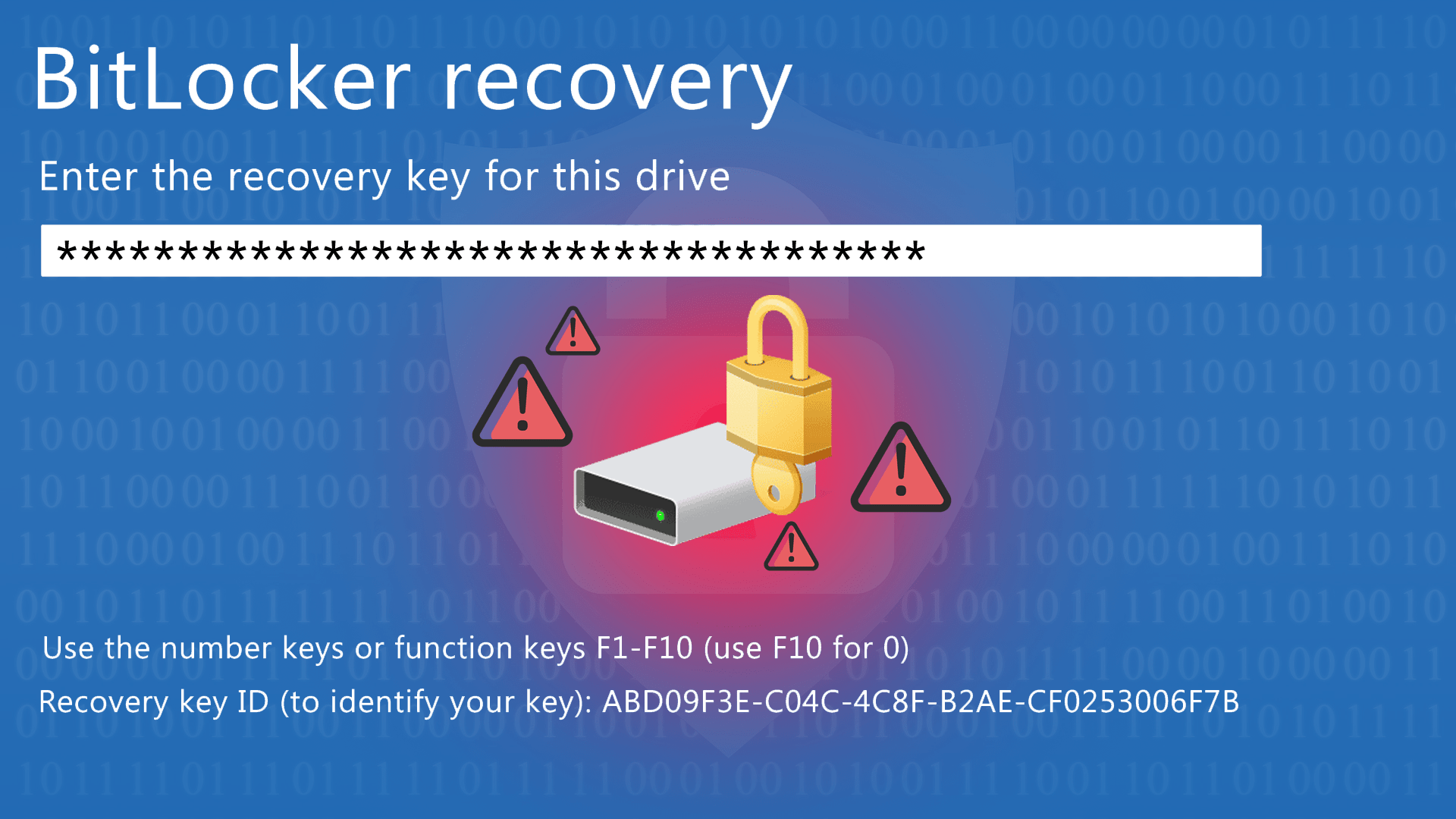
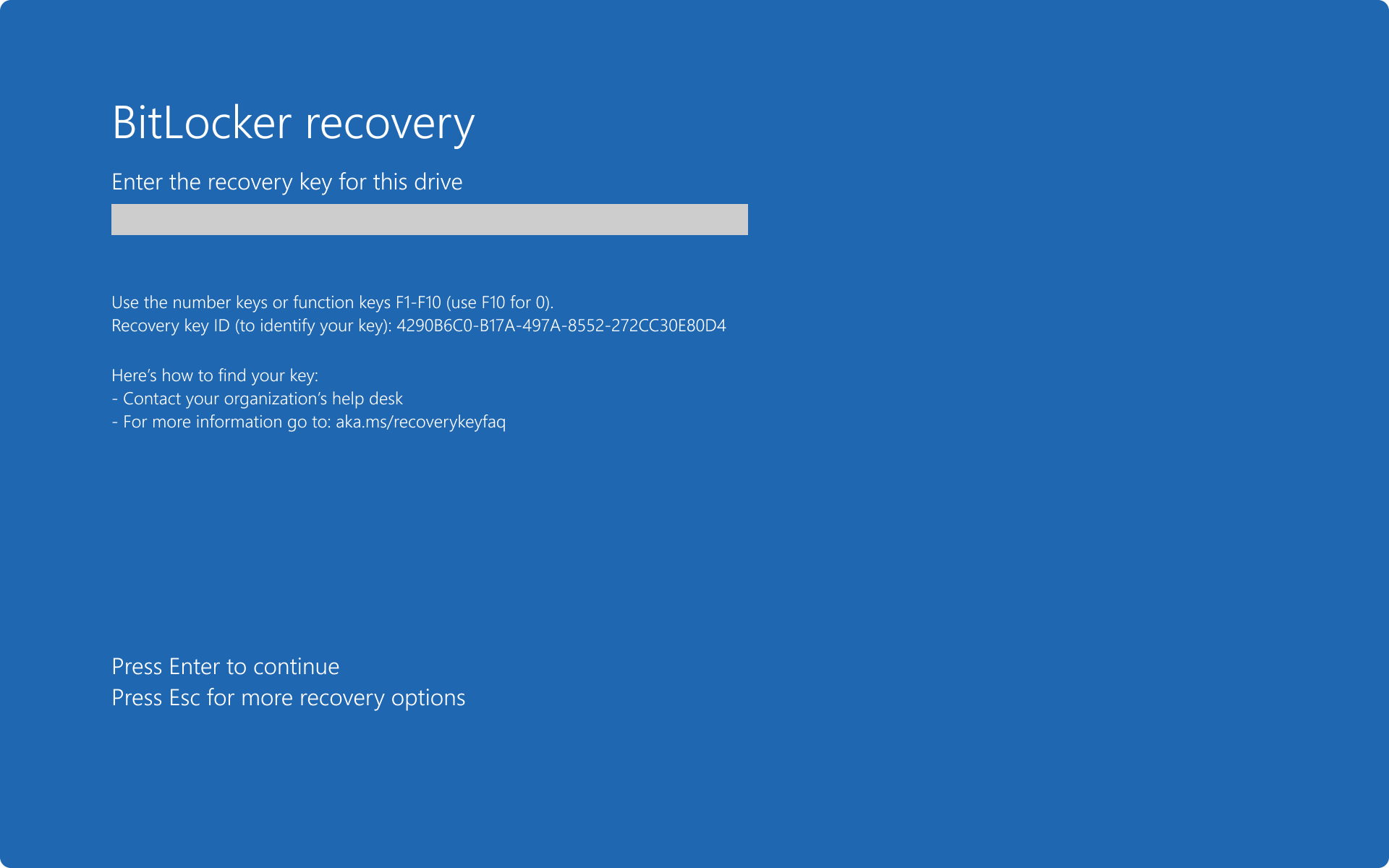
A common question: "My computer suddenly asked for the recovery key today . Has my system been compromised?" Usually not. Firmware/UEFI updates, Secure Boot changes, hardware modifications, or certain drivers can alter TPM measurements and trigger the challenge. Enter the key, log in, and if the event coincides with a recent change, there's no indication of intrusion. If you don't remember where you saved it, check your Microsoft account/login ID/AD DS or any printouts/.txt/.bek files you may have generated.
In terms of security, BitLocker is robust if configured properly. Essential best practices :
- Use TPM + PIN at the start to harden the possession factor (TPM) with knowledge (PIN).
- Enable Secure Boot to prevent malicious bootloaders.
- Protect and audit the custody of recovery keys (AD/Enter ID and restricted access).
- Configure session lock and safe hibernation to minimize windows of opportunity.
No system is infallible, and it's wise to be aware of theoretical and practical vulnerability vectors: boot attacks in environments without Secure Boot, cold boot (RAM removal/reading immediately after shutdown), or the classic "sticky note" problem with the recovery key. With operational discipline and firmware controls , these risks are minimized.
BitLocker also has usage considerations: not all editions of Windows include it (for example, Windows 10 Home requires alternative methods or device encryption if supported), and on computers without a TPM, you must rely on bootable USB drives or passwords (which are more vulnerable). Significant hardware changes or certain updates may require additional unlocking steps. Performance, however, is optimized , and the impact is usually minimal on modern hardware.
For removable drives, BitLocker To Go allows you to protect USB flash drives and external hard drives, ideal for data on the go. Depending on third-party tools deployed in your organization, the management of these media may be limited ; review your IT policy before standardizing their use.
Partitioning and preparation requirements should not be overlooked in legacy deployments. The system (boot) drive must remain unencrypted and separate from the OS drive. In modern Windows installations, this layout is created automatically, but in legacy scenarios, the BitLocker Drive Preparation Tool or diskpart could be used to resize and create the appropriate partition. Only when the volume is fully encrypted and protected is active is it considered secure.
Regarding operating system compatibility: Windows 11/10 Pro, Enterprise, and Education support BitLocker; Windows 8.1 Pro/Enterprise also supports it, and in Windows 7, it's available in Enterprise/Ultimate. In the server world, it's present from Windows Server 2008 and later versions . If you're considering cross-platform encryption (Linux/Windows) or strictly audited open-source software, alternatives like VeraCrypt might be a better fit in some cases.
If you manage fleets, a complete strategy includes:
- GPO To force encryption upon domain joining, choose algorithm (e.g., XTS-AES 256) and require TPM+PIN.
- AD DS/ID Login as a recovery key store and for compliance reporting.
- MDM (e.g., Intune) for computers that rarely connect to the corporate VPN.
- Integration with security tools that allow you to lock, inventory and respond to loss/theft, combining BitLocker (protects data) with location or remote locking functions (protect the device).
A useful note: BitLocker does not implement pre-boot Single Sign-On. After passing the initial authentication (TPM/PIN/key), the user logs into Windows normally. This aligns with the goal of securing the environment before the system loads.
Key questions, common mistakes and real-life cases
When should you use BitLocker? Whenever your computer stores information you don't want exposed : from personal data (ID, payslips, financial records) to client documents, blueprints, contracts, or intellectual property. For professionals who travel or work in cafes, coworking spaces, and airports, it's a lifesaver in case of theft.
Is it complicated for end users? Not especially . The interface guides you through choosing protections and backing up your key. The critical point is the secure storage of your recovery key . If your device is joined to an Entra ID or a domain, it's probably already backed up; if it's a personal computer, save it to your Microsoft account and, if you want, print a copy. Avoid storing it on the encrypted computer itself.
Why does it sometimes ask for the password after turning on the computer? This usually coincides with firmware/boot changes, Secure Boot activation, TPM updates, or hardware replacement . BitLocker detects a deviation and enters recovery mode. Enter the password, and if everything is in order, it won't ask for it again unless there are further changes.
Does BitLocker affect performance? On modern systems, the impact is minimal , especially if the hardware supports AES acceleration (processor-specific instructions). Choosing AES 128 can provide a performance boost; AES 256 offers additional cryptographic security in regulated environments.
What happens without TPM? You can configure a password or boot key on a USB drive , but you'll lose pre-boot integrity validation. Furthermore, a password without a lock policy is more vulnerable to brute-force attacks . If possible, opt for TPM 2.0 + UEFI + Secure Boot.
What if I want to encrypt a USB drive to transport data? Use BitLocker To Go . Remember to coordinate with IT if your company uses security platforms that enforce specific policies on removable media (for example, requiring a complex password or denying the use of unapproved drives).
A legal and compliance note: with encrypted devices, a theft may remain a hardware incident and not a reportable data breach, depending on the regulatory framework and risk analysis. In other words, encryption is a crucial mitigation measure for GDPR and other regulations, although it does not replace backups, access control, event logging, or vulnerability management.
Finally, if you integrate BitLocker with enterprise endpoint solutions, avoid overlapping policies (GPO vs. security console) that could cause encryption errors. If a computer was encrypted locally and the platform doesn't have its key, decrypt and re-encrypt using the official policy. Policy consistency simplifies support and recovery.

Adopting BitLocker wisely—TPM + PIN, Secure Boot, secure passwords, and consistent policies— makes the difference between losing a device and losing your data as well . In your day-to-day life, you'll barely notice it, but when something goes wrong, you'll be grateful to have your data encrypted, your passwords under control, and the certainty that even if the hardware disappears, your documents remain yours alone.