- Configure the Spotify app and Android system to manage the automatic opening of music URLs.
- Using SongFlip to automatically convert Spotify links to other streaming platforms.
- Activation of local audio files and remote playback management via Spotify Connect.
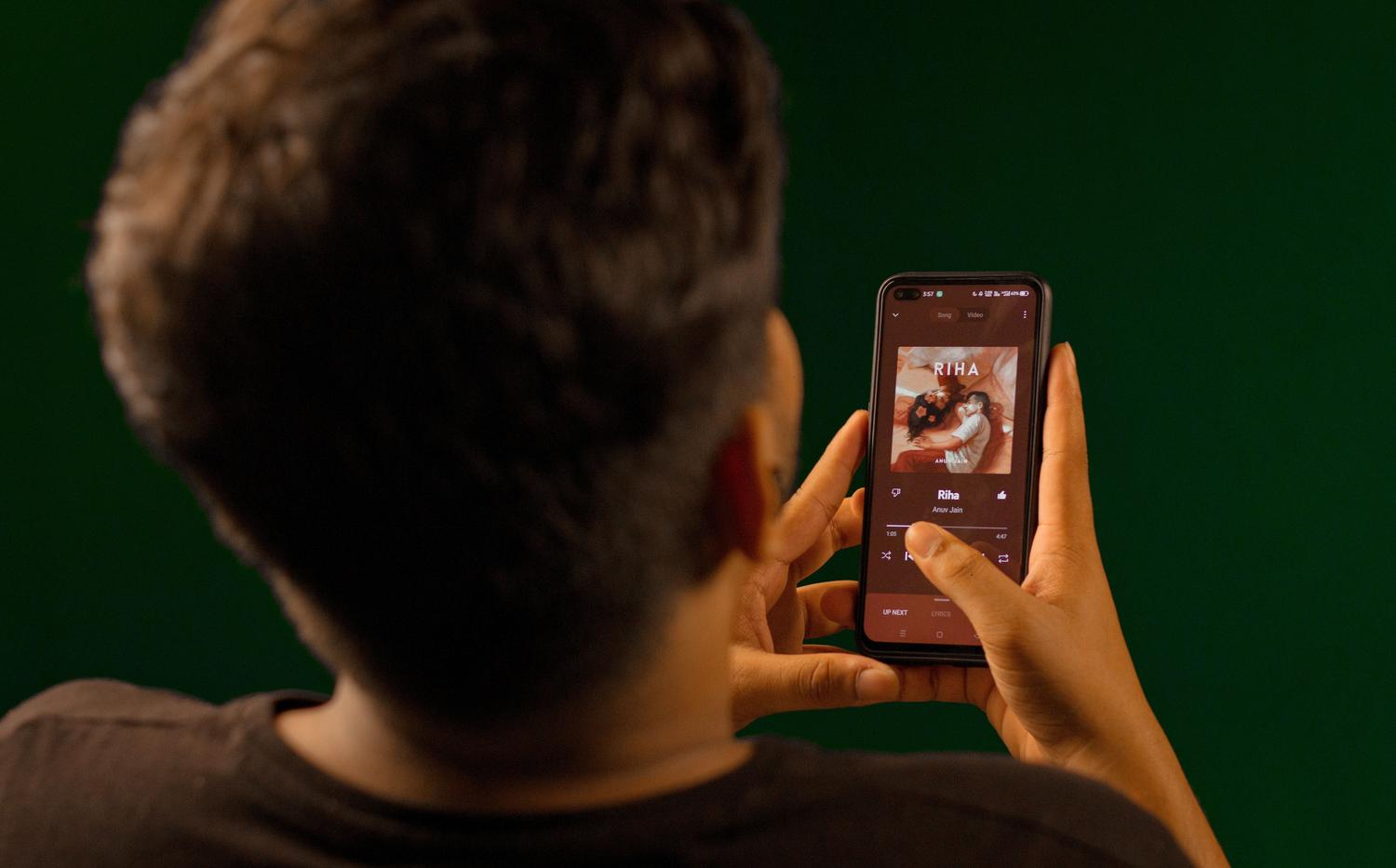
You've probably experienced this before: someone sends you a link to a cool song, you click it, and suddenly your current playlist stops to play that track. On Android, this behavior can be a real pain, especially when you want to better manage what opens and how it opens on your mobile device.
Although it might seem trivial, managing music links can become chaotic if you don't have the right settings or if you use services other than those provided by the music source. That's why there are tricks and external tools that allow you to take complete control of your listening experience on your smartphone.
How to force links to open in the Spotify app
By default, Android tries to associate Spotify domains with its official app. However, sometimes the system gets confused or redirects you to the web version. To ensure everything runs smoothly, it's vital to check that the app is up to date and that the app links are correctly configured in your system settings.
A common problem reported by many users is that when they tap a URL, the song starts playing immediately, interrupting what they were listening to. To avoid this breaking up your music, some recommend copying the link and manually pasting it into the app's search bar, even though this is an extra, more tedious step than simply clicking it.
SongFlip: the ultimate solution for multiplatform users

If you're in groups where some use Spotify, others YouTube Music, and still others Apple Music, you've probably noticed that sharing music can be a real headache. That's where SongFlip comes in , a free and open-source Android app that acts as a smart translator for music links.
This tool intercepts the link (whether from WhatsApp, Telegram, or Instagram) and automatically redirects it to the service you selected in the initial setup. So, even if someone sends you a Spotify link, if you prefer Tidal or Deezer, the app will find the equivalent song and open it there without you having to manually type the artist's name.
- Automatic interception: Once configured, the user only has to tap the link and the magic happens in the background.
- Manual alternatives: If Spotify takes over and prevents SongFlip from working, you can press and hold the link and use the share menu or activate the clipboard detection.
- Web converter: Through songflip.link, you can create a page with links to multiple platforms so that the recipient of the music can choose where to listen to it.
It's important to mention that SongFlip is not a tool for migrating entire libraries or copying playlists, but rather it resolves the issue of opening the link at the exact moment you receive it.
Local file and audio management on the device
Besides links, Spotify lets you use your phone's storage to play legal audio files you've already downloaded. To activate this feature on Android, go to your profile, then to Settings and Privacy , and then to Apps and Devices, where you'll need to check the box for Show local audio files.
Once you've done this, your songs will appear in the Your Library section under Local Files. If you don't see the folder, a quick restart of the app usually fixes the problem. Keep in mind that if you completely reinstall the app, you'll have to download your music and podcasts again.
Remote control and connectivity with Spotify Connect
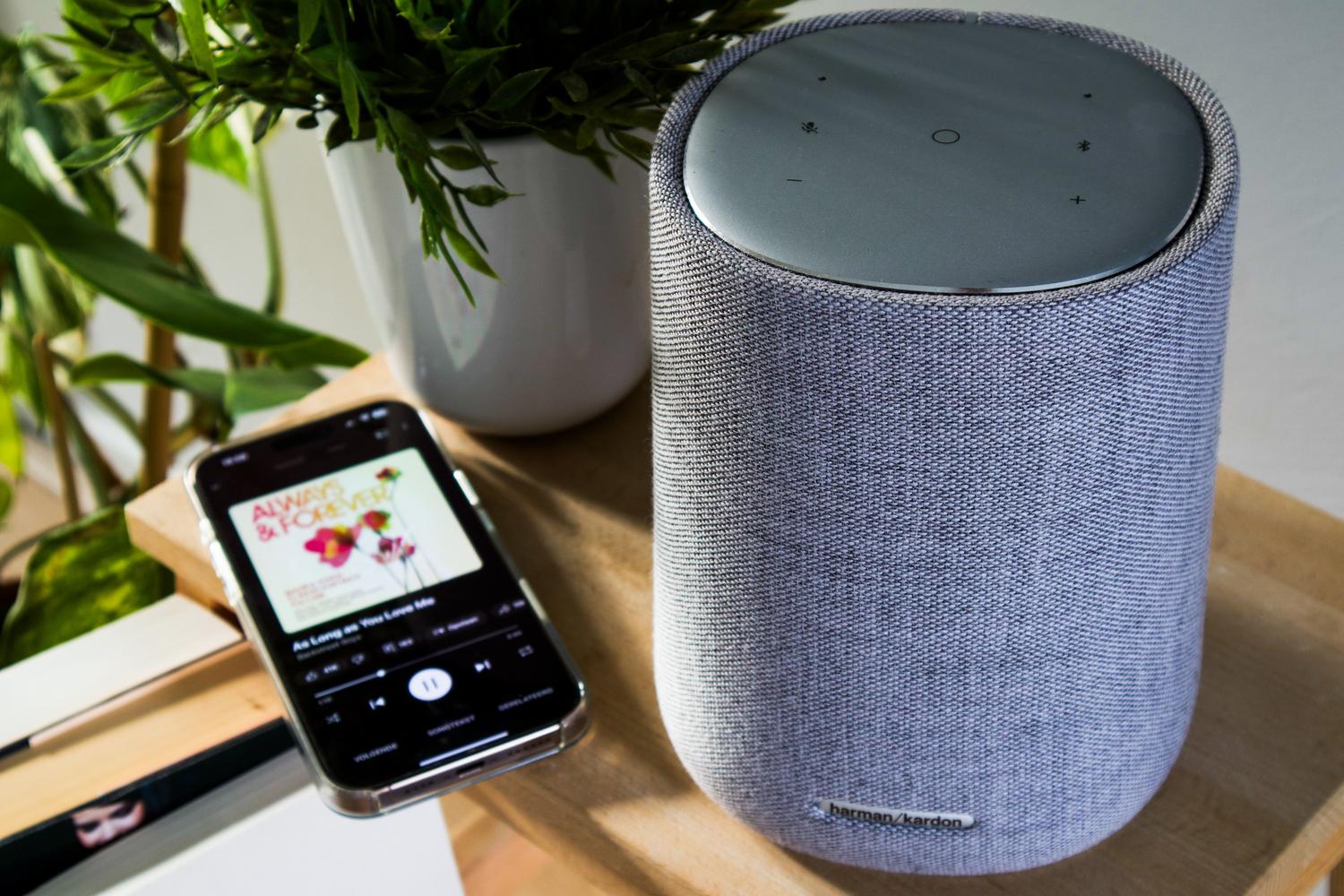
For those who enjoy music on smart speakers or TVs, Spotify Connect is the key tool. It allows you to use your mobile phone as a remote control to manage music on another device, as long as they are connected to the same Wi-Fi network during the initial pairing.
If you're having trouble finding your device, you can try disabling the Local Device Visibility option in your phone's settings so the app can detect devices outside your immediate network. Additionally, on Android TV, it's essential to allow Spotify to display over other apps for seamless integration.
Regarding quality, it is possible to change the setting to Lossless Audio from the mobile device when selecting a third-party device, although this depends entirely on the compatibility of the hardware you are using.
Mastering link opening and local file management completely transforms how we consume music on Android, allowing us to jump between platforms thanks to apps like SongFlip or optimize remote playback via Connect, ensuring that no music link is left unplayed or interrupts our preferred listening session.