- The refresh rate (Hz) determines the smoothness of movement on screen, being crucial for gaming and reducing eye strain.
- Configuration is primarily done from the Windows 11 Advanced Display menu or through specialized software such as the NVIDIA Control Panel.
- Using compatible cables (especially DisplayPort) is crucial for the system to recognize and enable the monitor's higher refresh rates.
- Dynamic Refresh Rate (DRR) technology optimizes the balance between visual performance and battery life on portable devices.

Do you feel like your computer isn't running as smoothly as it should, or have you just bought a powerful gaming monitor and aren't sure if you're getting the most out of it? It's very likely that you're not taking full advantage of your screen's refresh rate , since Windows 11 sometimes doesn't automatically configure the highest refresh rate when you turn on your computer.
Adjusting the refresh rate (Hz) is essential for anyone seeking a flawless visual experience, whether for playing competitive video games or simply for smooth scrolling through websites and documents. This article will tell you everything you need to know to fine-tune your settings and avoid those annoying image stutters.
What on earth are Hz and why do they matter?
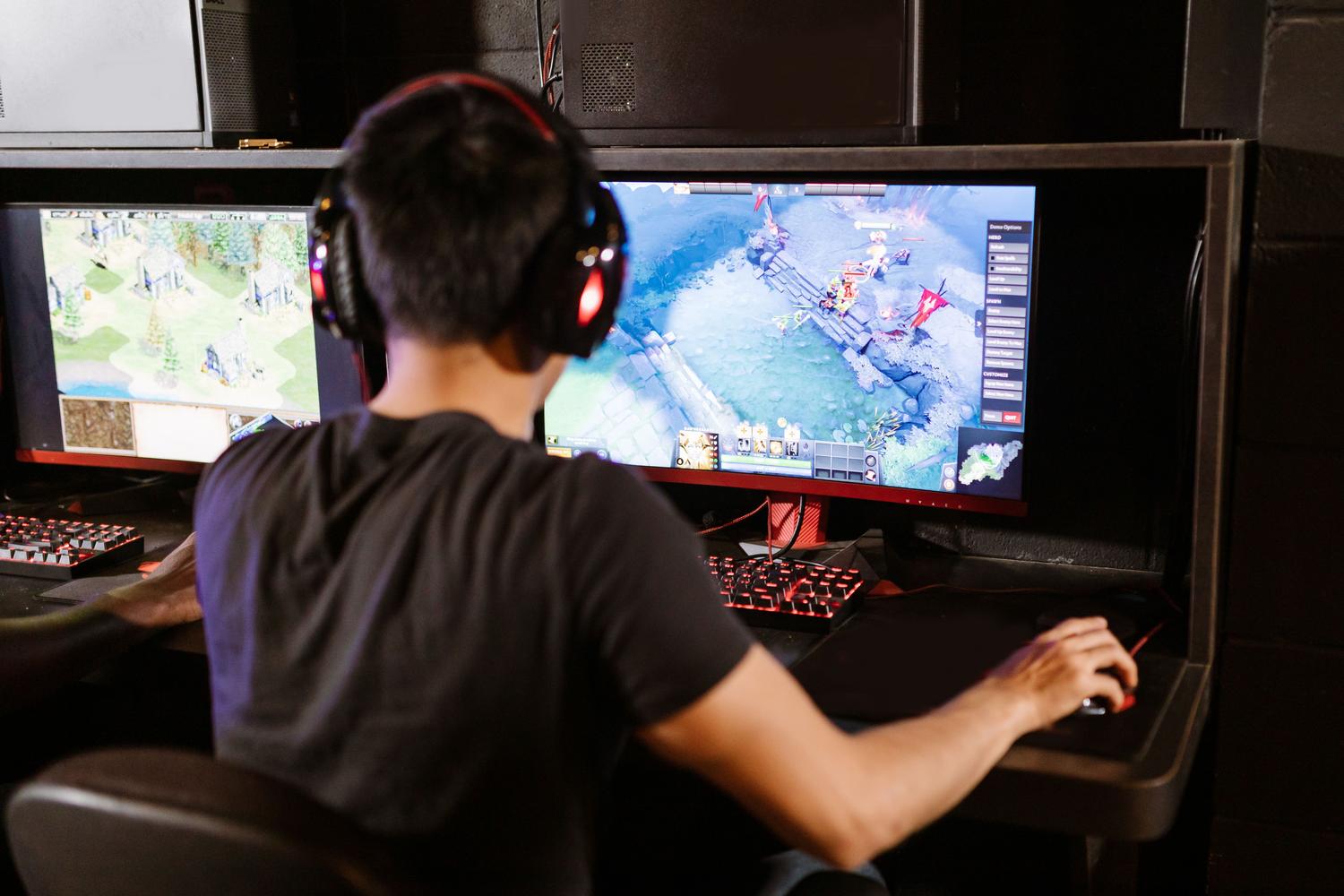
When we talk about hertz (Hz) in the world of displays, we're referring to the refresh rate . Basically, it's the number of times the monitor is able to update the image you see on the screen each second. For example, if you have a standard 60Hz monitor, the image refreshes 60 times per second; but if you have a 144Hz monitor, it happens more than twice as often, resulting in much more natural and fluid motion.
The difference is striking, especially in fast-paced games like shooters. A high refresh rate reduces motion blur and prevents dreaded screen tearing, giving you a competitive edge by improving aiming accuracy and reducing input lag. Furthermore, for those who use digital pens or do a lot of scrolling on web pages, a high refresh rate minimizes eye strain and makes handwriting input much more natural.
How to change the refresh rate in Windows 11
There are several ways to access the settings menu, so choose the one that's most convenient for you. The quickest way is to type "Advanced display" in the Start Menu search bar and go directly to the advanced display information option. If you prefer the traditional method, you can go to Settings, then System, then Display, and finally look for the Advanced display settings section.
There's also a desktop shortcut: right-click on an empty space, select "Show more options," then "Display settings," and scroll down to find the Advanced display link. Once there, if you have multiple monitors, make sure you select the correct one from the drop-down menu. Simply look for the "Choose a refresh rate" option and select the highest one your hardware supports. Don't forget to click "Save changes" to save the settings.
Advanced alternatives: The NVIDIA Control Panel and NVIDIA App
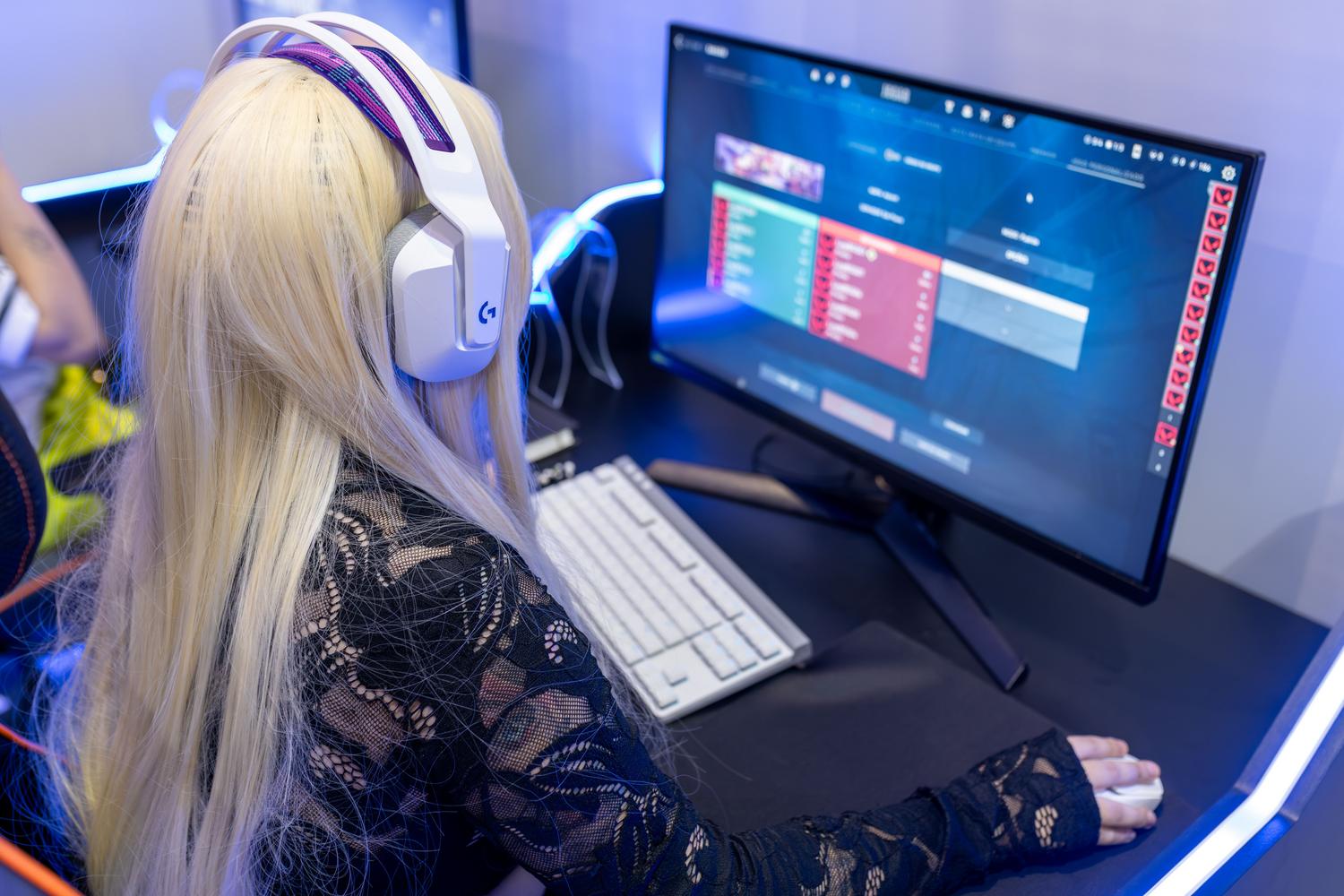
If you want to avoid clicking through Windows menus so often, the best way is to manage everything through your graphics card software. If you have an NVIDIA card, you can use the classic NVIDIA Control Panel . Simply go to the Display section, click on "Change resolution," and in the refresh rate dropdown, select your desired rate and click Apply.
For those who prefer a more modern approach, the NVIDIA App (released in late 2024) integrates all the functions into a much cleaner interface. Simply go to the System tab, then to "Displays," and in the Display Properties section, adjust the refresh rate (Hz) from the drop-down menu. This method is very effective because it manages the display directly , avoiding conflicts with the operating system.
Dynamic Refresh Rate (DRR)
Windows 11 introduced a gem called Dynamic Refresh Rate (DRR) . This feature is intelligent and automatically adjusts the refresh rate based on what you're doing. If you're playing a game, it will increase the rate for smoother gameplay; but if you're just reading text, it will lower it to extend battery life —vital for laptops and tablets to save energy without sacrificing quality when it's not needed.
Solving common problems and limitations
Sometimes, even if your monitor is 144Hz, Windows only lets you choose 60Hz or 120Hz. In 99% of cases, the culprit is the connection cable . Not all HDMI cables support the same refresh rates; for example, HDMI 1.4b supports up to 1440p at 144Hz, while HDMI 2.0 supports 4K at 120Hz. If you want to avoid problems, always prioritize using DisplayPort , which is usually much more flexible with high refresh rates.
Another common problem is that the image becomes blurry when the refresh rate (Hz) is increased. This usually only happens on very old monitors that force the refresh rate (manual overclocking). On modern monitors, you can increase the refresh rate to the maximum without worry, as they are designed to handle it without affecting the panel's lifespan. If you experience a drop in resolution when increasing the refresh rate (for example, from 1080p to 1680x1050), check that your video drivers are up to date and that the active resolution matches your desktop mode.
Properly configuring your monitor's refresh rate is key to avoiding wasted hardware power and enjoying a smooth image, whether by optimizing energy consumption through dynamic refresh rate or squeezing every frame out of your competitive games using DisplayPort cables and advanced Windows settings or the NVIDIA control panel.