- PC Manager centralizes cleaning, performance, and security in Windows 10 and 11 into a single tool.
- It allows you to free up space, manage large files, startup apps, and resource-intensive processes.
- It integrates key features such as Windows Update, Windows Defender, browser protection, and pop-up blocking.
- It can be installed from the Microsoft Store or via the APPX/MSIX offline installer for offline computers.
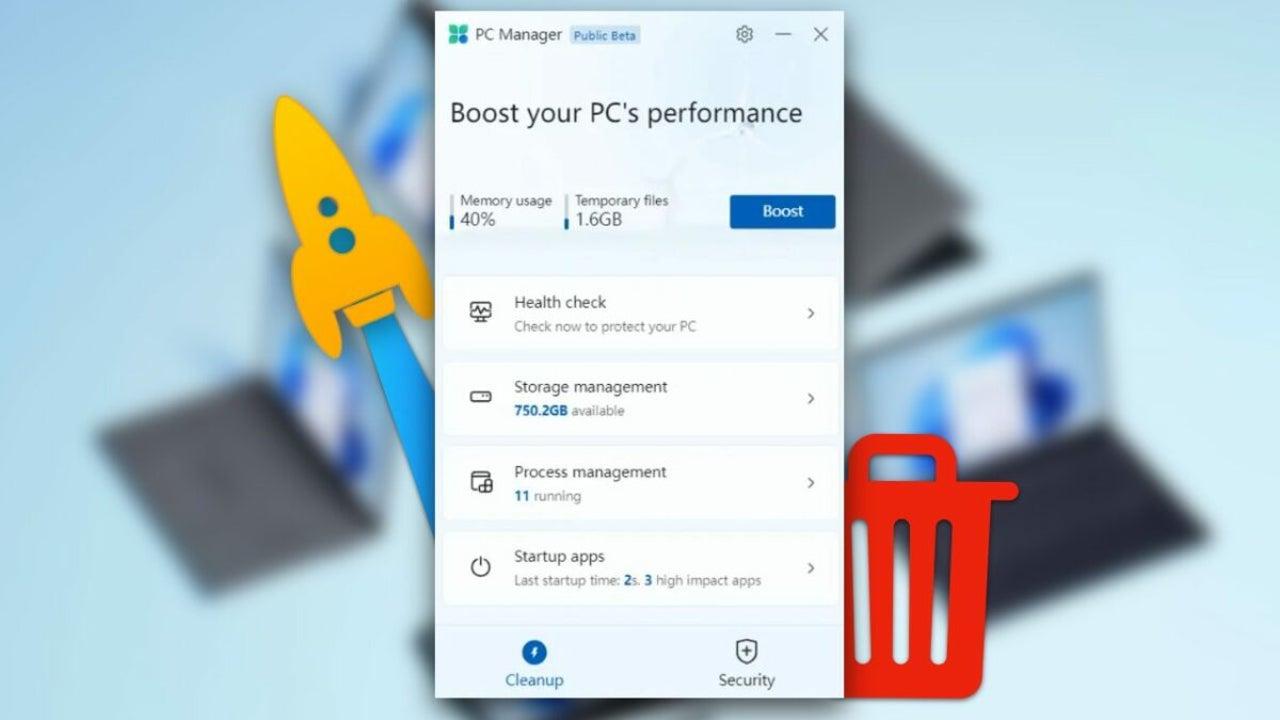
If your Windows 10 or Windows 11 computer is getting slower and slower, and is filling up with Temporary files, background programs, and annoying notificationsYou're probably thinking about formatting or installing a ton of different tools. But Microsoft already has its own "all-in-one" solution to avoid these headaches: PC Manager.
With this official utility, you can clean, optimize and improve system security From a single location, without relying on third-party programs that sometimes cause more problems than they solve. Let's see exactly what PC Manager is, what it offers, how to download it from the Microsoft Store, and how to use it even offline with an offline installer.
What is Microsoft PC Manager and what is it used for?
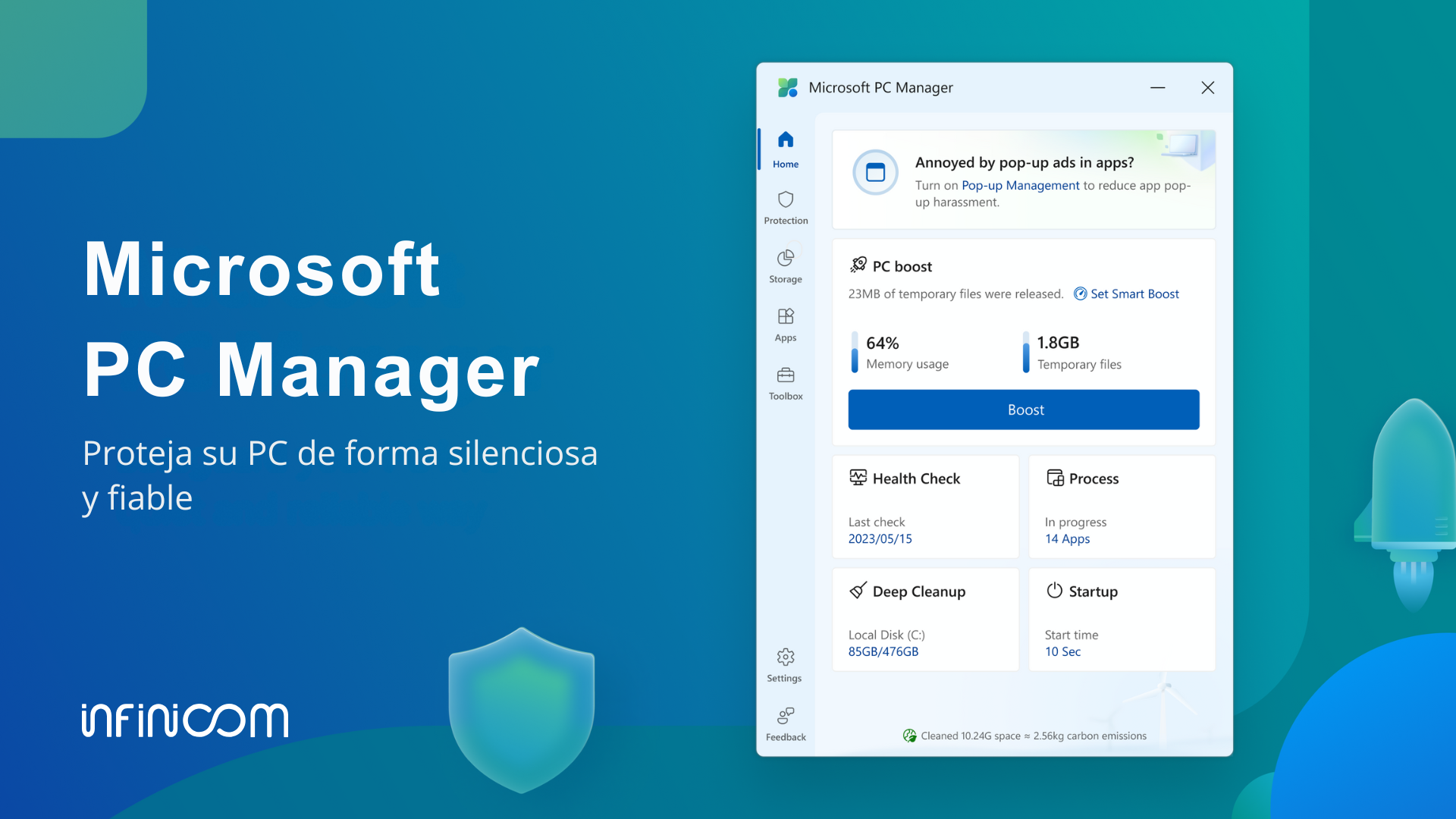
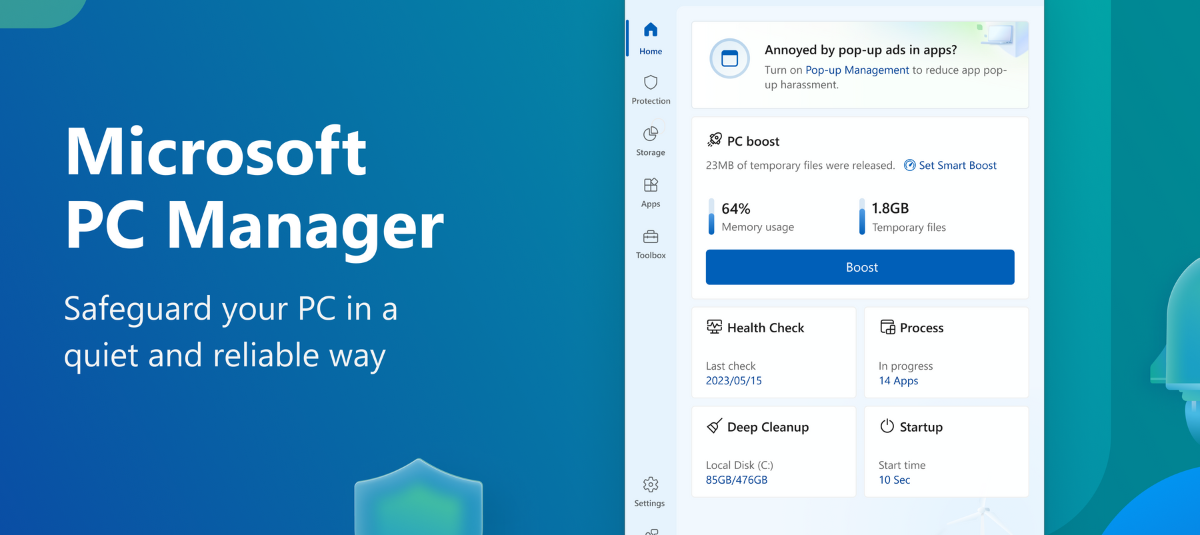
PC Manager is an application developed by Microsoft for Get your Windows 10 or Windows 11 computer up and running quickly, bringing together in a single interface many of the maintenance and security tools that were scattered throughout the system.
Instead of jumping between Settings, Control Panel, Windows Defender, Disk Cleanup, or Task Manager, PC Manager presents these sections in a single program, with a simplified design and Guided options designed for users of all levels.
Traditionally, to perform a thorough cleaning of Windows, you had to follow these steps. long processes, with several steps and different utilitiesThis has led many users to turn to third-party apps like CCleaner or BleachBit. Some of these tools have had serious issues, such as malware problems in specific versions, which has generated some distrust.
PC Manager aims to prevent this situation by offering an official solution, integrated with the system and Microsoft security. Its goal is to help you Eliminate digital junk, improve performance, strengthen security, and control what runs on your computer without complicating your life.
With daily use, Windows accumulates temporary files, caches, error logs, update remnants, and other unnecessary data. All of this takes up space and can affect performance. PC Manager takes care of this. detect and delete those unnecessary elementsIn addition to offering tools to monitor system health and block annoying behaviors, such as pop-up windows within some applications.
Requirements to use PC Manager on your PC
Before you start downloading anything, it's important to know if your computer can run PC Manager. Microsoft indicates that the application is compatible with Windows 10 from version 1809 onwards and with all current editions of Windows 11.
To check your Windows version, you can use the command winver from the search box of the system. If you are up to Windows 10 version 1809 or already using Windows 11, you shouldn't have any problems installing it from the Microsoft Store or using the offline installer.
At the hardware level, PC Manager is not particularly demanding; it is designed for to work smoothly even on modest equipmentSince its very purpose is to help the system run more smoothly, it's still advisable to have some free disk space so that the cleaning and storage management tasks can run correctly.
Main functions and sections of PC Manager
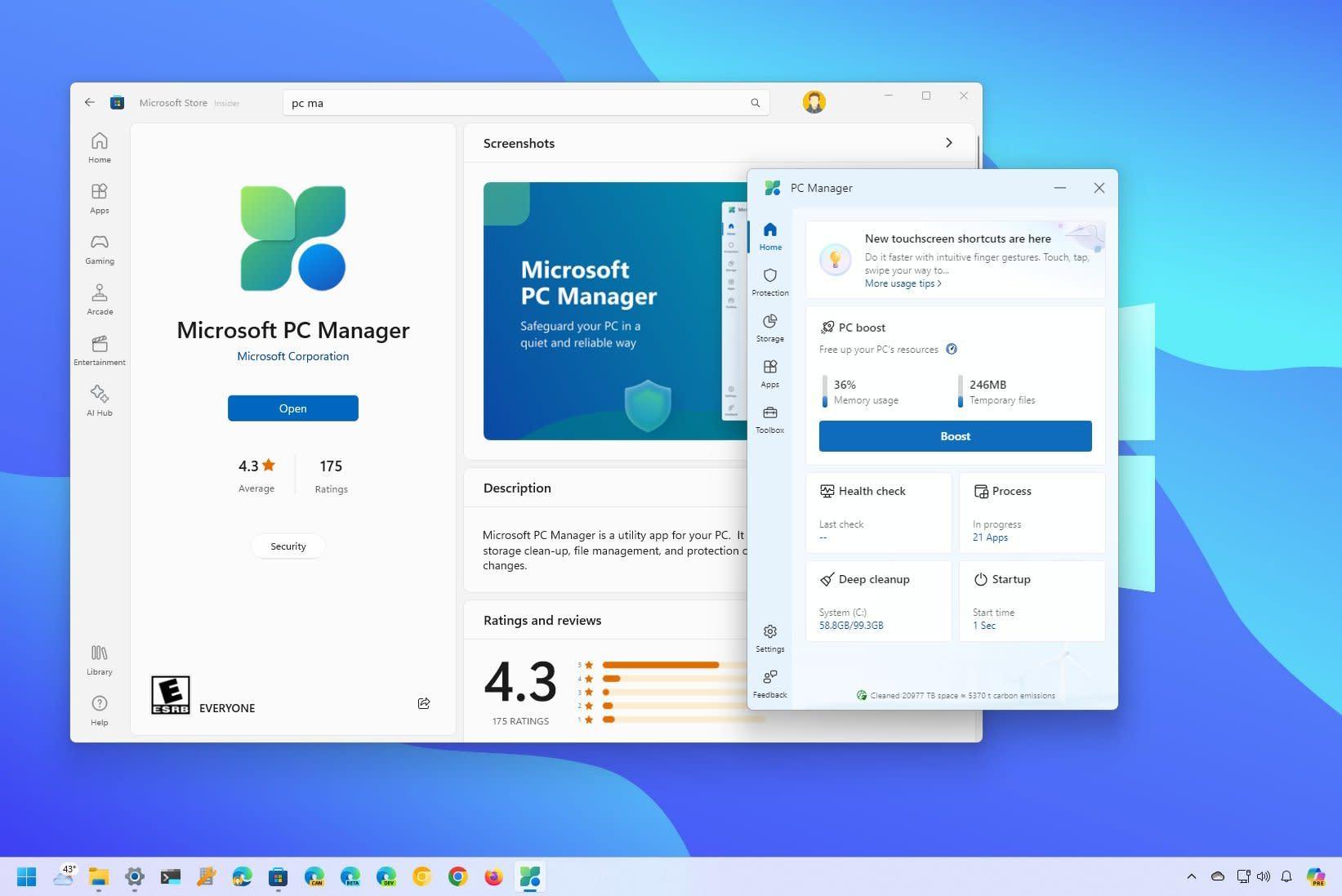
When you open PC Manager, you'll see that the interface is primarily organized into several sections accessible from a column on the leftThe names may vary slightly depending on the version, but generally you'll find sections like Protection, Storage, Apps, and Utility Box, plus a Home screen.
The Home screen displays a summary of the device's status: Memory usage, open applications, recent cleanings, recent restarts, and health checksFrom here there is usually a quick button to free up resources or run a quick system scan.
The Protection section groups together security-related options: integration with Windows Defender, Review of critical updates and tools such as Health Check, which analyzes potential performance and security issues.
The Storage area brings together the equivalent of the traditional Disk Cleanup tool, Windows Storage Sense, and other advanced features, such as managing large files or deep cleaning temporary data and update remnants.
Finally, the Apps and Utility Box sections (or Utilities, depending on the translation) contain shortcuts and small tools for Manage installed programs, control what starts with Windows, manage processes, take screenshots, or change basic settings such as battery performance or calculator functionality.
Cleaning and storage management tools
One of PC Manager's strengths is everything related to free up disk space and control what takes up your storageMicrosoft has brought together here several features that already existed in Windows, but were somewhat hidden or scattered across different menus.
On one hand, we have the classic Disk Cleanup, a veteran tool that was already present in Windows 98 and was responsible for review temporary files, caches, and other dispensable data to eliminate what wasn't needed. With Windows 8 came Storage Sense, a more modern evolution that automated part of this process.
In PC Manager, both ideas are integrated under options such as Deep Clean, Storage Sense, and Large File Management. Deep cleaning analyzes the system for temporary application files, update remnants, and error reports. and other elements that can be deleted without affecting the operation of the equipment.
The Storage Sense, also accessible from the classic Windows settings, is responsible for constantly monitor disk usage and automatically delete temporary files or items from the Recycle Bin after a certain time, if you configure it to do so. PC Manager gives you more direct and simpler access to these options.
In addition, the Large File Management tool lets you locate files at a glance. documents, photos, videos, audios and other files that take up a lot of spaceclassifying them by size from around 10 MB to over 1 GB. This feature is reminiscent of Android optimizers that show what's taking up your internal storage.
Health Check: Quick PC Status Check
Health Check is one of PC Manager's most visually appealing features. It's a A quick scan that analyzes the system for junk files, temporary files, unnecessary startup applications, and potential security risks..
When you run Health Check, PC Manager scans various areas of the system and displays a list of items that can be optimized: Files that can be safely deleted, apps that load at startup and consume memory, small errors or minor problems that can be corrected with one click.
This review also relies on Windows Defender to provide a quick overview of the antivirus protection status; each time you run Health Check, Microsoft's antivirus integrates and displays recent quick scan resultsgiving a more complete picture of the team's overall condition.
For many users, Health Check becomes the "update PC" button. Instead of going through each option individually, you simply run this scan and apply the recommendations that PC Manager suggests, always with the option to... Review what you are going to delete or deactivate before confirming..
Management of startup applications and background processes
One of the most common reasons why a computer seems to run slowly is the number of programs that start with Windows without the user being fully aware. Until now, this setting was mainly managed from the Task Manager, in the Startup tab.
PC Manager simplifies all of this with a dedicated Startup Applications section, where you can clearly see which programs run when you turn on your PC and activate or deactivate its start by simply checking or unchecking a boxThere's no need to understand technical columns or go into too much detail.
Furthermore, within the processes section, PC Manager incorporates a kind of A streamlined task manager that shows which applications are consuming the most memory. At that moment. From there you can safely terminate those problematic processes with one click.
This approach is very useful for users who get lost in the more advanced interface of the classic Task Manager: they have the most important functions. presented in a simple way and with less risk of touching on something critical for the system.
Application list and quick uninstall
Another key aspect of system maintenance is knowing which programs you have installed and which ones you no longer need. PC Manager includes shortcuts to the Windows application list so you can easily find the right ones. View and manage all installed software from a single panel..
From this list, you'll be able to uninstall apps you no longer use, see how much space they take up, and even Identify programs that may have been installed without you paying much attention to them. (for example, packages included with other installers).
Instead of navigating through Settings > Apps > Installed apps, PC Manager acts as a shortcut that takes you directly to that view, which Save time and centralize everything related to organizing your PC in one tool..
Windows updates and built-in security
Security is another pillar of PC Manager. The application integrates features that were already present in Windows, such as... updates through Windows Update and protection from Windows Defenderbut presents them in a more direct format.
In the Security section, PC Manager displays the latest updates available for your system, especially those related to protection and new features. From this section you can Start downloading and installing critical updates without having to go to the traditional Settings menu.
On the other hand, the integration with Windows Defender means that, from PC Manager, you can quickly see if your computer is protected, when the last scan was performed, and if there are any pending threats or recommended actionsIt doesn't replace the full security center, but it does offer a very convenient layer of control.
The purpose is to prevent you from having to jump between different Windows menus: PC Manager centralizes the most relevant information about system updates and basic security.
In addition to performance features, PC Manager incorporates functions designed to improve the daily user experience, especially when it comes to browsing the Internet and enduring intrusive advertising or unwanted changes to the default browser.
The Browser Protection option allows you Choose and set which browser you want to use by default in WindowsThis prevents malicious programs or aggressive installers from changing these settings without your permission. It also helps block suspicious browsing-related applications.
Another interesting new feature is Pop-up Management, a tool that focuses on Block pop-up windows generated by certain applications within WindowsWe're talking about those annoying pop-up ads, notices, or notifications that appear on your desktop or within third-party programs.
With this pop-up management, PC Manager helps to create a cleaner work environment because Don't feel like you're constantly closing ads or insistent messages.It is not a browser ad blocker, but a filter for pop-up windows generated by system software or installed applications.
Other practical utilities included in PC Manager
In addition to all the cleaning, security, and application management features, PC Manager brings together several small tools that already existed separately in Windows, but are now offered as a single package. quick access from within the optimizer itself.
Among these utilities you can find options to better manage battery usage on laptops, access to the tool for screenshots and the folder where they are saved, the calculator, and other basic system functions that can be useful to have on hand.
The general idea is that PC Manager will become a kind of "toolbox" for the average user, from which they can perform frequent maintenance tasks and access typical Windows functions without having to remember which menu item each thing was in.
All of this is presented in a non-intrusive interface, with a clean design that doesn't overwhelm the user with advanced options only relevant to highly technical users. That's why Microsoft describes it as an optimizer. simple, non-intrusive, and security-oriented.
How to download and install PC Manager from the Microsoft Store
The main and recommended way to get PC Manager is through the Microsoft Store, the official Windows app store. The process is quite simple and is very similar to installing any other official app.
First, open the Microsoft Store from the Start menu or by searching for it by name. In the search box, type "PC Manager" and locate the official Microsoft applicationYou can verify this by looking at the publisher (Microsoft Corporation) and the details on the product page.
Once on the product page, simply click the Get or Install button to begin the download and installation. It is important to have a stable internet connection required during this processbecause the installer downloads the necessary components from Microsoft servers.
Once the installation is complete, you can open PC Manager directly from the Store or the Start menu, just like any other application, and begin exploring its different sections, accessible from the left sidebar where all the sections are listed, organized.
In some regions or at some times, PC Manager may not yet be widely available in the store, or it may be in beta. In those cases, you might see the listing, but without an install button, or it might only be accessible to certain users. Therefore, there is also the option of using a offline installer in APPX or MSIX format.
PC Manager Offline Installer: What it is and how to use it
In addition to the direct download from the Microsoft Store, it's possible to get PC Manager via an offline installer, which is especially useful if You want to transfer the file to a USB drive and take it to a computer without internet access. or if you need to install it on multiple devices without repeating downloads.
This method involves generating an APPX or MSIX package from the application's official link in the Microsoft Store. Tools like the Adguard website, cited by outlets such as Neowin, allow you to enter the PC Manager URL (for example, «https://apps.microsoft.com/detail/9PM860492SZD») and obtain a list of downloadable files corresponding to different versions.
The procedure involves copying the link from the Store, pasting it into the URL field of the page, and clicking the generation button (usually a checkmark icon). A list of possible downloads will then be displayed. usually ordered from newest to oldest.
It's recommended to always choose the first option that corresponds to the latest stable version of PC Manager. Clicking on that APPX or MSIX file will download the complete installer, which you can then... Save to an external device and run on any compatible PCeven without an internet connection at the time of installation.
When you run the file on the target computer, Windows will display the typical application installation screen for that platform, and in a few steps You'll have PC Manager ready to use, as if you had installed it directly from the Microsoft Store.
Differences between a standard installer and an offline installer
Regarding the user experience of the program, there are no relevant differences between installing PC Manager from the Microsoft Store or via an offline installer; The application you get is the same In both cases, with the same functions and the same appearance.
However, there are some nuances to consider. For one thing, the file you download for offline use usually weigh considerably more than the online installer, since it includes all the necessary components so that it is not necessary to connect to Microsoft servers during installation.
On the other hand, updates are not handled the same way. If you use the Microsoft Store, new versions of PC Manager are downloaded and installed automatically (or semi-automatically, depending on your settings), so you'll always have the latest version. Latest version without worrying about anything.
With the offline installer, however, you'll need to keep an eye out for new versions and repeat the process each time you want to update: Download the new APPX or MSIX package and reinstall itIt's not complicated, but it does require a little more follow-up on your part.
Furthermore, it's important to keep in mind that these downloads generated from the Store are obtained through third-party services, so even if the source is legitimate, it's always a good idea to check. Take basic precautions and check the origin of the files before running them.
That said, the recommended method in most cases remains direct installation from the Microsoft Store. The offline installer shines particularly in specific scenarios: computers without permanent internet access, controlled corporate environments, or situations where PC Manager is not available in your region (although forcing installations in non-supported regions is not always the best course of action).
What changes in PC Manager depending on the installation method?
Functionally, using one installer or another doesn't change what PC Manager can do. You'll be able to clean temporary files, check system health, manage applications and processes, block pop-ups, and strengthen security exactly the same.
The only practical difference is how updates are delivered and the initial download size. In day-to-day use, you won't notice any changes: the interface will be the same, with its Protection, Storage, Apps, and Utility Box sections, and the same way of... Launch Health Check, manage large files, or configure Browser Protection.
The decision between an online or offline installer depends more on your circumstances than the application itself. If you have a stable internet connection and access to the Microsoft Store, it's more convenient to let everything be managed from there. If you work with multiple computers without internet access or want to keep a complete installer for occasional use, the offline package is the better option. It gives you extra flexibility.
In any case, the most important thing is to understand that PC Manager is an official tool geared towards Improve performance, security, and user experience in Windows 10 and 11 from a single location, reducing the need to install multiple third-party utilities with similar functions.
By understanding its sections and taking advantage of options like Health Check, large file management, startup application control, browser protection, and pop-up blocking, it's easy to keep your computer in better condition and Avoid many of the typical problems of PCs that become filled with junk files and background processes. over time.
Table of Contents
- What is Microsoft PC Manager and what is it used for?
- Requirements to use PC Manager on your PC
- Main functions and sections of PC Manager
- Cleaning and storage management tools
- Health Check: Quick PC Status Check
- Management of startup applications and background processes
- Application list and quick uninstall
- Windows updates and built-in security
- Browser protection and pop-up blocking
- Other practical utilities included in PC Manager
- How to download and install PC Manager from the Microsoft Store
- PC Manager Offline Installer: What it is and how to use it
- Differences between a standard installer and an offline installer
- What changes in PC Manager depending on the installation method?