- USB-C offers video, data, and charging in a single cable, while HDMI focuses on transmitting audio and video with broad compatibility.
- Quality and performance depend on the version: HDMI 2.0/2.1 and DisplayPort 1.4/2.0 make a difference in 4K, 8K and high frequencies.
- For tidy desktops and laptops, USB-C with DisplayPort Alternate Mode and Power Delivery is very advantageous over HDMI.
- DisplayPort and Thunderbolt are key for demanding gaming and multi-monitor setups, although HDMI still dominates in TVs and consoles.
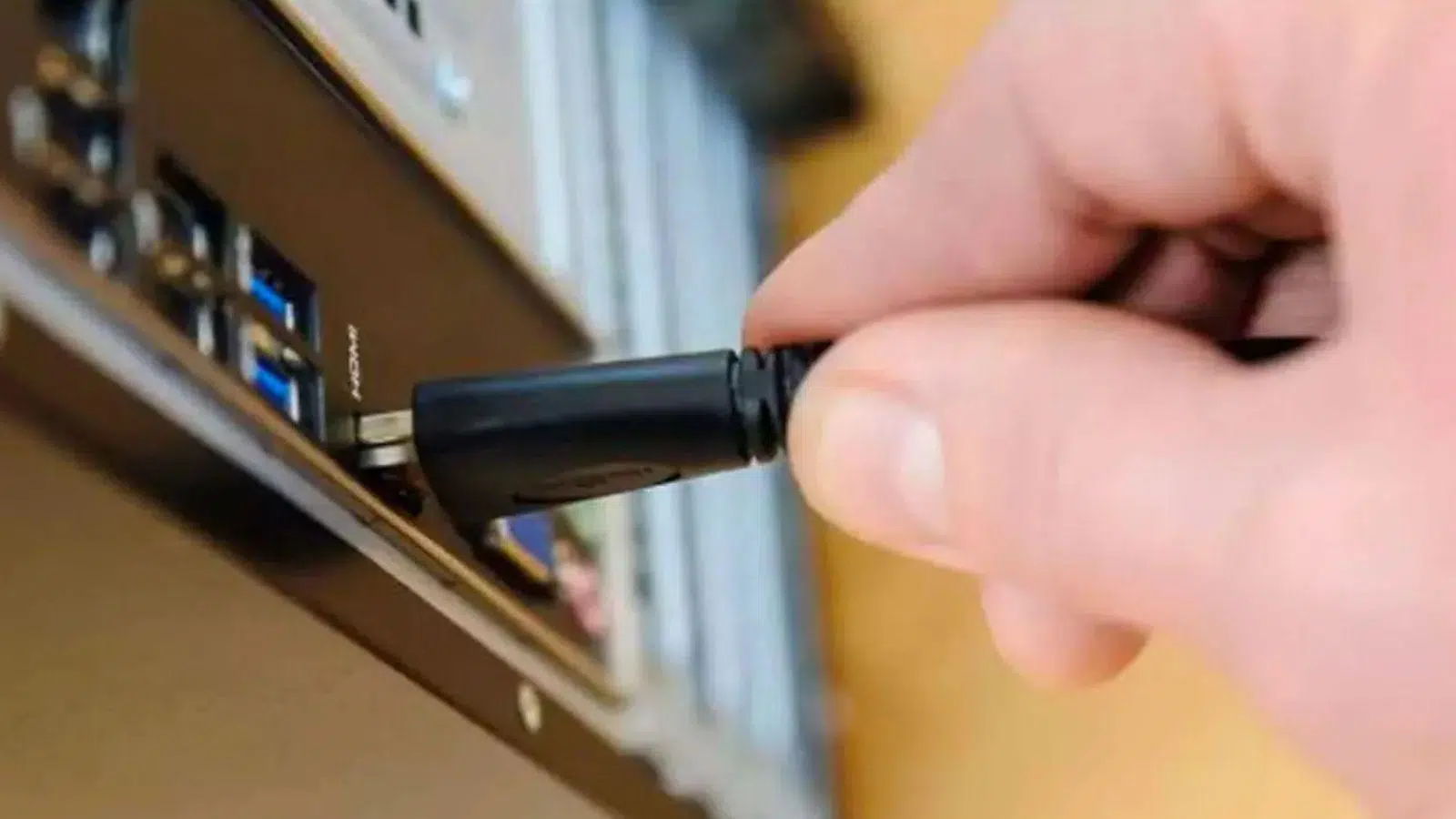
If you're going crazy trying to figure out the best way to connect your screen, if a USB-C or HDMI cable for your monitorYou're not alone. Laptops, consoles, monitors, and current televisions They mix ports of all types and it's not always clear which connection is best to use in each case, especially when you want to get the most out of a 4K monitor or a multi-monitor setup.
In the following lines you will find a complete guide comparing USB-C, HDMI, and also DisplayPort and ThunderboltThis guide explains how these cables perform with 4K monitors, which version of each standard you need, and what happens with audio, HDR, power delivery, daisy chaining, and adapters. The goal is that, by the time you finish reading, you'll have a clear understanding of which cable is right for you. laptop or desktop, your screen and the use you're going to give it, whether it's for work, play, or just watching series.
USB-C and HDMI: what they are and why they are so widely used for monitors
USB-C USB Type-C (or USB-C) is a relatively recent connector, introduced in 2014, that has become the de facto standard in laptops, tablets, and mobile phones. It is small, reversible, and very versatile: it can transport data, video, audio and energy through the same cable. It's not a protocol itself, but a type of connector that can work with different USB standards (USB 2.0, 3.0, 3.1, 3.2…) and with other protocols such as DisplayPort, Thunderbolt, or even HDMI via what's called "alternate mode." This allows a single USB-C cable to charge a laptop, connect a 4K monitor, and transfer data to an external hard drive simultaneously, if the device supports it.
On the other side we have HDMI (High Definition Multimedia Interface), an interface designed from the outset to send digital video and multichannel audio HDMI transmits audio from a source (PC, console, player, etc.) to a display (monitor, television, projector, etc.). It was introduced in 2002 and has evolved with versions such as HDMI 1.4, 2.0, and 2.1, increasing bandwidth, resolution, and refresh rate. It is the most common connector on consumer televisions and monitors and supports 4K, HDR, formats like Dolby Vision, and surround sound such as Dolby Atmos, depending on the version.
Although both can be used to connect a monitor, USB-C and HDMI have different approachesUSB-C is a "multi-purpose" connector that adapts to different protocols, while HDMI is a dedicated, stable, and highly standardized interface for video and audio.
Technical comparison USB-C vs HDMI to connect monitors
To choose the right one, it's not enough to just look at the shape of the connector. The version and protocol behind it are also important. The differences in bandwidth, resolution, refresh rate, audio, and power They directly influence what you will see (and hear) on your monitor.
Connector shape and pinsThe USB-C connector is small, symmetrical, and reversible, with 24 internal pins that allow for multiple data and power lines. HDMI is larger, asymmetrical, and non-reversible, with 19 pins. In practical terms, the shape only affects convenience and space in devices, but the extra pins of USB-C are what make it possible to combine data, video, and charging.
Regarding supported protocols, one port USB-C can work with multiple standardsUSB 2.0/3.x, DisplayPort Alt Mode, Thunderbolt, and even HDMI in some cases, provided the manufacturer implements it. HDMI, on the other hand, only carries the HDMI protocol, without the possibility of changing it, which makes it less flexible, but very predictable.
Looking at compatible devices, USB-C is present in mobile phones, tablets, laptops, docks, monitors and some modern televisionsHDMI dominates in TVs, consoles, players, and most monitorsIn a typical scenario, your laptop may have USB-C and HDMI, while the monitor will almost certainly have HDMI and perhaps DisplayPort and USB-C.
In terms of resolution and frequency, USB-C depends on the video protocol it carries. With DisplayPort 1.4 in alternate mode, it can handle 4K at 60 Hz and even 8K at 60 Hz under certain conditions. HDMI 2.0 arrives 4K at 60 Hz, and HDMI 2.1 reaches 4K at 120 Hz or 8K at 60 Hz Thanks to its bandwidth of up to 48 Gbps, it is very attractive for next-generation gaming and content.
In advanced formats, HDMI 2.x supports HDR, Dolby Vision, Dolby Atmos and other high dynamic range and surround sound formatsprovided the display also supports it. USB-C can support HDR and similar formats via DisplayPort, but this depends on the version used (DP 1.2, 1.3, 1.4, 2.0…) and the manufacturer's implementation; it's not always as straightforward as with HDMI.
Regarding raw bandwidth, a USB 3.2 link can be around 20 Gbps and Thunderbolt 3/4 goes up to 40 Gbps, while HDMI 2.1 can reach 48 GbpsHowever, the comparison is not direct: in USB-C that bandwidth is divided between data and video, while HDMI uses its entire channel exclusively for audio and video.
In terms of power delivery, USB-C wins hands down. Thanks to USB Power Delivery, it can supply up to 100W (and even more in the latest revisions)This is sufficient to power and charge most laptops while transmitting video and data. HDMI, on the other hand, supplies only a few milliamps (5V/0,05A at 1.4, 5V/0,09A at 2.0), completely insufficient to charge anything substantial.
Finally, regarding data and load functions, USB-C allows you to transfer files, connect peripherals, and supply power In addition to video and audio, while HDMI only outputs image and sound. This makes USB-C a perfect candidate for simplifying your desktop with a single cable.
Video and audio performance: true quality with USB-C and HDMI
When we talk about “speed” in this context, we are actually interested in how it translates into image quality and motion smoothnessAnd this is where bandwidth, resolution, Hz, and signal type come in.
Cables and ports USB-C designed for data (USB 3.0, 3.1, 3.2) They can achieve speeds of up to 5, 10, or more Gbps, but for video they rely on DisplayPort Alt Mode or Thunderbolt. A USB-C with DisplayPort 1.4 can easily handle 4K at 60 Hz, and even more ambitious combinations using compression. In contrast, a HDMI 2.1 certified It can handle 8K at 60Hz or 4K at 120Hz with HDR and high-quality audio, provided the devices support it.
USB-C video output is very flexible but has a "catch": Not all USB-C ports on laptops support video.Only those with DisplayPort Alt Mode or Thunderbolt support allow you to connect a monitor. Furthermore, the behavior depends on the graphics driver and the version of DisplayPort implemented, so you might find devices that only output 4K at 30Hz while others support 4K at 60Hz with HDR without a hitch.
With HDMI, things are more straightforward: if you have With HDMI 1.4 you'll be limited to 4K at 30 Hz (or 1080p at 120 Hz), while with HDMI 2.0 upscales to 4K at 60 Hz and with HDMI 2.1 opens the door to 4K at 120 Hz and 8K at 60 HzThese specifications are very well defined, which makes it easy to know what to expect from each port and cable.
In audio, HDMI remains king of the living room: it can support up to 32 audio channels and complex formats like Dolby Atmos or DTS:X. USB-C can also output multichannel audio via DisplayPort or HDMI Alt Mode, but this is rarely exploited in a desktop or laptop PC environment; typical use is limited to stereo or 5.1 audio on a monitor with built-in speakers or a connected soundbar.
USB-C, DisplayPort, and Thunderbolt as video alternatives
Although the comparison usually focuses on USB-C vs HDMI, the reality is that USB-C almost always functions as a "vehicle" for DisplayPort And in some cases, for Thunderbolt. Understanding this helps you avoid getting lost among so many names.
DisplayPort It's a very popular digital video interface in the PC world, especially for gaming monitors and graphics cards. It has evolved from versions 1.0/1.1, capable of 4K at 30/60 Hz, to DisplayPort 1.3 and 1.4 (32 Gbps), which allow 4K at high refresh rates and 8K at 60 Hzand the ambitious DisplayPort 2.0, which reaches speeds of up to 80 Gbps and can handle theoretical resolutions of up to 16K. It also supports features such as Multi-Stream Transport (MST), which makes it possible to daisy chain multiple monitors from a single output.
DisplayPort Alt Mode over USB-C (USB-C Alt DP) reuses these capabilities through the USB-C connector. This means that a single port can provide 4K at 60 Hz or even 8K at 60 Hz Using the same protocol as the "full-size" DisplayPort, but taking up less physical space in the laptop. On many modern computers, the USB-C port with the screen or lightning bolt icon is, in fact, the primary video output.
Thunderbolt 3 and 4 They also use a USB-C connector, but they shouldn't be confused with just any USB-C. Thunderbolt combines PCIe data, video (DisplayPort), and power, with a effective bandwidth of up to 40 GbpsThis allows configurations such as 5K or dual 4K monitors at 60 Hz from the same port, as well as advanced docks with multiple video outputs, additional USB ports, and network connectivity.
The tricky part is that, with USB-C, each manufacturer decides what to activate: you can have one USB-C port that only serves for data and charging, another with DisplayPort Alt Mode, and another with Thunderbolt. That's why it's crucial to always check the laptop's technical specifications or the motherboard. before assuming that a USB-C will output 4K video without problems.
HDMI versions: 1.4, 2.0 and 2.1 with 4K monitors
HDMI is not a single standard; its behavior varies greatly depending on the version. If you want to connect a 4K monitor or higher To take advantage of it, you need to know what version of HDMI you have in the source and in the screen.
HDMI 1.4 At the time, it represented a significant leap forward with a bandwidth of around 10,2 Gbps. It allows 4K video, but with clear limitations: it can handle 4096×2160 at 24 Hz o 3840×2160 at 30 Hzand 1080p at 120 Hz. This means you will see 4K, but with choppy motion, not recommended for desktop use or gaming.
With HDMI 2.0 It's been upgraded to 18 Gbps and streaming is now possible 4K is 60 fps with improved color depth. It's the most common version in current 4K monitors. It's good enough for most uses (office applications, video, casual gaming), although it falls somewhat short if you're looking for very high refresh rates, advanced HDR, or certain modern gaming features.
HDMI 2.1 It's a big leap: it reaches up to 48 Gbps and enables 4K at 120Hz and 8K at 60HzIn addition to improvements in HDR, VRR (variable refresh rate), and eARC for audio, next-generation consoles like the PlayStation 5 and Xbox Series X|S integrate HDMI 2.1, and high-end gaming monitors are also adopting it. However, You need both a certified HDMI 2.1 port and cable. to take advantage of it.
For a 4K PC monitor, using HDMI 2.0 is acceptable if you're happy with 4K at 60 Hz without the most advanced optionsIf you want high refresh rates, powerful HDR, and gaming features, HDMI 2.1 or DisplayPort are more interesting options.
DisplayPort versus HDMI and the role of USB-C Alt Mode
In the desktop PC environment, many enthusiastic users choose DisplayPort before HDMIAnd that's no coincidence. Their focus is more geared towards high resolutions and refresh rates, as well as demanding multi-monitor setups.
DisplayPort 1.2, for example, allows 2K at 144 Hz and 4K at 60 Hz; DisplayPort 1.3 and 1.4 allow 4K at higher refresh rates and 8K at 60 Hz (with DSC compression), while DisplayPort 2.0 targets 4K at 240 Hz or higher, as well as 16K resolutions in very specific scenarios. It also offers compatibility with HDR with dynamic metadata (such as HDR10+ and Dolby Vision) and supports daisy chaining of multiple monitors from a single output.
The main drawback of DisplayPort is that It is not as prevalent in televisions and living room devicesIt's common to see it on graphics cards, PC monitors, and workstations, but it's almost nonexistent on home TVs, where HDMI dominates. On a mid-range/high-end gaming PC, you'll typically find more DisplayPort ports than HDMI ports on the graphics card, precisely to take advantage of high refresh rate monitors.
As we mentioned before, one of DisplayPort's biggest advantages is that has made the leap to the USB-C connector via alternate modeThis means that, on a modern laptop, you have the power of DisplayPort (for 4K/8K and high refresh rates) and the versatility of USB-C (data, charging, docks, etc.) all in the same port. That's why many current monitors already include a USB-C port that actually functions as a DisplayPort Alt Mode input.
If your priority is pure PC performance (especially for competitive gaming with very high frame rates), DisplayPort remains the strongest option. If you're looking for maximum compatibility with TVs, consoles, and living room devices, HDMI continues to reign supreme. And if you want a balance between the two plus a clean desktop with a single cable, USB-C with DisplayPort Alt Mode is a very interesting choice.
Practical advantages of USB-C for connecting monitors
Beyond the numbers, where USB-C truly shines is in everyday use. Its main advantage is the ability to mount a very clean desktop setup with a single cable between laptop and monitor.
When both the laptop and the screen support USB Power Delivery (USBPD)The monitor can supply power to the laptop while simultaneously receiving the video and data signal. In practice, you connect a single USB-C cable from the laptop to the monitor and forget about the charger. It's an incredibly convenient way to use your laptop like a desktop PC at home or in the office.
In addition, many monitors with USB-C act as a small hub: they include USB-A ports, Ethernet, card reader or audioAll of that connects to the laptop via that single cable. You can plug in a keyboard, mouse, external hard drive, or even a webcam, freeing up ports on the laptop and simplifying the cabling.
However, it's worth remembering that the bandwidth available on USB-C is divided between video and dataIf you overload the port with a 4K monitor at 60 Hz and several high-speed storage devices connected to it, you might notice that the drives aren't performing at their maximum theoretical speed. For lightweight peripherals (mouse, keyboard, flash drives), this is usually not a problem.
Another important advantage is the possibility of daisy chain multiple monitors In compatible configurations: the laptop outputs video via USB-C (DisplayPort MST), the first monitor receives the signal and passes the excess to the second monitor via DisplayPort. This drastically reduces the number of cables coming from the computer, although it requires that the laptop's USB-C port supports MST and that the monitors have compatible DisplayPort outputs.
When is it best to use HDMI for your monitor
Despite all of the above, HDMI remains a very solid option and, in many cases, the most practical option for connecting a monitorespecially when televisions or projectors are involved.
Its main strength is the universality and simplicityAlmost every modern monitor, TV, or projector has at least one HDMI port, and device compatibility is very high. There's no ambiguity about whether the port is for video, as is the case with some USB-C ports; if the device has HDMI, it will almost certainly output a video signal without any problems.
In entertainment environments, HDMI clearly dominates: consoles like PlayStation 5, Xbox Series and Nintendo SwitchPlayers, streaming devices, etc., all rely on HDMI. If your goal is connect the PC to a TV From the living room to watch content or play games occasionally, HDMI is usually the natural way.
The limitations, as we have already seen, lie in the power delivery (non-existent for charging)The lack of features like an integrated USB hub and, in some versions, insufficient bandwidth for high refresh rates and advanced HDR are drawbacks. Furthermore, HDMI doesn't offer a simple daisy-chain solution for multiple PC monitors (although HDMI 2.1 defines certain possibilities, they are rarely implemented in monitors).
Therefore, if you only need to connect a device to a screen and you're not worried about using a separate charger or setting up a complex workstation, a good HDMI cable compatible with your ports It is more than enough and, often, the cheapest solution.
Other video connectors: VGA, DVI and their limitations
They may still appear on older computers or some inexpensive monitors VGA and DVIIt's useful to keep them on your radar to know when to use them and, above all, when to avoid them.
VGA It's a very old analog standard, associated with CRT monitors and older PCs. Although in theory it can reach Full HD resolutions, the signal degrades easily as the resolution and cable length increase. If your PC and monitor only share VGA, it might get you out of a pinch, but it's a last resort. You lose sharpness, stability, and color quality.
DVI It was the natural successor to VGA and exists in several variants: DVI-A (analog), DVI-D (digital), and DVI-I (both). Furthermore, it can be single-link or dual-link. With a single link, it operates at approximately... 1920×1200 at 60 Hz, while with a double link it achieves resolutions of 2560×1600 at 60 HzIt's a better option than VGA, but it's clearly behind HDMI, DisplayPort, or USB-C in modern capabilities, especially for 4K.
If you encounter one of these connectors on a relatively old monitor or PC, and you have the option of using HDMI, DisplayPort, or USB-C, Always choose the most modern onesDVI and VGA should only be considered when there is no other physical alternative.
Adapters, USB-C to HDMI cables and cable management
In many scenarios, a direct cable isn't enough because the device ports don't match. This is where other components come into play. USB-C to HDMI adapters, mixed cables and docksalong with some tricks for keeping the wiring tidy.
Un usb-c to hdmi adapter It's a small device with a male USB-C connector on one end and a female HDMI port on the other. You plug it into your laptop or tablet, and then connect a standard HDMI cable to your monitor or TV. It's very convenient when you know you'll have an HDMI cable at your destination (meeting rooms, hotels, friends' houses) and you just need to "convert" your device's USB-C port into an HDMI output.
Un USB-C to HDMI cableMeanwhile, it integrates both connectors into a single cable (USB-C on one end, HDMI on the other). This is ideal if you want to minimize loose parts and reduce the number of connections. High-end models can support 4K resolutions at 60Hz or higher (and even 8K) if they meet the HDMI 2.0/2.1 specifications and the source device supports it.
Regarding image quality, You shouldn't lose quality simply by using a USB-C to HDMI adapterProvided the adapter and cable meet the correct specifications, the signal remains digital. The adapter typically doesn't "convert" between incompatible formats but rather exposes the video protocol already being output via USB-C (DisplayPort or HDMI Alt Mode). The critical point is to ensure the USB-C port supports video output and that the adapter supports the desired resolution and refresh rate.
To manage cables properly and avoid tangles, it is recommended to use closed trays or channels Under the desk, use cable ties or Velcro to bundle cables, and labels to identify each connection. Additionally, it's advisable to use cables as short as possible To minimize signal loss, avoid excessive bending and twisting, and always choose cables and connectors that comply with the version of the standard (HDMI 2.1, DisplayPort 1.4, etc.) you need.
The choice between USB-C and HDMI for connecting a monitor usually depends on three factors: the type of device (laptop, desktop, TV, console), the version of the available ports, and your intended use (productivity, multi-monitor setup, gaming, home theater). If your priority is a clutter-free desktop, with a single cable that offers video, data and uploadUSB-C with DisplayPort Alternate Mode is a fantastic option, especially when combined with docks and monitors with integrated hubs. If you're looking for broad compatibility with TVs, projectors, and consoles, or simply want to connect a PC to a screen without any hassle, a good HDMI cable adapted to the correct version will still be more than sufficient, and DisplayPort remains the preferred tool when pursuing the highest refresh rates and advanced multi-monitor setups on PCs.
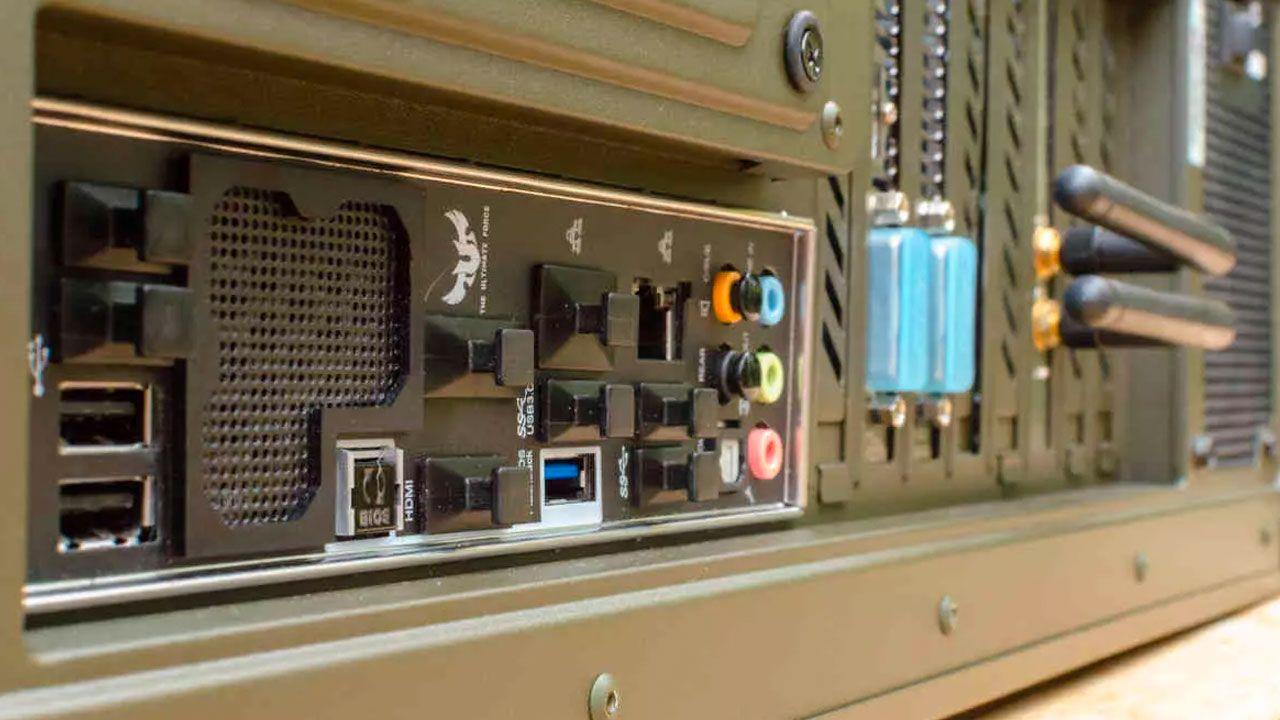
Table of Contents
- USB-C and HDMI: what they are and why they are so widely used for monitors
- Technical comparison USB-C vs HDMI to connect monitors
- Video and audio performance: true quality with USB-C and HDMI
- USB-C, DisplayPort, and Thunderbolt as video alternatives
- HDMI versions: 1.4, 2.0 and 2.1 with 4K monitors
- DisplayPort versus HDMI and the role of USB-C Alt Mode
- Practical advantages of USB-C for connecting monitors
- When is it best to use HDMI for your monitor
- Other video connectors: VGA, DVI and their limitations
- Adapters, USB-C to HDMI cables and cable management