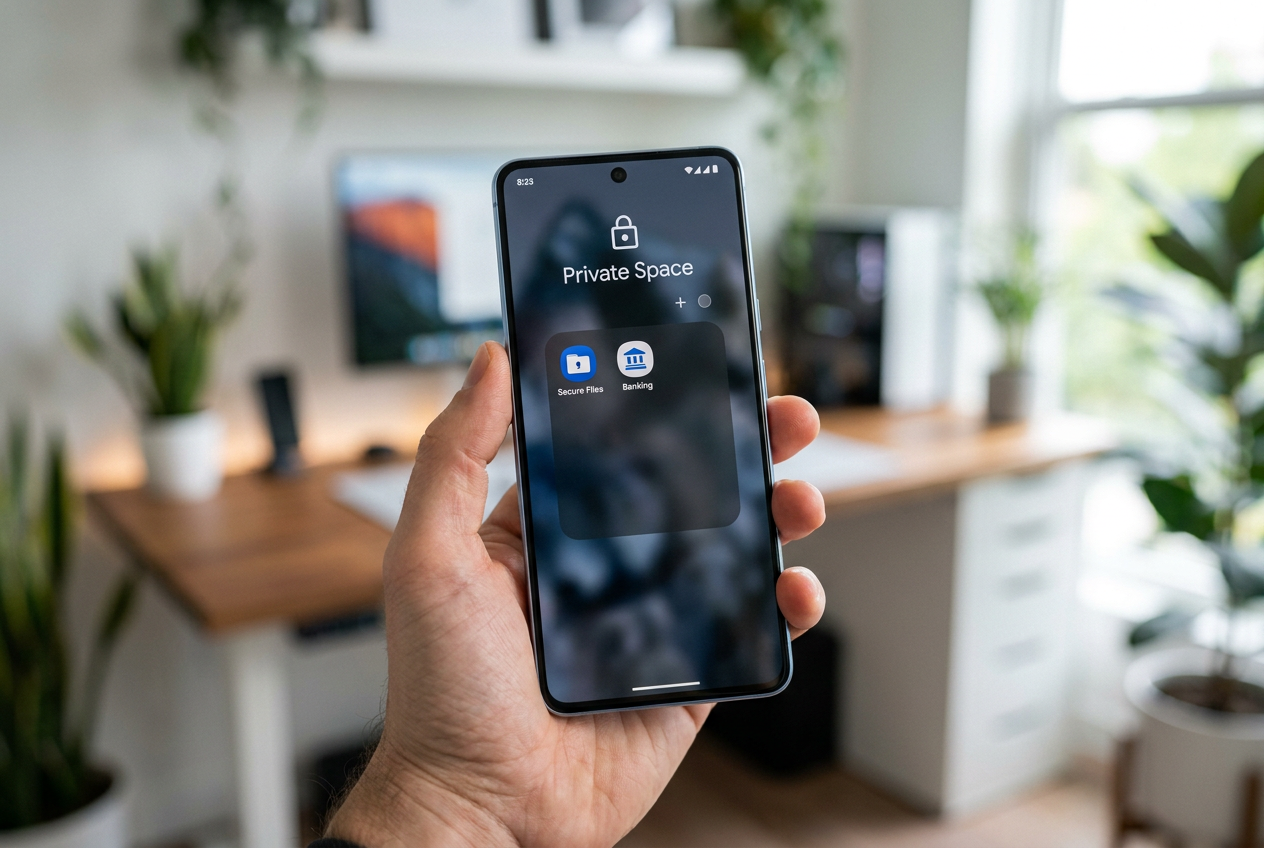
- The Private Space creates a separate, encrypted user profile that completely isolates applications and files from the main environment.
- It allows the use of unlock credentials and exclusive Google accounts to prevent notifications or data from being leaked to the public profile.
- When the container is locked, the applications stop completely, disappearing from search engines, settings menus, and recent views.
You've probably felt that little shiver when someone asks for your phone and you realize you have an app or file you'd rather keep hidden. We're not necessarily talking about anything forbidden, but rather that need for privacy we all have, whether it's to separate work from personal life or to keep your banking app safe from prying fingers.
To solve this, Android has made a bold move with Private Space, a tool that essentially lets you have a secret phone within your own device . Forget the lame tricks of moving icons or installing strange apps that promise to hide things but fill your phone with ads; this is a built-in system feature that creates an impenetrable wall between your public and private data.
What exactly is Private Space and how does it work?
Unlike a simple hidden folder, Private Space is technically a separate user profile (internally identified as android.os.usertype.profile.PRIVATE). This means the operating system creates an isolated environment with its own encrypted storage. When you install an app here, it doesn't move the existing one; instead, it creates a completely new copy with its own data and sessions.
The most powerful effect is what happens when this space is locked: Android "freezes" the private user. Apps stop running background processes, don't send notifications, and disappear completely from the search bar, recent apps selector, and settings menus. It's as if the software simply isn't installed on the device until you enter the correct password.
Requirements and limitations you should know
To enjoy this feature, your device must be running Android 15 or higher . Additionally, there are a few conditions: you must be the primary user of the phone, as it doesn't work with guest or secondary profiles, and the device cannot have more than four user profiles. It's also possible that the phone manufacturer or the administrator of a company account has disabled the feature for security reasons.
Note that it's not black magic and has its limitations. Although invisible to the average user, someone with technical knowledge could detect its existence using Android Debug Bridge (ADB) commands , by reviewing system logs, or by using advanced analysis applications. Furthermore, there are things you can't do within this space, such as adding widgets to your home screen, using the Location feature, or managing smart home devices.
Steps to set up your secret zone
Activating this digital sanctuary is quite simple and doesn't require installing anything external. First, open your device's Settings app and go to the Security and Privacy section. Once there, find the Privacy section and tap on the Private Space option.
The system will ask you to authenticate with your existing screen lock. Then, tap the Settings button and accept the terms . At this point, we strongly suggest signing in with a Google account different from your primary one; this is crucial to prevent your browsing history, contacts, and Play Store suggestions from being mixed up and to avoid data leaks.
Finally, choose your access method. You can opt to use your phone's lock screen or create a unique PIN, pattern, or password for your private space. You can also add your fingerprint for instant access. Once you tap "Done," your digital safe will be ready to use.
Application and file management
As we mentioned, you can't simply drag and drop an app into your private space. You have two ways to add content. The most direct is to access the Private Space container from your app drawer and tap Install ; this will open the Play Store linked to your private account. The other option is to tap and hold an app you already have in your main profile and select Download privately , creating a separate instance.
Regarding files, since Android 16 QPR2 the process is much smoother. Within the private space, you can use the Add files option to browse the phone's main storage. Here you can choose between Copy (keeping the original out) or Move (deleting the file from the main profile), sending everything directly to the Downloads folder of the secret profile.
Advanced visibility and security controls
To make the space truly discreet, Android lets you adjust the automatic locking. You can configure it to close every time you lock your phone , five minutes after the screen turns off due to inactivity, or simply when you restart the device. For maximum discretion, enable the " Hide private space when locked" option ; this will make the container disappear from the app drawer, and you'll only be able to access it through the system search or settings.
If you ever decide you no longer need this environment, you can delete it from Security and Privacy or via System > Reset options > Delete private space. Be very careful: the data is permanently deleted , and there are no local backups of the private space. If you forget the password, the only solution is to delete the entire space and lose all the information stored in it.
Traditional alternatives to hiding apps
While Private Space is the most robust option, other methods exist depending on the phone model. On Samsung devices, Secure Folder serves a similar isolation function. On Xiaomi, you can use Dual Apps or the Hide Apps feature within the Security app. Other manufacturers like Oppo, Vivo, and OnePlus offer privacy menus where you define a numeric passcode on the keypad to reveal hidden apps.
For those without these native options, there are launchers like Microsoft Launcher that allow you to hide icons from the app drawer , or third-party apps that disguise themselves as calculators. However, these methods are superficial; they don't stop background processes or encrypt data at the system level like Android's private profile does.
Having complete control over which apps are exposed and which remain locked away is essential these days. Whether it's leveraging the power of Private Space to protect critical data, using guest accounts when lending your phone, or relying on secure folders from manufacturers, the key is combining these tools according to the sensitivity of the information to keep your digital life organized and, above all, out of the reach of prying eyes.