- It is extreme protection designed for users at risk of sophisticated spyware attacks such as Pegasus.
- It limits features of Messages, FaceTime, Safari, and physical connections to reduce the attack surface.
- It is activated from the Privacy and Security menu and requires a device restart.
- It allows you to manage exceptions for websites and trusted contacts to restore certain functionality.
Imagine your iPhone as your personal safe, where you store everything from your most intimate photos to your bank passwords and work secrets. In a world where cyberattacks are no longer just attempts to steal a password, but full-blown espionage operations, Apple has decided to create a digital bunker for those who are truly targeted by professional hackers.
We're talking about Isolation Mode, a tool that's not for everyone, but for those who handle information so sensitive that it could attract cybercriminals . It's not just a simple antivirus; it's an extreme hardening of the system that, in exchange for removing some conveniences, closes all possible doors to prevent unauthorized access.
What exactly is Isolation Mode and who is it for?
This feature, available since iOS 16, is a direct response to zero-click attacks . These are the most dangerous because the user doesn't have to do anything; there's no need to tap a strange link or download a suspicious file for the phone to be compromised. The most famous example is NSO Group's Pegasus software , which has been used to spy on politicians, journalists, and activists worldwide.
If you're an average user who only uses their phone for social media and entertainment, you'll probably feel this is an overreaction. Apple primarily recommends activating it if you're an investigative journalist , human rights advocate, a high-ranking government official, or someone who works with sensitive data. Basically, if you think you could be the target of a state surveillance operation , this mode is for you.
What limitations does activating this protection impose?

Activating isolation mode is like putting your phone into survival mode: security is maximized, but the user experience becomes a bit more restrictive. To reduce the attack surface, the system limits critical functions as follows:
- Messaging and FaceTime: In the Messages app, most attachments are locked (except for some photos, videos, and audio files), and link previews disappear. In FaceTime, you can only receive calls from people you have already signed up for. you called in the last 30 days.
- Web navegation: Safari stops using complex web technologies (such as JIT JavaScript compilation), which may cause some websites to take longer to load or The sources are not visible. originals and the images are replaced by icons.
- Apple Photos and Services: Location information is removed when sharing images and the shared albums They disappear from the device. In addition, incoming invitations for services like the Home app or Game Center are blocked if there is no prior relationship.
- Connectivity and profiles: To connect your iPhone to a computer or accessory using a cable, the device It must be unlockedCompatibility with 2G and 3G mobile networks is also disabled, and new configuration or management (MDM) profiles cannot be installed.
It's important to note that these restrictions primarily affect Apple's native apps. For example, if you use WhatsApp or third-party browsers , some of these limitations might not be as noticeable, although the system's overall security remains robust.
Step-by-step guide to activating security mode
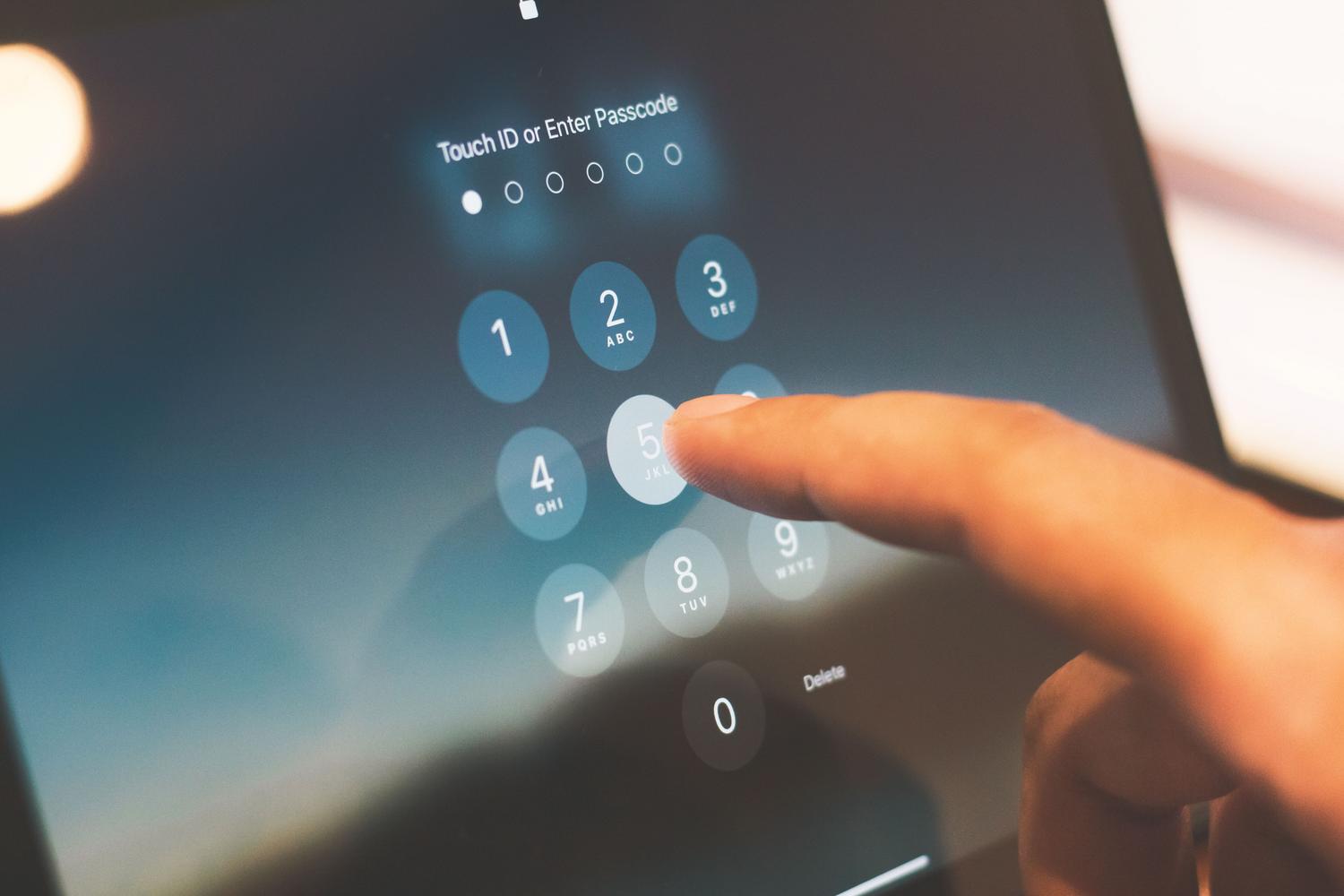
If you've decided you need this level of protection, the process is quite simple, although it does require a device restart to apply the changes. Follow these steps on your iPhone or iPad:
- Enter the application of Settings.
- Find and select the section Privacy & Security.
- Scroll to the bottom of the screen, enter isolation mode and click on Activate.
- Confirm the action and select Activate and restart, entering your unlock code when prompted.
If you're using a Mac with macOS Ventura or later, the process is similar: go to the Apple menu, select System Settings , then Privacy & Security, and turn on Isolation Mode. A very useful feature is that, starting with iOS 17, if you enable it on your iPhone, the system will offer to extend protection to your other compatible devices, including your Apple Watch.
How to manage exceptions without losing functionality

Apple knows there are websites or people you trust completely, so it allows you to create a whitelist . Keep in mind that doing this slightly reduces security, so only do it if absolutely necessary.
To exclude a website in Safari, you can do so while browsing by tapping the page menu and selecting Website Settings . You can also manage the entire list from Settings > Privacy & Security > Isolation Mode > Customize Websites . Similarly, you can add specific contacts in the Customize Contacts section so that messaging restrictions don't affect those selected people.
This extreme security system isn't a shield against common phishing or careless password theft, but rather a barrier against mercenary spyware . For everyday use, it's best to combine this mode (if you're considered high-risk) with good digital hygiene, keeping your software updated and using two-step authentication on all your accounts.
Putting your iPhone in isolation mode transforms your device into a digital fortress, sacrificing convenience for absolute peace of mind against targeted attacks. While it limits browsing, message attachments, and physical connections, it offers unparalleled protection against the world's most advanced spyware, making it the ultimate tool for those handling critical information.