- Choosing the chart type based on the objective (trends, comparisons, breakdowns) is key to avoiding confusing visualizations in Excel.
- Pie charts, radar charts, bubble charts, and advanced formats, when misused, can distort interpretation if categories or visual effects are overused.
- Advanced charts (waterfall, funnel, bullet points, tornado, speedometer) only add value when they clarify the message and are supported by reliable and well-formatted data.
- Good practices such as avoiding 3D, limiting axes and series, and designing with empathy towards the audience improve the readability and usefulness of any chart in Excel.
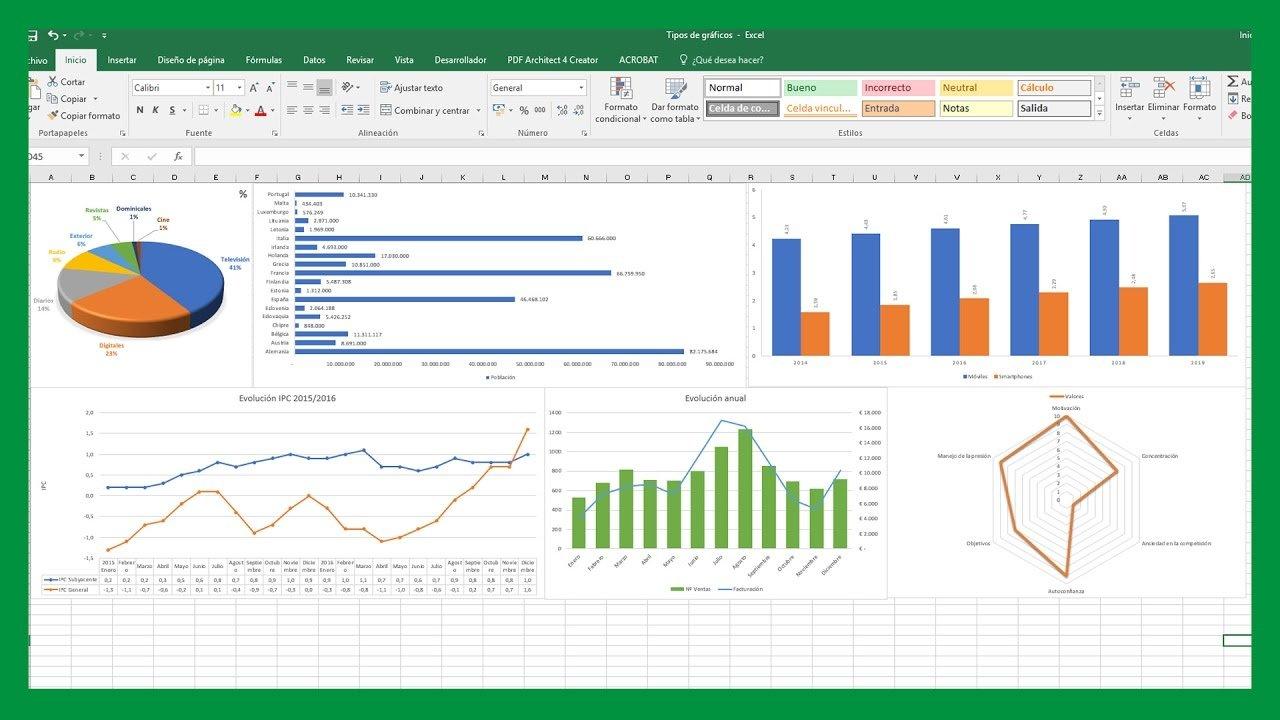
If you work with spreadsheets daily, you know that a well-chosen chart can transform an endless table into a clear and easy-to-understand story. But it's also true that a poorly designed chart in Excel It can confuse more than it helps: errors in data selection, unsuitable visualization types, unnecessary 3D effects, or confusing axes that distort the message.
In this article we will see, step by step, Which charts should be avoided or used with extreme caution in Excel?How to choose clearer alternatives and what best practices will help you make your reports more readable, professional, and useful for decision-making, whether you're doing simple analyses or advanced financial dashboards.
Common mistakes when creating charts in Excel and how to avoid them
Before getting into specific chart types, it's worth reviewing some Very common problems when trying to graph data in Excelwhich can give you error messages, inconsistent results, or graphs that are impossible to understand.
One of the most typical mistakes occurs when you work with CSV files or other text formatsAlthough it may look visually correct, Not all values are actually interpreted as numbers by Excel.Sometimes cells with text formatting, hidden spaces, or different decimal separators remain, and when trying to create the chart, a warning appears that the formula or the selected range is not valid.
If you have a matrix with two columns and hundreds of rows, and yet Excel still won't let you graph it, it's very possible that In part of the range there is data that mixes text and numbers or poorly handled empty cellsIn these cases, it's advisable to check the actual cell formatting, use tools like "Text to Columns" or Review a guide on databases in Excel so that everything is correctly typed as numeric.
Another common problem arises when selecting data for the X and Y axes in a scatter plot. Sometimes, when attempting to manually specify the series from the dialog box, Excel returns the message that the entered formula is incorrectThis can happen even when you're simply dragging the mouse across the range. It's usually due to inconsistent ranges (columns of different lengths), mixed references between sheets, or argument separators that don't match the system settings (semicolon vs. comma).
Additionally, when you work with a file saved as .csv or converted to .txt, Differences between versions of Excel (Windows vs. Mac, for example) can influenceIt's relatively common for a chart to display perfectly on one platform but show errors or interpret columns differently on another, especially due to issues with the decimal separator and field delimiters. In these cases, it often helps to save the file directly as an Excel workbook (.xlsx), check the regional settings, and rebuild the chart from scratch with the normalized data.
Choose the right type of chart according to your goal
Beyond the technical problems, one of the keys to not "breaking" your analyses is Choosing the right type of chart for the purpose of your report. Excel offers a wide variety of chart types: bars, columns, lines, areas, pie charts, scatter charts, bubbles, radar charts, funnel charts, waterfall charts, etc. But not all of them work equally well for every use case.
The first thing you should ask yourself is What do you want to explain with your data?Is it a temporary trend? A comparison between categories? How is a total value broken down into parts? A distribution? The evolution of an indicator against a target? When you have this idea clear, it is much easier to discard those charts that only add visual noise or distort the interpretation.
For example, if you need to show a month-by-month evolution, A line graph is usually much clearer than a pie chart.This is because it allows you to track the time sequence and detect peaks, valleys, or inflection points. However, if your goal is to compare the contribution of several categories to a total, a bar chart or a stacked area chart might be a better fit, provided it's used carefully.
It is also important to keep in mind the number of categories or series that you're going to represent. The same type of chart can be very readable with five categories and become completely unmanageable with twenty. At that point, it's sometimes preferable to change the type of chart, group smaller categories into "other," or even divide the information into several simpler visualizations.
When to use bar charts and when they can be a problem
Bar (and column) charts are probably the most commonly used resource for comparing quantities between groupsThey work very well when you want to see, at a glance, which category has more or less value, or how a few variables are distributed in relation to the others.
Its great advantage is that The visual comparison of lengths is very intuitiveThe human eye easily detects which bar is taller (or longer), provided they are well-spaced and ordered. This is why they are so useful in sales reports by product, results by department, budget comparisons between areas, and so on.
However, these graphs become a headache when The number of categories is excessive, or too many series are combined at once.A grouped column chart with ten products and four years of comparison can become an unreadable tangle of colors, where the main message is completely lost.
To avoid this, it is essential to limit the number of bars visible in a single visualization. maintain a uniform spacing between columns and use a simple and consistent color palette. When the list of categories is very long, it is best to group them, filter by the most relevant ones, or using a pivot table in Excel to summarize the information before presenting.
Another mistake to avoid is the use of 3D effects in bar chartsAlthough they may seem eye-catching, they distort the perception of heights and make it extremely difficult to compare values. Furthermore, they add unnecessary visual noise that contributes absolutely nothing to the analysis.
Line charts: ideal for trends, dangerous if there are too many series
When you want to track the evolution of one or more indicators over time, The line graph is the classic option and almost always the most recommended.It allows you to trace the trajectory of each data series continuously and quickly locate key moments: peaks in demand, sharp drops, seasonality, etc.
Its main strength is simplicity: an X-axis with time (days, months, years) and a Y-axis with the value of the indicatorThis is enough for the reader to understand, almost effortlessly, how the variable behaves. Furthermore, you can overlay two or three lines to compare, for example, actual sales versus target, or different customer segments.
The problem arises when you try to include too many series on the same chart. If you include eight or ten lines, The colors begin to repeat, the legends become illegible. And the chart ends up looking like a spiderweb where it's impossible to follow each trend. In those cases, it's better to separate the analysis into several charts or highlight only the truly relevant series.
It's also advisable to control the use of secondary axes. Excel allows this. Add a second Y-axis to represent indicators on different scalesHowever, overusing them can confuse the reader and give a false impression that completely different series are related simply because they share the same visual space.
A good trick to avoid overloading the graph is to accompany it with lines of specific data labels at the most relevant peaks or valleysInstead of labeling every point, this reinforces the interpretation without cluttering the visualization with numbers everywhere.
Area charts: useful for cumulative magnitudes, dangerous due to overlaps
Area graphs are similar to line graphs, but with the difference that the space under the line is filled with colorThis makes them especially interesting when you want to highlight cumulative volumes or the relative contribution of different components over time.
For example, they can work very well for represent how different product lines contribute to total monthly salesor how time is distributed among different activities over a period. The "filler" effect conveys a sense of volume and weight that can be very useful in certain narratives.
However, its main weakness is that, when there are several overlapping areas, The series that remain in the background become difficult to interpret.Even when playing with transparency, it's easy for some layers to become practically hidden, or for the reader not to be able to clearly distinguish where each area begins and ends.
Therefore, if you decide to use area charts, it is advisable limit the number of series and choose colors with well-thought-out contrastsWhen the priority is to accurately compare individual values, it may be preferable to choose a conventional line chart or a stacked chart with fewer dimensions.
In short, area charts are a powerful tool for telling stories about cumulative magnitudes, but They are not the best option when a very precise reading of each value is required. or when many variables are handled simultaneously.
Pie and donut charts: when to avoid them (almost always)
Pie charts and donut charts are among the most well-known to the general public, but they are also, by far, These are some of the things that are best avoided in Excel except in very specific cases.Their aim is to show how a total is divided among several parts, but the way they do it does not always promote clarity.
The main problem is that Comparing angles and areas of sectors is not as intuitive as comparing lengths.When the differences between segments are small or the number of categories is high, it's almost impossible to accurately determine which contributes more or less to the total. Adding labels with tiny percentages around the circle completely compromises readability.
Therefore, a good rule of thumb is Do not use pie charts with more than five segmentsFrom that point on, the representation becomes unclear and turns into an aesthetic exercise with little analytical value. If you have many categories, it's better to group the smaller ones under "other" or, simply, use a sorted bar chart or another more precise format.
Ring charts share these same problems and even exacerbate them by adding a central gap that It reduces the visual surface area of each segment and further complicates the comparison.Although they may look "nice" in a presentation, they are rarely the most suitable option for serious analysis.
In summary, if your goal is for the reader to quickly understand how a total is divided, A bar chart ordered from highest to lowest is usually much clearer than a pie chart.Reserve pie charts for very simple cases, with very few categories and very marked differences between them.
Scatter plots and how to show key points on the curve
Scatter plots are the ideal tool when you want analyze the relationship between two numerical variablesRepresenting one on the X-axis and another on the Y-axis. They are especially useful for visualizing correlations, data distributions, scatter plots, and patterns that are not seen in tables.
In many cases, when working with experimental data or activity peaks, it is of interest to highlight the maximum value of a curve or a specific pointIn Excel, this can be done by selecting the scatter chart series and adding data labels only to the point you want to highlight, or by creating a second series that contains only that value and giving it a different format (different color, larger size, different marker).
One mistake to avoid with dispersion is carelessly mixing data that is not properly formatted as numbersIf any of the axes contain text values or invalid cells, the chart may fail or display misplaced points. It is critical to thoroughly review the data range, especially when it comes from CSV files or external imports.
Another important aspect is choosing the right axis range. Excel tends to Auto-adjusting the scales is possible, but in some cases this can give an exaggerated sense of variation. Or, conversely, flatten the differences too much. Manually adjusting the minimum and maximum limits can help make the representation more faithful to the story you want to tell.
Finally, if you're going to be working with a lot of data points, it's a good idea Minimize elements such as grid lines, borders, and embellishmentsIn a dense scatter plot, the important thing is that the points are clearly distinguishable and that, if there is a trend, it can be identified at a glance, even adding a trend line when it makes sense.
Less common advanced graphics: when they shine and when they become a mess
In addition to classic charts, Excel includes More unusual types of graphs that, when used well, can provide a very interesting perspective to your analysis. However, they are also fertile ground for aesthetic abuses and confusion if applied without criteria.
These advanced formats include radar (or spider) charts, waterfall charts, funnel charts, bubble charts, milestone charts, custom actual vs. target charts, vignette charts, stepped charts, tornado charts, and the ever-popular speedometers. They all have their purpose, but understanding them is key. when they provide real value and when it's best to avoid them.
A general principle for these charts is to always prioritize Legibility and accessibility over visual impactA dashboard full of exotic graphics may look very "modern", but if the public does not understand them at first glance, the objective of the visualization is lost.
We're going to review each of these formats, looking at their most appropriate uses and the risks of using them carelessly, so you know which ones can help you tell your story better and which ones should only be used in very specific contexts.
Radar or spider chart: for very specific multivariate comparisons
The radar chart, also known as a spider chart, represents several variables on radial axes that originate from a common centerEach category is placed on an axis, and the values are joined together forming a kind of spider web that allows for a global comparison of the profile of each series.
This type of chart is especially useful for compare strengths and weaknesses of different elements: products versus quality criteria, employee skills versus a standard, survey results across different dimensions, etc. At a glance, it's clear where each series excels and where it falls short.
The problem is that when too many series or too many categories are added, The spider web becomes a jumble of overlapping lines and polygons very difficult to read. Furthermore, the human eye is not very good at estimating radial distances and polygonal areas, so accurately comparing values can be complicated.
Therefore, it is advisable to use radar charts with a limited number of categories and few seriesAnd only when the goal is to show a general "profile" rather than an exact numerical reading. If you need absolute precision, a table or a segmented bar chart will likely work much better.
In presentations, these graphics can have a significant visual impact, but it's important Explain clearly to the public what each axis represents and how to interpret the areas.to avoid misinterpretations or hasty conclusions.
Waterfall chart: very useful in finance, dangerous if categories are overused
The waterfall chart is used to to show how an initial value is affected by a series of increases and decreases until a final result is reachedIt is very common in financial environments: revenue breakdowns, margin analysis, net profit evolution, budget variations, etc.
Its strength lies in the fact that breaks down a total into perfectly visible positive and negative blocksThis makes it easier to understand where you win and where you lose. Each intermediate column represents a factor, and the whole chart paints a clear picture from the starting point to the finish line.
The risk arises when Too many intermediate elements are included, or heterogeneous concepts are mixed.A waterfall chart with twenty different columns can be as overwhelming as an endless table, and it loses that pedagogical effect that makes it so powerful.
Labeling and scaling also need to be monitored. If the categories and values are not clearly presented, The reader may misinterpret the contribution of increases and decreases.or not clearly seeing the relative weight of each one. In management contexts, where decisions are made quickly, this can be especially delicate.
Used sparingly, the waterfall chart is one of Excel's most valuable advanced formats, but It should be reserved for analyses where sequential breakdown is truly relevant. and not as a mere decoration.
Funnel chart: good for processes, bad if it's used for everything
The funnel chart is used to represent sequential processes in which the volume is reduced stage by stageIt is very typical in marketing and sales: website visits, leads, opportunities, proposals, closed sales, etc.
Visually, it shows a series of horizontal blocks that They narrow progressively to reflect the drop in volume throughout the process. This helps to quickly identify where the most opportunities are being lost, where bottlenecks are concentrated, and which phases deserve more attention.
The common mistake is wanting to use the funnel chart to any type of hierarchical or decreasing informationAlthough it doesn't truly represent a sequential process, when its use is forced outside of conversion contexts or clear flows, the interpretation becomes confusing and the chart loses its meaning.
Furthermore, if the differences between stages are very small, The visual effect of the funnel is greatly reducedAnd perhaps a sorted bar chart or a simple table with conversion rates would be a clearer and more honest alternative with the data.
In short, only use the funnel chart when you really want to. visualize a process with quantifiable inputs and outputsand avoid using it just because it looks "nice" on the dashboard.
Bubble chart: powerful for three variables, problematic if the effect is overused
The bubble chart is a natural extension of the scatter chart, where Each point is represented as a bubble whose size depends on a third variableThus, in the same 2D space you are showing three dimensions: position in X, position in Y and magnitude through the area of the bubble.
This type of visualization is very useful when you need analyze complex relationships between three factorsFor example, price, perceived quality, and sales of different products; or revenue, costs, and profit by region; or any similar combination in market research or performance analysis, or even transfer them to Power BI when you require interactive capabilities.
Its Achilles' heel is that Comparing bubble areas is not as intuitive as comparing heights or lengths.The human eye tends to underestimate or overestimate size differences, and if the scales are not chosen well, some bubbles can appear much larger than they actually are.
You should also avoid cluttering the chart with too many bubbles. If you fill the space with dozens of points, The bubbles overlap and the whole loses legibilityIn such cases, it is advisable to filter, group, or segment the data before displaying it, so that the reader can draw conclusions without getting lost in a sea of circles.
Use bubble charts when all three axes of information are truly relevant to your analysis and Clearly explain to the audience what the size of each bubble represents.so that no one draws the wrong conclusions.
Other advanced graphics: milestones, actual vs. target, vignettes, staggered, tornadoes, and speedometers
In addition to the types more visibly incorporated into the interface, Excel allows you to build custom advanced graphics through combinations of series and formatswhich are especially valuable in the financial and management field.
The milestone charts, for example, highlight key dates along a timelinehelping to place the data in its historical context and to communicate to non-financial audiences where the project stands and what has been achieved so far.
Actual vs. target (expectation vs. reality) charts are combinations of columns, lines, or other elements that They compare the performance achieved with the set goal.Although there is no single template for creating them, they are essential to convey whether or not you are in line with the objectives, in a visually direct way.
Bullet point graphics are compact and highly effective: In a small space they show the real value, the objective and a qualitative background (for example, good, average, bad ranges). That's why they are used so much in dashboards, as they concentrate a lot of information without overwhelming the report with a thousand scattered figures.
Stepped or stepped charts, in turn, allow better visualize abrupt jumps in performanceshowing horizontal segments and discrete changes instead of smooth lines. This clarifies where changes actually occur and helps interpret historical data to project future scenarios more accurately.
Tornado graphics are built from comparison bars arranged from highest to lowestThis is generally used to analyze sensitivity or compare a metric from two sources (for example, sales of different products in two stores). Stacked in descending order, they form a kind of tornado that allows you to see at a glance where the biggest differences are concentrated.
Finally, the speedometer-style graphics, inspired by car dashboards, show an indicator on an arc divided into zones (red, yellow, green)They are very popular in financial dashboards for monitoring KPIs, as they quickly convey whether a value is within an acceptable range or not, although they must be used with caution to avoid visually exaggerating minimal changes.
The same principle applies to all these advanced graphics: If they don't clarify the message, it's best not to use them.The goal is not to fill the report with visual "gadgets", but to better communicate information critical to decision-making.
General best practices when working with charts in Excel
Regardless of the type of chart you choose, there are a number of guidelines that They will help make your visualizations cleaner, more understandable, and more professional.avoiding errors that are constantly seen in presentations and reports.
First, he asserts that the source data is reliable, complete and up-to-dateNo chart, however spectacular it may seem, will compensate for incorrect, outdated, or poorly consolidated data. If the database is flawed, the chart will be misleading at best and dangerous at worst.
In second place, Always choose the type of graphic that best represents the messagenot the most visually striking. Prioritize quick reading and intuitive understanding over aesthetic impact. Also, try to minimize the number of secondary axes and duplicate scales, as these often lead to confusion and misinterpretations.
Third, pay attention to the basic design: Use a simple and consistent color palette, and eliminate unnecessary grid lines.Avoid gratuitous 3D effects and shading. Every visual element that doesn't provide useful information is a distraction that hinders interpretation.
Finally, practice empathy with your audience. Ask yourself What exactly does the person who will read the report need to see?What context does it have, how much time will they dedicate to it, and what decision should they make based on that data? Adapting the level of detail, the type of chart, and the way it's presented to that audience will make the difference between a forgettable report and a real management tool.
Ultimately, the key to avoiding mistakes with Excel charts isn't knowing all the exotic types that exist, but Knowing when to avoid those that confuse, when to opt for simpler alternatives and how to apply a few good design and data quality practices that will make your visualizations tell the right story, without unnecessary embellishments and with maximum clarity.

Table of Contents
- Common mistakes when creating charts in Excel and how to avoid them
- Choose the right type of chart according to your goal
- When to use bar charts and when they can be a problem
- Line charts: ideal for trends, dangerous if there are too many series
- Area charts: useful for cumulative magnitudes, dangerous due to overlaps
- Pie and donut charts: when to avoid them (almost always)
- Scatter plots and how to show key points on the curve
- Less common advanced graphics: when they shine and when they become a mess
- Radar or spider chart: for very specific multivariate comparisons
- Waterfall chart: very useful in finance, dangerous if categories are overused
- Funnel chart: good for processes, bad if it's used for everything
- Bubble chart: powerful for three variables, problematic if the effect is overused
- Other advanced graphics: milestones, actual vs. target, vignettes, staggered, tornadoes, and speedometers
- General best practices when working with charts in Excel