- 802.1X with FreeRADIUS allows you to assign dynamic VLANs using standard RADIUS attributes.
- Controllers like Omada and ExtremeCloud IQ integrate FreeRADIUS well to segment wired and Wi-Fi users.
- Errors in LDAP queries, insecure EAP methods, or misconfigured switches break VLAN assignment.
- Good policy planning and testing prevent problems with RDP, legacy devices, and hybrid environments.
If you manage wired or Wi-Fi networks and want to separate traffic by user type without resorting to an expensive NAC solution, effectively using 802.1X, FreeRADIUS, and dynamic VLAN assignment is one of the most powerful things you can do, and it's worth understanding how this fits with the Zero Trust architecture . Properly implemented, it allows you to decide which network each device connects to based on who it is, where it's coming from, or which directory group it belongs to, without creating SSIDs everywhere or being tied to a single vendor.
In this article, we'll break down in detail how the whole puzzle fits together: the role of 802.1X, typical FreeRADIUS configuration, RADIUS attributes for VLANs, integration with Wi-Fi controllers and switches , real-world examples (Omada, ExtremeCloud IQ, classic switches), common problems, and even advanced topics like Azure AD and malformed attributes in LDAP. The goal is for you to have a clear and practical understanding by the end, and to be able to adapt what you learn here to your own infrastructure, whether it's small or large.
802.1X and Dynamic VLANs: Basic Concepts and Components
The 802.1X standard is, simply put, the gatekeeper of your network: until the device authenticates, the port or Wi-Fi doesn't grant it access to the legitimate network. To achieve true segmentation, it's combined with dynamic VLAN assignment using RADIUS attributes , so the server decides which VLAN each client will be assigned to after authentication.
In any 802.1X deployment, there are three key components that always appear, regardless of whether you use Omada, ExtremeCloud IQ, or generic switches:
- Supplicant: the client that wants to connect (laptop, mobile, "ready" printer, etc.).
- Authenticator: the network equipment that controls access (switch, AP or Wi-Fi controller) and that communicates with the RADIUS server.
- authentication server: normally a RADIUS, often FreeRADIUS, which validates credentials and decides policy (allow, deny, put in one VLAN or another).
The magic of dynamic VLANs travels in the form of RADIUS attributes within the Access-Accept protocol . For VLANs, almost all manufacturers understand the combination of tunnel-like attributes:
- Tunnel-Type = VLAN
- Tunnel-Medium-Type = IEEE-802
- Tunnel-Private-Group-Id = "VLAN ID" (usually a number between 1 and 4095, although it is sent as text)
When the switch or AP receives an Access-Accept with these attributes, if it supports 802.1X and dynamic VLAN, it assigns the port or Wi-Fi session to the VLAN indicated by the RADIUS, ignoring the port's default VLAN or SSID (unless the RADIUS sends nothing, in which case it applies its local configuration).
FreeRADIUS configuration for dynamic VLANs
FreeRADIUS is the quintessential open-source RADIUS server. It can be installed on any modest Linux system , even on very small hardware like the NanoPi NEO or Raspberry Pi, and with proper configuration, it can handle very demanding environments. For dynamic VLANs, there are two key areas: defining users/groups and correctly placing the modules in the processing chain.
In simple deployments, test users can be defined directly in the FreeRADIUS users file, assigning them the VLAN they should receive. The typical file in Debian/Ubuntu is located at /etc/freeradius/3.0/users , and the VLAN entries look like this (simplified and rewritten):
employee10 Cleartext-Password := "key10" Service-Type := Framed-User, Tunnel-Type := VLAN, Tunnel-Medium-Type := IEEE-802, Tunnel-Private-Group-Id := "10" employee20 Cleartext-Password := "key20" Service-Type := Framed-User, Tunnel-Type := VLAN, Tunnel-Medium-Type := IEEE-802, Tunnel-Private-Group-Id := "20"
With this structure, FreeRADIUS will return, after an Access-Accept, the three tunnel attributes so that the NAS (switch or AP) can place the client in VLAN 10 or 20, depending on the user. The key is that the network equipment supports the corresponding RFC and respects these attributes before the configured access VLAN.
In some scenarios, such as integration with ExtremeCloud IQ, it is crucial that these attributes are sent precisely in the Access-Accept statement , and not just as "tunneled" attributes in other phases of the EAP process. In default configurations, FreeRADIUS may process the eap module first and then the files module (which reads the users file). This causes the controller to miss the attributes at the appropriate time.
The practical solution that has proven useful is to adjust the /etc/freeradius/3.0/sites-enabled/default file, moving the files module before eap within the authorize block. This way, FreeRADIUS loads the static user attributes (including VLAN) first and then handles the EAP, so that when constructing the final Access-Accept , the tunnel attributes are included where the controller expects them.
Another recommended adjustment is to disable weak EAP methods like EAP-MD5 , which were never intended for production environments. By editing the file /etc/freeradius/3.0/mods-enabled/eap and commenting out or deleting the MD5 section, FreeRADIUS will stop offering it. It's a good idea to focus your configuration on robust methods like EAP-TLS (certificates) or PEAP with MSCHAPv2.
VLAN assignment with Omada: Internal RADIUS and external FreeRADIUS
TP-Link's Omada ecosystem (controller + switches + AP) integrates 802.1X with dynamic VLANs very well, both using its internal RADIUS and by delegating to an external FreeRADIUS. It's a very illustrative example because the entire workflow is clearly visible.
To use the RADIUS built into the Omada controller, a three-step process is typically followed. First, in the controller's global menu, the integrated RADIUS is enabled by specifying the IP address (that of the controller itself) and activating the Tunneled Reply option so that it correctly sends the tunnel attributes to the access device.
Then, once on the specific site, go to Settings > Profile > RADIUS Profile , edit the profile, and create internal RADIUS users. For each user, Omada allows you to set a name, password, and VLAN ID , so that when that user authenticates, the controller will return the VLAN attributes to the switch or AP without going through an external server.
Finally, in Settings > Authentication > 802.1X , enable 802.1X, select the internal RADIUS profile, and explicitly enable the VLAN Assignment option . In the same section, select the switch ports that will require 802.1X authentication. After saving, any device connecting to these ports will need to authenticate, and if the account has an assigned VLAN ID, it will be automatically placed in that VLAN.
If we prefer to centralize everything on an external FreeRADIUS server, Omada perfectly supports this scenario. The first step is to edit the clients.conf file on the FreeRADIUS server to authorize the controller (or the range where the switches/APs are located) as a RADIUS client, specifying the IP address or subnet and the shared secret that we will later configure in Omada.
Next, back in Omada, create an external RADIUS Profile from Settings > Profiles > RADIUS Profile , where you enter the FreeRADIUS IP address, the authentication port (usually 1812), and the shared password. In the controller's 802.1X settings, select this external profile and re-enable VLAN Assignment , marking the ports or SSIDs you want to protect.
Further verification can be performed from the controller itself: in Tools > Terminal , open a console against the switch that has 802.1X enabled and run the command show dot1x auth-state . If everything is working correctly, you will see the authenticated port and the VLAN assigned by RADIUS (for example, a port 1/0/1 authenticated and associated with VLAN 2).
Dynamic VLAN on Wi-Fi with FreeRADIUS and ExtremeCloud IQ
Another very comprehensive example is that of Wi-Fi networks managed by ExtremeCloud IQ (XIQ) using FreeRADIUS as the authentication server. Here, the dynamic VLAN is primarily assigned to Wi-Fi clients based on tunnel attributes returned by FreeRADIUS.
First, FreeRADIUS is prepared to send those three attributes in the Access-Accept, just as before: entries in /etc/freeradius/3.0/users with users and their VLANs, and the setting in sites-enabled/default so that the files module is processed before eap , since XIQ expects the attributes exactly in the Accept.
It is highly recommended to disable EAP-MD5 and use methods such as PEAP/EAP-TLS . After modifying the EAP configuration file, restart the service with ` systemctl restart freeradius` to apply the changes. From then on, the server will be ready to respond to requests sent by the access points managed by XIQ.
On the Extreme cloud side, there are two relevant account types: the free Connect account , which allows basic management of up to ten devices but does not support advanced classification rules for dynamic VLANs, and the Pilot version , which offers a 90-day trial and does enable the full set of profiles and rules based on RADIUS attributes.
Using the Pilot account, create a new Network Policy from the "Configure > Network Policies" menu, name it, and select "Wi-Fi only" for simplicity. In the second step, define the SSID, typically as an Enterprise network with WPA2 or WPA3, and associate a RADIUS Group . When creating this group, add FreeRADIUS as an external server, specifying its IP address, secret, and ports 1812/1813.
Next, User Profiles are configured , which are, in practice, access profiles linked to different VLANs (for example, VLAN10 and VLAN20). There is a default profile that will be assigned to clients whose RADIUS does not return tunnel attributes, but for dynamic VLANs, assignment rules are defined based on the Tunnel-Private-Group-ID value and other RADIUS attributes.
The rules simply state: "if the Tunnel-Private-Group-ID coming from the Accept is 10, assign User Profile VLAN 10"; if it is 20, assign User Profile VLAN 20, and so on. ExtremeCloud IQ translates these rules in practice to placing the client on the VLAN that matches the attribute sent from FreeRADIUS.
Finally, you need to grant access to these VLANs on the wired side of the AP by adjusting the AP profile in XIQ so that the uplink port allows all configured VLANs and maintains the native VLAN (usually VLAN 1). Once everything is saved and the Network Policy is applied to the APs, you can use the RADIUS Test tool integrated into XIQ to verify that FreeRADIUS is accessible and that the server is returning the expected VLAN attribute for each user.
Omada SDN with FreeRADIUS: VLANs for wired and wireless
Omada's SDN solution also allows you to assign dynamic VLANs simultaneously across wired and wireless networks using an external RADIUS such as FreeRADIUS. This eliminates the need to create multiple different SSIDs or use static PVIDs on switch ports.
The typical topology includes an Omada controller, EAP access points, JetStream switches, and a FreeRADIUS server running on Linux. To allow network devices to send authentication requests to the server, the clients.conf file is edited , setting the client to the Omada network range (for example, 192.168.0.0/24) and a shared password.
Next, the accounts are set up in the users file , defining, for example, two users: one for VLAN10 and another for VLAN20, with their respective Tunnel-Type, Tunnel-Medium-Type, and Tunnel-Private-Group-Id attributes. In WPA-Enterprise, it is common to also modify the EAP configuration file to adapt the method to the type of clients (for example, EAP-PEAP for Windows laptops).
From the Omada controller, in the authentication section, create a RADIUS Profile pointing to FreeRADIUS and select the "Enable VLAN Assignment for Wireless Network" option . This ensures that when a client authenticates via WPA-Enterprise, Omada will query the RADIUS server and place the device in the VLAN returned by the server instead of the static VLAN of the SSID.
It is also necessary to define the network's VLAN interfaces in Settings > Wired Networks > LAN , creating, for example, two logical interfaces for VLAN10 and VLAN20 with their respective IP gateways. This way, when a client is on VLAN10, it will obtain an IP address within that VLAN's range , and the same applies to VLAN20.
On the wireless side, an SSID is created using WPA-Enterprise, pointing to the RADIUS profile. When a client connects and authenticates as, for example, test10, the user will receive an IP address from VLAN10; if they use test20, they will be assigned to VLAN20, without us having to create a specific SSID for each case.
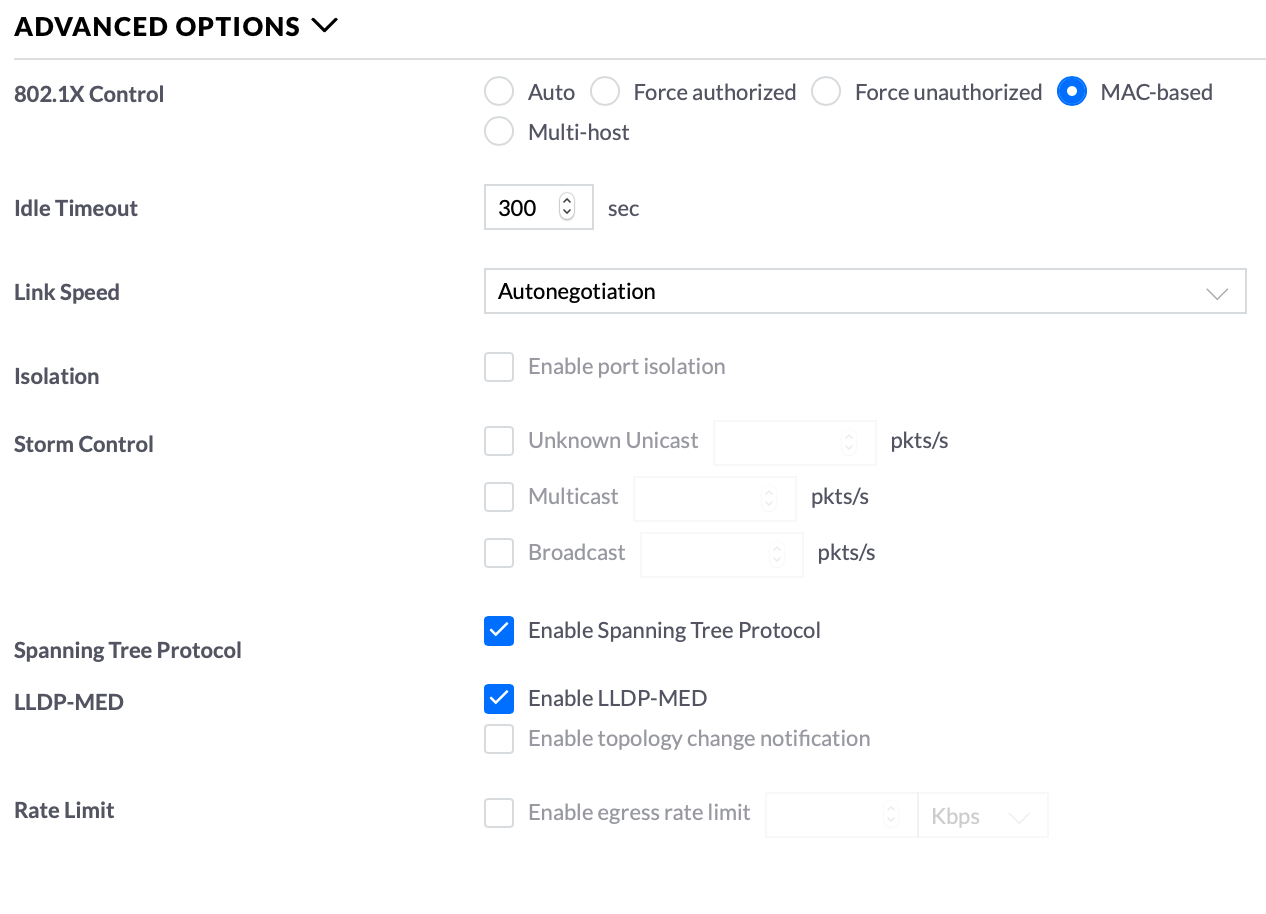
On the wired side, the logic is similar but uses 802.1X Port-Based . 802.1X is enabled in the corresponding section of the controller, the "Port Based" type is selected, "VLAN Assignment" is activated, and the ports that will require authentication are marked. A port profile is then applied to these same ports , adding VLAN10 and VLAN20 as untagged networks, ensuring that the 802.1X control mode is set to "Auto" so that the switch initiates negotiation when it detects a client.
Thus, with a single RADIUS configuration and a couple of profiles, Omada SDN ensures that both wired and Wi-Fi users end up in their corresponding VLAN according to their credentials , without having to multiply networks or manually adjust the configuration of each port.
Practical examples, common mistakes, and configuration tips
Working with FreeRADIUS and dynamic VLANs isn't all roses: several recurring problems arise when moving from laboratory tests to real-world environments, especially when dealing with LDAP/AD directories, username formats, and complex policies . Therefore, good cybersecurity risk management helps reduce incidents.
A very typical failure occurs when the server constructs an LDAP query using the attribute %{User-Name} as it arrives in RADIUS. In many Windows scenarios, the format arrives as DOMAIN\user, with the backslash encoded as \5cIf the LDAP template is built with uid=%{User-Name}The resulting query will be something like uid=DOMINIO\5cusuariowhich rarely matches the actual uid in the LDAP tree, returning zero results.
This means that the user's attributes, including the VLAN or group value to be mapped, are not found in the directory. Therefore, the server does not add the Tunnel-Private-Group-Id, and the client remains on the switch or AP's default VLAN. This pattern is clearly visible in the FreeRADIUS logs: an LDAP query with the uid "domain\5user" and empty search output.
The practical solution that has been used successfully is to change the use of %{User-Name} to %{Stripped-User-Name} in the LDAP query template in the FreeRADIUS configuration, e.g.:
if ("%{ldap:ldap:///dc=example,dc=com?uid?sub?(|(uid=%{Stripped-User-Name})(macAddress=%{Calling-Station-Id}))}") { ... }
In this way, FreeRADIUS uses the "clean" username, without the domain or slash, and the searches are successful again. As soon as LDAP returns the correct entry, the server can apply the logic to assign VLANs based on groups, OUs, or specific attributes, generating Tunnel-Type, Tunnel-Medium-Type, and Tunnel-Private-Group-Id again in the Access-Accept.
Another curious case occurs with some switches when static VLAN configurations on a port are mixed with dynamic 802.1X configurations. For example, having port 17 on static VLAN 4 and, at the same time, trying to force a specific user to VLAN 2 using RADIUS. If the device doesn't respect tunnel attributes or the dynamic VLAN function is disabled, regardless of what happens in RADIUS, the port will continue to see traffic as VLAN 4.
In these situations, it's crucial to review the switch's documentation to explicitly enable VLAN assignment support via RADIUS , and debug using commands like ` show dot1x` or equivalent, checking if the device reports anything like "ignoring tunnel attributes" or "dynamic vlan assignment disabled." Only when the manufacturer supports it and it's enabled will a user connected to a physical port in VLAN 4 by default actually end up in VLAN 2 after authenticating as "carlos" or whoever.
There are also classic debates about the suitability of using dynamic VLANs in Remote Desktop (RDP) scenarios . When machine authentication occurs at Windows startup and then user authentication at login, the VLAN change triggered by user login can interrupt ongoing RDP sessions or cause DNS issues as the port switches from the "machine" VLAN to the "user" VLAN. Many administrators have opted to maintain a single VLAN for all states in these cases, or to assign the same VLAN at both the machine and user levels, minimizing segment changes.
Finally, at the advanced integration level, there is growing interest in linking FreeRADIUS with Azure AD to determine VLANs based on group membership in the cloud. Currently, there is no official native module that performs direct group lookups for VLANs in Azure AD, and workarounds involve external scripts, calls to the Microsoft Graph API, and some tweaking. It's a dynamic field, and if a stable and supported solution is needed, this logic is often delegated to a commercial NAC or another intermediary component.
By effectively combining 802.1X, FreeRADIUS, and dynamic VLAN assignment, fine network segmentation can be achieved without the need for cumbersome NAC solutions. This aligns perfectly with a robust enterprise technology security strategy : from controllers like Omada or ExtremeCloud IQ to mid-range switches, everything can contribute if tunnel attributes are respected, LDAP/AD queries are carefully managed, and it's clear when to dynamically move users from one VLAN to another based on their identity, role, or the type of device they connect.