- Traefik acts as a dynamic reverse proxy and resolves TLS certificates, while Portainer offers a graphical interface for managing Docker and Swarm.
- The combination of traefik.yml, dynamic.yml and docker-compose.yml allows you to define entrypoints, security middleware and label-based HTTP/HTTPS routing.
- In Docker standalone or Swarm scenarios, simply join services to the proxy network and tag them so that Traefik can discover and expose them securely.
- The use of Let's Encrypt, dedicated networks, and basic authentication on the dashboard consolidates a robust environment for deploying multiple applications on a single server.
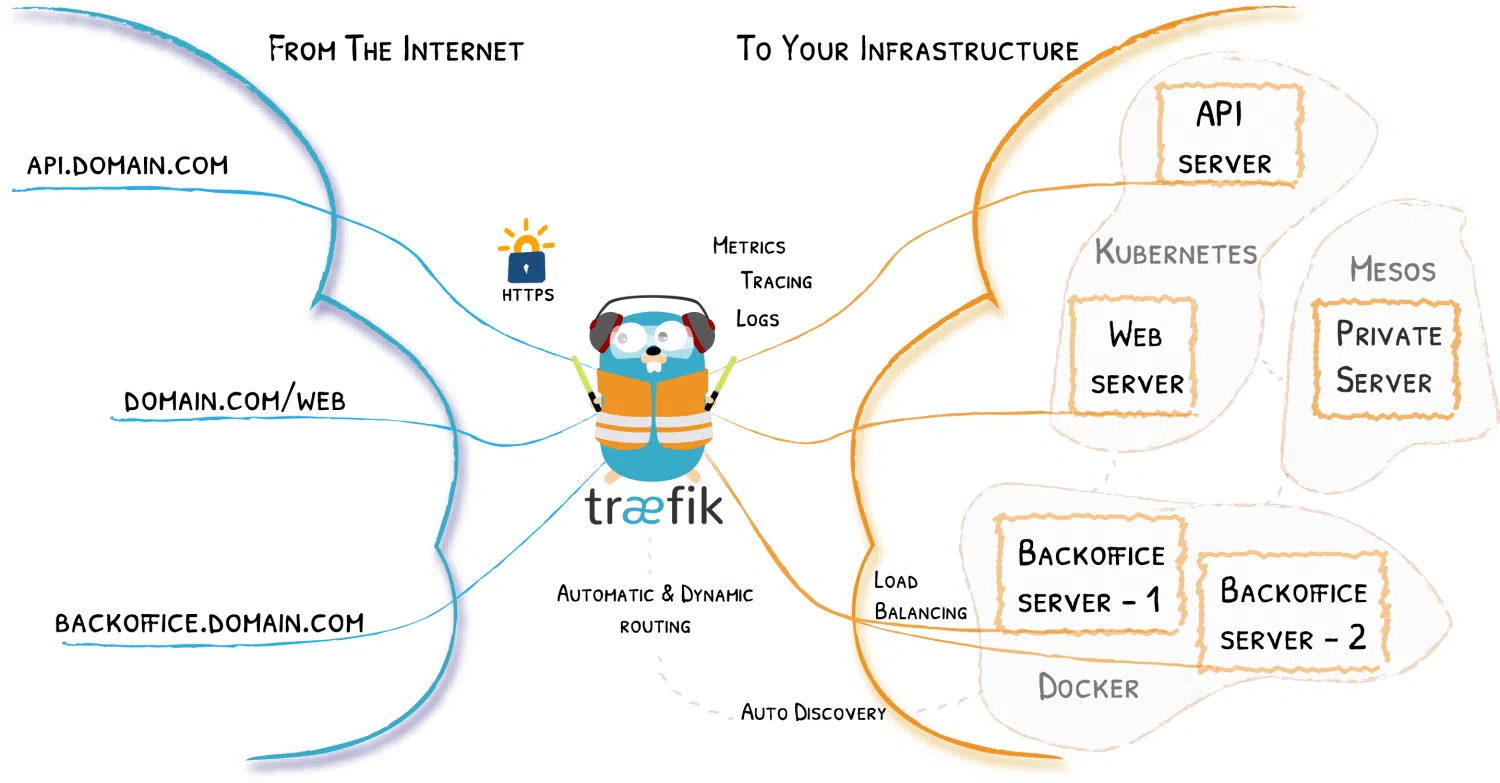
Setting up a modern stack with Docker, Traefik, and Portainer is currently one of the easiest ways to manage containers on a single server and expose multiple services with HTTPS without getting bogged down in configuration. The beauty of it is that Traefik acts as a dynamic reverse proxy, while Portainer provides a very simple web interface for managing Docker and, if you want, Swarm as well.
In this article you will see how fitting Traefik as a reverse proxy in front of Portainer In both a "classic" Docker (standalone) scenario and a Docker Swarm cluster, how to integrate TLS (self-signed or Let's Encrypt), and what configuration files come into play (traefik.yml, dynamic.yml y docker-compose.yml) and some common tricks with middleware, networks and typical tagging problems in Traefik.
What roles do Docker, Traefik, and Portainer have in the architecture?
In this type of setup, Docker is the base layer where the containers run, Traefik acts as a reverse proxy and load balancer that receives all HTTP/HTTPS requests on ports 80 and 443 and sends them to the appropriate container, and Portainer provides a graphical interface for managing images, containers, volumes, networks, and Docker or Swarm stacks.
The idea is to have a single host with Docker where Traefik is located at the “gateway”: listen at the entry points web (80) and websecure (443), resolves TLS certificates (usually with Let's Encrypt) and, thanks to the integration with the Docker provider, automatically discovers the services you expose by adding labels to the containers.
On the other hand, Portainer runs like just another container, but exposed through a specific subdomain, for example portainer.tudominio.com, protected by TLS and, if desired, behind an additional authentication middleware beyond Portainer's own login. All of this is orchestrated with a docker-compose that defines Traefik, Portainer and the common network of type proxy.
A clear advantage of this approach is that you can deploy new services simply by adding labels to your containers: Traefik detects the change in Docker, creates routers, services, and middleware on the fly, and in seconds you have a new subdomain or route up and running without manually touching static configuration files.
Traefik static configuration: traefik.yml
Traefik's static configuration is usually stored in a file like traefik.ymlwhich is mounted inside the container. Here it is defined dashboard, entrypoints, providers, and certificate resolver Let's Encrypt, among other things.
A typical YAML configuration starts by activating the API and control panel with something like api: dashboard: trueThis allows access to the web interface where you can view routers, services, and middleware. This panel is not authenticated by default, so we'll see later how to secure it with basic authentication from the dynamic configuration.
Next, the entry points are defined. Normally, there are an entry point web at port 80 and other websecure in the 443. En el web An automatic redirect is usually configured to websecureso that any HTTP access is redirected to HTTPS:
A typical outline would include a section http.redirections.entryPoint.to: websecure to force that redirection and centralize all encrypted traffic at the secure entry point.
To websecure It is indicated that TLS should be used and a link is provided. certResolver (for example letsencrypt) which will be responsible for automatically managing the certificates. All of this is supported by ACME, which is the protocol that Let's Encrypt uses to issue and renew certificates.
In the block Providers The Docker provider is configured, pointing to the socket unix:///var/run/docker.sockwith one key option: exposedByDefault: falseWith this, Traefik does not publish all containers by default; only those that carry the label traefik.enable=trueYou can also configure a file provider (file) to load an additional dynamic configuration from, for example, /configurations/dynamic.yml.
Finally, the static file usually includes the section certificatesResolverswhere the ACME resolver is defined: registration email, storage file (usually acme.json), key type (for example EC384) and the validation method (for example httpChallenge on the entry point webIt is important that set up a real email in this section because Let's Encrypt uses it for notices and renewals; if you leave a dummy or malformed value you may encounter errors when starting the Traefik container.
In addition to this YAML configuration, there are deployments that use TOML format (traefik.toml)But the logic is the same: they section resolver certificates (for example [certificatesResolvers.main.acme]), define challenges (such as dnsChallenge with provider = "route53") and add default TLS options, such as force minVersion = "VersionTLS13" or configure a list of cipherSuites allowed.
Dynamic configuration: middleware, TLS and security
The dynamic part of Traefik usually goes in a file like dynamic.yml, loaded by the file provider. Here you define middlewares and TLS options which can be modified without restarting the Traefik container, which is very useful for adjusting security on the fly.
A typical case is creating header middleware, for example secureHeadersthat adds policies related to HSTS and the mandatory use of HTTPS. In YAML you might find parameters like sslRedirect: true, forceSTSHeader: true, stsIncludeSubdomains: true, stsPreload: true or with a stsSeconds high (for example, a year in seconds). This strengthens traffic security from the browser side.
Another common middleware is one for basic authentication, for example user-auth type basicAuth, where a list of users is declared in the format usuario:hashThe hash is usually generated with htpasswd and is embedded in the file. This middleware is usually associated with the Traefik dashboard router so that, in addition to HTTPS access, it requires a username and password.
Within the same dynamic configuration, it is common to see a block tls.options with a default profile (default) where the supported ciphers and the minimum TLS version are set, for example VersionTLS12In some deployments, several options are defined (for example, a profile called tls12 and other default) to adapt the security level to different services if necessary.
In environments where it is desired to use TLS also internally Between Traefik and backend services (like Portainer), a problem can arise where those services don't have a certificate recognized by a public CA. That's where the option comes into play. insecureSkipVerify, which, configured under providers.http.tls or in the appropriate TLS options, it allows Traefik to bypass backend certificate validation. This is useful for lab environments or internal self-signed certificates, but should be used with caution because it relaxes verification.
A practical detail: the file dynamic.yml It can be edited on the fly.Traefik reloads the dynamic configuration without requiring a restart, so you can add or remove middleware, change security headers, or modify basic authentication without affecting proxy availability.
docker-compose with Traefik and Portainer in Docker standalone
In a bare Docker scenario, without Swarm, the most common thing to do is to launch Traefik and Portainer with a single docker-compose.yml which defines both services and a shared bridge-type network called, for example, proxy.
The service traefik It usually uses the official image, for example traefik:latest or a specific version like traefik:v3.4The ports are mapped. 80 and 443 for web traffic and, in some examples, port 8080 to expose the control panel internally. Additionally, the option is added restart: unless-stopped and security is reinforced with security_opt: - no-new-privileges:true to reduce the risk of privilege escalation within the container.
Regarding volumes, Traefik needs to mount the read-only Docker socket (/var/run/docker.sock:/var/run/docker.sock:ro) to discover containers, the static file traefik.yml and the directory where the dynamic configuration will be saved (./traefik-data/configurations:/configurationsThe file is also mounted. acme.jsonThis is where Traefik stores the certificates issued by Let's Encrypt. This file is created on the host and given permissions. 600 so that only the appropriate user can read and write it; if you leave it with 644, Traefik usually complains.
The key to Traefik working his magic is the service labelsAmong other things, you will find: traefik.enable=true (so that the Docker provider exposes this service), traefik.docker.network=proxy (indicates which network Traefik should use to communicate with the container), and a router like traefik.http.routers.traefik-secure, with labels that define its entrypoint (websecure), the host rule (for example Host(`traefik.tudominio.com`)), the associated service (api@internal) and the authentication middleware (user-auth@file).
Service carrier in the same docker-compose.yml generally uses portainer/portainer-ce:latest (or the Enterprise edition if you have a license). Similar volumes are mounted: the Docker socket, the data folder (./portainer-data:/data) and often also the /etc/localtime so that it inherits the host's time zone.
Portainer's labels register it with Traefik: traefik.enable=true, traefik.docker.network=proxya router of the type traefik.http.routers.portainer-secure with entrypoint websecure and a host rule like Host(`portainer.tudominio.com`)Additionally, the service that Traefik should use is defined, pointing to the internal port of Portainer, for example with traefik.http.services.portainer.loadbalancer.server.port=9000.
With all this underway, after launching docker compose up -d In the stack directory, Traefik downloads the images and creates the network. proxy If it is declared as external and exposes both panels in the configured subdomains, with Automatic HTTPS thanks to Let's EncryptFrom that point on, adding new services is a matter of cloning your project, adding a few Traefik labels, and connecting it to the network. proxy.
Docker Swarm scenario: Portainer and Traefik in a cluster
When you activate Docker Swarm, things change a bit, because services are deployed as stacks and networks are typically overlay-based. However, the underlying logic with Traefik and Portainer is very similar: Traefik continues to act as a reverse proxy and dynamic service discoverer, and Portainer can operate in both standalone mode and Portainer + agent mode to manage remote nodes within the cluster.
In a typical Swarm deployment, the stack is created before it is applied. two overlay networks which Traefik will use to route traffic between nodes. Additionally, a volume is created to persist Portainer data (for example) portainer_data) and, if you need it, one for acme.json or the directory where Traefik stores certificates and configuration.
El docker-compose.yml (which then unfolds with docker stack deploy using, for example, -c portainer.yml) usually defines two services: Portainer agent, which runs in mode global on all Linux nodes, and the main Portainer service (CE or EE), which normally remains in replicated mode with a constraint to only run on managers.
The Portainer agent mounts the Docker socket and the volume directory (/var/lib/docker/volumes) to be able to inspect resources. It connects to the overlay network that it will share with Traefik, for example traefik_publicThe main Portainer service can be configured to communicate with the agent via TCP (tcp://tasks.agent:9001) and, in fact, in some examples that command is shown with --tlsskipverify commented, to skip the TLS verification if necessary.
On the same stack or another, Traefik starts up with the Docker provider in Swarm mode (swarmMode = true in TOML or the equivalent option in flags), observing the tagged services. Its configuration includes a certificatesResolvers.main.acme for Let's Encrypt, a dnsChallenge with a supplier like Route53 If you want to validate certificates by DNS, and a block of tls.options where, for example, it is forced minVersion = "VersionTLS13" for the default profile and an explicit list is defined of cipherSuites for a TLS 1.2 profile.
Portainer's labels at Swarm follow the same philosophy: traefik.enable=truea router like traefik.http.routers.portainer with Host(`portainer.midominio.com`), traefik.http.routers.portainer.entrypoints=https (o websecure (according to the naming), and traefik.http.routers.portainer.tls=true to enable TLS on that router. Additionally, you can specify the certresolver with traefik.http.routers.portainer.tls.certresolver=main and the backend schema if the service speaks HTTPS internally with traefik.http.services.portainer.loadbalancer.server.scheme=https.
In the Traefik debug logs in Swarm you will see the generated configuration: routers like api y portainer, services discovered (for example portainer en http://10.0.1.12:9000 and a service traefik (pointing to port 8080 of the dashboard), and, if there is a problem with poorly defined labels, messages like "Could not define the service name for the router: too many services"which usually indicate that there is a conflict or duplication of services associated with a router.
Minimal example: whoami, routes and TLS with Traefik
Before bringing Portainer into the equation, it's quite practical to try Traefik with a very simple backend, like the image. traefik/whoamiwhich returns information about the request. This helps you validate that Traefik is correctly configured and that the routing rules are working.
Un docker-compose.yml basic may include the service traefik with image traefik:v3.4, mounting the Docker socket and defining the boot flags as --providers.docker=true, --providers.docker.exposedbydefault=false, --providers.docker.network=proxy and the entry point --entryPoints.web.address=:80Ports 80 and 8080 are advertised on the host, and a network is created. proxy which will also use the container whoami.
The service whoami It starts on the same network and is marked with traefik.enable=trueThen a router is defined with the label traefik.http.routers.whoami.rule=Host(`whoami.docker.localhost`) and it is indicated that your entry point is webIf you make a request with curl -H "Host: whoami.docker.localhost" http://localhost/You will see a response with hostname, IPs, headers and so on, which confirms that Traefik is routing correctly.
From there, it's simple. add routing by pathsFor example, you can create another service. whoami-api with the same image, on the same network, and tag it with a rule of the type Host(`whoami.docker.localhost`) && PathPrefix(`/api`)Thus, the root / go to whoami original and the requests to /api will serve them whoami-apiYou can verify this by making requests to / and /api with the same host.
To activate TLS In this local environment, one option is to generate a self-signed certificate for the domain *.docker.localhost with opensslYou create a directory certs, you generate local.key y local.crt, and then you add a dynamic file (for example dynamic/tls.yml) with the section tls: and the routes certFile y keyFile pointing to those files.
Next, you update the Traefik service definition in docker-compose.yml to mount the folder ./certs and the folder ./dynamic inside the container, you activate the secure API with --api.dashboard=true, you create the entrypoint websecure (--entryPoints.websecure.address=:443) and enable TLS there with --entryPoints.websecure.http.tls=trueYou also label the dashboard router and the routers of whoami for them to use websecure and have tls=true.
Once it's up, you'll be able to access https://whoami.docker.localhost/ and to the Traefik panel with a self-signed certificate, accepting the browser's security warning. This experience is very similar to what you'll later have in production with Let's Encrypt, but without relying on public DNS servers.
Best practices, app deployment, and solving typical problems
One pattern that is repeated in all these examples is that Traefik greatly simplifies the deployment of new applicationsOnce you have your base stack (Traefik + Portainer + network) proxy (+ certificates), adding a new service usually boils down to:
Clone the project or copy your docker-compose.yml to the server, point a subdomain to the host's IP address using a record A in your DNS (for example app.tudominio.com), and then add the key labels to the service: traefik.enable=true, traefik.docker.network=proxy and a router with a host rule for that subdomain, specifying the secure entrypoint websecure and the service with the correct internal port.
Many tutorials would show, for example, the deployment of a small app Fast API Separated: four labels are added, ensuring that it joins the network proxy in the section networks of the docker-compose.ymland after doing docker compose up -d The app automatically appears on the Traefik dashboard with TLS enabled. Traefik's auto-discovery means you don't even need to adjust its static settings.
To ensure everything runs smoothly, it's important to pay attention to a few details: Do not reuse the same router identifier In various apps, check that there is only one service associated with each router (avoiding the "too many services" error), use consistent network names (for example, proxy on all the stacks you want to expose), and, if you're using Let's Encrypt, make sure that the acme.json It has permissions 600 and the configured email is valid.
In Swarm environments, also check that the Traefik configuration includes the Docker provider. swarmMode=true y watch=trueand that the constraints of the services (for example node.role == manager (for Portainer) do not conflict with where Traefik is deployed. The debug logs are very verbose but are key to locating routing or TLS problems.
Combined Docker, Traefik, and Portainer, you can set up a complete lightweight orchestration environment on a single server, with graphical dashboards, automatic certificates, and a very fast deployment flow, where adding, updating, or removing services is reduced to tweaking a few lines of YAML and letting Traefik do the dirty work of reverse proxying and TLS.