- PowerShell 7 is installed alongside Windows PowerShell 5.1 and adds significant improvements for administration and automation.
- The official installation methods (WinGet, MSI, MSIX, ZIP and .NET tool) cover everything from home use to enterprise deployments.
- The upgrade and uninstallation options depend on the method initially used, making maintenance easier in Windows 11.
- PowerShell allows you to run advanced scripts, automate complex tasks, and offers more capabilities than the classic command prompt.
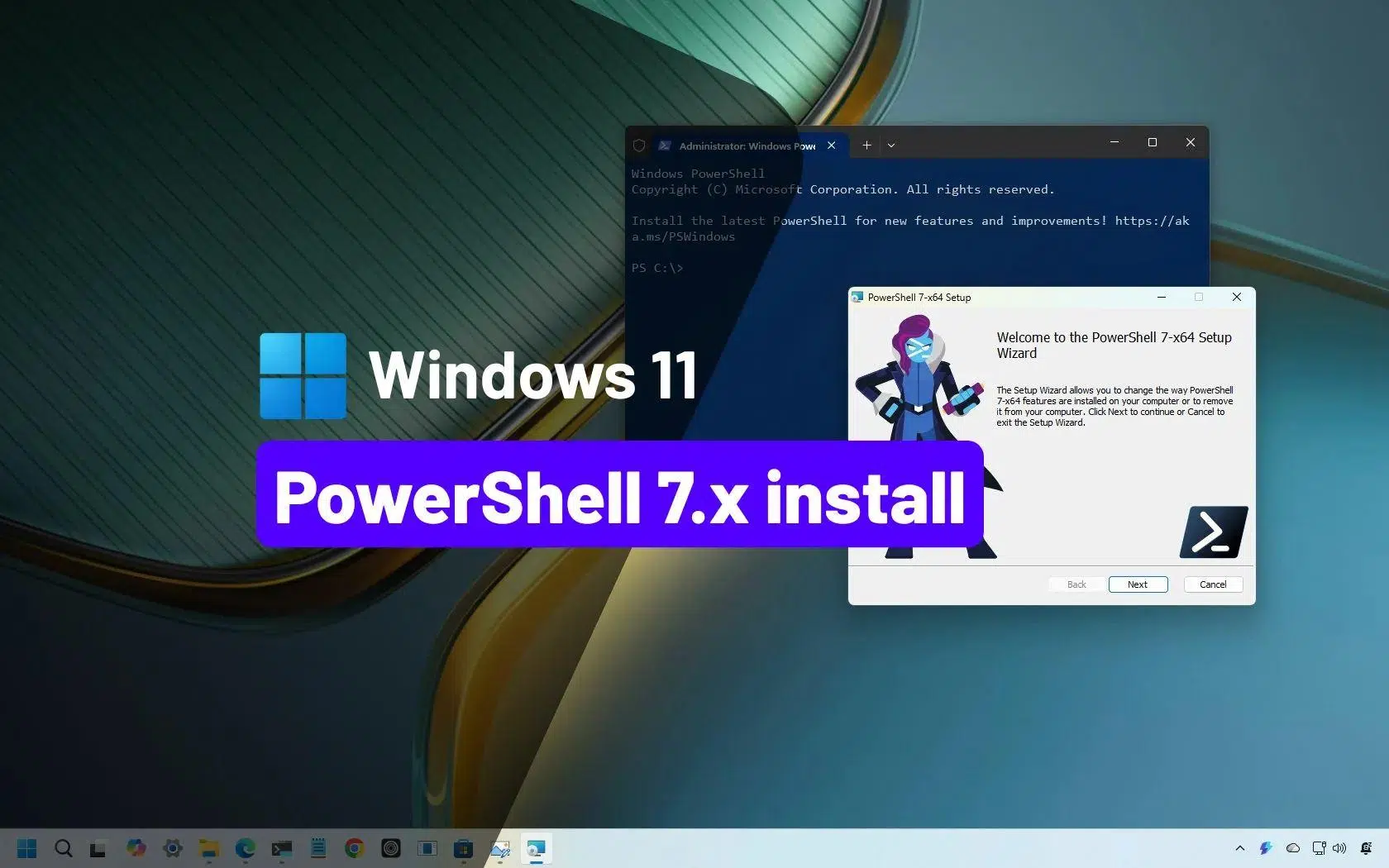
If you use Windows 11 daily and enjoy tinkering with the system, sooner or later you'll encounter PowerShell as an advanced console for automating tasks , managing computers, and unlocking features not even visible in the graphical interface. The problem is that, even in Windows 11, what comes pre-installed is Windows PowerShell 5.1, an outdated version that falls short compared to the capabilities of PowerShell 7.
In this article, you'll see, step by step and in great detail, how to install PowerShell 7 on Windows 11 using all the official methods (WinGet, MSI, MSIX, ZIP, and the .NET Global Tool), how to update it, uninstall it, check versions, install PowerShell ISE, and even how to use it for scripting, automation, and how it differs from CMD. Everything is explained in clear, accessible Spanish (from Spain), without leaving out any important options.
What is PowerShell, what versions are there, and how do they coexist in Windows 11?
PowerShell is a command-line interface and advanced scripting language created by Microsoft to manage Windows (and now also Linux and macOS). It originated with the .NET Framework, but PowerShell 7 is now based on .NET and C#, is cross-platform, and is open source, which has allowed it to evolve much faster than the classic version included by default in Windows.
Windows 11 comes with Windows PowerShell 5.1 pre-installed , which is still very powerful and more than sufficient for most home users. However, it has become stagnant: it no longer receives new features, only security patches. Therefore, Microsoft is promoting the use of PowerShell 7 as a modern and continuously evolving version , distributed as a standalone application.
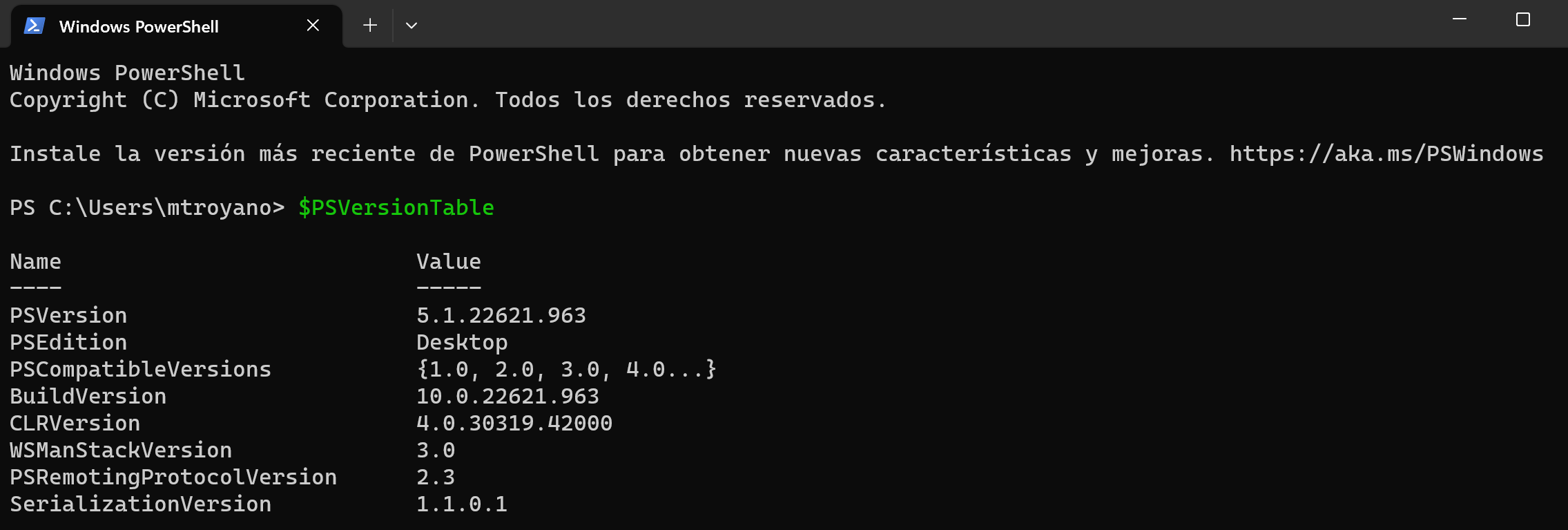
A key point: PowerShell 7 It does not replace Windows PowerShell 5.1It is installed in a separate folder and has its own executable file.pwsh.exe) and can coexist without problems with the classic version (powershell.exeThis allows you to test scripts, enjoy new features, and at the same time continue using older modules that only work with 5.1.
To find out which version you are using at any given time, you can run the following command in the console and you will see the version of the PowerShell host you have loaded:
Get-Host | Select-Object Version
This check is very useful if you want to confirm that PowerShell 7 has been installed correctly on Windows 11 or check if you are still on the 5.1 version that comes pre-installed.
New features and advantages of PowerShell 7 compared to Windows PowerShell 5.1
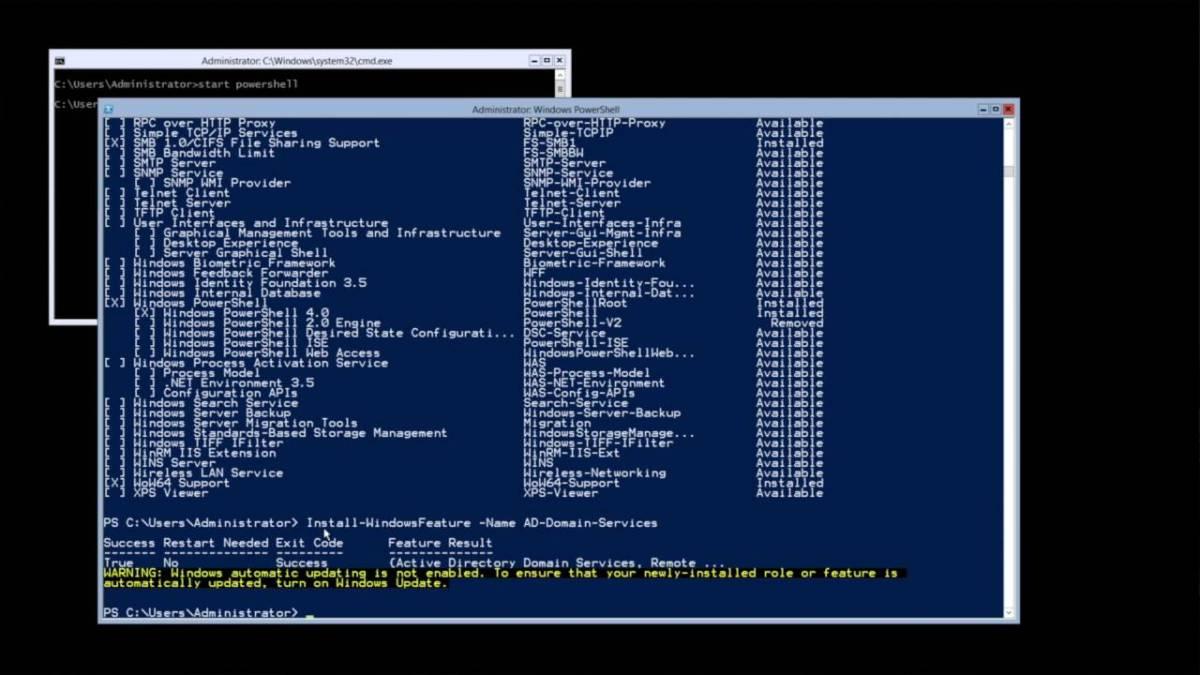
Although Windows PowerShell 5.1 is still very capable, PowerShell 7 introduces enhancements designed for system administrators and advanced users who work with complex scripts, multiple servers, or large volumes of data.
One of its standout features is Pipeline Parallelism . Thanks to this feature, you can process hundreds of files or manage multiple servers simultaneously, reducing tasks that previously took hours to a matter of minutes. It's incredibly useful for automating heavy administrative tasks.
Also incorporated new operators that allow writing cleaner and more compact code, replacing long blocks of the type if/else by using more readable, single-line expressions. This not only makes scripts more elegant, but also reduces the likelihood of errors and facilitates long-term maintenance.
Error handling takes a major leap forward with the cmdlet Get-Errorwhich displays detailed and well-formatted information about failures. Instead of wading through confusing logs, you can diagnose problems much faster, reducing the time spent debugging scripts and complex automations.
Along with these features, PowerShell 7 brings new cmdlets, views like ConciseView , built-in version update notifications, compatibility layers for running Windows modules in implicit sessions, and the ability to invoke resources directly from the console more flexibly.
In short, if you use PowerShell professionally, manage servers, or automate processes, upgrading to PowerShell 7 on Windows 11 is almost mandatory ; if you only open it occasionally for a specific command, you can perfectly well live with version 5.1, but you'll be missing out on many conveniences.
Official methods for installing PowerShell 7 on Windows 11
Microsoft offers several official methods for installing PowerShell 7 on Windows 11 , each designed for a different scenario: home desktop, enterprise environment, mass deployments, ARM environments, etc. All the methods you'll see here are supported by Microsoft, unlike some third-party installers that may exist.
The supported installation methods are:
- wingetThis is the recommended method on Windows 11 client computers, convenient and fast from the command line.
- MSI Package: ideal for enterprise environments, servers and controlled deployment scenarios.
- MSIX/Microsoft Store Package: very simple for casual users, with automatic updates, although with significant limitations.
- ZIP package: designed for advanced scenarios, multiple versions in parallel, or Server Core systems, Windows IoT, and ARM equipment.
- Global .NET tool: very useful for .NET developers who already manage global tools from the SDK.
Furthermore, within each method there are usually several editions: a stable version (Release) and a preview version (Preview) . The most prudent approach for a production environment is to install the latest stable release and reserve the preview for testing or lab environments.
Install PowerShell 7 on Windows 11 with WinGet (recommended method)
WinGet is the Windows package manager that comes integrated with Windows 11 (as part of the App Installer application). It's a command-line tool that lets you quickly find, install, update, and remove programs, making it ideal for managing PowerShell 7 without the hassle of manual downloads.
Utility winget It can be launched from any console: cmd.exe, Windows PowerShell 5.1 or PowerShell 7 itself Once installed. To find the latest available version of PowerShell, run:
winget search --id Microsoft.PowerShell --exact
There you will see the current stable version published in the WinGet repository. Starting with PowerShell package 7.6.0, WinGet installs the MSIX package by default unless you specify otherwise.
To install the MSIX edition of PowerShell 7 from WinGet, you can use:
winget install --id Microsoft.PowerShell --source winget
If you prefer to force installation using an MSI package instead of an MSIX package , for example in a corporate environment with specific policies, you can specify the installer type:
winget install --id Microsoft.PowerShell --source winget --installer-type wix
Please note that, starting with certain preview versions (for example, from package 7.7.0-preview.1), MSI is not always available and WinGet can only install MSIX for Preview builds.
To install the latest preview version from WinGet, you can launch:
winget install --id Microsoft.PowerShell.Preview --source winget
This method is especially interesting because simplifies future updatesLater you will be able to use winget upgrade to upgrade to the next version of PowerShell 7 without manually downloading anything.
Install PowerShell 7 using the MSI package on Windows 11
If you want more control over the installation options, especially in a professional environment, the usual practice is to download the PowerShell 7 MSI installer from GitHub and run it like any other program.
From the official PowerShell releases page, you'll always find the latest stable (Release) version and the Preview versions. Download the MSI package corresponding to your architecture (x64 or ARM64), and once you have it on your computer, double-click on it and follow the standard installation wizard.
During the process, you can choose options such as creating shortcuts, configuring the PATH variable, or enabling remote communication . If you don't have any special needs, you can use the default settings, which are secure and suitable for most users.
When the wizard finishes, you will have PowerShell 7 installed in the usual path C:\Program Files\PowerShell\7 (for stable versions) or ...\7-preview In the case of preview versions, it will be automatically added to the variable PATH in order to be able to call pwsh from any console.
Install the PowerShell 7 MSI with advanced options via command line
In environments where PowerShell 7 needs to be deployed on many computers, the usual practice is not to click manually, but to use Msiexec with parameters to automate the process and adjust all installation properties from the command line.
The PowerShell 7 MSI installer exposes several important properties, including:
- USE_MUThis controls whether the product will integrate with Microsoft Update, WSUS, or Configuration Manager. It can be 1 (default, opting to receive updates) or 0 (not participating in updates via MU).
- ENABLE_MU: affects the option to enable the use of Microsoft Update from the settings interface.
- ENABLE_PSREMOTING: determines whether remote PowerShell communication is enabled during installation.
- REGISTER_MANIFEST: Indicates whether the Windows event log manifest is logged.
- ADD_PATH: Enables or disables adding PowerShell to the Windows PATH environment variable.
- DISABLE_TELEMETRY: allows disabling PowerShell telemetry by setting the environment variable
POWERSHELL_TELEMETRY_OPTOUT. - INSTALLFOLDER: defines the base directory where PowerShell will be installed (by default,
$Env:ProgramFiles\PowerShell\, on which the subfolder is created7o7-previewdepending on the version type).
A typical example of a silent installation with several options enabled might look something like this (from PowerShell):
$msiParams = @(

  '/package PowerShell-7.6.1-win-x64.msi',

  '/quiet',

  'ADD_EXPLORER_CONTEXT_MENU_OPENPOWERSHELL=1',

  'ADD_FILE_CONTEXT_MENU_RUNPOWERSHELL=1',

  'ENABLE_PSREMOTING=1',

  'REGISTER_MANIFEST=1',

  'USE_MU=1',

  'ENABLE_MU=1',

  'ADD_PATH=1'

)

msiexec.exe @msiParams
This type of silent installation (/quiet) is perfect for Automate deployments from scripts or management tools as Configuration Manager. If you want to review all the possibilities, you can consult the official documentation for parameters of Msiexec.exe.
Install PowerShell 7 on Windows 11 using the ZIP package
Microsoft also publishes ZIP files with PowerShell 7 binaries , focused on more advanced or special scenarios: multiple versions in parallel, Windows Server Core, Windows IoT, environments without a graphical installer, ARM machines like Surface Pro X, etc.
To use this method, download the version from the official version page. ZIP file corresponding to your system (x64, ARM64, etc.)Depending on how you obtain it, you may need to unlock the file with the cmdlet Unblock-File so that Windows does not mark it as content from the Internet with extra restrictions.
Then extract the contents wherever you want (preferably in $Env:ProgramFiles\PowerShell\7 or an equivalent location) and executes directly pwsh.exe from that folder. There is no installer as suchTherefore, this method does not check prerequisites or automatically configure PATH.
If you want to use multiple versions of PowerShell 7 simultaneously , you can extract each one to a different directory. In that case, you'll need to create shortcuts in the Start menu and, if necessary, manually add the corresponding path to the PATH environment variable.
Regarding remote communication over WSMan, you must ensure on your own that all system prerequisites are met , because the ZIP does not configure anything automatically, unlike the MSI.
Install PowerShell 7 as a global .NET tool
If you already have the .NET SDK installed on your PC, a very convenient option is Install PowerShell 7 as a global .NET tool, managed with the command dotnet toolThis is especially interesting for developers who already manage other tools from there.
The command to install it is simple:
dotnet tool install --global PowerShell
This process automatically adds the folder $HOME\.dotnet\tools to the environment variable $Env:PATHso that you can launch pwsh from new console sessions without complications. That said, The current session does not update automaticallyTherefore, you will need to open a new terminal window for the changes to be reflected in PATH.
From that point on, you can use PowerShell 7 like any other global .NET tool, and update or uninstall it with the same commands. dotnet toolwhich largely unifies maintenance in development environments.
Install PowerShell 7 using the MSIX package or from the Microsoft Store
PowerShell 7 is also available in MSIX format, both for direct download and through the Microsoft Store . This format is notable for its simplicity and the automatic updates integrated into Windows.
The main advantages of installing from the Microsoft Store or with MSIX are:
- Automatic updates without having to worry about checking them manually, since the system itself takes care of keeping the application up to date.
- Integration with software management tools such as Intune or Configuration Manager in enterprise environments.
- Multi-device Compatibility x64 and Arm64 processors on Windows 11.
To manually install the MSIX package downloaded from GitHub, simply double-click on the file. .msixbundle or use this command from PowerShell:
Add-AppxPackage -Path ".\PowerShell-7.6.1.msixbundle"
However, this type of installation has important limitations that you should consider if you rely on advanced features:
- Microsoft Store-based installation It's for one user only.It cannot be deployed to all users of the team from the package itself.
- MSIX packages run on a sandbox which virtualizes part of the file system and registry, and blocks changes to the application's root folder (
$PSHOME). - Not allowed System-level remote PowerShell communication with WSMan, because the modifications in
$PSHOMEThey are blocked. - It is not possible to create or modify profiles for all users stored in
$PROFILE.AllUsersAllHostso$PROFILE.AllUsersCurrentHostOnly the current user's profiles are available.
In addition, several commands that require writing in $PSHOME They don't work on a Microsoft Store installation, For example:
Register-PSSessionConfigurationUpdate-Help -Scope AllUsersEnable-ExperimentalFeature -Scope AllUsersSet-ExecutionPolicy -Scope LocalMachine
In short, the MSIX/Store package is perfect for users who want to always have the latest version without complications and don't need advanced remote control or global customizations. If you need complete control over the environment, MSI or even ZIP is usually a better option.
How to start PowerShell 7 in Windows 11 and check where it is installed
Once you've installed PowerShell 7 using any of the methods described above, you can launch it in several ways . The most direct is to open the Start menu, type "PowerShell 7," and click on the corresponding entry. You'll also usually see the entry "PowerShell 7-preview" if you have a preview version installed.
Another way is to open any console (including the classic one). cmd.exe or Windows PowerShell 5.1) and simply type:
pwsh
If the installation has successfully added the path to PATH, the command will launch PowerShell 7 in the same window or a new one, depending on how you have configured the shortcut.
By default, the stable version is installed in $Env:ProgramFiles\PowerShell\7 and the Preview versions in $Env:ProgramFiles\PowerShell\7-previewIn the Start menu you will usually see several entries: two corresponding to Windows PowerShell 5.1 (including Windows PowerShell ISE) and others specific to PowerShell 7.
If you ever have doubts How was the version of PowerShell you are using installed?You can check the variable $PSHOMEwhich always points to the executable's base directory in the current session. Some common clues are:
- Si
$PSHOMEes$HOME\.dotnet\tools, it was installed as a global .NET tool. - If it's worth it
$Env:ProgramFiles\PowerShell\7It was probably installed via an MSI package (you'll also see it in "Programs and Features"). - If you start with
$Env:ProgramFiles\WindowsApps\, comes from the MSIX / Microsoft Store package. - If it's any other custom path, it's probably an installation by Unzipped ZIP file.
Update PowerShell 7 on Windows 11 to the latest version
PowerShell 7 is designed to receive constant feature and security updates . There are two main ways to stay up to date: use Microsoft Update (if you enabled it during the MSI installation) or repeat the same method you used the first time (WinGet, MSI, MSIX, ZIP, or .NET tool).
When integrated with Microsoft Update, PowerShell 7 can be updated through Windows Update for Business, WSUS, or Configuration Manager , just like any other Microsoft product. This is a very convenient approach if you manage a large fleet of computers.
If you want to stay ahead of what Microsoft Update offers and always have the latest version as soon as it's released, you should use the same original installation methodIf you installed it via MSI, install the new MSI; if it was WinGet, use winget upgradeIf it was a ZIP file, you download and replace the ZIP file, and so on. New stable versions replace previous stable versions, while preview versions update previous preview versions, but always... They continue to be installed in parallel with the stable version.
Specifically, if you want to use WinGet to check if a newer version is available, you can run:
winget list --id Microsoft.PowerShell --upgrade-available
If there's an update, you'll see the latest version in the output. To apply it:
winget upgrade --id Microsoft.PowerShell
WinGet will attempt to maintain the same package type you initially used (MSI or MSIX), provided that option exists for the new version. If it's not available, you'll need to use another method, such as a manual download from GitHub.
Update manually from PowerShell using the official Microsoft script
If you prefer not to open your browser or navigate GitHub every time, you can update PowerShell 7 directly from the console using an official script that downloads and installs the latest stable version in MSI format.
Open PowerShell with administrator privileges (otherwise the command will fail) and run:
iex "& { $(irm https://aka.ms/install-powershell.ps1) } -UseMSI"
This script downloads the latest MSI from Microsoft's official servers , runs the installer, and guides you through the wizard. Once finished, you'll have the latest version installed without having to search for it manually. You don't need to restart Windows to start using it, unless you have very specific processes blocking files.
Uninstall PowerShell 7 on Windows 11 using the method used
Uninstalling PowerShell 7 also depends on how it was originally installed . There isn't a single method that works for all cases, so it's helpful to know what you did initially:
- If you installed it with wingetYou can remove it with:
winget uninstall --id Microsoft.PowerShell - If you used a MSI packageGo to Control Panel > Programs and Features and uninstall it like any other application.
- If you opted for the ZIP packageSimply delete the folder where you extracted the files (and, if you want, clean up shortcuts and PATH entries that you may have manually configured).
- If you installed it from Microsoft StoreOpen the Start menu, search for "PowerShell 7", right-click and choose "Uninstall".
- If you have it as global .NET tool, uses:
dotnet tool uninstall --global PowerShell
Remember that Windows PowerShell 5.1 is part of the operating system and is not removed when you uninstall PowerShell 7. It will remain available for modules and scripts that only work with that version.
Supported Windows versions and use of Docker images
Microsoft supports PowerShell 7 as long as the PowerShell version and Windows edition remain within their official lifecycle . Generally, if your Windows 11 is up-to-date and supported, you should be able to run the latest stable version of PowerShell 7 without any issues.
Additionally, the .NET SDK Docker images include the latest version of PowerShell . These are distributed from the Microsoft Artifact Registry and are very useful for testing and containerized development environments. However, they may not include the latest security updates for the base operating system, so Microsoft recommends updating the system packages within the image if you plan to use them for anything other than testing.
If you need a certified Docker image for production, it's advisable to create your own custom image from an official base, keeping it up to date with the updates required by your environment.
How to install PowerShell ISE on Windows 11 Pro
Although Microsoft promotes Visual Studio Code with the PowerShell extension as the recommended environment, PowerShell ISE remains available in Windows 11 Pro as an optional feature. If you prefer this classic environment for writing and debugging scripts, you can continue installing it without much trouble.
To enable Windows PowerShell ISE from Windows 11 Pro settings, do the following:
1. Click the Start button and type "Optional features".
2. Open the application "Optional features - System settings".
3. Click on the "View functions" button.
4. In the search engine, type "ISE" and check the box "Windows PowerShell ISE".
5. Click "Next" and then "Install."
You'll see the installation progress in the "Recent Actions" section, and when it's finished, it will appear as "Installed." From then on, the PowerShell ISE editor will be available in the Start menu , ready to use with Windows PowerShell 5.1.
For domain administrators and server environments, PowerShell ISE can also be enabled via RSAT and the ServerManager module . A typical workflow would be to install the necessary RSAT tools, import the module with:
Install-Module ServerManager -Verbose -Force -ErrorAction SilentlyContinue -WarningAction SilentlyContinue
Import-Module ServerManager -Verbose -Force -ErrorAction SilentlyContinue -WarningAction SilentlyContinue
Then you can use cmdlets like Get-WindowsFeature to manage features, although in Windows 11 the most common approach is still to use the "Optional Features" interface or make the definitive leap to Visual Studio Code with the PowerShell extensionwhich is the recommended long-term alternative.
Key differences between PowerShell and CMD in Windows 11
Many users remain stuck with the classic Command Prompt (CMD) out of habit, but the reality is that PowerShell is in a different league in terms of power and flexibility . CMD is a descendant of MS-DOS and has remained virtually unchanged for decades, designed for basic commands and relatively simple scripts.
PowerShell, on the other hand, is built on .NET and works with objects instead of text strings . This allows access to complex system properties, manipulation of structured information, and filtering and transformation of data in a much richer way than with the simple text pipes of CMD.
PowerShell lets you manage virtually every aspect of Windows , from services and processes to the registry, Active Directory, Exchange, SQL Server, IIS, and other Microsoft products, thanks to its specialized modules. It also allows you to combine commands, automate complex tasks, and orchestrate entire workflows with just a few well-designed scripts.
CMD is still valid for very simple tasks, but when you need to go further — for example, coordinating backups, deploying configurations in bulk, or managing a server farm — PowerShell 7 is the tool that really gives you granular control over the operating system.
Run batch files and scripts from PowerShell
One of the advantages of adopting PowerShell 7 in Windows 11 is that You don't lose compatibility with old batch files (.CMD o .BAT) that you've accumulated over time. In fact, you can launch those files from PowerShell using commands like Invoke-Expression.
For example, if you have a file softzone.cmd On drive E: with several batch instructions, you can run it from PowerShell like this:
Invoke-Expression -Command "E:/softzone.cmd"
This command executes the specified program or script on the local system directly from within the PowerShell session. You can also integrate it into your own PowerShell scripts to combine legacy .CMD tasks with new cmdlet-based automations.
However, it's worth remembering that PowerShell and CMD don't interpret all commands the same way , so if you have complex CMD-specific scripts, the cleanest approach in the medium term is usually to migrate them to pure PowerShell, taking advantage of its cmdlets, error handling, and object model.
Task automation with PowerShell 7 in Windows 11
The true power of PowerShell 7 becomes apparent when you use it to automate repetitive tasks in Windows 11. You can schedule scripts to handle backups, disk cleanup, deploy configurations, manage users, monitor services, launch updates, and much more, without having to click through the graphical interface.
Imagine, for example, that you want to create regular backups of an important folder . You could define a small script like this (adapted to your folder structure):
$source = "C:\Ruta\CarpetaOrigen\"

$destination = "D:\Backup"

$date = Get-Date -Format "MM-dd-yyyy"

$backupFolder = "$destination\Backup_$date"

New-Item -ItemType Directory -Force -Path $backupFolder

Copy-Item -Path $source* -Destination $backupFolder -Recurse
This example creates a backup folder with the date in the name and duplicates all the contents of the source folder into that destination path. By scheduling this script with the Windows Task Scheduler, you could have daily backups without lifting a finger.
And this is just the tip of the iceberg: with PowerShell you can manage networks, databases, remote services , launch commands on computers on the same network using remoting or SSH, or even orchestrate complex application deployments. The more you use PowerShell 7, the greater the return on investment in time savings.
When working with scripts, remember to pay attention to the Execution Policy and security aspects: do not run scripts from dubious sources and maintain good signing and source control practices, especially in production environments.
Ultimately, installing PowerShell 7 on Windows 11 unlocks a level of control and automation far exceeding what the system offers out of the box. Whether you simply want to keep the modern console up-to-date or manage hundreds of computers, understanding WinGet, MSI, MSIX, ZIP, .NET integration, tools like PowerShell ISE and Visual Studio Code, and scripting capabilities will provide a solid foundation for managing Windows 11 much more professionally and efficiently.