- Windows 11's God Mode is a special folder that centralizes hundreds of advanced system settings into a single interface organized by categories.
- Activating it only requires creating a folder or shortcut with a specific identifier, without additional installations or dangerous modifications.
- GodMode provides quick access to tools for security, networking, power management, user accounts, backups, and system customization.
- It is safe and reversible: simply delete the folder or shortcut to disable it, leaving Windows 11 functioning intact.
If you use Windows 11 daily, you're probably content with the typical options in the Control Panel and the Settings app , but the system hides much more powerful tools designed for those who want to take Windows tricks a step further and master their PC . One of the most curious and useful is the famous Windows 11 God Mode , a hidden feature that consolidates virtually all of the system's advanced settings into a single window.
This feature isn't new; it's been present in various versions of Windows for years (and there are derivatives of the concept in Linux, such as God Mode ), but it remains largely unknown to many. Activating it is as simple as creating a special folder with a specific name, and in return, you get a panel full of shortcuts to security , network, power, user account, backup, and much more settings . Let's take a closer look at exactly what it is, how to activate it, what you can do with it, and also how to deactivate it if you no longer need it.
What is God Mode in Windows 11 and what is it used for?
What's known as God Mode in Windows 11 isn't a secret mode that makes your PC indestructible or anything like that; it's actually a special folder that acts as a mega control panel . Within it, hundreds of advanced operating system tools and settings are grouped as shortcuts.
Essentially, God Mode brings together in a single interface everything that's normally spread across the Settings app, the classic Control Panel, and other internal menus . This way, instead of jumping from section to section trying to remember where everything is, you can navigate a list structured by categories and open the option you want with just a couple of clicks.
This feature is primarily intended for advanced users, technicians, or those who spend time fine-tuning Windows 11's behavior , although any curious user can benefit from it. From here, you can directly access hardware settings, power management, user administration, network options, system customization, security, backups, and much more.
It's important to keep in mind that, despite the name sounding exaggerated, what you have before you is simply a very comprehensive list of shortcuts to existing system settings. It doesn't add any magical functions or unlock any dangerous features on its own. The risk, if any, lies in changing options you're not familiar with, just as you would when tinkering with any advanced settings menu.
Another important detail is that the content of God Mode may vary slightly depending on your version of Windows 11 and your computer's hardware . In other words, not all computers will see exactly the same entries: some are added or removed as updates are installed or certain components change.
How to enable God Mode in Windows 11 step by step
Activating God Mode in Windows 11 is so simple it almost seems like a trick: you don't need to install anything, you don't need to touch the Registry or run any strange commands. It all comes down to creating a folder with a very specific name that contains an internal Windows identifier.
The first step is to choose where you want to store this folder. Many people place it on the desktop for easy access , but you can also create it in any other location within File Explorer if that's more convenient or organized for you. The location doesn't affect its functionality.
Once you've chosen the location, right-click on an empty area and select New → Folder . A typical "New folder" will be created, ready to be renamed. This initial step is identical to creating any other folder in Windows.
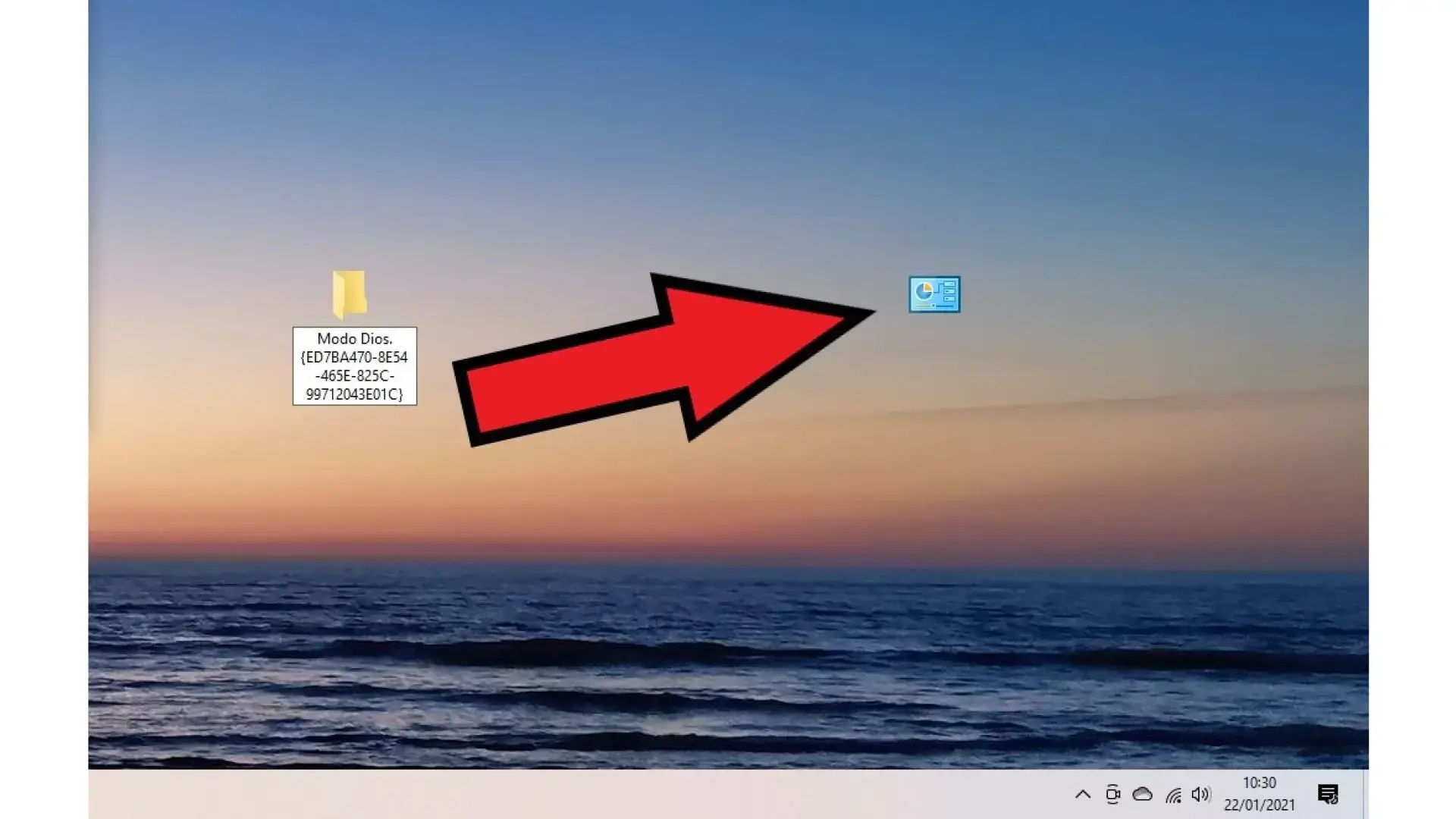
The key point comes now: you have to rename that folder exactly with the following text, respecting letters, numbers, periods, and curly braces so that the system recognizes it as special and turns it into the famous Windows 11 God Mode folder :
GodMode.{ED7BA470-8E54-465E-825C-99712043E01C}
When you press Enter to confirm the new name, you'll see that the icon may change to the classic Control Panel appearance, and in some cases, the folder name will be invisible or blank. This is all normal and means that Windows has correctly interpreted the internal identifier that is part of the name.
From that moment on, every time you double-click on that folder, a window very similar to File Explorer will open, but instead of documents, you'll see a huge list of configuration options organized by category . That's God Mode in action, ready for you to use as the system's command center.
Categories and options you'll find within God Mode
When you open the GodMode folder, you'll see a screen full of items, often more than 200 shortcuts to tools and settings , although the number may vary slightly depending on your Windows 11 installation. To avoid confusion, everything is organized into thematic groups, making it easy to find what you're looking for.
One of the standard sections is the one dedicated to the User Accounts and Credentials Manager in Windows . From there you can manage saved passwords, network credentials, certificates, and various aspects of the user profiles on the computer, which is especially useful if you share a computer or work with multiple users.
There are also categories related to accessibility options , designed for people with visual, hearing, or mobility impairments. From God Mode, you can directly access settings such as the narrator, magnifier, text size, high contrast, and on-screen keyboard configuration.
Another important group focuses on hardware and device management . Here you can quickly open sections to view printers and scanners, mice, keyboards, Bluetooth devices, storage, advanced storage spaces, or the popular Device Manager, without having to search for them in hidden menus.
Power and battery settings also have their own section within God Mode. You'll find links to customize power plans, adjust what the computer does when you close the lid, configure the power button behavior, or fine-tune sleep and hibernation options—crucial if you use a laptop.
The security and maintenance section provides access to Windows Defender Firewall, file history, backup and restore, and advanced RAM diagnostic and troubleshooting tools . This allows you to react quickly to errors, check the overall system health, or restore files to previous versions if something goes wrong.
There are plenty of categories focused on personalization and region settings , with links to change the language, regional format, installed fonts, date and time, desktop appearance, and various interface details. From this panel, you can personalize Windows 11 without having to navigate through multiple screens of options.
All in all, what you have before you when you open God Mode is a massive compendium of features related to both the daily user experience and the system's security and performance. It's, in practice, a complete map of Windows 11's configurable inner workings, accessible in just a couple of clicks.
Requirements, security and potential risks of God Mode
Something that needs to be clarified from the outset is that God Mode is a native Windows feature integrated by Microsoft , originally intended for developers, administrators, and advanced users. It's not a home hack or a strange modification, so activating it is completely safe for your computer.
On most home computers, the main user already has administrator privileges , which are necessary to take advantage of many of the advanced settings. Without this level of privilege, you can open the GodMode folder, but some tools will require credentials or prevent you from changing certain parameters.
To check your account type, go to Settings → Accounts and review the information under your profile name. If it's listed as administrator, you won't have any problems. However, in company or educational settings, there may be restrictions limiting access to certain settings.
Regarding risks, the greatest danger isn't God Mode itself, but rather how you use the options it displays. As with any advanced control panel, if you start modifying settings without fully understanding what you're doing, you can cause strange behavior, performance issues, or system connection problems. Therefore, it's advisable to only change what you understand or have researched beforehand.
If you're still worried, you can always combine using God Mode with creating system restore points or regular backups. This will give you a safety net in case an aggressive modification doesn't go as planned and you want to revert to a previous Windows 11 state without too much hassle.
How to open, use, and navigate the options in God Mode
Once activated, using God Mode is as easy as opening any other folder. Simply double-click the God Mode icon and wait for the full list of categories and items to load. Visually, it looks quite similar to a traditional File Explorer window.
The different categories are grouped together, and within each one you'll find clearly described links. For example, if you go to the group dedicated to network options , you'll see shortcuts to view the connection status, change sharing settings, configure a new network, or check the installed adapters.
To open any of these shortcuts, simply double-click on it, just as you would open a document or folder. In many cases, this opens the corresponding panel within the Control Panel or Settings , saving you several intermediate clicks and manual searches.
If the length of the list overwhelms you, you can use the search bar located in the upper right corner of the window, which works just like in any other instance of Explorer. Type a keyword related to what you want to configure, and the system will instantly filter the God Mode options that match the term.
Another useful trick is to drag frequently used options from God Mode to the desktop or any other folder to create custom shortcuts . This way, you won't have to enter God Mode every time for common actions like opening File History, adjusting the power plan, or launching a specific tool.
Other special modes and similar access points in Windows 11
Although the GodMode folder is the most well-known, Windows 11 allows you to create other special shortcuts using internal identifiers , similar to how we created God Mode. This way, you can generate shortcuts focused on specific areas of the system, creating a kind of custom "theme panels."
An interesting alternative is to create a shortcut instead of a folder . This allows you to change the icon and name more freely without losing functionality. Instead of typing the name with GodMode and the identifier, you simply point the shortcut to a specific path in File Explorer.
To do this, create a new shortcut on your desktop and, when the Windows wizard asks you which location you want to open, enter a path like this:::{ED7BA470-8E54-465E-825C-99712043E01C} . This will tell the system to open the same God Mode interface, but through a simple shortcut icon.
Then you can give that shortcut any name you like and, if you want, change the icon from Properties → Change Icon . This is useful if you want to integrate the tool into its own toolbar or visually differentiate it from other standard system folders.
Beyond the classic GodMode, there are other identifiers and special configurations for more specific administration panels, so by combining these tricks, it is possible to set up a kind of personalized control center focused on security, network administration, storage management or other areas that particularly interest you.
How to disable or remove God Mode in Windows 11
If at any point you decide you no longer want God Mode on your system, getting rid of it is as simple as deleting any other folder or shortcut . There's no need to uninstall anything or revert any major changes to the operating system.
If you created the GodMode folder on your desktop, simply right-click on it and select Delete , or drag it to the Recycle Bin. The same applies if you used the shortcut that points to the internal God Mode identifier; deleting it removes the way to access that panel, but Windows 11 will continue to function normally.
If you've taken the experiment further and, while tinkering in God Mode, modified settings that are causing problems, you can always resort to system restore options . With a previous restore point or a backup using File History, you'll be able to revert and undo problematic changes.
Remember that you also have the search function integrated into the Start menu. By pressing the Windows key on your keyboard and typing the name of the tool you need (for example, "Control Panel" or "Firewall"), you can access many of its functions without relying on GodMode, although it may take a little longer in some cases.
In any case, God Mode doesn't leave any permanent trace on the system, so you can activate it, try it out, use it for a while, and if it doesn't quite convince you, remove it without fear , knowing that Windows 11 will continue to behave as always.
Windows 11's so-called God Mode is actually a very practical way to concentrate all the advanced tools and settings that the system has been incorporating for years into a single window, allowing you to save time when configuring, optimizing, or troubleshooting your PC. If you use it wisely, combined with backups and knowing exactly what you're changing, it becomes a perfect ally for keeping your computer fine-tuned, secure, and adapted to your workflow without having to navigate through endless menus scattered throughout the system.
