- Windows offers different types of accounts (administrator, standard, guest, and child) to adapt the level of access and control to each user.
- The combination of user profiles, local groups, and NTFS permissions allows for data isolation, action restriction, and significantly improved security.
- Connecting professional or educational accounts and using secure login methods helps integrate the team into business or academic environments with centralized control.
- Poor management of accounts and permissions increases the risk of malware, loss of privacy, and uncontrolled changes to system settings.
When we share a computer or use it for both work and personal use , how we manage user accounts makes all the difference between having an organized and secure system… or utter chaos. Understanding how accounts work in Windows, what types exist, and what permissions each one has is key to avoiding problems with deleted data, viruses, or configuration changes that no one knows who made.
In addition, Windows allows you to connect a personal account with work or school accounts , log in more securely (password, PIN, or biometrics), create users from graphical tools or commands, control what each person can do with NTFS permissions, and organize users into groups. All of this may sound very technical, but when explained clearly, it's much simpler than it seems.
What is a user account in Windows and why is it so important?
A user account in Windows is the set of credentials, permissions, and personal settings that a person uses to work with the computer. Each account has its own environment: desktop, documents, applications configured to their liking, and a specific level of system access.
If everyone uses the same account, especially if it's an account with administrator privileges, the risks multiply: greater exposure to malware , uncontrolled configuration changes, loss of privacy, and total difficulty in knowing who has done what on the computer.
The best practice is for each person to have their own user account and, whenever possible, to use standard user accounts for day-to-day tasks, leaving administrator accounts only for specific maintenance or installation tasks.
It is also essential to understand that an account is not only used for logging in, but is linked to a user profile : a directory with your documents, downloads, program settings, browsing data and much more.
Logging into Windows: methods, security, and common problems
Logging into Windows is the process by which the system verifies your identity before granting you access to your desktop and data. This step is crucial to ensure that only you (or someone you authorize) can access your user session and personal profile.
Today, Windows allows you to use different login methods: the classic password , a numeric PIN, or biometric options through Windows Hello, such as facial recognition or fingerprint scanning. These biometric methods, when properly configured, offer faster and generally more secure access than a simple password.
The basic login process is very simple: turn on the device, go to the login screen, choose the appropriate account (if there are multiple), and enter your password or PIN . If the device is associated with a Microsoft account, the password you enter is the one for that online account.
If you have trouble remembering your password, the login screen itself displays links such as "I forgot my password" or "I forgot my PIN ," allowing you to start the recovery process. On personal computers, this works very directly, but in business or educational settings, it may be controlled by administrators.
Connect personal accounts with professional or educational accounts
It's very common to use the same computer with a personal Microsoft account and, at the same time, belong to an organization (company or educational institution) that offers its own resources: corporate email, OneDrive for Business, work applications, etc. In these cases, Windows allows you to "connect" a work or school account to easily access these resources without mixing everything up.
By linking your work or school account, the device becomes associated with the organization , granting access to shared files, corporate applications, security policies, and other company or educational services. This is the standard way to integrate your personal PC or laptop with your work or school infrastructure.
To do this, simply go to the System Settings app (for example, by pressing Win + I ), enter the Accounts section , and then the Work or School account section. From there, you can choose the option to add a new account and enter the information provided by your organization (usually your work email address and associated password).
Once connected, that account will be managed according to the policies set by the organization, so there may be additional security restrictions , remote software installation, or controls over the device itself.
Types of user accounts in Windows 11
Windows 11 (and, to a large extent, Windows 10 as well) distinguishes between several types of accounts based on permission levels and intended use. Understanding these helps in deciding which account to create for each person and what each account can and cannot do on the system.
The four main categories of user accounts in Windows 11 are: Administrator , Standard User , Guest , and Child Account . Each one serves different needs and contexts.
Administrator Account: maximum system control
The administrator account is the account with the highest level of privileges on the system. It allows you to install and uninstall programs , modify global Windows settings, adjust security options, create, edit, or delete other user accounts, and even access all system files.
This power comes with a clear responsibility: any changes made from an administrator account affect all users on the computer . Therefore, it's recommended not to use it for everyday tasks like browsing the internet or reading email, thus reducing the attack surface against malware or human error.
In practice, a personal computer usually has a main administrator account that is used to maintain the system (installing applications, updating drivers, changing advanced settings) and a standard account that is used for daily work.
If you need to promote an existing account to administrator, you can do so from Settings > Accounts > Family and other users: select the user, click on change account type and choose Administrator from the drop-down menu, applying the changes.
Standard user account: the recommended option for everyday use
The standard user account is designed for normal computer use : browsing, using installed programs, creating or modifying documents, playing games, etc. Its main advantage is that it does not allow changing the system's global settings or installing software without explicit administrator authorization.
This type of account reduces the risk of someone accidentally uninstalling an important application, modifying critical system settings, or installing malware. In fact, if you try to install a program from a standard account, Windows will require administrator credentials to proceed.
Standard accounts are ideal for family members, coworkers, or friends who need access to your computer while maintaining a reasonable level of security and control . Each person will have their own profile, desktop, and data, but won't be able to break the system at the first opportunity.
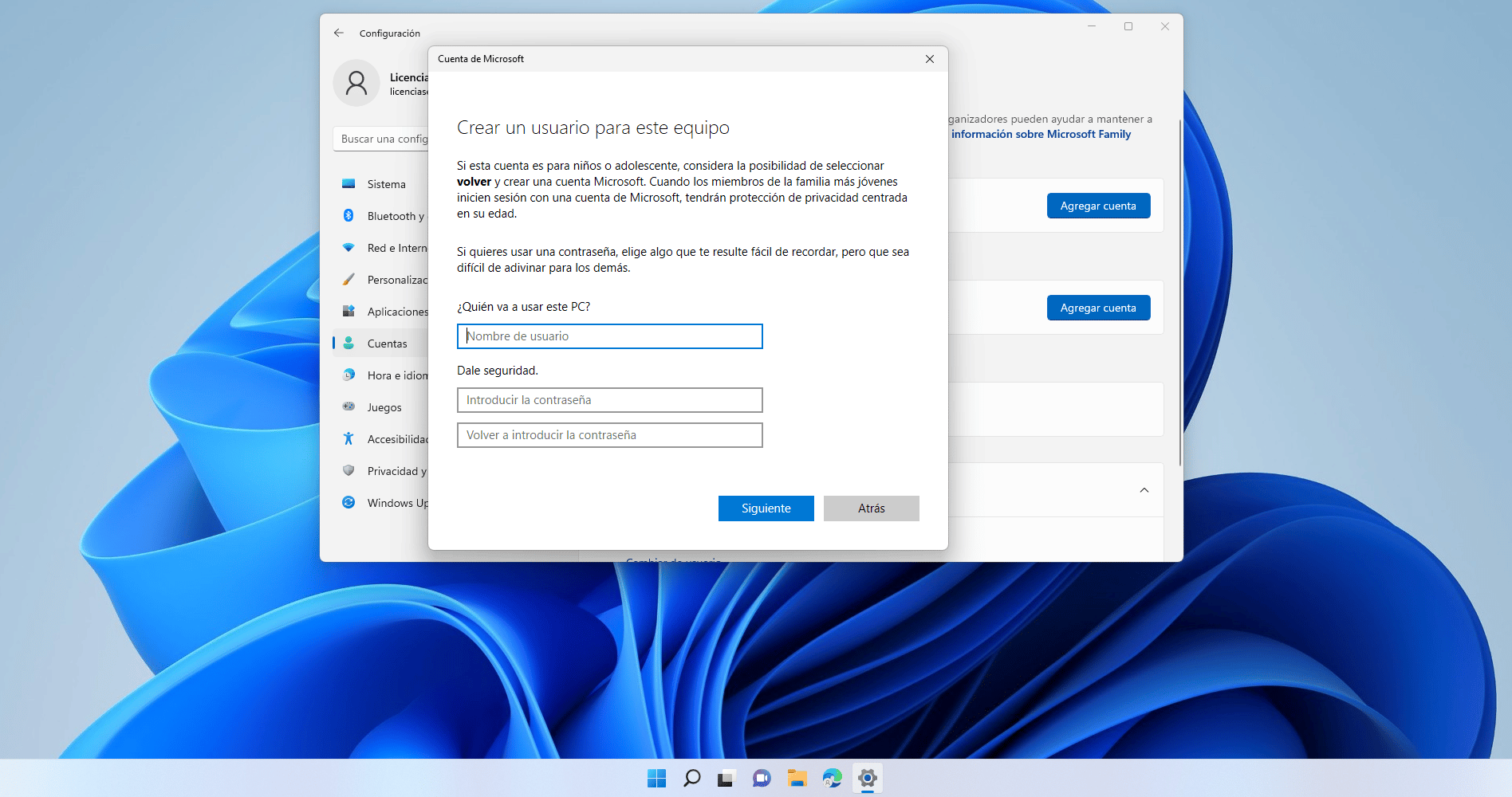
To create a standard account, from Settings > Accounts > Family & other users, choose the Add account option, follow the steps (with or without a Microsoft account) and, when defining the account type, select Standard user.
Guest account: very restricted temporary access
The guest account is designed to offer very limited and temporary access to the computer, for example when someone needs to use the computer for a while to check email, browse the internet, or perform a specific task.
This account cannot modify system settings, install programs, or access other users' data. Furthermore, any changes you make (documents, application settings, etc.) are typically not saved permanently after you log out, minimizing the impact on your computer.
In Windows 11, the guest account is disabled by default, but it can be enabled from the local user management tool. To do this, you can open the local user and group manager (for example, with lusrmgr.msc In Run), go to the users folder, locate the "Guest" account, access its properties and uncheck the option that indicates that the account is disabled.
This type of account is perfect when you don't want to create a permanent user account, but you also don't want to grant access to your personal account. It offers a controlled and ephemeral environment for occasional users.
Child account: parental controls and family safety
The child account is specifically designed for children and is part of Microsoft's Family Safety tools . It allows parents or guardians to monitor and limit children's computer use.
With this type of account, you can set usage schedules (daily screen time or time slots), restrict apps and games, block inappropriate websites, and review activity reports. All of this is designed to create a safer environment for children without preventing them from using technology.
Setting up a child account is done from Settings > Accounts > Family & other users, using the option to add a family member and selecting "add a child". You can use an existing email address or create a new one for the child, and then apply the desired parental controls.
This approach is very useful in family teams where several children share the same computer, as it allows adapting the level of restriction and content to the age and maturity of each one.
Risks of not managing user accounts properly
Not taking user account management in Windows seriously can lead to serious problems, both in terms of security and privacy, or even the operation of the computer.
One of the most obvious dangers is an increased risk of malware and viruses . If everyone uses an account with administrator privileges, any malicious file that runs will have free rein to make profound changes to the system. For example, if everyone on a family computer shares the same administrator account, it only takes one person downloading an infected program to compromise the entire machine.
Another problem involves unauthorized access to personal data . If the computer is not protected with separate accounts and locking mechanisms (password, PIN, etc.), anyone using the computer can access the main user's documents, photos, emails, and other data.
Accidental configuration changes are also common . A user with limited technical knowledge might inadvertently alter sensitive settings (network, firewall, accounts, permissions), causing performance issues or security vulnerabilities without knowing how to reverse them.
When devices are shared without individual accounts, it opens the door to unsupervised use of apps and services . This means anyone can install apps from untrusted sites, log into someone else's personal accounts, or leave sessions open without monitoring.
Furthermore, privacy and personalization are lost: without individual accounts, everyone sees the same notifications, browsing history, desktop background, etc. This limits digital privacy and makes the experience less convenient for each user.
Finally, if everyone works with the same account (for example, in a small business), it's nearly impossible to know who did what . In a business where several people use the same computer to process payments, change prices, or record transactions, using a single administrator account makes it impossible to track specific actions.
User profiles in Windows: where data and settings are stored
Behind every user account there is a user profile , which is nothing more than a folder where that person's data and preferences are stored: documents, downloads, program settings, desktop, etc.
In Windows 10 and Windows 11, user profiles are stored, by default, in the directory C: \ UsersWithin that folder, there is a subdirectory for each user, whose name usually matches their login identifier (for example, C:\Users\alumno, C:\Users\marinapg, etc.).
It's important to understand that Windows only physically creates a user profile when a user logs in for the first time . This means that we can have many accounts defined on the system, but until they log in at least once, their profile folder won't exist in C:\Users.
Within the user profile are visible folders such as Documents, Pictures, Desktop, and Downloads, but also hidden ones, including AppData , where configuration files and internal application data are stored. This is why two users of the same computer can have, for example, a browser configured differently.
The AppData folder is further subdivided into Local, LocalLow, and Roaming, each used for a different type of data (local settings, data that can be synchronized, etc.). In many programs, interface customizations, extensions, or advanced settings are stored in these subdirectories.
On the other hand, the applications themselves (their executables and static files) are typically installed in Program Files (or Program Files (x86)), while each user maintains their own configuration of those applications in their user profile. Thus, Firefox may be installed only once on the system, but each user will have their bookmarks, history, and preferences in their own AppData directory.
Creating and managing users: graphical tools and commands
Windows offers several ways to create and manage user accounts . The most common in a desktop environment are the Settings app and the classic Control Panel, but you can also use the "Computer Management" tool and, for advanced users, the command line.
From Team Management (available in Pro editions and higher), in the Local Users and Groups section, you can view all existing accounts, check if they are enabled or disabled, and create new users. In this interface, a downward-pointing arrow icon indicates that the account is present but cannot be used to log in.
When creating a new user with this tool, you assign them a name, password (if desired), and decide whether the user will have to change it upon logging in or if it expires over time. You can also define restrictions such as preventing the user from changing their own password.
In addition to graphical tools, it's possible to manage users using commands. For example, from a command prompt window run as administrator, you can use net user to create an account, set a password, list existing users, or modify properties.
A typical command would be something like net user anagp ClaveRoot#20 /addThis creates a user named “anagp” with that password. The same command, without parameters, lists the accounts present on the system. This method is very useful when you want to automate tasks with scripts or when many users are created at once.
FAT32 and NTFS file systems: permissions and security
Another key aspect to understanding user account security in Windows is knowing the difference between the file systems that the disk can use, especially FAT32 and NTFS , which are the most common.
FAT32 is an older and simpler file system with several significant limitations. The most well-known is that it doesn't allow files larger than 4 GB . But from a security standpoint, the biggest drawback is that FAT32 doesn't support granular access permissions: files and folders in FAT32 don't support NTFS-style ACLs (Access Control Lists).
NTFS, on the other hand, is the most modern and powerful file system for Windows. It allows for fine-grained file and directory permissions , auditing, encryption, and other advanced features. In practice, if you want to implement a user and group-based security policy, using NTFS is essential.
The Windows Disk Management tool allows you to create new partitions and choose which file system to use. For example, you can create a data partition formatted in NTFS for granular permissions, and another in FAT32 (if compatibility with other devices is needed), keeping in mind that the latter will not have ACL-based security.
When you copy a directory from an NTFS partition with configured permissions to another drive formatted in FAT32, all security information is lost : on the FAT32 drive there is no Security tab or permission list, because the file system itself does not support it.
NTFS permissions, ACLs, and user-based folder access
NTFS permissions allow you to decide, with considerable precision, who can read, write, modify, or delete a file or folder. This is done using ACLs (Access Control Lists) , which are lists of users and groups with their respective permissions.
The Security tab in a directory's properties displays the users and groups that have permissions on that resource. If a user or group is not listed, they have no access authorization by default (although in some cases they may inherit permissions from parent folders).
A very typical practical example: in a data folder (for example, E:\Company), subfolders are created with the name of each user, such as E:\Company\student and E:\Company\marinapg. NTFS can be configured so that only the corresponding user, plus administrators and the system itself, have full control over their personal folder.
This is usually done by disabling permission inheritance in subfolders, copying or emptying the existing list, and then adding only the users or groups that should have access. A typical configuration would leave Administrators , SYSTEM , and the folder owner in the ACL.
If a user belonging to the Administrators group attempts to access a folder to which they lack direct permissions, Windows may offer the option to "continue" by elevating privileges. If they accept, the system adds their account to the ACL with full control, taking advantage of their status as administrator and/or owner of the resource.
Local users and groups: organization and case study
Managing permissions directly on a user-by-user basis can become a nightmare once the system has more than a few users. That's why Windows uses local groups , which are simply containers for users to whom permissions are assigned collectively.
In the Computer Management tool, under the Local Users and Groups section, you can view the system's default groups (such as Administrators, Users, Power Users, etc.) and their members. Adding a user to the Administrators group automatically grants them advanced permissions across the entire system ; adding them to the Users group makes them a standard user.
A highly recommended technique is to create specific groups for particular tasks or departments. For example, you can create groups like Developers and SysAdmins and include the relevant users in each (such as developers or system administrators within a company).
The advantage of this approach is that permissions apply to groups, not individual users. If someone joins the development team in the future, simply adding them to the Developers group will automatically grant them the same permissions as everyone else. If they leave the team, they are simply removed from the group and lose access.
A very illustrative practical example is the following: within E:\Company, the folders Developers, SysAdmins, Private and Public are created, with the following policy:
- Developers: only members of the Developers group can enter and have full control.
- SysAdmins: only members of the SysAdmins group can access and also have full control.
- Private: only two specific users (for example, alfredoff and marinapg) have full permissions.
- Public: accessible with full control for the Developers and SysAdmins groups.
By configuring ACLs only with groups and a few specific users, a much more maintainable and scalable system is achieved . If, for example, the user anagp needs to work as a developer in addition to being a system administrator, simply adding them to the Developers group will allow them to use the Developers folder without affecting the folder's permissions.
In the advanced security interface of Windows there is also a "Effective Access" tab, which allows you to check what permissions a specific user or group has on a resource, which is very useful for verifying complex configurations and diagnosing access problems.
Finally, it is worth remembering that, although it is very tempting to always add Administrators to all ACLs to "be on the safe side", in some contexts (such as user profiles or very sensitive folders) it may be preferable to limit their presence to reinforce confidentiality , strictly controlling ownership and access.
Properly managing user accounts, profiles, NTFS permissions, and local groups allows a single Windows computer to seamlessly serve a demanding user, an entire family, or a small business, combining security, organization, and convenience without the hassle of making changes.
