- Identifying the cause of the failure (permissions, compatibility, space, or antivirus) is key to resolving installation errors.
- The official Microsoft troubleshooter and Windows Update fix many Registry and corrupted service problems.
- Downloading only from official sources and scanning executables reduces the risk of malware and installer crashes.
- Keeping systems and programs updated, with backups, prevents conflicts and associated data loss.
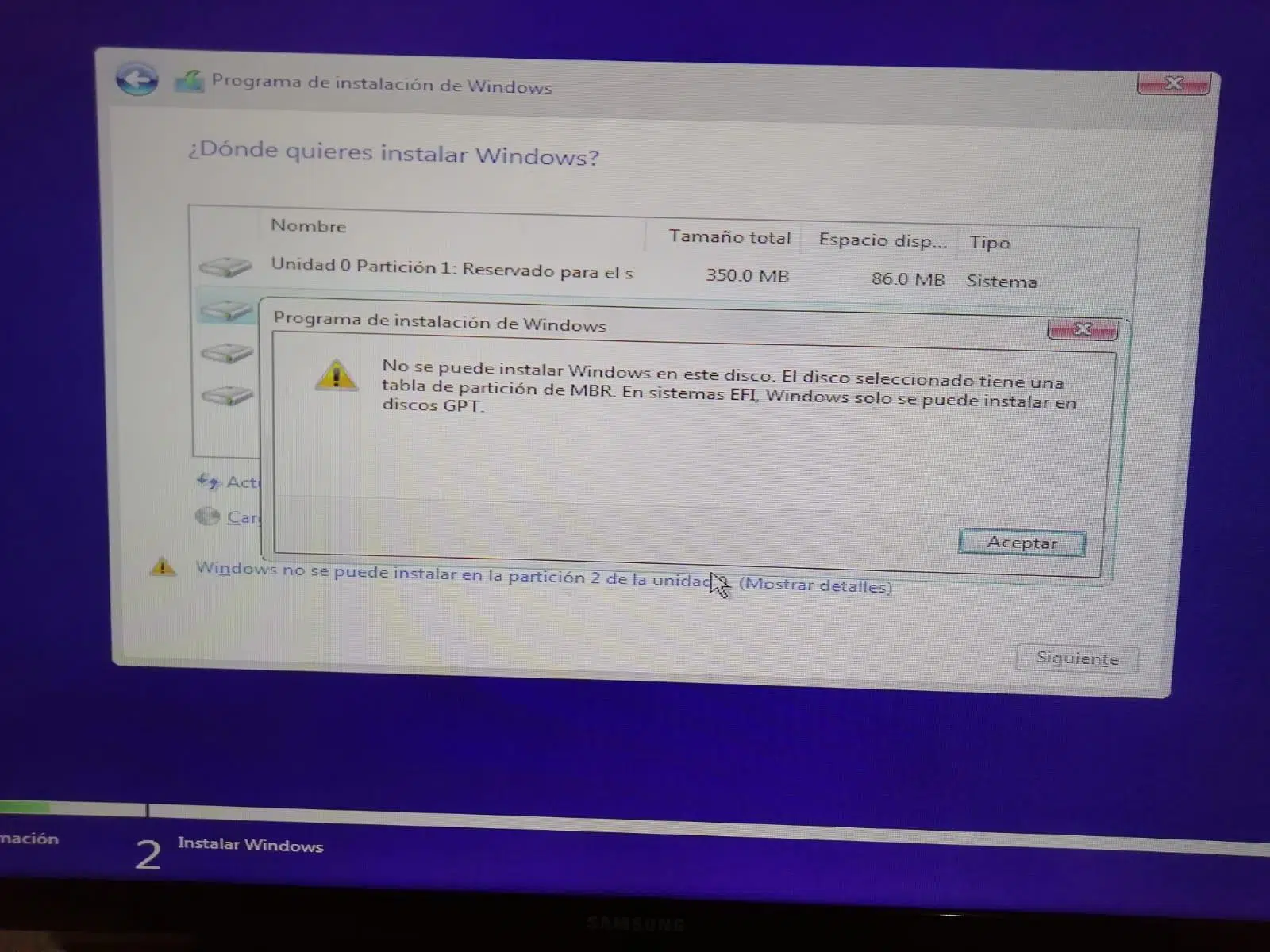
When you try to install a program on your computer and an error pops up, the installer freezes, or nothing happens at all, the frustration can be immense. Software installation problems in Windows are much more common than you might think and can have a wide variety of causes: from a simple permissions issue to antivirus conflicts, system errors, or even fake installers.
Understanding what's going wrong and how to address it step by step is key to avoiding wasted time, lost data, and, above all, to protecting your computer's security. In this guide, we'll review in detail the most common errors when installing programs, their underlying technical causes, the Windows tools that can help you fix them, and a series of security best practices that you should remember.
Microsoft's Program Installation Troubleshooter
Windows includes (or allows you to download) a specific wizard for when you can't install or uninstall certain applications. Microsoft's "Program Installation and Uninstallation Troubleshooter" is designed to automatically fix many common installer errors , especially those related to the Windows Installer service and the Registry.
It's very simple: first, download the tool from the official Microsoft website . When the download starts, if your browser displays the "File Download" dialog box, select the "Run" or "Open" option to launch the wizard directly, without needing to save it.
Once opened, the troubleshooter will guide you through a series of questions : whether the problem occurs during installation, uninstallation, with a specific program, etc. In some cases, if the application does not appear in the list of installed programs, it will ask for the product code (ProductCode) of that software, which is usually found in the properties table of the MSI file using an MSI reading tool (common in professional IT environments).
This utility is especially useful when there are damaged or inconsistent Registry keys , something much more common than it seems if you've spent years installing, uninstalling, and updating programs and scripts to clean and protect your PC :
- Corrupted Registry Keys on 64-bit Systems that affect the installer.
- Registry entries that control program update data and they broke after a failed update.
- Problems that prevent the installation of new applications or block its start.
- Mistakes that They do not allow you to uninstall or update already installed programs correctly..
- Failures that They block uninstallation from “Add or Remove Programs” or “Programs and Features” in the Control Panel.

It's important to understand that this assistant is designed for Windows 10 and later versions , where the Windows Installer service and the MSI package system remain the foundation of many traditional installations. If you want to remove malware, it's better to use Windows Security or the malware removal tool.
Why can't programs be installed on Windows sometimes?
Many users find that, after upgrading to Windows 10 or Windows 11, the installers suddenly stop working as they should . Sometimes an unclear error code appears, other times the process closes without warning, or the wizard seems to finish successfully but the program is nowhere to be found.
The causes can be quite varied, but they usually revolve around a few key factors: program compatibility, user permissions, available space, installation policy, antivirus software, and system errors . The installer's origin can also be a factor, especially if it comes from unreliable websites or has been modified.
Furthermore, some security suites and antivirus programs interrupt or block installations without much explanation. When they deem a file suspicious (even if it's actually a false positive), they can stop the installer from running, prevent it from writing to certain folders, or delete parts of the package without warning, generating errors that are difficult to interpret.
In these cases, if you're convinced the program is legitimate, a common tactic is to temporarily disable your antivirus , complete the installation, and then re-enable protection immediately afterward. However, it's best to do this only after thoroughly verifying the executable file, as we'll see later with online analysis tools.
Common installation errors and their meaning
When Windows displays an error code during installation, that number (however cryptic it may seem) usually provides a clue as to what's going wrong . Identifying it is the first step to applying the correct solution without going in blind.
One of the classic errors is 1603 , which Windows labels as a "fatal error during installation." It usually indicates that the installer doesn't have sufficient permissions on the destination folder or is conflicting with security software . The most effective solution here is to run the installer as administrator, and if the problem persists, try temporarily disabling your antivirus software or changing the installation path to a standard folder like "C:\Program Files".
Another very common error is 0x80070643 , usually associated with problems with the .NET Framework or the Windows Installer service itself . In these cases, it helps a lot to run the installation troubleshooter mentioned earlier, force a Windows update search, and, if necessary, repair or reinstall the .NET Framework using Microsoft's official tools.
It's also common to see the message "The Windows Installer service is not accessible ." This usually means the service has stopped or is in an unstable state. To restart it, press Win + R, type services.msc , locate "Windows Installer," right-click it, and select "Start" or "Restart." Sometimes that's all it takes for installations to work normally again.
Basic checks before you go crazy
Before getting into complex solutions, there are a few simple steps you should always check. Many installation issues can be resolved with actions as simple as restarting or freeing up some disk space , hard as that may be to believe.
It might sound cliché, but restarting Windows remains one of the most effective ways to fix occasional problems . While the system is running, background processes, services that don't close properly, pending updates, and so on accumulate. All of this can interfere with an installer and cause crashes or strange errors. A restart clears memory, unloads resident processes, and starts services from scratch. Check which processes are running in the background using Task Manager.
Another key point is the type of account you're using. Windows distinguishes between Administrator accounts and Standard accounts . Administrator accounts can change system settings, modify the Registry, and install or uninstall any program. Standard accounts are much more limited and, in many cases, require administrator authentication (entering a PIN or password) to complete the installation.
If the computer belongs to a company, it's very likely that the IT department has established even stricter policies. In corporate environments, it's common for user accounts not to be able to install software independently . In that case, the only option is to contact the system administrator to authorize or perform the installation from their account.
Finally, don't forget about disk space. If your system drive is almost full, installations are very likely to fail or stall. From the Control Panel, under "Uninstall a program," you can locate resource-intensive applications you no longer use. Combine this with emptying the Recycle Bin and running a disk cleanup tool to quickly recover several gigabytes; you can also free up space in Windows by following our guide.
Compatibility, requirements, and installation setup
Many installation errors are related to compatibility between the application and the operating system . These days, almost all modern software is designed for 64-bit systems, but there are still 32-bit Windows computers where certain programs simply won't work.
To check what type of system you have, you can press “Windows + X” and choose “System”. In the “System type” section, you will see if your Windows is 32-bit or 64-bit and what architecture your processor has . This is key because:
- A program of 64-bit (x64) only runs on 64-bit Windows.
- A program of 32-bit (x86) works on both 32-bit and 64-bit Windows.
If you try to install an application designed exclusively for 64-bit systems on a 32-bit Windows system, there's no magic trick to fix it : the installation simply won't work. The only real alternative would be to reinstall the 64-bit version of the system (if your hardware allows it). With Windows 10, you can use the same license; with Windows 11, there's only a 64-bit version available.
In addition to the operating system, you also need to consider the settings for where Windows allows you to install applications. In Windows 10/11, if you go to Settings > Apps > Apps & features, you'll see an option at the top that limits whether you can install apps only from the Microsoft Store or from anywhere . If it's set to "Microsoft Store only (recommended)," any installer downloaded from an external website will be blocked or will display constant warnings.
For users with some experience who know what they're downloading, the most flexible option is to select "From anywhere ." This allows you to install traditional applications without restrictions, or use Winget for automated installations, although it's wise to use common sense and not open just any executable file you find.
Finally, don't forget to check the program's minimum requirements : supported Windows version, amount of RAM, required disk space, and additional components such as .NET Framework, Visual C++ Redistributable, etc. Many installers will warn you if something is missing, but others fail in unclear ways when they detect that the system doesn't meet their requirements.
The role of antivirus software and Windows Update in installation failures
Security programs are essential, but sometimes they become the main obstacle when installing software . Some antivirus programs block unknown executables, prevent them from writing to certain system folders, or generate false positives that prevent the installation from completing.
If you suspect the problem stems from this, a prudent option is to temporarily disable your antivirus only during the installation process . Do this only after verifying the installer's legitimacy. Once the program is installed, re-enable your protection, and if the antivirus continues to raise issues, check if you can create a specific exclusion for that application.
It's also a good idea to check the status of Windows Update. A system with pending critical updates or errors in the update service can cause problems when installing software , especially if the installer relies on Windows components that are included in those updates.
In Windows 10, you can go to Settings > Update & Security and launch the Windows Update troubleshooter . In the search bar, type "troubleshoot other problems," select Windows Update, and click Run the troubleshooter. The wizard will check for corrupted files, pending updates, or incorrect settings and, if possible, apply automatic fixes.
If you notice that problems started after a specific update, you can always uninstall that conflicting update . From "View update history," you can access the list of installed patches and remove any you suspect are causing application installation failures.
Origin of the installer and most common safety risks
Beyond technical errors, there's one factor that can't be ignored: security when downloading and installing programs . A seemingly harmless installer can contain a Trojan, a keylogger, or any other piece of malware designed to steal passwords or take control of your computer.
One of the most dangerous mistakes is downloading programs from any site without verifying their origin . Unofficial download sites, cracked software portals, or links shared in forums can distribute modified installers that add adware, cryptocurrency miners, or backdoors. Whenever possible, download from the developer's official website or from reputable stores (Microsoft Store, Google Play, etc.).
Another common mistake is installing outdated software that hasn't been updated in years . Even if the program does what you need it to do, it may contain unpatched vulnerabilities that an attacker could exploit. Whenever possible, look for recent versions and actively maintained applications, and after installing them, check for available updates.
Furthermore, it's vital to have your device protected. Installing applications on a computer without antivirus software or with protection disabled is playing with fire . On Windows, you should at least have Windows Defender active and up-to-date, although you can also use third-party solutions like Avast, Bitdefender, and similar programs, always downloaded from their official websites.
Finally, pay close attention to the permissions that applications request . Some programs ask for access to components or data that have nothing to do with their main function: webcam, microphone, contacts, browsing history, etc. It's worth checking if these permissions make sense; otherwise, it's better to look for a more privacy-friendly alternative.
How to verify suspicious installers with online tools
If you have even the slightest doubt about an installation file, nowadays it's very easy to check if it's clean before running it . There are online platforms that analyze the executable with dozens of antivirus engines simultaneously and return a fairly reliable report.
One of the best-known is VirusTotal . It's very simple to use: you go to the website, upload the file (there's a size limit, but it's usually enough for most installers), and wait a few seconds. The platform analyzes the executable with multiple security engines and shows you if any of them consider it malicious . You can also paste a URL if you want to verify a download before downloading it.
Additionally, services like Jotti's Malware Scan or Metadefender Cloud perform a similar function. Using two different platforms can give you a second opinion and help you decide whether a file is trustworthy or should be deleted outright.
Even so, no online tool can replace common sense. The best practice remains to always download from official sources and be wary of cracked versions, third-party installers, or so-called "portable" editions found only on unknown websites. In the case of very popular software (such as paid video games), pirated executables are a particularly common entry point for malware.
If you internalize the habit of scanning every suspicious executable file through these platforms , you'll gain an additional layer of defense against infections and, incidentally, avoid many installation problems caused by corrupt or manipulated files.
Other related software problems: slowness, conflicts, and data loss
Program installation failures often go hand in hand with other general software problems that should be kept under control: slow systems, application conflicts, security vulnerabilities, or even data loss.
A slow system can be caused by a buildup of temporary files, too many programs running simultaneously, or even malware running in the background. Regularly running cleanup tools, uninstalling unused programs, and checking what starts with Windows helps new installations run smoothly; you can also optimize services and performance to minimize interference.
Software conflicts arise when two applications (or a program and a driver) attempt to use the same resource in an incompatible way. In such cases, updating all components, uninstalling duplicate programs (for example, two antivirus programs), or restoring the system to a point before the problematic installation is usually a good solution.
Data loss is often linked to failed installations, power outages, or malware. Maintaining a regular backup policy, ideally combining an external hard drive and cloud storage, will allow you to recover your information even if a program malfunctions and damages important files.
Finally, it's important to remember that keeping your system and applications updated is one of the best defenses against vulnerabilities and unexpected failures. Each update typically includes bug fixes and security patches that reduce the chances of an installation breaking due to incompatibilities or known bugs.
With all of the above in mind, it's clear that avoiding problems when installing software involves combining basic best practices (restarting, checking permissions, verifying compatibility and disk space) with robust security measures (downloading from official sources, scanning suspicious executables, and keeping antivirus software and the system up to date). If an installation still persists, relying on tools like the Microsoft troubleshooter, online analysis services, and, in professional environments, the IT department, often makes the difference between remaining stuck and quickly recovering a fully functional computer.