- Windows 11 on ARM offers great autonomy and increasing support for native apps.
- The official ARM64 ISO is now available on the Microsoft website.
- Drivers and chipset determine installation: Qualcomm makes it easy, others require integrated drivers.
- Prism emulation improves x86 app performance while the Arm64 ecosystem grows.
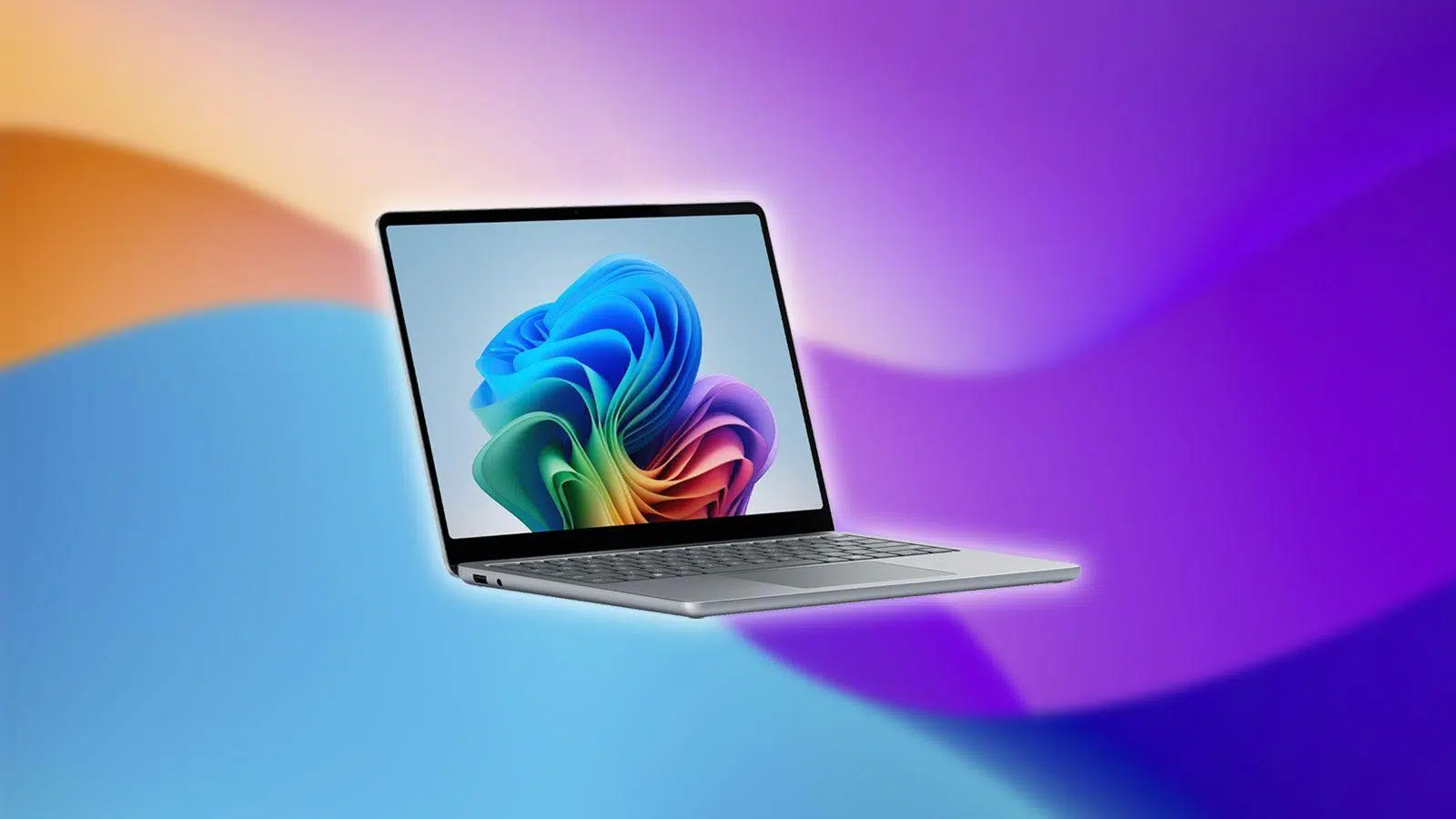
If you're considering installing or trying Windows 11 on devices with ARM processors, you've come to the right place. In recent months, Microsoft has made things much easier with the availability of the official ISO image for ARM64 , which opens the door to clean installations, virtualization, and controlled testing, provided the system requirements are met and the drivers are taken into account.
In this guide, we've gathered everything you need to know into a single resource: what Windows 11 for ARM is , who it's for, how to download the official ISO, installation methods (mounting the ISO or creating a bootable USB drive with Rufus), critical driver considerations (especially on non-Snapdragon systems), application compatibility, and the role of Prism emulation. We've also included real-world deployment experiences and best practices to minimize problems.
What is Windows 11 for ARM?
Windows 11 for ARM is a version of Windows compiled specifically for ARM64-based CPUs . Unlike Intel and AMD's x86/x64 processors, the ARM architecture prioritizes energy efficiency and integration into thin and light devices with long battery life, such as convertibles or ultramobile laptops.
For years, ARM was closely associated with mobile phones and tablets, but its power has grown, and more and more manufacturers are opting for ARM in thin and quiet laptops. Microsoft, which already tried this with Windows RT and then with Windows 10 for ARM, has promoted Windows 11 on ARM to better compete with offerings like Apple's own chips, standing out in battery life, temperature, and quietness (you can check the CPU temperature ).
In practice, if your computer has an ARM64 processor, you'll have a very similar user experience to Windows 11 on x86, especially when using native ARM applications . The difference is most noticeable in very demanding tasks and in apps with low-level drivers or components that aren't yet adapted, and in some cases, compatibility errors like 'This app can't run on your PC' may appear , although emulation has made significant progress.
To whom it May concern
Windows 11 for ARM is designed for devices with ARM64 CPUs and is currently available pre-installed or certified on devices like the Surface Pro X (Microsoft SQ), or laptops from manufacturers such as Samsung, Acer, HP, Dell, or Lenovo that have released Arm models. Its appeal lies with users who value mobility, battery life, and quiet operation over raw power.
In professional environments, it is particularly interesting for salespeople, executives, and highly mobile roles . Early adoption reports indicate over 20 hours of battery life, compact and quiet devices, good stability, and few issues with x86 apps in daily use, although they won't replace the entire fleet if heavy workloads or highly specialized software are required.
Download Windows 11 ARM (official ISO)
Today, you can download the official Windows 11 ISO image for ARM64 from the Microsoft software site. This is the only recommended source to avoid security risks and ensure file integrity. Microsoft also offers the option to scan the download to verify that the ISO is not corrupted.
Until recently, obtaining the ARM ISO was restricted to Windows Insider members or internal workflows of certain virtualization tools. With the public ISO, you can now perform a clean installation on compatible machines, create installation media, or mount the image in an ARM-based virtualization solution.
Requirements and preparations
Before you begin, make sure you have the essentials: an internet connection (ISP fees may apply), sufficient free space on your computer or external drive where you'll download the ISO, and, if you're creating installation media, an empty USB drive of at least 8 GB (its contents will be erased). If you choose to use DVDs, consider dual-layer discs if the ISO size requires it.
Verify that the computer you're installing on meets the following requirements: it has an ARM64 processor (check Settings > System > About or "System information", under "System type") and the minimum Windows 11 requirements . Microsoft warns that installing on unsupported hardware may result in compatibility issues, lack of support, and no updates.
Note that the Windows 11 media creation tool only generates x64 media . On ARM-based PCs, the correct method is the official ARM ISO. Additionally, if you plan to keep data or apps, it's best to use the same installation language as your current system language to avoid conflicts during the process.
Make sure you have a valid Windows 11 license or are upgrading from a qualifying Windows 10 device. It's also highly recommended that you visit your PC manufacturer's website to check for drivers and hardware compatibility before starting the installation.
Installation methods from ISO
There are two main options: upgrade by mounting the ISO directly from your current system or create a bootable USB drive for a clean installation. The choice depends on whether you want to keep your existing environment or prefer to format.
Updating by mounting the ISO in Windows: Locate the file, open its Properties if necessary to associate ISOs with File Explorer, and use the Mount option . You will see a virtual drive appear with the image contents; run setup.exe to start the Windows 11 ARM installation wizard and follow the steps.
Clean installation using a bootable USB drive: The easiest way is to use Rufus (free and open-source software). Insert the USB drive, open Rufus, click "Select" to load the ARM ISO, choose the correct device (your USB drive), and click "Start." When finished, shut down your computer, boot from the connected USB drive, and select the USB drive from the boot menu.
During startup, you may need to press keys such as F2, F12, Delete, or Esc to open the boot menu or the UEFI/BIOS, change the boot order, or temporarily disable Secure Boot . If the PC ignores the USB drive and returns to the existing system, shut it down completely and repeat the process. After choosing your language, time format, and keyboard on the "Install Windows" screen, click "Install" and continue.
Once the installation is complete, connect to the internet so Windows Update can download drivers and patches. If any component is not recognized, visit the manufacturer's website to install the specific drivers. For Surface devices, drivers and firmware are available on the official Surface driver download page.
Drivers and features depending on the chipset
Microsoft recommends using the manufacturer's recovery media whenever possible , as it includes all the validated drivers for your model. If you perform a clean installation using the ISO, the behavior will vary depending on the ARM chipset.
On laptops with Qualcomm Snapdragon processors , it's possible to boot directly from the Windows 11 ARM ISO to install Windows 11 without installing any drivers during setup. Once the installation is complete and the computer is online, Windows Update will automatically obtain the remaining drivers needed to recognize all the hardware.
If your computer isn't Qualcomm-based, the situation changes: you might need to inject drivers into the image before creating the installation USB drive. Otherwise, the system might not boot, preventing you from connecting to Windows Update to install the drivers. Always check the manufacturer's website for drivers and follow their instructions.
A common reason for formatting is to remove bloatware pre-installed by some OEMs. However, consider the balance between a clean system and the convenience of having all the correct drivers from the first boot using the manufacturer's recovery media.
Application compatibility and emulation
Windows 11 ARM natively runs applications compiled for Arm64 . Microsoft offers optimized versions of Microsoft 365 (Teams, PowerPoint, Outlook, Word, Excel, OneDrive, OneNote), and there's a growing ecosystem with Google Chrome , Slack, Spotify, Zoom, WhatsApp, Blender, Affinity Suite, DaVinci Resolve, and more.
For everything else, emulation comes into play. The new Prism layer , available on Copilot+ devices with Snapdragon X (and rolling out to other Windows 11 devices), improves the performance of emulated apps compared to previous ARM generations. Even so, some applications with low-level drivers or specific protections may not work as well.
For developers, Windows 11 introduced the ARM64EC architecture , which simplifies app migration and the coexistence of native and emulated modules. This has increased compatibility for programs that rely on third-party plugins compared to previous efforts.
If you want to check if an app or game works on ARM, you can use the community list at www.worksonwoa.com , a constantly evolving third-party resource with contributions (including data from Microsoft).
Real experiences in companies
In recent deployments, some IT teams report that Windows 11 ARM laptops have been very well received by users who are frequently on the go. Key strengths include: over 20 hours of battery life, a compact form factor, quiet operation, stability, and minimal issues with common x86 applications.
On the other hand, they aren't the ideal choice for all areas. Some workloads demand more raw power , specialized software, or peripherals with specific drivers that haven't yet been migrated. Therefore, many organizations primarily adopt them for sales and management , maintaining other platforms for high-performance roles.
Virtualization and test scenarios
The official ARM ISO opens the door to running virtual machines on ARM hardware and performing controlled tests without touching production equipment. Tools like VMware Fusion on Macs with ARM processors have facilitated this process, and now it's even more straightforward with the official image.
Furthermore, mounting the ISO directly on an existing Windows system allows for in-place upgrades without the need to prepare a bootable USB drive, which is useful for validating application compatibility before a mass migration.
Helpful clarification: ARM is not RAM
It's important not to confuse terms: ARM is the processor architecture , while RAM is the random access memory used by running applications. If you run out of RAM, the system resorts to the page file on disk, which impacts performance. This clarification avoids common misunderstandings when discussing Windows on ARM.
Third-Party Alternative Downloads: Warnings
There are alternative methods, such as UUP Dump, for building ISOs, which some people used before Microsoft released the official image. The typical workflow involves selecting ARM64 builds, choosing an edition, and generating a script that downloads and converts to ISO . While this can work, it carries security and authenticity risks, so it is strongly recommended to use only the official Microsoft download .
You'll also see mentions of obtaining Windows 11 ARM through various channels or stores. The prudent approach remains the same: prioritize the official ISO , keep your system updated, and validate legitimate licenses to avoid legal or security issues.
Good practices: verification and backups
After downloading the ARM ISO from Microsoft, use the option to verify the download or check the hash, if offered, to ensure the file is not corrupted. This pre-check prevents failed installations or difficult-to-diagnose problems.
Before upgrading or performing a clean installation, back up your data. You can use built-in tools or third-party solutions; for example, backup utilities that allow you to save entire disks, partitions, or folders, schedule backups, and restore data in case of an incident. For recommended options, see our Windows maintenance tools guide.
A typical workflow with backup software would be: create a new backup task , select the disk or partitions, choose the destination (external drive, network storage, or cloud), and run it. Having a recent backup protects you against hardware failures, power outages , or human error during the installation process.
Important Notes and Reminders
If you changed the boot order in the UEFI/BIOS after installation, remember to revert it so the device boots from the internal drive. If you are installing on older devices with previous Snapdragon processors , you may need to add drivers to the image, a process that Microsoft documents in detail on its technical portal.
If you choose to update by mounting the ISO, make sure the installation language matches that of your current system. After the first boot, check for updates in Settings > Windows Update and complete the installation of any additional drivers from the manufacturer's website when necessary.
FAQ
Why do I need a specific ISO for ARM? Because ARM and x86 are different architectures; Windows and apps must be compiled for ARM or emulated to function correctly.
Where do I download the safe ISO ? From the official Microsoft downloads page . Avoid other sources to prevent exposure to malware or manipulated images.
Is it more complex than on an x86 PC ? It's slightly different : there's no media wizard like on x64; you have to download the ARM ISO and create the USB drive manually with Rufus. Also, driver management may require extra steps depending on the chipset.
Will all my apps work ? Many already exist in native Arm64 ; the rest can run via Prism emulation with improved performance, although there are exceptions (low-level drivers and some very demanding software ).
With an official source for the ARM ISO, proper driver preparation, and a clear idea of what apps you'll be using (native or emulated), Windows 11 on ARM can deliver a very solid experience, outstanding battery life, and quietness, especially on the new Snapdragon X-powered Copilot+ machines and current ultramobile laptops.
