- Bloatware consumes critical RAM and CPU resources, affecting performance on low-end computers.
- PowerShell allows bulk or selective uninstallation of Appx packages using administrator commands.
- There are open-source scripts and community tools that automate system cleanup.
- Indiscriminate removal of UWP components can cause instability in basic Windows functions.
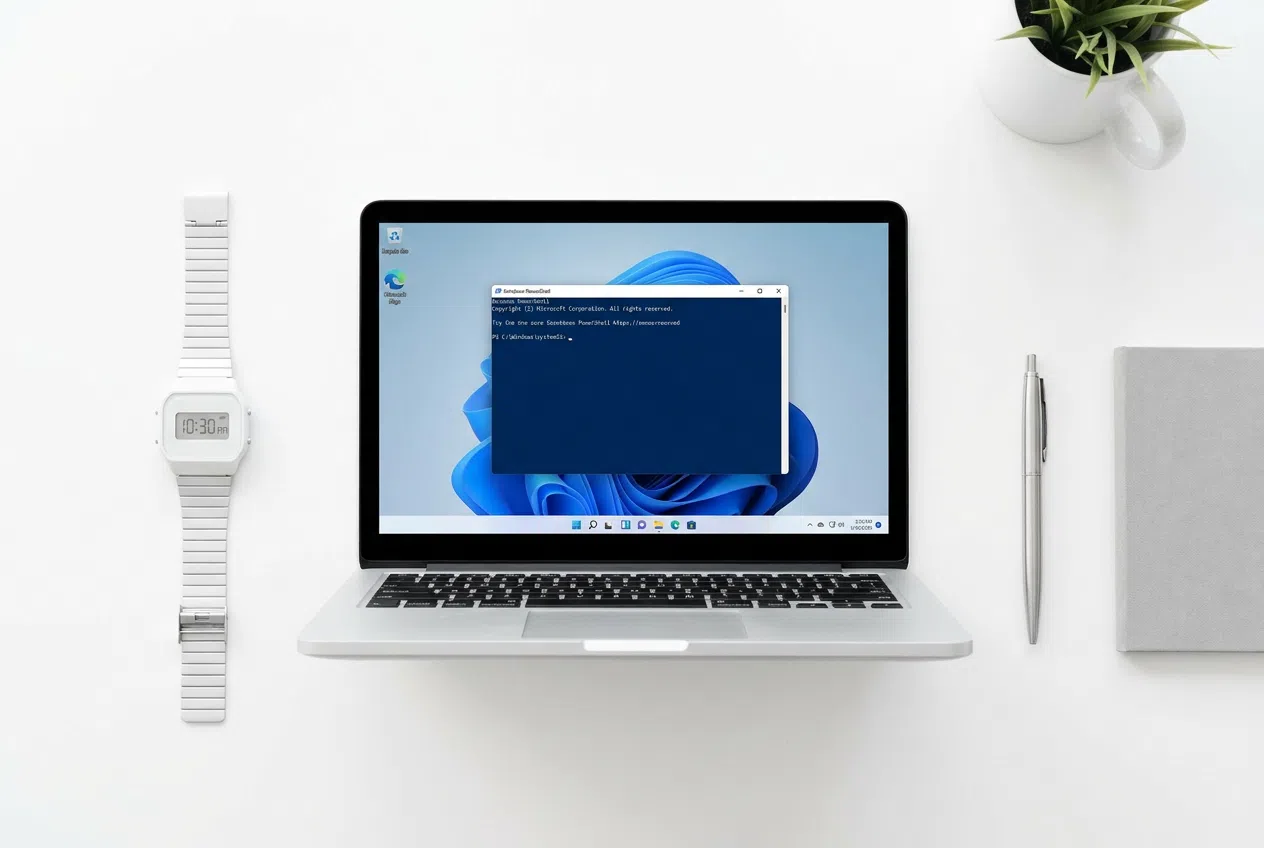
You've probably experienced this: you get a new computer or reinstall the operating system and suddenly find yourself faced with a collection of pre-installed applications you didn't ask for and will never open. From pointless games to manufacturer tools that only serve to take up space, this software, known as bloatware, is a nightmare for anyone looking for a clean and efficient operating system.
The worst part is that these apps not only steal storage space, but often run background processes that slow down performance, especially on laptops with limited RAM. Luckily, Windows includes a powerful tool called PowerShell that allows us to perform a thorough cleanup without having to struggle through endless configuration menus.
What exactly is bloatware and why is it so annoying?

When we talk about bloatware, we're referring to the software that Microsoft or hardware manufacturers include in the factory image. Technically, many of these applications are distributed as UWP (Universal Windows Platform) packages and are stored in protected system folders. They aren't simple programs, but rather Appx packages with their own manifests and dependencies.
Having 30 to 50 unused applications running can waste 1 to 3 GB of disk space . But the real problem is CPU and memory usage; on computers with modest processors, such as the Intel Core i3, reducing the number of scheduled tasks can make the system feel much smoother and more responsive.
The power of PowerShell to clean your system

PowerShell isn't your typical command-line interface; it's a .NET-based automation environment that allows you to interact with the system at a very granular level. To begin cleaning, it's essential to run the PowerShell window as administrator , since we'll be modifying core system files.
If you want to go all out and delete almost everything pre-installed for all users, there's a classic command: Get-AppxPackage -AllUsers | Remove-AppxPackageThis pipeline searches for all Appx packages and sends them directly to the trash. However, caution is advised, because Not everything can be erasedSome apps are protected by the system to prevent Windows from breaking.
For those who prefer a more precise and secure approach, filtering by name is ideal. For example, if you only want to get rid of Xbox items, you can use Get-AppxPackage *Xbox* | Remove-AppxPackageThe use of asterisks functions as a wildcard, allowing us locate and remove specific applications without risking damaging the Microsoft Store or the Start menu.
Automated tools and scripts: Are they worth it?

If you're too lazy to write commands one by one, the community has created scripts that do the dirty work for you. One of the most famous is the one for Chris Titus WinUtil, which is launched with the command irm christitus.com/win | iexThis tool displays a graphical interface where you can check boxes to remove bloatware, disable telemetry, or even delete OneDrive if you don't use it.
Another frequently mentioned option is the script of Raphire on GitHub (Win11Debloat)which allows for more precise control over what stays and what goes. Solutions like the command also exist. iwr -useb https://git.io/debloat|iexwhich downloads a simple application to clean the system and customize settings such as dark mode or Cortana.
However, here's the warning: don't run scripts blindly . Even if they're open source and audited, some users have reported that overly aggressive tools can break features like accessing NAS drives via SMB or cause errors in Windows updates. It's always recommended to create a system restore point before starting.
Risks and precautions to avoid breaking Windows

Not everything that looks like junk actually is. Some applications act as a front for internal services. For example, removing Microsoft Edge or WebView2 can be a huge mistake, since many native programs use the Edge engine to render content. If you delete critical components, you could end up with a broken Windows Search or notifications that never arrive.
In professional or enterprise environments, things are more complex. Many companies use Microsoft Intune or Group Policy Objects (GPOs) to manage apps. Attempting to remove factory-installed software on a corporate PC using scripts can conflict with the administrator's security policies. For these cases, the cleanest approach is to use Windows LTSC (Long Term Servicing Channel) images , which come almost empty of consumer-oriented applications.
If you accidentally delete something you later need, don't panic. Most apps can be reinstalled from the app drawer. Microsoft StoreFor more serious system component problems, use the DISM command with the option RestoreHealth It is often the solution to restoring the integrity of the OS.
Real impact on performance: Can you tell the difference?
If you have a powerful PC with 32GB of RAM and a lightning-fast NVMe drive, you probably won't notice anything. But on systems with 8GB of RAM, the difference is significant. Reductions of 300 to 600MB in idle memory usage have been reported, freeing up space for the applications that really matter.
Regarding startup, eliminating unnecessary scheduled tasks can cut boot time by 5 to 10 seconds . Ultimately, it's about reducing the attack surface and system noise so the hardware can focus on what the user actually needs to do.
Managing bloatware with PowerShell is an incredible tool for optimizing Windows 11, allowing everything from bulk deletions to selective cleanups using community-owned scripts. While the space savings and speed gains are real, especially on limited hardware, it's crucial to proceed with caution to avoid removing critical system dependencies. Opting for audited tools or lightweight versions like LTSC is the best strategy for those seeking a minimalist and efficient work environment.