- Microsoft Edge is part of the Windows core and cannot be officially uninstalled without compromising system stability.
- Edge is updated along with Windows and serves as an internal web platform for applications and features of the operating system itself.
- Although you can't completely delete it, you can hide it, change your default browser, and install alternatives like Chrome or Firefox.
- Forcing the complete removal of Edge using unofficial methods can cause errors, update problems, and malfunctions in some Windows functions.
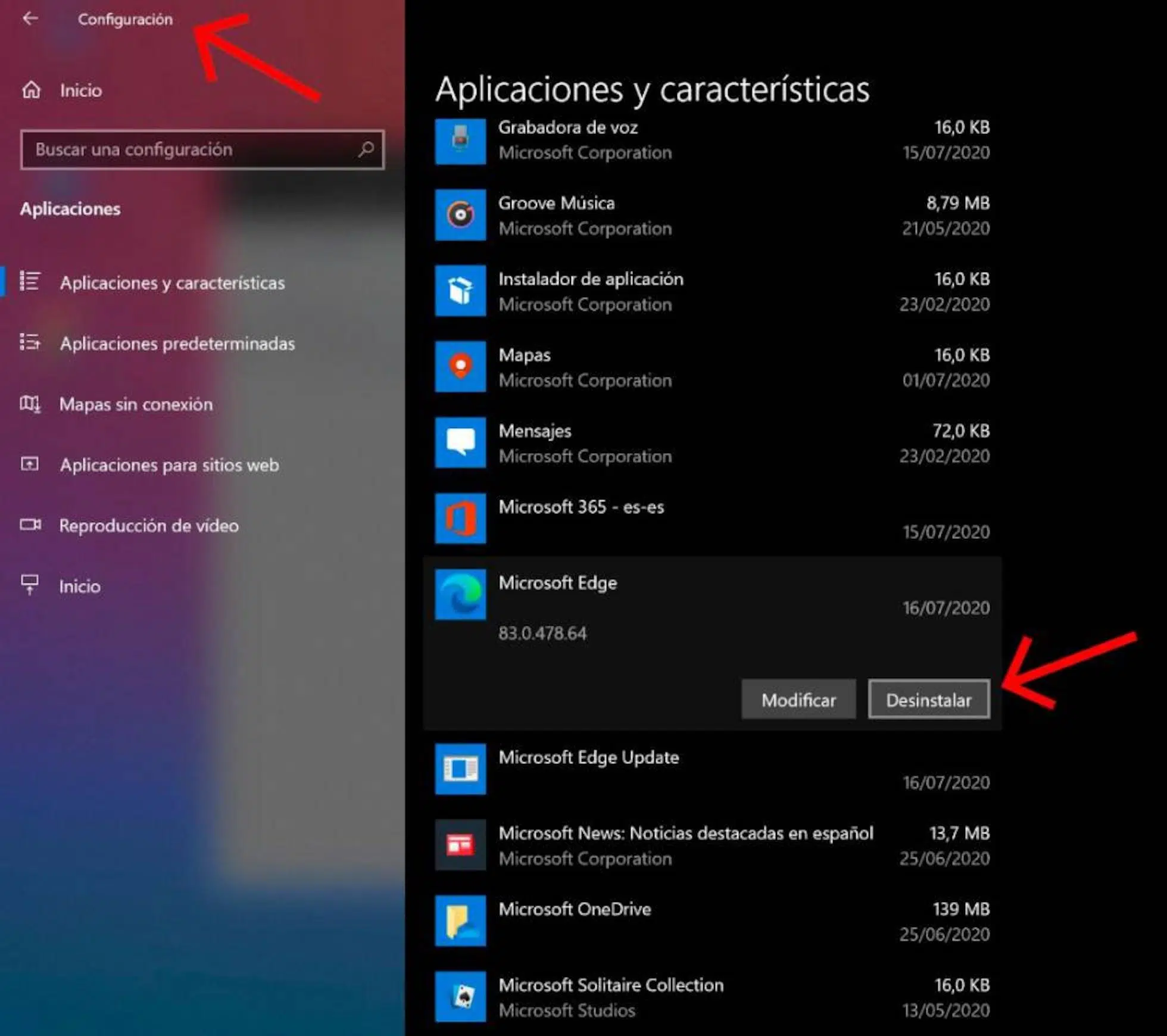
When someone tries to uninstall Microsoft Edge on Windows , they usually run into a brick wall: it doesn't appear as a normal program that you can delete from the Control Panel, and no matter how much you search, Windows 11 doesn't exactly make things easy. This isn't by chance: Edge is deeply embedded in the operating system, and Microsoft treats it as a core component of Windows itself.
This means that, although many people want to completely remove Edge and use only Chrome, Firefox, Opera, or another browser, Windows is designed so that this cannot be done easily or "officially." Even so, there are ways to effectively disable it: you can hide it, deactivate it, and set another browser as your default for everyday browsing without relying on Edge.
Why can't Microsoft Edge be uninstalled like a normal program?
The first thing to understand is that Microsoft Edge is not just another browser within Windows: Microsoft considers it an essential component used by many internal functions and applications that depend on the web technology integrated into Windows.
Windows 10 and, especially, Windows 11 integrate Edge deeply into the operating system. It's not just a shortcut on the desktop or taskbar: its engine is used to display web content within other applications, for parts of the system settings, and for various internal services that you don't even see at first glance.
For this reason, Microsoft makes it quite clear that Edge is not meant to be uninstalled . It's not just another program you can remove without consequences, because its removal could affect key functions, compatibility with applications that use the Windows web platform, and even system stability.
According to Microsoft's own philosophy, the default Windows browser is a component that guarantees compatibility, performance, accessibility, and standards compliance . This means that all applications that access web content on Windows share a common, controlled foundation, thus preventing errors and security issues.
Furthermore, Edge provides a coherent web platform for modern apps, system-integrated pages, and some administrative tools, so the browser is seen as a pillar of the Windows ecosystem , and not just as a program you open to browse the internet.
The role of Microsoft Edge in Windows and why it's so important
Microsoft Edge is the default web browser recommended by default in Windows. Beyond simply browsing, its internal engine is used for multiple tasks that often go unnoticed by the average user.
For example, some applications use the integrated Windows web platform to display HTML content, run scripts, or load cloud services within their own window. Instead of "packaging" their own browser, they rely on Edge as a technical foundation. This helps reduce duplication, saves resources, and keeps everything under the umbrella of operating system updates.
There are also sections within the Windows Settings panel itself , internal tools, and features related to online services that rely on the Edge engine to function. Even if you don't see the browser icon, the system is using the same engine to display certain interfaces and embedded web content.
All of this explains why Microsoft insists that Edge is "bonded" to Windows . From their perspective, removing it entirely isn't simply deleting a program: it's tampering with internal components that could affect compatibility, the security of the web platform, and the functionality of some applications that rely on Edge within the system.
In practice, this means that Microsoft severely restricts the "clean" ways to uninstall Edge, especially in the latest versions of Windows 10 and Windows 11, where the browser is already fully integrated and ready to update along with the system.
Another point to consider is how Microsoft Edge is kept up to date on Windows . Instead of leaving it up to each user to manage it themselves, Microsoft has chosen to include it in the regular operating system update cycle.
This means that, in addition to being able to update from its own installer or from the browser, Edge also receives and receives updates via Windows Update . Just as security patches, device drivers, and new component versions are released for the system, the browser is also automatically updated.
The idea behind this is to ensure users always have a secure, compatible, and well-optimized browser , even if they've never bothered to "Update" within Edge. Since the browser acts as the technological foundation for many internal functions, keeping it up-to-date is key to patching security vulnerabilities and ensuring the proper functioning of the applications that use it.
From a business perspective, this also simplifies management in professional environments: administrators can be confident that Edge versions are controlled by the same policies and tools they use to manage the rest of Windows updates, avoiding the hassle of dealing with older versions that can cause compatibility issues.
In short, Edge's close integration with Windows is part of that "core component" concept, and it's one of the reasons why Microsoft doesn't see it as a standalone application that you can happily delete and reinstall as if nothing happened.
Is it possible to completely uninstall Edge on Windows 10 and Windows 11?
Here's the tricky part: Microsoft itself states that there is no official method to completely uninstall Microsoft Edge from Windows. The company clearly presents it as an element that "cannot be uninstalled" because it is part of the operating system's architecture.
In older versions of Windows 10, when Edge was first introduced as a Chromium-based update, there were relatively simple ways to remove certain versions of Edge from the Control Panel or the command line . However, as the browser has become more integrated and established, these methods have become less accessible to the average user.
In Windows 11, the situation is even stricter: the browser is fully integrated into the system from the start and cannot be uninstalled as a separate program. Manipulating internal files, unregistering components, or forcing their removal can cause unwanted errors, problematic updates, and even stability issues.
Of course, there are always unofficial, rather convoluted methods that involve using scripts, third-party tools, or tampering with system permissions. However, these methods carry the risk of breaking internal Windows functions, causing update errors , or leaving the system in a state that is difficult to recover without a reinstallation.
The recommendation, agreed upon by both Microsoft and most experts, is clear: instead of obsessing over removing Edge 100% from the system , the sensible thing to do is to disable it for daily use, hide it, and change the default browser so that it only runs in the background when Windows needs it for internal tasks.
How to “disable” Edge in practice without uninstalling it
While you can't completely remove Edge without venturing into dangerous territory, you can minimize its use in your daily life . In practice, this means never using it for browsing and never even opening it, while still allowing Windows to utilize its engine for its own purposes.
The first logical step is to remove visible shortcuts . You can remove the Edge icon from the taskbar, Start menu, and desktop. This prevents you from accidentally opening it and helps you get used to using only the browser you actually want: Chrome, Firefox, Brave, Opera, or whichever you prefer.
Next, it's essential to change the default browser in Windows . From the system settings, you can select your preferred browser for opening links, HTML files, web pages, and other associated content. This way, any link you open from an email, document, or app will launch in your chosen browser, not Edge.
Additionally, you can review the apps and services that ask which browser to use to open certain links and force them to avoid using Edge whenever possible. While some internal functions will still use Microsoft's browser engine, in practice your normal browsing experience will be with another program.
Finally, if you absolutely can't stand seeing it, you can hide the Edge icon from system suggestions and context menus, so it doesn't constantly appear as a preferred option . This way, for the average user, it will be as if Edge doesn't exist, even though it will still be installed in the background to keep Windows stable.
One of the great advantages of Windows is that, despite favoring Edge, it still allows you to install any other web browser without real restrictions. Chrome, Firefox, Opera, Brave, Vivaldi, or any other alternative you like can coexist without problems on the same system.
Windows doesn't prevent you from downloading another browser or blocking its installation. In fact, Microsoft explicitly acknowledges that users can download and install other browsers whenever they want, and leave Edge running in the background if they prefer.
Once you've installed your preferred browser, the key step is to go to your Windows settings and set it as your default browser . This covers both opening web pages and managing certain related file types (for example, .htm, .html, or specific web links).
By making this change, every time you click on a link from an email, a text document, or another application, your new browser will open automatically. Edge will be relegated to internal uses that Windows needs for its own web platform, but you will always browse with the tool you have chosen.
In addition, alternative browsers often offer their own data synchronization systems, so you can migrate your bookmarks, history, open tabs, and passwords between devices without depending on the Microsoft ecosystem if you're not interested.
Although many users may want to leave Edge running in the background, it's interesting to know that if you ever decide to use it, you can fairly flexibly import your personal data from other browsers.
Microsoft Edge lets you import your bookmarks, browsing history, saved cookies, and password list from browsers like Chrome, Firefox, and other compatible browsers. This way, if you ever decide to give it a try, you don't have to start from scratch.
In addition to the initial import, Edge offers options to control what type of information is synced with your Microsoft account, in case you want to use it on multiple devices. From the settings, you can decide whether to save passwords, autofill data, collections, or history across computers.
This approach aims to reassure users who are concerned about their privacy or about being too tied to a single browser. You can enable or disable synchronization at any time and delete data you don't want to keep , both in Edge and in any other alternative browsers you install.
In any case, the fact that Edge allows you to import and manage data so freely shows that, even though it's the default Windows browser, you're not forced to use it if you don't want to ; it's simply there, available mainly for internal system functions and for those who choose to use it.
Risks of trying to completely remove Edge from the system
The idea of completely removing Edge from Windows might be tempting, but it's important to keep in mind that forcing its uninstallation carries real risks . We're not talking about removing just any program, but about tampering with components that the system expects to find.
Many of the methods circulating online for completely removing Edge involve using advanced commands, modifying permissions of protected folders , or editing the Windows registry beyond what's recommended for a typical user. If something is done incorrectly, it's easy to destabilize the system or cause errors that are difficult to trace.
Problems that may arise include failures when installing future Windows updates , errors when opening certain sections of the settings, strange behavior in applications that use the integrated web platform, or even occasional crashes of certain system functions.
Furthermore, even if you manage to remove a specific version of Edge, Windows updates often reintroduce the component or attempt to repair it. This means you can enter a constant "fight" with the system, which will try to restore what it considers essential for its operation.
Therefore, the most sensible approach for the vast majority of users is to avoid extreme measures and focus on safe solutions: hide Edge, change the default browser, and forget about it for daily use. This way, you maintain system stability without having to give up your favorite browser.
Official support and help related to Microsoft Edge
If you have very specific questions about Edge's behavior on your computer , problems with updates, or strange errors that you suspect are related to the browser, you always have the option of using official support channels.
Microsoft provides users with a dedicated support website for Microsoft Edge , which compiles articles, quick guides, and documentation on how the browser works, its integration with Windows, and its configuration and privacy options.
From that page you can find information on how to manage updates, how to reset the browser if it behaves strangely, how to import or export data, or what to do if an extension is causing problems.
If the articles are not enough, you can also contact Microsoft support , either through chat, official forums, or in some cases, even telephone support, depending on your region and the type of Windows license you have.
This approach is especially recommended if you suspect that an attempt to tamper with Edge has left the system unstable or if a recent update has caused unexpected errors. Before attempting drastic solutions on your own, it's usually best to consult the system developers for their recommendations.
In short, although Microsoft Edge remains a core part of Windows and cannot be officially uninstalled , users have ample freedom to use their preferred browser, change the default settings, and relegate Edge to the discreet role of an internal tool that only appears when the system needs it. With a few adjustments and without resorting to risky experiments, it's possible to coexist with Edge without it interfering with your usual internet browsing habits.