- Learn the structure, syntax, and key commands to create robust and portable Bash scripts.
- Master variables, arrays, conditionals, loops, functions, I/O, and cron to automate real-world tasks.
- Apply good debugging practices and use internal variables and external tools like ShellCheck.
- Integrate Bash frameworks and utility collections to add GUI, concurrency, and advanced features to your scripts.
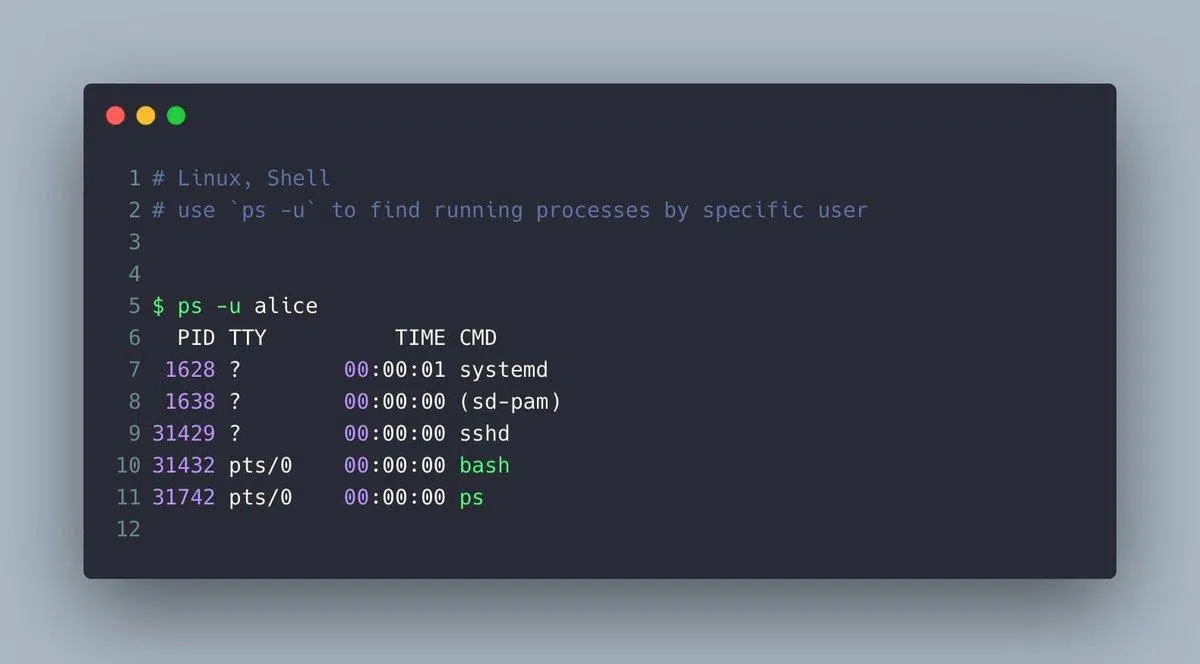
If you work with Linux daily—whether managing servers , tinkering with containers, or developing applications—mastering bash scripting is probably the skill that will save you the most time. With a few text files and some imagination, you can automate everything from backups to complex deployments, as well as routine tasks you currently perform manually without even realizing it.
In this guide, we'll take a thorough and detailed look at how to use bash scripts and utility collections to transform your scripts from simple, basic commands into truly professional tools. We'll start with shell basics, cover essential commands, control structures, functions, arrays, debugging, cron, and more. We'll also explore some function repositories and Bash GUIs that will take your scripts to the next level.
What is Bash and why is it so useful for automation?

Bash (Bourne Again Shell) is the most widespread command interpreter on Unix-like systems: the vast majority of Linux distributions include it as their default shell, and it can also be found on macOS and Windows through WSL or Git Bash-type terminals. It is both an interactive interface and a scripting language.
When you open a terminal, Bash displays a prompt where you can type commands. Each command typically follows the structure command arguments . Everything you know how to do "by hand" in the terminal can be put into a text file to be executed in bulk.
A bash script is simply a plain text file containing a list of commands that the shell executes one after another. That's the magic: instead of typing 10 commands every day, you save them, give them execution permissions, and run them in a single step. Furthermore, you can add variables, conditionals, loops, and functions to make decisions, repeat tasks, and encapsulate logic.
Bash also follows the classic Unix philosophy: many small tools that do one thing very well and are combined with pipes . With a single script, you can chain together find, grep, sed, awk, tar, gzip , ssh, scp , and any other system utility to create very powerful administration and maintenance processes.
Basic concepts of shell and scripting in Bash
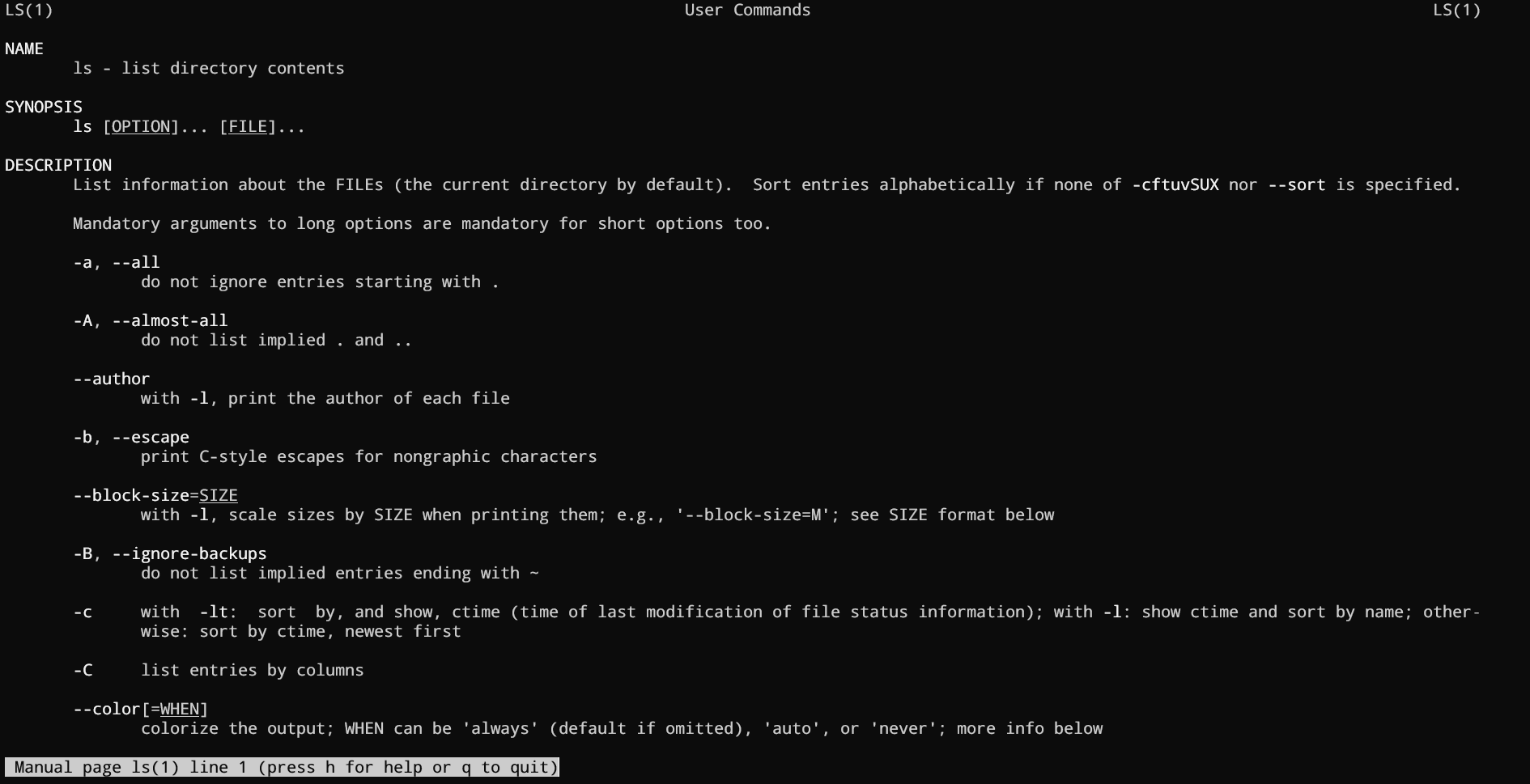
To fully understand Bash scripting, it's necessary to distinguish between two concepts: the shell and scripting itself . The shell is the program that interprets commands, and scripting is the process of grouping those commands into an executable file.
A typical script always begins with a special line called the shebang . This first line tells the system which interpreter to use to execute the file. You'll usually see something like this:
#!/bin/bash
You can also use `#!/usr/bin/env bash` to have the system look for Bash in the PATH. This provides more flexibility if the path to the executable isn't exactly `/bin/bash`, which sometimes happens in more exotic environments.
Scripts are generally saved with the .sh extension (for clarity, not because it's mandatory) and you must give them execute permission with `chmod +x script_name.sh` . From there, you can run them with `./ script_name.sh` or by calling bash directly.
bash nombre_script.sh
./nombre_script.sh
It's also important to understand the concepts of stdin, stdout, and stderr : standard input (keyboard, or whatever you're redirecting it to), standard output (screen), and error output. Knowing how to redirect and combine these streams is key to writing clean, easy-to-debug scripts.
Real advantages of using Bash scripts in your daily life
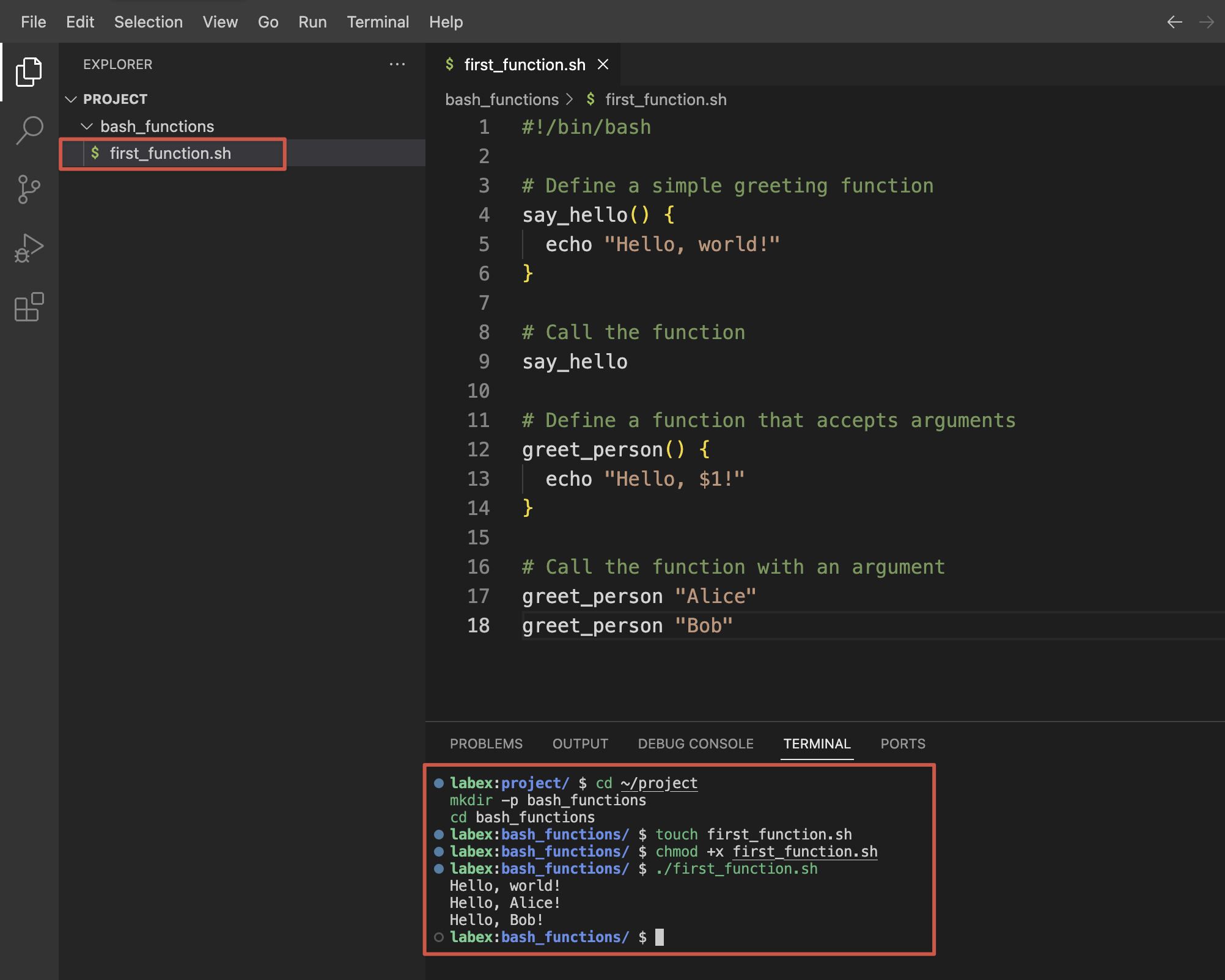
Using Bash for automation isn't just a quirk of old-school administrators; it has very clear advantages. With a single file, you can package long sequences of commands and run them as many times as you want, consistently and without errors.
The first major benefit is automation . Instead of manually repeating steps every time you deploy an app or create a backup, you write everything in a script and run it when needed (or schedule it with cron). Less manual work, fewer silly mistakes.
Another important advantage is portability . As long as the commands you use are available, your script will work on any Linux distribution, macOS, or even Windows with a Bash environment. This makes many tasks easy to migrate between environments.
The scripts are also very transparent : they're just plain text. Anyone can open them, see what they do, and adjust them. You don't need to compile anything or decrypt binaries. And if you combine them with Git, you get free version control and change auditing.
Finally, learning Bash is reasonably easy. If you know how to navigate the terminal and have a basic understanding of programming (variables, if statements, loops), you'll get up to speed quickly. And the return on that time investment is enormous in terms of productivity.
Creation and basic structure of a Bash script
Creating your first script is almost trivial, but it's best to do it right from the start. A minimal Bash script skeleton would include a shebang, informative comments, the script body, and controlled exit.
The usual way to start is with:
#!/bin/bash
# Descripción: pequeño script de ejemplo
echo "Hola, mundo"
Although it might seem trivial, it's always a good idea to document at the beginning what the script does, what parameters it expects, and a quick usage example. This information can be added with comments , which in Bash begin with # and are completely ignored by the interpreter.
After the header, you write the logic: variable definitions, input reading, command calls, functions, loops, conditionals … everything you need to automate the task at hand.
Another important detail is to terminate the script by returning a consistent exit code, such as `exit N` . The code 0 means success, and any other value indicates an error. This value can be checked from outside using `$?` , allowing you to chain scripts and react to failures.
Comments, variables, and data types in Bash
Comments are your friends : they're useful for explaining what a part of the script does, why a decision was made, or what on earth that strange loop is going to do in six months when you've forgotten all about it. Like in many languages, in Bash they start with # and go to the end of the line.
Regarding variables , Bash is very permissive: there are no formal types, everything is a string, and the shell decides whether to interpret something as a number when you ask it to. To assign a value, you use `name=value` without spaces around the equals sign.
pais="España"
numero=42
To read the contents of a variable, precede it with $ : for example, $country . If you want greater clarity or to concatenate complex texts, it is preferable to use ${country} to properly delimit it.
Be careful with quotation marks . With double quotes, Bash interprets variables and some special sequences ( "$var", "\n" ). With single quotes, all content is treated as literal text: '$var' is printed as is, without expansion.
There are also special variables for handling arguments and context: $# (number of arguments), $0 (script name), $1, $2… (positional arguments), $? (exit code of the last command), $$ (process PID), among many others that are useful to have located.
Input and output in Bash scripts
A useful script rarely exists in isolation: it usually requests data from the user, reads from files, processes logs, or writes results to disk. For this, you need a good grasp of `read`, `echo`, and redirection.
The simplest way to read something the user types is with read :
echo "Introduce tu nombre:"
read nombre
echo "Hola, $nombre"
To output text to standard output, we use `echo` or `printf` . `echo` is simpler and faster to write, while `printf` gives you complete control over formatting (alignment, decimal places, etc.). You can also redirect any output to a file using `>` (overwrite) or `>>` (append).
For example, to save a "Hello world" to a file:
echo "Hola mundo" > hola.txt
Or to add lines without deleting the previous ones:
echo "Otra línea" >> hola.txt
If you want to separate normal output from errors, remember that stdout is descriptor 1 and stderr is descriptor 2. You can send them to different files or even discard them to /dev/null if you don't need them.
comando 1>salida.txt 2>errores.txt
comando >/dev/null 2>&1
Essential Bash commands for scripting
Every Bash script relies on a set of basic system commands . You probably use many of them daily, but it's important to understand their syntax when using them in scripts: a misplaced space or an unusual path can crash your entire process.
To navigate the system, you have `pwd` (shows the current directory) and `cd` (changes folders). To list contents, use `ls` with its many options. Create directories with `mkdir` , delete files with `rm` (very carefully), and move/copy files with `mv` and `cp`.
Typical text inspection commands include `cat` (displays files), `tac` (reverses), `head` , `tail` , and filtering tools such as `grep` , `sed` , and `awk` . These form the basis for creating scripts that analyze logs, perform bulk substitutions, or extract specific data.
At the system level, it's worth knowing `ps` and `top` for processes, `kill` to terminate processes, `df` and `du` for disk space, and `systemctl` for managing services on systems with systemd. All of these commands are naturally integrated into scripts.
Finally, don't forget `man` : the manual. Almost any question about command options and behavior can be answered with `man command` . Being able to read a manual page fluently is half the battle to become an administrator.
Control structures: conditionals and loops
As your scripts grow a bit, you'll need them to make decisions and repeat actions. That's where control structures come in : if/else, case, while, until, and for.
The classic conditional in Bash uses `if` along with `[ ] ` to evaluate conditions. For example, to check if a number is greater than 10:
read num
if ]; then
  echo "El número es mayor a 10"
else
  echo "El número es menor o igual a 10"
fi
The syntax ] is more modern and safer than , and allows for more convenient logical operators and improved string handling. For several predefined cases, case is very readable, especially when you have multiple expected values:
read n
case $n in
  101)  echo "Primer número" ;;
  510)  echo "Segundo número" ;;
  999)  echo "Tercer número" ;;
  *)    echo "Sin coincidencias" ;;
esac
In the section on loops, `while` repeats as long as a condition is met, `until` does the opposite (repeats until the condition is true), and `for` is used to iterate over lists, arrays, or numerical ranges. For example, a `for` loop to iterate through the days of the week:
for dia in Lunes Martes Miércoles Jueves Viernes Sábado Domingo; do
  echo "Día: $dia"
done
And a typical while loop with an internal counter:
i=0
while ]; do
  echo $i
  ((i++))
done
Functions in Bash: reusing logic without going crazy
Functions in Bash allow you to group commands and reuse them as many times as you want, making your script much cleaner and more manageable. Beyond a certain size, if you don't use functions, you end up with a monster that's difficult to maintain.
They can be declared in two equivalent ways:
hola() {
  echo "Hola desde una función"
}

function hola2 {
  echo "Hola también"
}
To invoke them, simply write their name on a line as if they were any other command. They don't execute just because they are defined, so don't forget to call them from within the script body.
Functions receive positional parameters exactly like the script: inside the function you use $1, $2, $# , etc. You can return a numeric code with return N (intended to indicate success or error) and global variables to return richer results such as strings or arrays.
Additionally, you can mark variables as local within a function so they don't "contaminate" the rest of the script. This is highly recommended to avoid accidentally overwriting global values.
Arrays and text handling in Bash
Although Bash isn't designed for complex calculations, it handles arrays and string operations well enough for many automation tasks. Knowing how to use them greatly expands what you can do with just a few commands.
A simple array is defined as follows:
frutas=(Pera Manzana Plátano)You access individual elements with ${fruits} , get all of them with ${fruits} , the number of elements with ${#fruits} , and the indices used with ${!fruits} . The latter is useful when there are "gaps" in the array and you want to iterate only over valid positions.
To iterate through the entire system, you can use a for loop on the indices:
for i in ${!frutas}; do
  echo "frutas = ${frutas}"
done
Bash supports several built-in operations on text strings : length ( ${#str} ), substrings ( ${str:N:M} ), substitutions ( ${str/ant/new} , ${str//ant/new} ), prefix and suffix trimming ( ${str#text} , ${str%text} ), etc. These tools eliminate the need to use sed or awk for simple tasks.
For more serious text manipulation - for example large logs or tabular data - you'll need grep, sed, awk, cut and the like, which you can chain together in pipes or integrate directly into Bash functions.
Permissions, execution, and cron: from standalone script to scheduled task
Once you have your script written, you need to make it executable and decide how you're going to launch it. The typical step is to apply:
chmod +x mi_script.sh
From there, you can run it with `./my_script.sh` if you're in the same directory, or by referencing its absolute path: `/full/path /my_script.sh`. Another option is to invoke it through `bash my_script.sh` without giving it execute permissions, although this isn't common practice in production environments.
When you want the script to run periodically (daily, weekly, every 5 minutes, etc.), cron comes into play . With `crontab -e` you can edit the user's task table and define things like:
0 0 * * *   /ruta/backup.sh
*/5 * * * * /ruta/monitor.sh
The first line runs a script at midnight every day; the second, every 5 minutes. The fields indicate minute, hour, day of the month, month, and day of the week, in that order. You can see what's already scheduled using `crontab -l` .
If something goes wrong, the best thing to do is check the system logs . On Debian/Ubuntu, cron messages are usually logged in /var/log/syslog . Reviewing them will tell you if the job ran, if it crashed due to permissions issues, or if it didn't even start.
Debugging, best practices, and special variables in Bash
Debugging Bash scripts has its tricks because, by default, the shell continues executing even if a command fails. To bring order to the problem, it's best to enable strict mode and use the debugging options that Bash offers.
Place something like this at the beginning of the script:
set -euo pipefail
set -x
This makes the script stop at the first error ( -e ), treat undefined variables as failures ( -u ), detect errors in pipelines ( pipefail ), and display each expanded command before executing it ( -x ). During development, this is invaluable; in production, you might prefer to activate -x only in specific sections.
In addition to BASH_REMATCH (very useful with regular expressions), Bash has internal variables such as BASH_SUBSHELL (current subshell level), BASH_ENV (file loaded when starting a subshell), BASH_EXECUTION_STRING (command being executed), and BASH_VERSION (interpreter version). These all help you adapt the script's behavior to the environment, debug unusual problems, and ensure compatibility.
As additional good practices, it is recommended to use descriptive variable names , avoid reserved words, document functions, always validate user input, and check the exit codes of critical commands (backups, deletions, bulk moves).
And don't forget external tools like ShellCheck , which analyzes your scripts and alerts you to subtle errors, bad practices, and dangerous constructs. Integrating it into your editor or CI/CD pipeline is an easy way to improve your quality.
Collections of Bash utilities and GUIs for your scripts
In addition to the built-in features of Bash, there are powerful frameworks and function collections hosted on GitHub that you can "plug into" your own scripts using `source` . This allows you to incorporate utilities in seconds that would otherwise take you a long time to develop.
One example is Bashmatic , a framework with hundreds of features that facilitate everything from formatting output and logs to concurrent task execution, configuration management, and interaction with external services. It's heavily focused on providing clear feedback to the developer while the script is running, which is especially appreciated when your processes take minutes or hours to complete.
To run tasks in parallel, projects like bash-concurrent provide a ready-to-use function that launches multiple jobs at once and displays ordered output as they finish. This is ideal for scripts that need to process many independent elements (multiple servers, files, etc.).
If you need lightweight graphical interfaces on top of Bash, there are projects like EasyBashGUI or Script-Dialog that generate GUI or TUI dialogs depending on what you have installed: kdialog, zenity, whiptail, dialog … This way, the same script can work well whether you run it from a graphical environment or from a pure terminal.
The general idea with these libraries is always the same: you download or clone the repository, and in your script you add a line like ` source /path/to/utilities.sh` . From then on, all the functions defined in that file become available in your script, as if they were your own.
Ultimately, mastering Bash scripting and knowing a few third-party utilities gives you a massive toolbox for automating Linux (and similar environments) without wasting time reinventing the wheel. From small personal scripts to critical system administration processes, the combination of well-known commands, clear control structures, good debugging practices, and external libraries makes Bash a key component of any serious technical workflow.