- Windows 11 includes powerful built-in utilities for cleanup and repair.
- There are third-party tools that automate and improve maintenance.
- Creating backups and restore points is key before major changes.

If you regularly use Windows 11, you've probably wondered more than once how to keep your computer in perfect working order, optimize its performance, or fix those unexpected errors that appear after an update. Microsoft's operating system is one of the most popular in the world, and as such, it has a wide range of tools, both built-in and third-party, designed to help you perform maintenance, repair, and optimization tasks safely and efficiently.
You don't need to be a computer expert to get your computer up and running. In fact, there are multiple solutions and utilities, created by both Microsoft itself and independent developers, that make maintaining Windows 11 much easier. In this article, you'll find a detailed compilation of the best tools to keep your PC running like new, along with practical recommendations and tips to get the most out of them.
Why is maintenance important in Windows 11?
Continued use of the operating system can lead to the accumulation of unnecessary files, errors, update-related problems, and even the potential presence of malware. If regular maintenance isn't performed , both your computer's performance and stability can be affected. Keeping Windows 11 clean and optimized is crucial to prevent slowdowns, unexpected crashes, or even data loss.
In addition, Windows 11 itself incorporates utilities that facilitate these tasks , and there are many external applications that provide extra control and automation, allowing everything from advanced repairs to thorough system cleaning.
Integrated tools: maintenance without installing anything else
Before you rush into third-party software, you have a number of native Windows 11 utilities at your disposal that more than handle the most common cleaning and repair tasks.
Storage sensor
Storage Sense is one of the most powerful built-in features in Windows 11 for freeing up space. It allows you to automatically delete temporary files, manage content stored in the cloud , and get rid of cache and other accumulated junk. You can access it from System > Storage and configure when and how you want it to perform the cleanup.
Disk Cleanup
Another classic and effective option is Disk Cleanup . This tool lets you delete temporary internet files, error reports, old caches, and much more . Simply type 'Disk Cleanup' in the taskbar search box and run it. You can select which types of files you want to delete , thus optimizing the use of your main hard drive.
Cleaning recommendations
Within the storage section of your system settings, you'll find the Cleanup Recommendations . Here, Windows suggests deleting temporary, large, unused files, cloud-synced files, and applications you haven't used in a long time. It's an excellent starting point for safely freeing up space.
Resetting and repairing applications
Many modern Windows 11 apps offer the option to be repaired or reset from the settings. This is especially useful if an app is malfunctioning without losing your data or having to completely uninstall it.
Windows Security and Malware Analysis
We can't forget Windows Security (formerly known as Windows Defender), Microsoft's built-in antivirus. With it, you can perform quick or full scans for viruses, Trojans, or any malware that may have infiltrated your computer. It also offers advanced options for on-demand scans of specific folders or even offline scans.
PC Manager: The Official All-in-One Solution
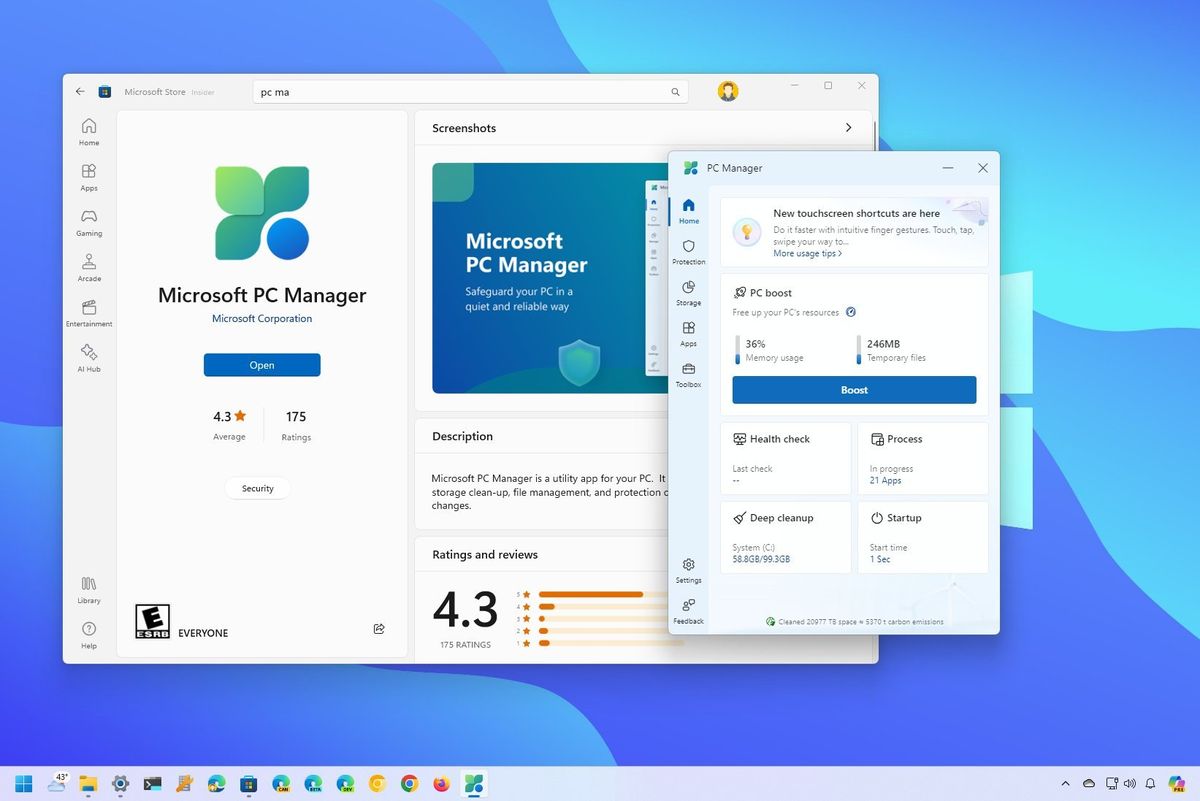
Microsoft recently launched PC Manager , an application that unifies cleaning tools, storage management, system health checks, and threat protection into a single interface. This utility speeds up PC performance by removing unnecessary files and optimizing the system . It also allows you to manage storage, cleaning up old updates, caches, and other leftover data.
It also includes features to block pop-ups , check system health, and scan for malware , integrating protection features with Windows Defender. The interface is very simple, with a side panel that groups all the options and provides quick access to data about the computer's health and overall status.
To use it, simply download it from the Microsoft Store (as soon as it's available for all users in Spain) and run it. It's compatible with both Windows 10 version 1809 and Windows 11.

Official tools to repair and maintain Windows 11
Beyond cleaning, there are tools that allow you to repair and resolve deep-seated problems related to system files, services, updates, and the Windows registry itself. The most notable are:
Command Prompt: SFC, DISM, and CHKDSK
The Command Prompt allows you to run advanced commands to identify and resolve problems:
- SFC / SCANNOW: Finds and repairs corrupted system files.
- DISM: It has several options (ScanHealth, CheckHealth, RestoreHealth and StartComponentCleanup) that restore Windows images y solve system-related problems.
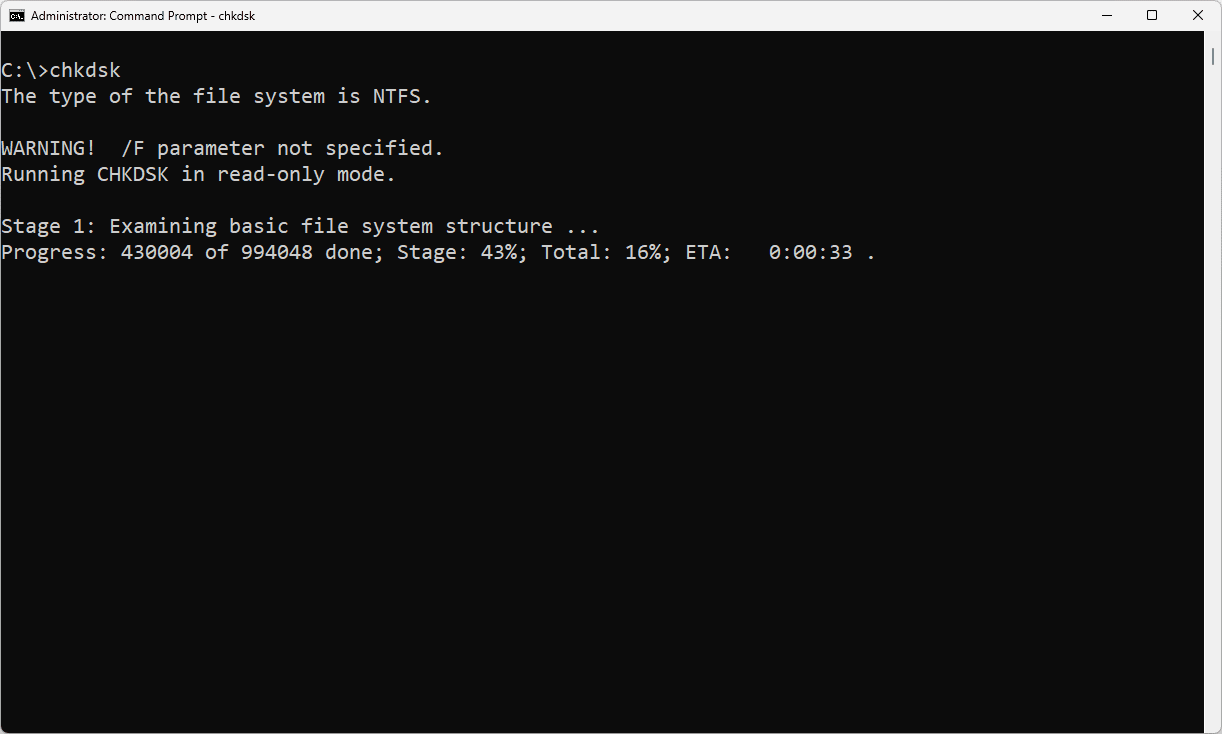
- CHKDSK: Scans and repairs the hard drive for physical or logical errors.
Windows Startup Repair
Startup Repair helps fix serious problems when Windows doesn't start correctly. It's accessed through the recovery options, allowing you to restore the operating system without having to reinstall it from scratch.
Windows troubleshooter
The system includes a utility to automatically detect and correct common problems (Network, Windows Update, Bluetooth, video playback and other aspects), simplifying tasks that previously required manual intervention.
Microsoft Update Health Tools
This set of utilities, distributed as KB4023057, is designed to keep Windows Update running correctly . If your computer isn't receiving updates properly, you may want to check if Microsoft Update Health Tools is installed and working.

Third-party tools: extra solutions and automation
There are multiple third-party utilities that take Windows 11 maintenance to the next level. Some stand out for their ease of use, others for their power or their ability to automate complex processes.
Reset Windows Update Tool
This tool was originally designed to troubleshoot Windows Update issues, but it has evolved into a comprehensive maintenance suite. It allows you to reset Windows Update components , delete temporary files, perform disk checks, restore network configurations, and manage restore points.
Windows Maintenance Tool
Developed by the community and available for free on GitHub, it automates common tasks using scripts . Its greatest strength is its collection of useful diagnostic, repair, and cleanup commands, accessible through a simple, numbered menu-based interface. It's ideal for avoiding tedious menu navigation and performing quick repairs after a problematic update.
EASEUS Partition Master
One of the leading utilities for managing disk partitions and repairing boot problems . Its user-friendly interface allows users of all skill levels to perform tasks ranging from MBR repair to partition management and modification, troubleshooting disk errors, and boot optimization. Highly recommended if you need to make changes to your hard drive's structure or if your system is not booting correctly.
FixWin for Windows
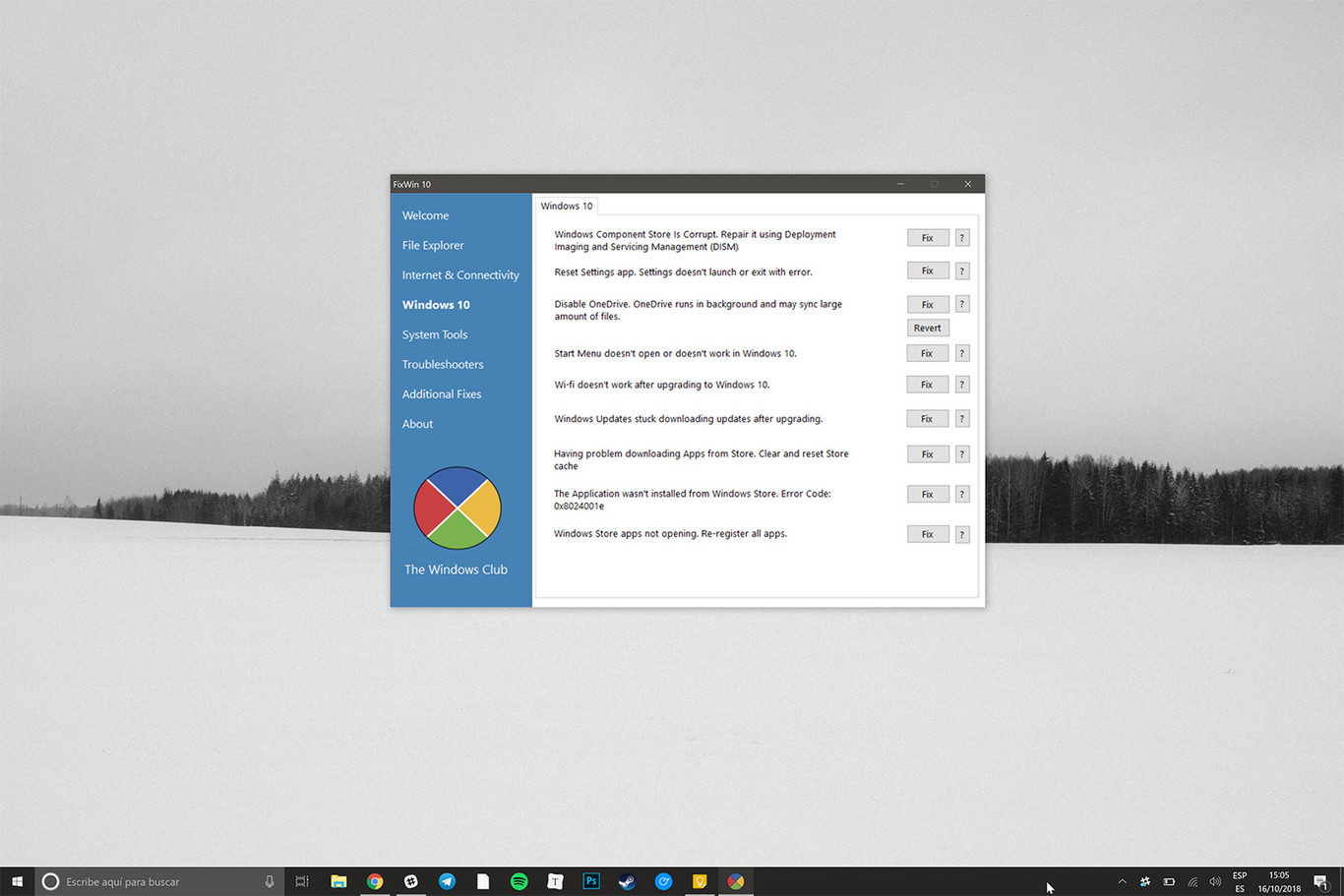
This is a free, portable tool that repairs many of the most common Windows 11 problems, both hardware and software-related. Its functions are divided into six categories, covering everything from File Explorer to system repair, networking, and app store issues.
Tweaking Windows Repair
Ideal for those looking to restore Windows to its original settings and fix recurring errors (permissions, firewall, updates, registry settings, etc.). Its advantage is the ability to make in-depth adjustments from a single application.
Ashampoo WinOptimizer
If you're looking for an all-in-one solution to clean, optimize, and protect your privacy , this software stands out for its ease of use, task automation, and protection of sensitive data. Its cleaning system helps keep Windows running smoothly and securely.
Ultimate Windows Tweaker
For those who want to fully customize their device and perform quick repairs . This free utility allows you to revert accidental changes and safely adjust multiple system parameters, adding a layer of protection against configuration errors.