- There are several benchmarking tools available to evaluate the power of the CPU, GPU, RAM, and storage for free.
- It is possible to monitor the hardware in real time using native operating system tools or specialized diagnostic software.
- Performance measurement is essential for detecting bottlenecks, validating the success of an overclock, or planning component upgrades.
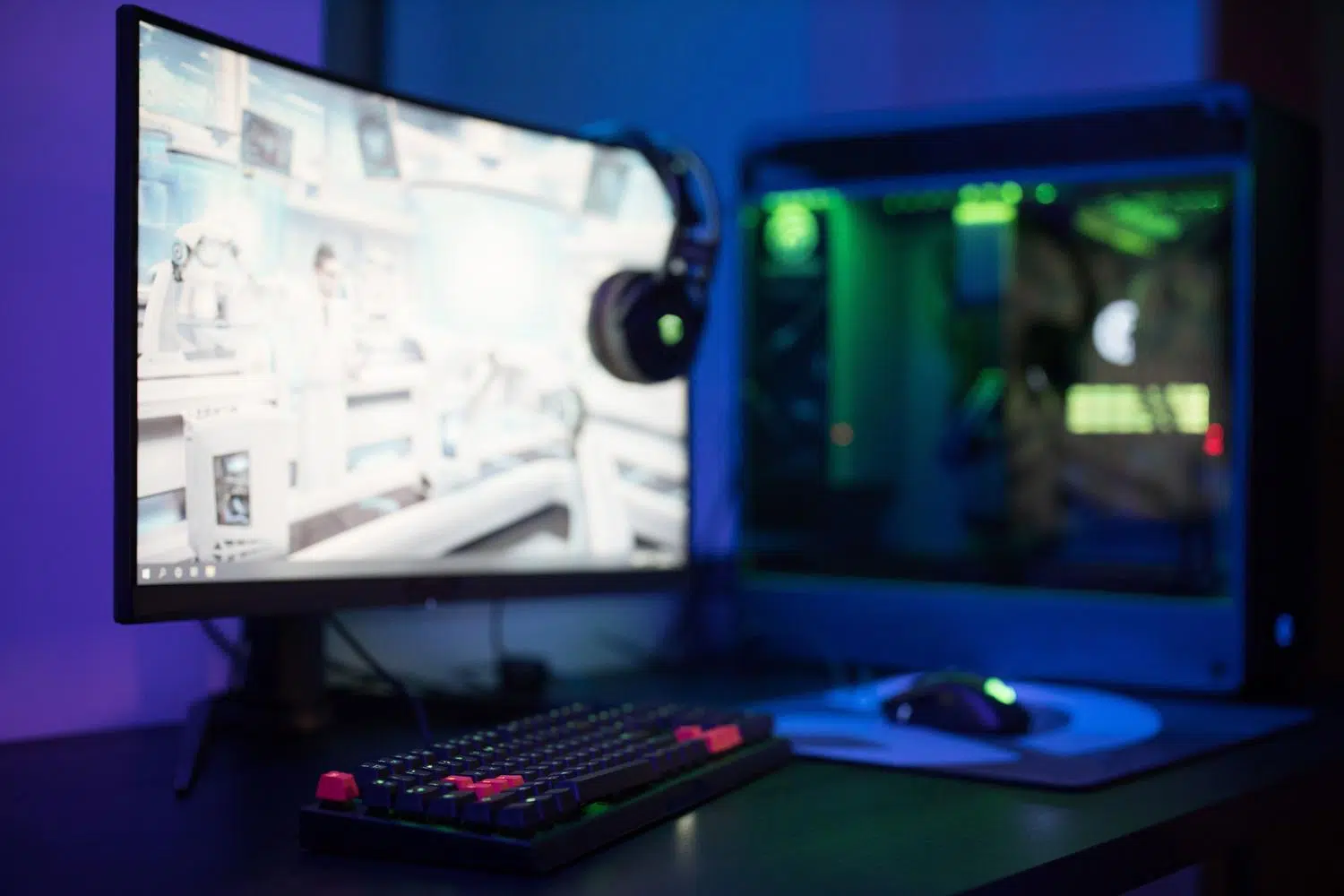
If you've ever felt your computer isn't running as smoothly as it used to, or if you've ventured into overclocking to squeeze every 1 MHz out of your processor, you know that a feeling of temperature isn't enough. It's essential to run a system scan to confirm that everything is performing as it should and that no component is slowing down the overall performance.
Benchmarking is essentially like taking your car to the shop for a thorough check-up. The program won't magically make your PC fly, but it will give you a clear roadmap to determine whether upgrading PC components is worthwhile for performance gains , or if your graphics card is experiencing thermal throttling that's costing you frames in your favorite games.

Fast and online analysis tools
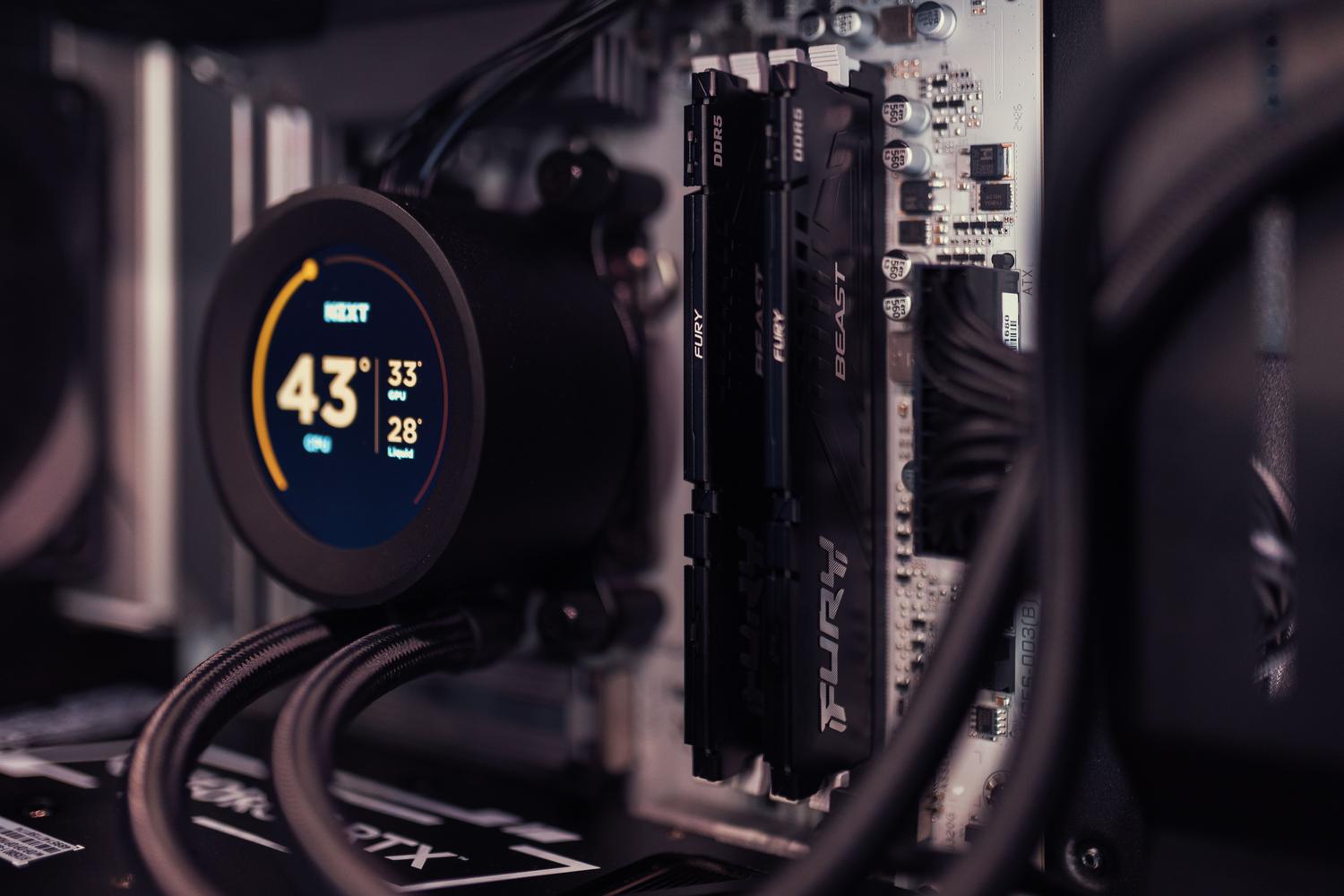
For those who don't want the hassle of complex installations, there are very quick and easy options. UserBenchmark v.1 is one of the best known, as it allows you to run tests directly from your browser. This tool detects your system specifications and measures your CPU, GPU, and RAM, providing a score that you can compare with other similar systems to quickly identify bottlenecks.
In addition to fast read speeds, these types of services often link to high-performance stress tests . These tests are crucial when you want to subject hardware to intense and prolonged loads to ensure the equipment doesn't shut down or overheat, and to improve its performance under extreme pressure.
Specialized software for each component
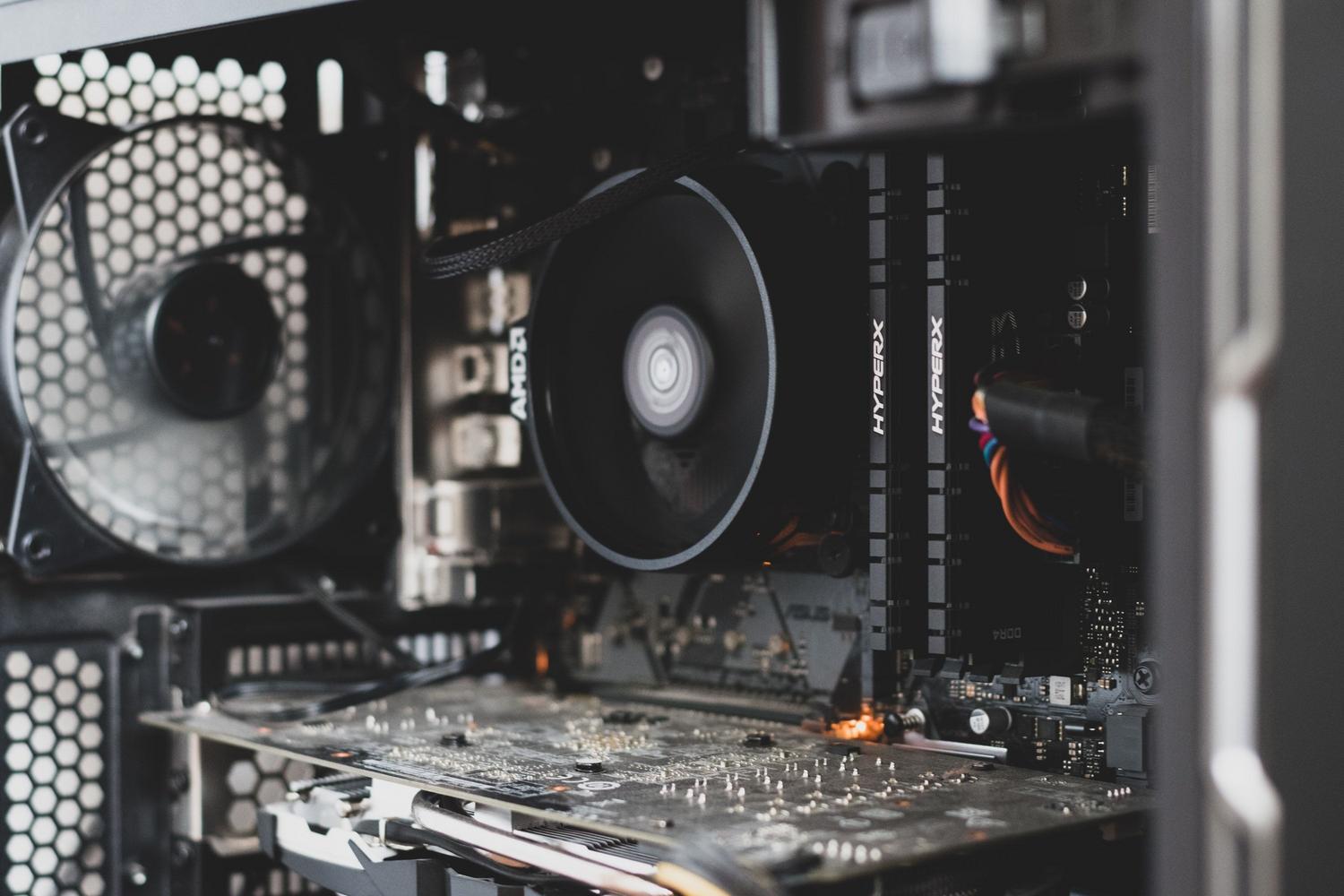
When surgical precision is required, specialized software is ideal. For processors, Cinebench is the gold standard, simulating real-world rendering tasks in Cinema4D to provide a reliable score. On the other hand, if you want to know exactly what's under the hood, CPU-Z is a free gem that breaks down every detail of the chipset, motherboard, and per-core performance.
In terms of graphics, we have some very powerful options. GPU-Z is the ideal companion to CPU-Z, focusing entirely on the video card, its frequencies, and temperatures, making it useful if you need to know what graphics card your PC has . For those looking to measure stability and raw performance in games, 3DMark and Unigine Suite are benchmarks, allowing you to verify if the power supply and cooling system can handle the GPU's power.
If the problem is that the PC takes a long time to boot up or load files, we should look at the storage. CrystalDiskMark and ATTO Disk Benchmark are the preferred tools for measuring the read and write speeds of SSDs and hard drives in MB/s, helping us verify if the drive is performing according to the manufacturer's specifications.
Advanced monitoring and diagnostic utilities
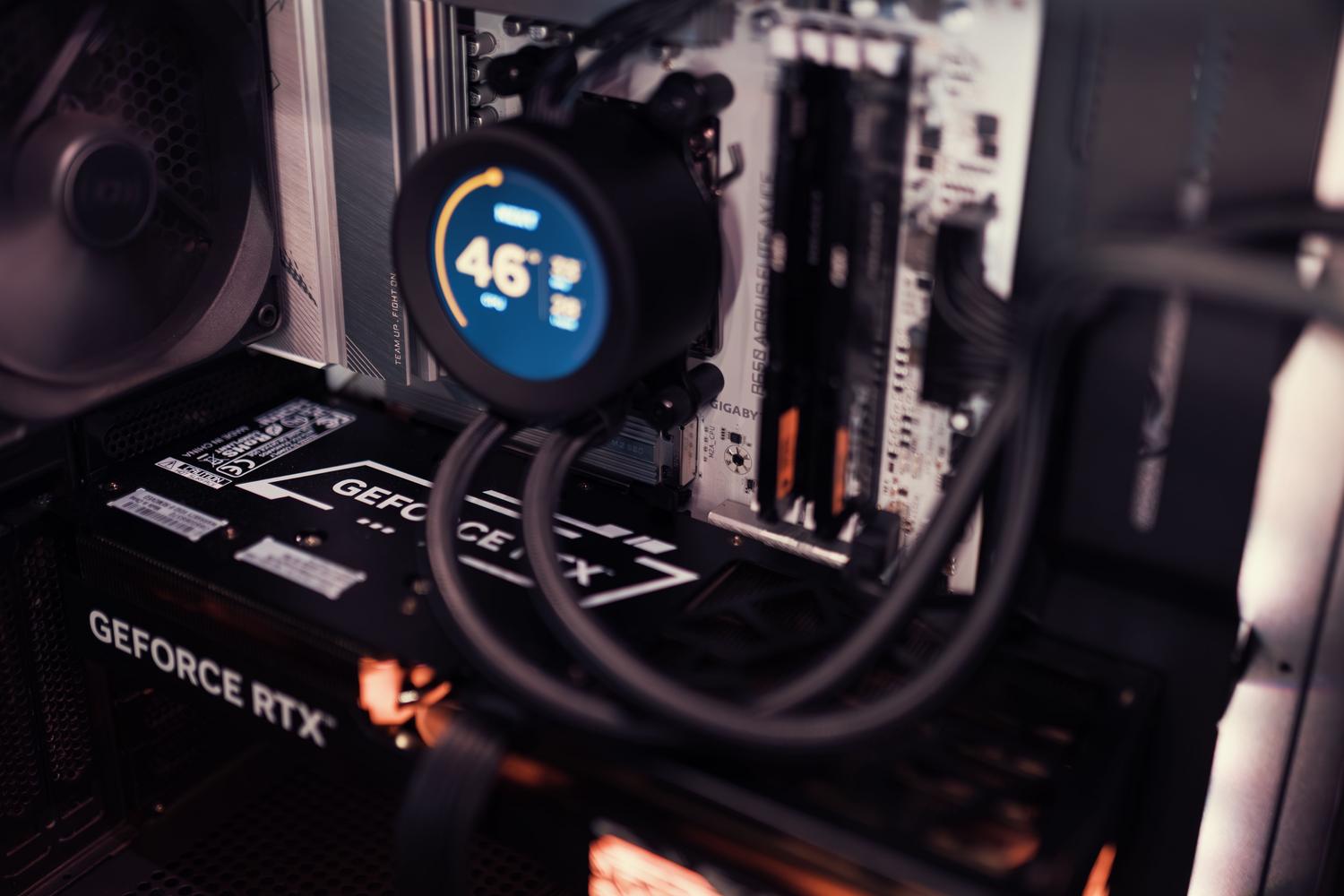
It's not all about running stress tests; sometimes we need to keep an eye on our PCs while we work. MSI Afterburner isn't just for overclocking; it's also fantastic for real-time monitoring of clock speed, VRAM usage, and temperature while gaming. Similarly, HWMonitor and Speccy offer a detailed view of hardware health, power consumption, and fan speeds.
For the most critical cases, such as random blue screens of death, MemTest86 is the solution. Unlike others, this one is saved to a USB drive and run before Windows starts to thoroughly scan the RAM and detect physical errors that could drive any user crazy.

How to measure performance without installing anything
If you don't want to download external software, Windows already offers a powerful tool: Task Manager . By accessing it with Control + Shift + Escape and going to the Performance tab, you can see real-time graphs of CPU, RAM, disk, and GPU usage. It's the easiest way to identify which program is consuming your computer's resources.
A very useful trick is to activate the compact viewer . By double-clicking on the left-hand column, the window shrinks to a small panel that you can place in a corner of the screen, allowing you to monitor system usage while performing other tasks without straining your eyes.
Step-by-step guide to effective testing
- Pre-cleaning: Before running any benchmark, it is vital Remove dirt from your PC and optimize its performanceclosing all background applications and ensuring the computer is clean of malware to avoid skewing the results.
- Tool choice: Depending on whether you're looking to measure raw power (Cinebench), graphics (3DMark) or disk (CrystalDiskMark), choose the appropriate software.
- Execution and analysis: Launch the test and, once you get the score, don't obsess over the exact number, but use it as a guide. comparative reference compared to other similar teams.
- External comparison: Use platforms like PassMark or specialized forums to place your hardware on the global map and decide if it's time to upgrade.
Having complete control over your hardware through benchmarks and monitoring tools not only optimizes your gaming and work experience but also helps prevent serious breakdowns by monitoring component temperatures and stress. Whether using Task Manager for a quick overview or comprehensive suites like FutureMark for in-depth analysis, understanding your computer's true capabilities is the only way to ensure you're getting the most out of every watt of power from your technology investment.
