- Dust buildup obstructs airflow, raising temperatures and causing a real loss of power in the hardware.
- Preventive maintenance using filters and an elevated location is the best strategy to extend the equipment's lifespan.
- Thorough and regular cleaning of fans and heatsinks ensures that components operate within their safe thermal limits.
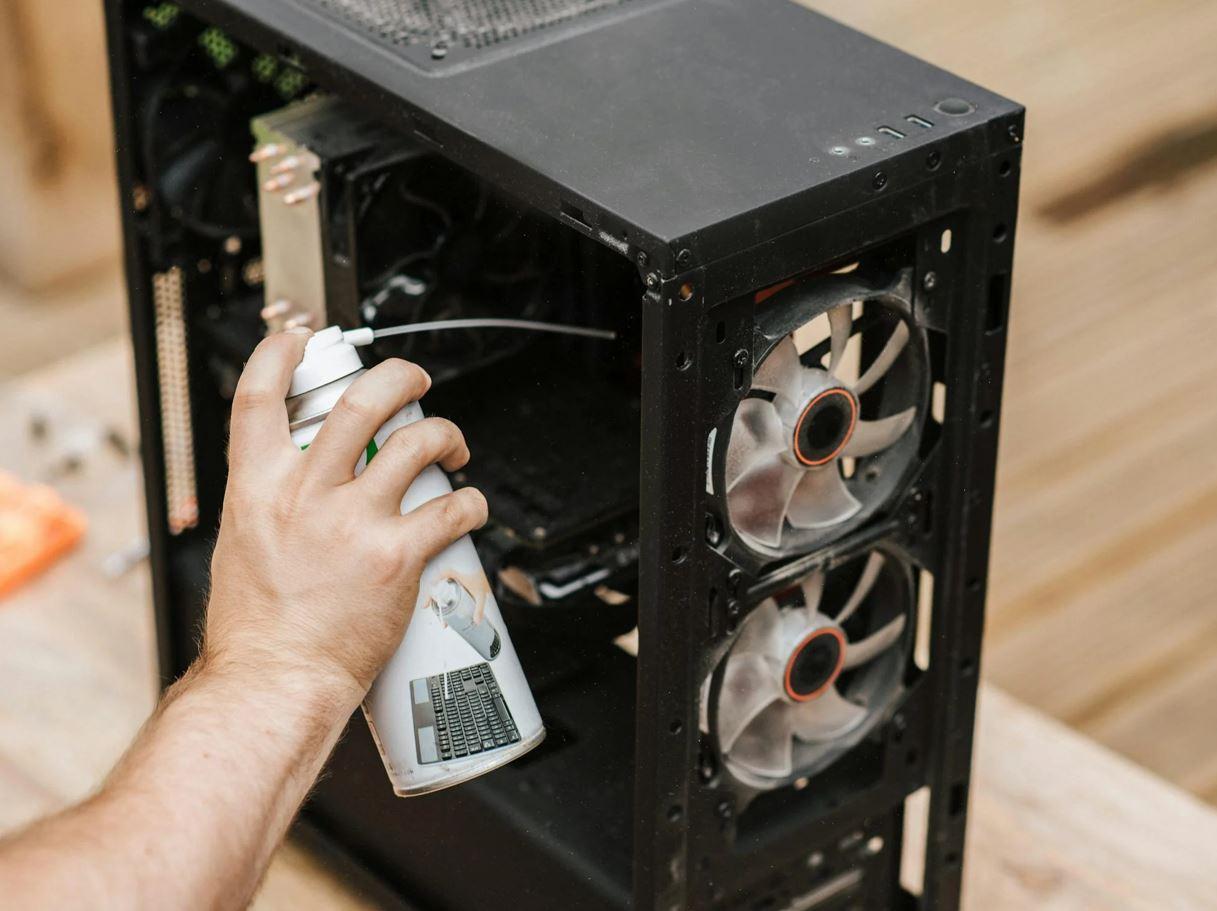
Having a powerful computer is great, but there's a silent enemy lurking for us all: dust. Whether you have a state-of-the-art machine with liquid cooling or a laptop for studying, if you don't keep an eye on it from time to time, dust becomes a barrier that prevents fresh air from circulating, causing your components to overheat.
Many users think that having a lot of fans is enough to forget about maintenance, but the reality is that dust inevitably accumulates in the most hidden corners. When the filters become clogged, performance plummets and the equipment starts to overheat, which can lead to costly breakdowns if not addressed promptly.

Why is it so serious if your PC is dirty?
When dust particles settle on heatsinks and fan blades, they create an insulating layer. This causes the processor and graphics card temperatures to rise considerably. In fact, it has been shown that a system with clogged filters can experience temperature increases of up to 10 degrees Celsius, forcing the system to reduce its speed to avoid overheating. This can result in lost FPS in your favorite games or video rendering taking an eternity.
It's not just a matter of aesthetics. Excessive dust buildup can cause system instability or even permanent damage if the heat reaches critical levels. While some modern components have wide thermal margins, such as certain Ryzen processors or high-end RTX graphics cards, keeping the thermal margin low is key to preventing premature wear and tear on the hardware.
Strategies to prevent dust from getting into your equipment
The best cleaning is the one you don't have to do. To prevent your tower from becoming a dustbin of dust, the first thing to do is avoid placing your PC on the floor . The floor is where most of the dirt accumulates; if possible, put the tower on your desk or use an elevated stand to improve ventilation.

Another key trick is to take advantage of magnetic dust filters . If your case doesn't have them, it's highly recommended to buy them. These filters act as a first line of defense, trapping dust before it reaches the internal components. However, remember to clean them frequently, because if they become completely clogged, airflow will be restricted and your PC will overheat.
The environment also plays a significant role. Keeping the room clean , avoiding eating near the keyboard, and closing windows if there's construction nearby or it's windy all help reduce the amount of airborne particles. If you have pets, be especially careful with their fur, which is a magnet for clogging fans.
Tools needed for safe cleaning
Before opening the box, prepare yourself to avoid making a mess. The most important thing is compressed air or an electric blower , which allows you to remove dirt from places your hand can't reach. Complement this with a soft-bristled brush to remove stuck-on dust and a microfiber cloth for exterior surfaces.
If you have very stubborn dirt, you can use isopropyl alcohol , as it evaporates quickly and leaves no residue. For those who want to be extra safe, it's advisable to use an anti-static wrist strap or, at least, touch a metal surface before touching the motherboard to avoid electrostatic discharges that could damage a component.

Steps to clean a desktop PC step by step
- Initial preparation: Turn off the device, unplug it from the wall, and remove the side panel. Do this in a well-ventilated area so that any dust that comes out doesn't get on your face.
- Filter cleaning: Remove the dust filters and wash them with soap and water. It is vital that are completely dry before putting them back in the tower.
- Component blowing: Use compressed air on the fans and radiator. A key trick is hold the fan blades so they don't spin wildly while you're blowing, as they could generate reverse electrical current and damage the plate.
- Pay attention to the GPU and CPU: Clean the CPU heatsink fins and graphics card fans. If you're an advanced user and it's been a while, consider renew the thermal paste every 2 or 3 years to maintain optimal heat transfer.
- Power supply: Blow out the outer grille and the power supply fan. For safety, Never open the power supply unless you are a specialized technician, as it contains dangerous capacitors.
Laptop maintenance and other tips
If you have a laptop, the process is simpler but just as important. Use compressed air through the vents to remove dust and lint. For the keyboard and screen, use a slightly damp microfiber cloth, being careful not to let any liquid seep inside. It's also helpful to know how to clean your console or PC controller to maintain a hygienic environment.
Regarding frequency, there's no hard and fast rule, but a checkup every 6 to 12 months is ideal. If you notice the fans making strange noises or the PC running slower than usual, it's a clear sign it needs a tune-up. It's also a good idea to check the motherboard's CR2032 battery if you notice the clock is malfunctioning.
Maintaining the hygiene of your hardware, optimizing airflow through tidy cable management, and keeping your workspace clear are the best ways to ensure your computer performs exceptionally well. A clean and organized system not only performs better and maintains lower temperatures, but it also extends the lifespan of its components , saving you money on repairs and ensuring smooth and stable gaming or work sessions.