- There are multiple built-in Windows tools such as Task Manager, dxdiag, and msinfo32 to identify the GPU.
- An integrated graphics card can be distinguished from a dedicated one by observing whether the system reports a single chip (integrated) or two separate devices.
- Using specialized software such as CPU-Z or GPU-Z allows you to obtain detailed technical data about the memory and frequency of the hardware.
You've probably wondered at some point what exactly powers the images on your monitor or if your computer can run that game you've had your eye on. You don't need to be a computer expert or take apart your computer case to find out, because Windows has built-in, easy-to-use tools that give you all the information in no time.
Knowing whether you have a basic graphics solution or a dedicated powerhouse is essential for optimizing your PC's performance , updating the right drivers, or simply deciding whether it's time to invest in new hardware. In the following lines, we'll break down all the possible ways to find out what graphics card you have , from the quickest methods to using specialized software.

What exactly is a graphics card and what is it used for?
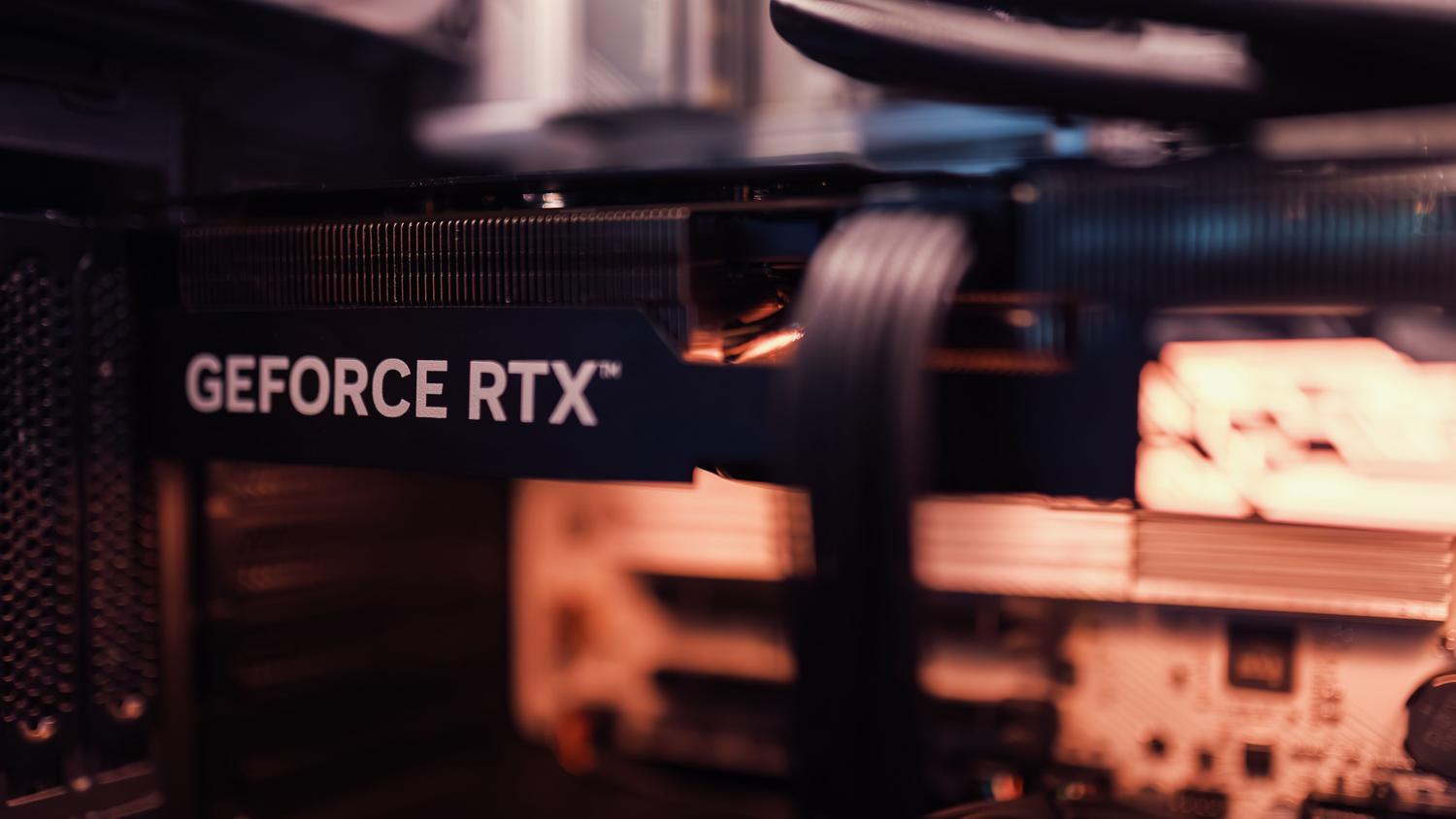
To put it simply, the graphics card (or GPU) acts as the visual translator of your system . Its main function is to take the complex data processed by the computer and convert it into understandable images, whether they are simple desktop icons or the hyper-realistic landscapes of a AAA video game.
Without this component, the PC would be unable to display anything on the screen. Currently, these graphics cards are vital for tasks such as watching high-resolution videos , working on graphic design, editing video clips, creating 3D models, or even running artificial intelligence processes. Basically, anything that involves the smooth movement of windows or images depends on it.
Quick methods to identify your GPU in Windows
If you don't want to complicate things, there are several internal paths in the operating system that will give you the answer in seconds:
- Task Manager: It's the fastest way. You just have to press the combination Ctrl + Shift + EscGo to the Performance tab and look for the GPU section. If you have more than one, you'll see GPU 0, GPU 1, etc., with their names and available memory.
- Device administrator: Right-click the Start button and select this option. Once inside, open the menu of Display adapters and you will see the list of installed graphics cards.
- Advanced display settings: Go to Start, then System, then Display, and look for the Advanced display settings option. The system will then guide you. which GPU model is managing the image at that moment.
Use of advanced system tools

If you need more technical and precise data, Windows offers two very powerful commands that you can quickly execute by pressing the Windows key + R :

The DXDIAG tool
Typing dxdiag in the Run dialog box will open the DirectX Diagnostic Tool. Navigating to the Display tab will show you the exact name of your graphics card, its manufacturer, and the amount of memory it has. This is ideal for determining if your system is correctly recognizing your drivers.
System Information (msinfo32)
If you prefer a more detailed breakdown, type msinfo32 in the search bar or Run dialog box. In the left-hand column, expand the Components section and then click Display. Here you'll find detailed information about your graphics hardware, allowing you to easily distinguish between integrated and dedicated graphics.
How to distinguish between an integrated and a dedicated graphics card
It's very common for laptops and some desktop PCs to have a hybrid operating system. To tell which is which, look at the names that appear in Device Manager:
If you only see a name, usually related to Intel UHD or AMD Radeon Graphics , you have an integrated graphics card. This means the chip is built into the processor and uses a portion of the system's RAM to operate, making it ideal for office tasks and web browsing.
Conversely, if two names appear (for example, Intel and NVIDIA GeForce or AMD Radeon RX ), you have a dedicated graphics card . These have their own VRAM and are much more powerful, designed specifically for gaming and demanding tasks, although they consume more power and generate more heat.

External software for in-depth analysis
When Windows tools fall short, we can turn to free and very lightweight programs that are the industry standard:
- CPU Z: After installing it, simply go to the Graphics tab. In the device selector, you'll see the names of your graphics cards and get... very detailed technical specifications about the hardware.
- GPU-Z: It's probably the most comprehensive tool. It allows you to monitor temperature, clock frequencies, the exact driver version, and more in real time. video memory type that you are using.
In laptops, the system typically switches automatically between the two GPUs to conserve battery power; while in desktop computers, the dedicated GPU usually occupies a PCIe slot and has its own fans and HDMI or DisplayPort video outputs. To check whether a specific program is using the powerful or the power-efficient GPU, the Task Manager is your best tool, as it displays the workload of each GPU in real time while the game or app is running.
Having the means to identify your hardware allows you not only to optimize your computer's speed, but also to avoid errors when downloading drivers or to know for sure if it's time to upgrade your equipment to improve the visual experience and performance in your favorite applications.
