- Identifying your graphics card is key to installing the correct drivers and optimizing your computer's performance.
- Windows, macOS, and Linux include their own tools to check the model, manufacturer, and type of GPU without opening the computer.
- Using official NVIDIA, AMD, or Intel drivers improves stability, compatibility, and the gaming and editing experience.
- Before changing your GPU, you should consider usage, compatibility, power consumption, cooling, and available budget.
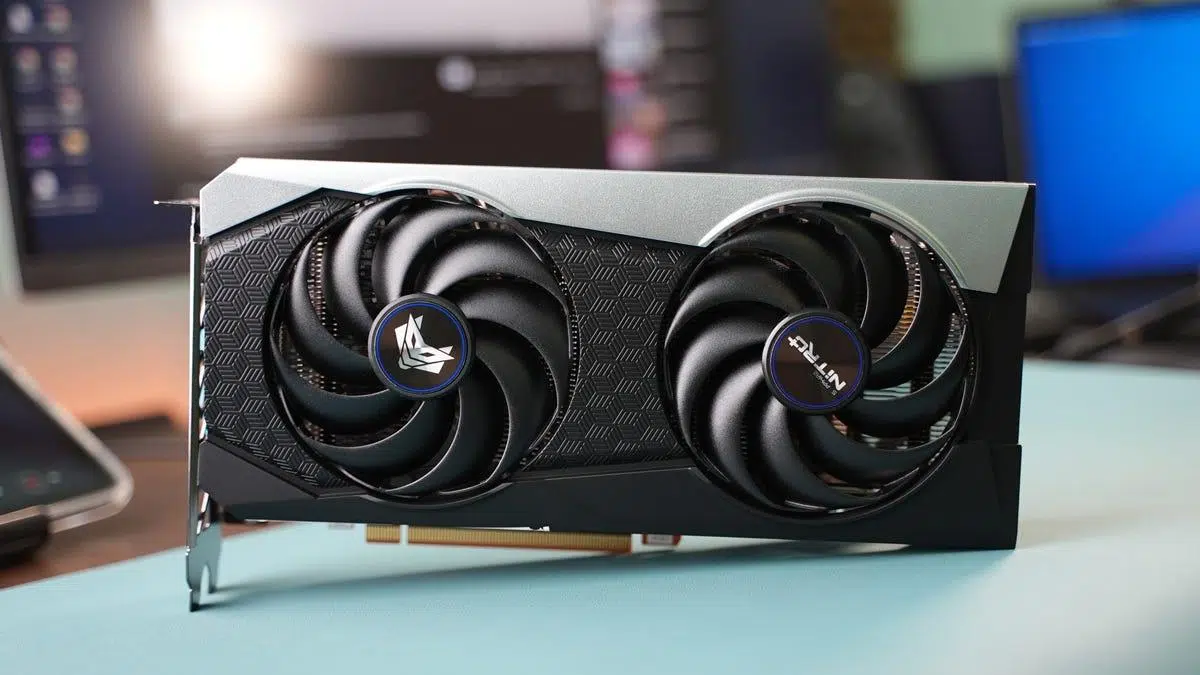
If you've ever considered upgrading your GPU, installing new drivers, or checking if your computer can handle a particular game, the first step is to identify the graphics card installed in your machine . It seems basic, but many people overlook this when buying a PC or laptop, and then they run into problems with performance, compatibility, or strange on-screen errors.
In this guide, you'll learn all the practical ways to find out which graphics card is in your PC or laptop , whether you use Windows, macOS, or Linux, without having to open the case or touch a single screw. You'll also see how to check the drivers you're using, how to update them correctly , and what you should consider if you're thinking about upgrading your GPU to a more powerful one.
What exactly is a graphics card and what is it used for?
Before we get into the steps, it's helpful to understand what we're going to identify. The graphics card, GPU, or video card is the component responsible for processing and generating the images you see on your monitor: desktop, videos, games, editing programs—everything goes through it.
In general terms, the GPU receives data from the processor (CPU) and transforms it into graphics, whether it's simple menus in an office program or 3D scenes at 144 FPS. Therefore, if you enjoy video games , work with video editing, graphic design, or 3D modeling , choosing the right graphics card is crucial.
For basic tasks like browsing the internet, watching TV series, or using word processors, a simple or integrated GPU is usually sufficient, but when you start demanding more, the performance of the graphics card makes a difference in both fluidity and visual quality.
Differences between integrated and dedicated graphics cards
Most modern computers have one of these two types (or even both): integrated graphics and dedicated graphics cards . It's important to distinguish between them because when you check your system information, you might see more than one display adapter listed.
An integrated GPU is built into the processor or motherboard and shares memory with the system RAM . It's cheaper, consumes less power, and is usually sufficient for office applications, browsing, video, and very light gaming, but it falls short for demanding tasks or modern games with high-end graphics.
On the other hand, a dedicated graphics card is a separate component that is installed in a slot (usually PCI Express) on the motherboard. These cards have their own memory (VRAM) and their own graphics processor , allowing them to offer significantly higher performance, ideal for gaming, high-resolution video editing, or 3D work.
When checking which GPU you have, it's important to identify which of the two you're using for your games or demanding programs . Many laptops and PCs list two: the integrated one (for example, Intel UHD or Intel Iris) and the dedicated one (NVIDIA GeForce, AMD Radeon, etc.).
How to find out what graphics card I have in Windows
Windows offers several ways to check which GPU you have installed without any hassle. Let's look at the most common and reliable methods , which you can use in Windows 10, Windows 11, and earlier versions like Windows 7.
Method 1: DirectX Diagnostic Tool (dxdiag)
One of the fastest shortcuts in Windows is to use the DirectX diagnostic tool, known as dxdiag . It shows you at a glance which graphics chip is active and some basic information.
Follow these steps on your Windows PC to check with dxdiag and see the name, manufacturer, and memory of your graphics card :
- Press the Windows + R keys at the same time to open the “Run” window.
- In the text box that appears, type dxDiag and click “Accept” or press Enter.
- will open the directx diagnostic toolLet the information load (it takes a few seconds).
- At the top, select the tab "Screen" (in some cases it may appear as “Display”).
- Within that tab you will see the graphics card name, manufacturer, chip type, and video memory, along with other data.
If your computer has both integrated and dedicated graphics, dxdiag might show the integrated graphics (for example, Intel Graphics 5500) as the primary device. Even so, it's still useful for identifying which GPU is installed, although it doesn't always reflect which one is being used in each game.
Method 2: System Information (msinfo32)
Another very comprehensive way to check the hardware is by using the Windows System Information application , which details all the components of your PC, including integrated and dedicated graphics cards.
To open this tool without getting lost in menus, you can use either the search bar or the Run dialog box. Here's how to use the msinfo32 command to see all installed display adapters in detail :
- Click the button Windows Start and writes msinfo32 in the search bar; you can also press Windows + R, type msinfo32 and click “OK”.
- The application will appear in the results. “System Information”. Click to open it.
- In the window that opens, you'll see a column with categories on the left. Expand it. “Components” by double clicking.
- Within Components, select the option "Screen" with a click.
- On the right side will appear All the information about the graphics cards present in your computer: name, manufacturer, chip type, DAC type, memory, controllers used, etc.
This section typically displays the integrated GPU in the processor first , and then, directly below, the dedicated graphics card if your PC has one. It's one of the most comprehensive views for reviewing the technical details of each video adapter without installing any external programs.
Method 3: Device Manager
Device Manager is another very practical Windows tool that shows you what hardware is installed, its drivers, and if there are any compatibility or driver problems.
To use it and check your GPU, just follow these steps, which are very useful if you want to quickly see what model of graphics card you have :
- Open the Start menu and type "Device administrator" in the search engine.
- Click on the “Device Manager” application to open it.
- In the list of categories, locate and expand "Display adapters".
- Below you will see one or more names: they are listed there all installed graphics cards in the system.
You'll see, for example, something like NVIDIA GeForce GTX 1070 alongside Intel UHD Graphics if your computer has both integrated and dedicated GPUs. Double-clicking on either of them will open a window with several tabs, including "Driver," where you can see the version and date of the installed driver.
Method 4: Third-party applications such as CPU-Z
If you want an even clearer and more user-friendly view of your hardware , you can use external applications. One of the best-known is CPU-Z , which, in addition to processor data, shows you information about RAM, motherboard, and graphics cards.
The process is simple and allows you to review the details of your GPUs from a very visual interface :
- Enter the CPU-Z official page and download the Windows version from any of the available links.
- Once the file is downloaded, run the installer and Follow the usual installation steps.
- Open CPU-Z. You'll see that it takes a few seconds to gather information about your system.
- At the top, click on the tab “Graphics”.
- In section “Display Device Selection” You can select the different graphics cards if you have more than one and see their features in detail.
This section displays the graphics chip name, manufacturer, memory type, amount of VRAM, and frequencies , among other data. It's a convenient way to have almost everything you need to know about your hardware in a single tool.
How to find out what graphics card I have on macOS
If you work with a Mac, it's also very easy to identify which GPU is inside your computer, whether it's a MacBook, an iMac, or a Mac mini. The operating system itself includes tools to see which graphics card you have and which display it's using.
To check this on macOS without installing anything additional, you can use the system information that Apple integrates into the main menu. These steps will help you see the graphics card name and manufacturer in a matter of seconds :
- Click on the apple icon (the apple) located in the upper left corner of the screen.
- Select option “About this Mac”.
- In the window that opens, you'll see a summary of the team. Click on “System Report”.
- In the new window, in the left column, look for "Hardware" and within that section select “Graphics/Displays”.
- On the right side will appear the data of the graphics card(s) installed: model, manufacturer, bus type, VRAM and connected screens.
This information will tell you whether your Mac uses an integrated graphics card (for example, from Intel or Apple) or a dedicated AMD graphics card , which is useful for deciding if the computer is suitable for demanding video editing, gaming, or 3D tasks.
How to find out what graphics card I have in Linux
On Linux systems, it's also possible to identify the GPU without too much trouble, although the usual method involves using the terminal and specific commands . In return, you get very detailed information about the installed graphics hardware.
The most basic tool for identifying which graphics card your Linux PC has is the `lspci` command , which lists the devices connected to the PCI bus. By combining it with a filter, you can see only the video adapters installed in your system.
To find out the basic model of your GPU in Linux, you can follow this short procedure, ideal if you want a quick look at the manufacturer and model :
- open one terminal in your Linux distribution.
- Write the command lspci | grep vga and press Enter.
- You will see one or more lines with the graphics card information, showing manufacturer and model (for example, NVIDIA, AMD or Intel with the corresponding chip).
If you want even more details, such as memory type, capacities, and other video adapter data, you can use the lshw tool , which provides a much more extensive description of the hardware.
These steps will allow you to view advanced GPU information in Linux directly from the terminal:
- Open a terminal with permissions to use sudo.
- Write the command sudo lshw -c video and press Enter.
- Enter your password when prompted.
- The system will display a complete list with graphics card details, such as description, product, supplier, configuration, and resources.
This way, even on Linux you can know with considerable accuracy which GPU you have, which driver you are using, and whether the system has detected it correctly —something fundamental if you want to install proprietary drivers or adjust performance.
How to check your graphics card drivers in Windows
Just as important as knowing your GPU model is checking if the drivers you're using are the correct ones and up to date . An outdated or generic driver can cause anything from performance loss to graphical glitches, flickering, or crashes.
The most direct way in Windows to check both the GPU model and the installed driver is, again, through Device Manager . From there you can see the driver version, date, and vendor without installing anything extra.
Follow these quick steps to check your graphics card drivers from within your system and confirm if it's the official driver from the manufacturer :
- Open the Device administrator from the Start menu by searching for it by name.
- Display the category "Display adapters".
- Right-click on the GPU you want to check and select "Properties".
- In the window that opens, go to the tab "Controller".
- here you can see the driver version, the date it was created, and the provider thereof.
If you see Microsoft as the provider instead of NVIDIA, AMD, or Intel, you're most likely using a generic Windows driver that only provides enough to get a picture, without taking full advantage of the GPU or its advanced features.
From this tab, you'll also see buttons to try and update the driver, but in practice, these often fall short and don't install the complete package with all the features . To do it properly, it's recommended to use the official tools from each manufacturer or download the drivers directly from their websites.
How to install and update GPU drivers
Once you know which graphics card you have, the next logical step is to install or update the appropriate drivers to get the most out of your hardware, avoid errors, and improve performance in games or demanding applications.
The three major GPU manufacturers (AMD, NVIDIA, and Intel) offer specific applications that download and install the latest driver versions for you, saving you the trouble of manually searching for files.
Step 1: Install the manufacturer's software
The easiest way is to use the official software from your GPU manufacturer. These applications include automatic update options, game profiles, and various utilities related to your graphics card.
Depending on the brand you have, the usual procedure is as follows, always downloading the programs from the manufacturer's official website to avoid problems :
- NVIDIATheir flagship software is GeForce Experiencewhich allows you to download and install certified drivers, optimize games, and manage extra features.
- AMD: use the AMD Software (Adrenalin Edition), which integrates drivers, performance tools, screen recording, and per-game settings.
- IntelIt offers utilities such as Intel Arc Control o Intel Graphics Command Center and automatic driver update tools.
Download and install the application corresponding to your GPU brand, following the steps in the installation wizard. In some cases, the system may ask you to restart your computer to complete the installation successfully.
Step 2: Run the driver updates
With the official program already installed, the update process is usually quite simple: the application itself takes care of searching for new versions of the drivers for your graphics card model.
Normally, when you open your GPU software, it will run an automatic scan and, if it detects newer drivers, it will offer to download and install them with one or two clicks. It's the simplest way to keep your graphics card up to date without any hassle.
If you prefer to do it yourself and don't want additional programs, in the case of NVIDIA and AMD you can download the "driver-only" driver package from their website . During the manual installation process, you can choose the "Driver-only" option to prevent the installation of extra utilities like GeForce Experience.
For AMD, this option appears as "Driver Only" under "Additional Options" in the installer. For NVIDIA, you must use the manual installer downloaded from their website and specify that you only want the graphics driver, without any additional tools.
With Intel, often it's enough to use their automatic update tool , without needing to install more complex control centers if you're not interested in tinkering with advanced settings.
How controllers work and why they are so important
Drivers are essentially the software that allows the operating system to communicate with the hardware . Without them, the system wouldn't know how to "talk" to the graphics card, and the card wouldn't be able to display anything on the screen properly.
In the case of the GPU, the drivers are responsible for managing how graphics are rendered, how internal card optimizations are applied, and what advanced features are available (such as synchronization technologies, scaling, RTX, FSR, etc.).
Although it may work with generic drivers, the graphics card will not perform nearly as well without its manufacturer-specific drivers . This will be noticeable in lower FPS, more visual issues, a lack of graphics options, and potential errors when running some games or programs.
Windows includes generic display drivers by default , allowing you to use your PC and connect monitors without installing anything. This is fine as a temporary solution, but you'll typically see dull colors, sluggish performance, and very limited graphics options , especially in demanding games and applications.
That's why it's so important, once you've identified the exact model of your GPU, to install the official drivers and keep them reasonably up-to-date , especially if you want to play games or work with heavy multimedia content.
What to consider before choosing or changing your graphics card
If you're checking your graphics card because you're thinking about upgrading, it's worth considering a few key factors to avoid making the wrong purchase. It's not all about raw power: compatibility, energy consumption, and budget also play a significant role.
The first thing to do is be very clear about what you're going to use the GPU for . A system focused on competitive gaming is not the same as one for professional video editing, graphic design, 3D modeling, or an office PC . Each use requires a different level of performance, and therefore, it doesn't make sense to pay more if you're not going to take advantage of it.
Carefully review the technical specifications of the graphics card you're considering: clock speed, number of cores or compute units, amount and type of VRAM, and processing capabilities. All of these parameters influence how the GPU will perform under high resolutions and heavy workloads.
It's also vital to check compatibility with your current system . Make sure your motherboard has the correct slot ( usually PCI Express ), check the wattage of your power supply, and any additional power connectors the card might require. You should also check if your case has enough physical space for the GPU.
If you play games, keep in mind your monitor's resolution and refresh rate (Hz). Playing at 1080p and 60Hz is not the same as playing at 1440p or 4K at 144Hz: as soon as you increase the resolution or refresh rate, the demands on the GPU skyrocket and you may experience a bottleneck between components.
Finally, don't forget about power consumption and cooling . Powerful graphics cards generate heat and consume a lot of power, so it's essential that your power supply can handle it and that your case has decent airflow. All of this, of course, within a realistic budget , because GPU prices vary considerably depending on the model and generation.
Top graphics card brands and what they offer
The current market is dominated by two major graphics chip manufacturers: NVIDIA and AMD . They are joined by Intel, with its integrated GPUs and new dedicated graphics cards, and numerous assemblers that sell cards based on these chips.
NVIDIA is a global leader thanks to its GeForce series, which is very popular among gamers and video and design professionals . They offer advanced technologies such as DLSS, ray tracing, and specific tools for streaming and content creation.
AMD , with its Radeon GPUs, is the direct alternative to NVIDIA and is characterized by a good price-to-performance ratio . It also incorporates its own technologies to enhance the gaming experience and is very competitive in the mid-range and high-end markets.
In addition to chip manufacturers, brands like ASUS, MSI, and many others assemble their own versions of graphics cards, adding improvements in cooling, higher factory frequencies, and custom designs . Models like ASUS's ROG Strix series or MSI's Gaming X series are highly regarded by gamers.
When you check which graphics card you have installed, you will usually see both the chip brand (NVIDIA, AMD, Intel) and the specific model from the assembler (ASUS, MSI, Gigabyte, etc.), which will give you a fairly accurate idea of its features and build quality.
With everything we've seen, from the built-in Windows tools like dxdiag, msinfo32, and Device Manager , to the utilities in macOS and Linux, you now have several ways to find out exactly what graphics card your PC or laptop has, differentiate between integrated and dedicated GPUs, check which drivers you're using, and assess whether you need to update them or even change your graphics card. Understanding what to look for before buying a new GPU and what the leading brands on the market offer will make it much easier to get the most out of your computer and avoid surprises when you want to play games, edit video, or work with advanced graphics.