- First, define the primary use of the PC to balance CPU, GPU, RAM, and storage according to your actual needs.
- Optimize BIOS and Windows by enabling XMP/EXPO, adjusting the power plan, and keeping drivers and system up to date.
- Pay attention to assembly, airflow, and peripheral quality to improve the performance, comfort, and stability of the equipment.
- Avoid bad practices such as power surges, excessive bloatware, and lack of maintenance that shorten the life of the PC.
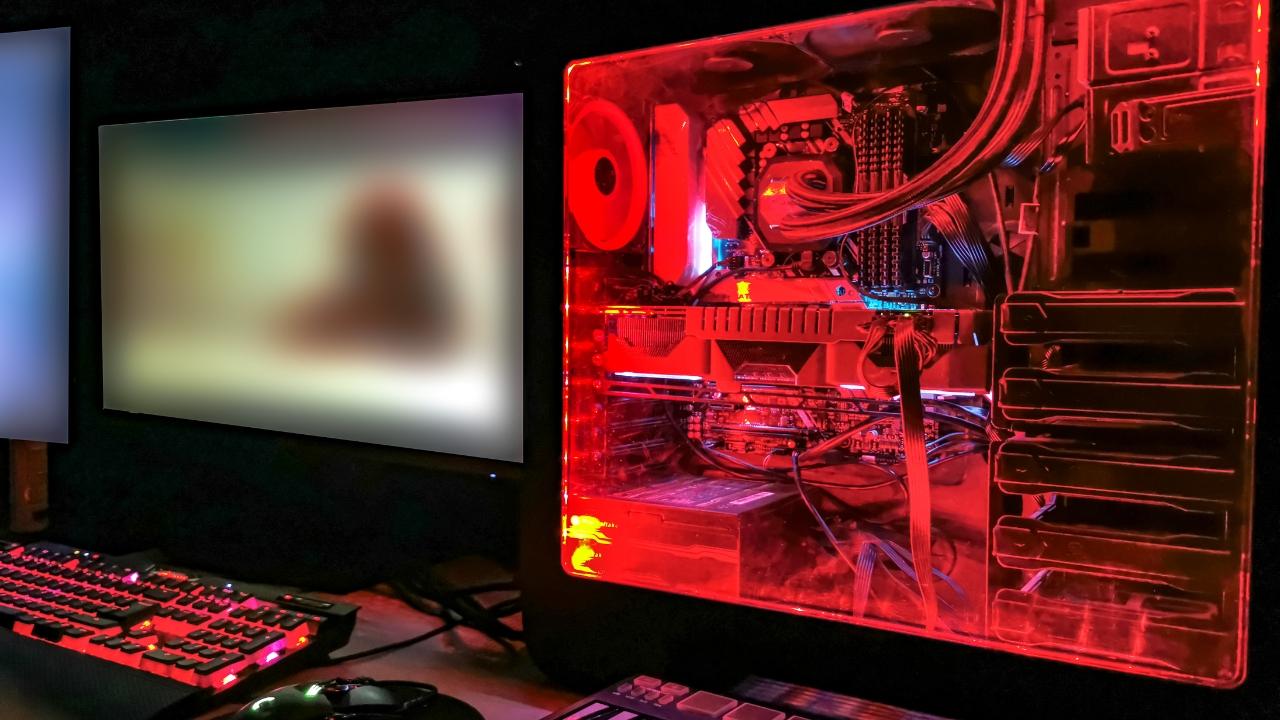
If you're thinking about building or upgrading your computer and don't want to spend a fortune, you need to be very clear on how to choose and configure each PC component properly . Between the rising price of graphics cards and the sheer number of CPU, RAM, and motherboard models available, it's easy to get lost without a clear guide.
Furthermore, it's not enough to simply buy the parts and plug them in: for the equipment to truly perform, you need to optimize Windows , update drivers, adjust power settings, and, of course, avoid a series of common mistakes that can shorten the life of your machine or make it perform much worse than it should.
Before choosing components: what will you use the PC for?
Before you rush out to buy parts, the smartest thing to do is clearly define what kind of tasks you'll be doing with the computer most of the time . There's no point in spending money on power you won't use or, conversely, ending up with something that's not powerful enough for the kind of work you need.
Generally speaking, we can group typical workloads into several categories, each with different requirements for CPU, RAM, GPU, and storage. This will help you prioritize where to invest more of your budget and where you can cut back a bit.
Common PC uses include office applications, web browsing, multimedia, photo, video, and audio editing , code compilation, virtualization, gaming, 3D modeling and rendering, encryption, and compression or decompression of large volumes of data . Each user profile benefits from a different combination of components.
It's also a good idea to think about your usage environment: a good desk, a decent chair, adequate lighting, and comfortable, well-chosen peripherals can make as much of a difference as upgrading your CPU or graphics card in many cases.
Recommended settings according to the type of use
To choose the right computer, it's helpful to understand what each type of workload demands from the hardware. This way, you can configure your PC components in a balanced way, depending on whether you want it for work, gaming, or a bit of both.
PC for office work and basic tasks
If the computer is going to be used for documents, spreadsheets, email and little else, there's no need to overcomplicate things, but you should be clear about what's sufficient to be more than enough these days and ensure the PC doesn't fall short with even the slightest multitasking.
- CPUA basic entry-level processor with good per-core performance, such as an AMD Ryzen 3 or an Intel Core i3/Ultra 3, is sufficient. The important thing is that it can smoothly handle several tabs and lightweight programs.
- RAM8 GB is fine for office work, although if you can stretch to 16 GB, you'll have more headroom for other tasks. multitasking and a browser with multiple tabs.
- StorageA traditional HDD might work, but an SSD makes Windows, programs, and documents open much faster, significantly improving the feeling of smoothness.
- GPUThe processor's integrated graphics are more than enough to display documents, HD videos, and the desktop.
- Peripherals: here it is worth investing a little more in comfortable monitor for the eyes, ergonomic keyboard and mouse, and even a printer or multifunction printer with good scanning and duplex options if you work with a lot of documents.
A PC primarily used for browsing the internet, managing email, social networks, video calls, and basic content consumption also has relatively modest needs, but there are nuances, especially regarding how much memory some browsers consume (if you use Chrome, check out Google Chrome tips ).
- CPUA Ryzen 3 or Core i3/Ultra 3 with 4 physical cores is usually sufficient. If you typically have dozens of tabs and several apps open (Spotify, Discord, etc.), a more powerful processor will give you a bit more responsiveness.
- RAMIdeally, nowadays you should have 8-16 GB of storage. Browsers like Chrome or Edge can consume a lot of memory when... You open many tabs and extensions.
- StorageAn SSD greatly speeds up page loads with cache, but if the budget is tight, a 1 TB HDD also works for simple uses.
- GPUThe integrated graphics are sufficient unless you want to play 4K content intensively, in which case a modern iGPU or a basic dedicated GPU will perform better.
- PeripheralsIf you write a lot in forums, blogs, or social networks, consider a good comfortable keyboardIf you're streaming, focus on a good monitor and speakers. For content creators, a decent webcam and microphone are practically essential.
Don't forget that for smooth streaming and a good online experience, it's key to have a stable internet connection and a modern router (WiFi 6 or higher) , especially if you play online or stream live.
PC for multimedia and content consumption
If your priority is watching series, movies, listening to music, and managing photo and video libraries, the focus will be on a configuration that offers smooth playback, reasonable loading time , and enough space to store everything.
- CPUAn AMD Ryzen 3/5 or Intel Core i3/Ultra 3/i5/Ultra 5 processor is more than enough. When streaming, most of the processing happens in the cloud, so the local CPU isn't under too much stress.
- GPUA modern iGPU is sufficient for 1080p and even 4K, provided it has hardware decoding accelerationA dedicated low-to-mid-range graphics card is helpful if you consume a lot of 4K HDR.
- RAM: between 8 and 16 GB, preferably relatively fast to comfortably run multimedia management applications.
- StorageIdeally, you would have an SSD to install the operating system and apps, and an additional large HDD to store movies, music, photos, and videos in high quality.
- PeripheralsHere, the monitor (or TV) and sound system take precedence. Good panel, good color reproduction, and quality speakers or headphones.
Image, audio and video editing
When you want to work with Photoshop, Illustrator, Premiere, DaVinci Resolve, Pro Tools, or other editing programs, the jump in requirements is significant. At this point, you'll need a machine capable of processing filters, effects, and renderings in a reasonable amount of time.
- CPUThe more powerful and the more cores, the better. For video, processors like AMD Ryzen 7/9 or Intel Core i7/Ultra 7 or higher are ideal. For photography and audio, a mid-to-high-end processor also works well, but in 4K video, the CPU significantly impacts export times.
- GPUEssential for video editing and effects. Many programs can use the GPU's power to accelerate filters and rendering, so consider this. a dedicated mid-to-high-end graphics card.
- RAM16 GB is the reasonable minimum; 32 GB is ideal for large projects with many layers, tracks, or clips. Faster modules are best to keep the CPU and GPU running smoothly.
- Storage: Fast SSD (NVMe if possible) for system, software and work caches, plus one or more high-capacity disks (SSD or HDD) for storing projects, raw material and backups.
- Peripherals: a quality monitor with good color coverage (sRGB, DCI-P3), calibrated or calibratable, and reliable sound equipmentIf you produce audio, studio monitors or flat-frequency headphones are almost mandatory.
Code compilation and development
If you program and work on large projects (e.g., kernels, graphics engines, or complex enterprise solutions), compilation time depends heavily on CPU power, RAM capacity, and disk speed.
- CPUThe more cores and threads, the better; a mid-to-high range like Ryzen 7 or Core i7 already offers a good improvement over entry-level processors for parallel compiling.
- RAM16-32 GB allows you to have heavy IDEs, containers, browsers and tools open without the system starting to page to disk.
- StorageAn NVMe SSD accelerates access to large code trees, dependencies, and tools, reducing compilation and test times.
Virtualization and emulation
Setting up laboratories with virtual machines, testing operating systems, or using emulators of old and modern consoles requires a clear leap in resources, because the PC has to simulate one or more complete systems at the same time.
- CPUIn this case, processors with many cores and threads, such as Ryzen 9, Core i9/Ultra 9, or even Threadripper-type processors, are very beneficial if you're going to be running many virtual machines simultaneously. Make sure they support virtualization acceleration technologies (Intel VT, AMD-V, etc.).
- RAM32-64 GB or more, depending on the number of virtual machines and the RAM allocated to each. Keep in mind that you will be dividing the physical memory among several systems.
- StorageVirtual disks take up a lot of space, so a large capacity SSD (4 TB or more) is recommended, or combining SSDs for the main VMs and HDDs for mass storage.
- PeripheralsYou don't need anything too special, but a set of two or three monitors It greatly facilitates working with multiple VMs open at the same time.
Gaming: Keys to a well-balanced PC
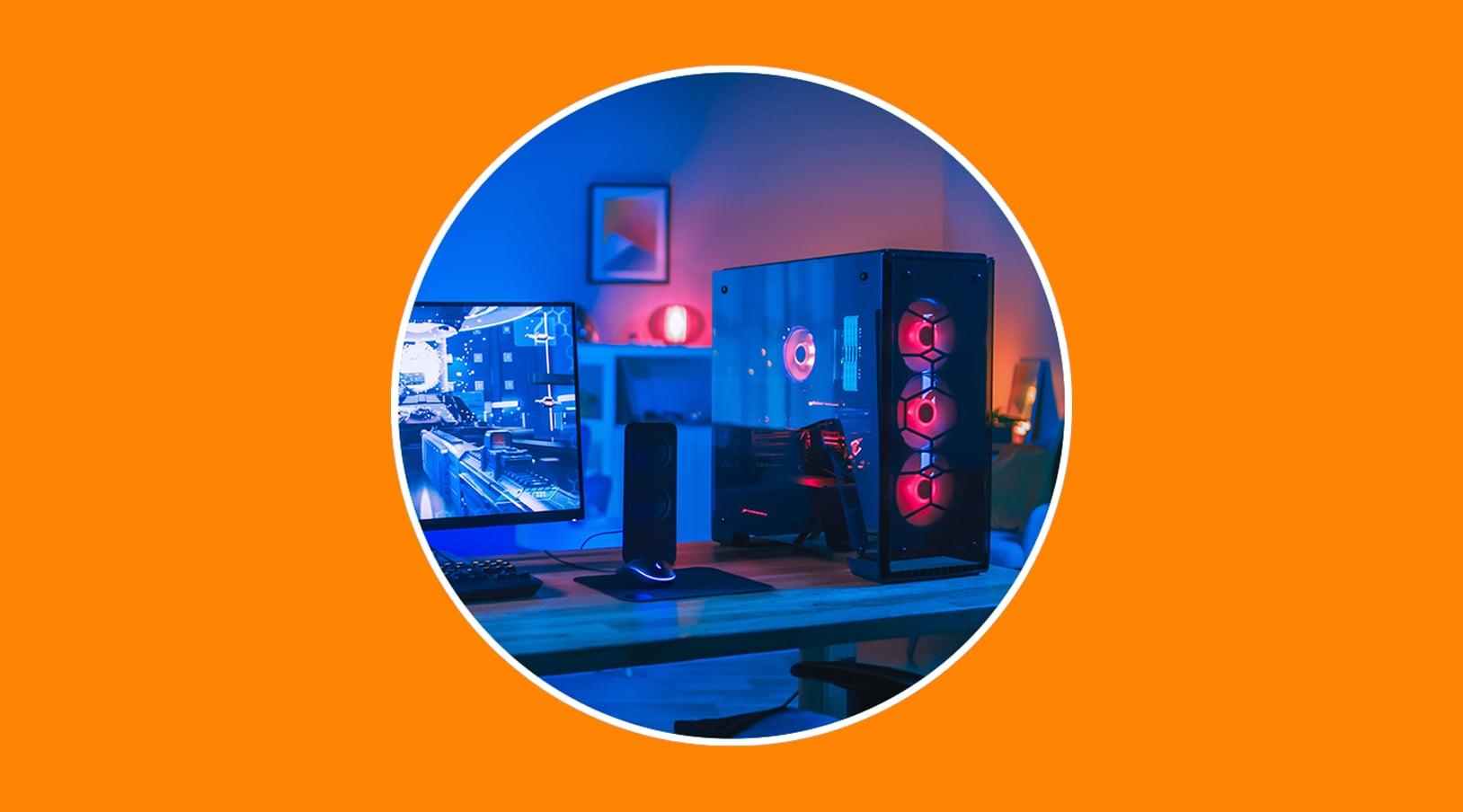
For optimal gaming, the graphics card is the most important component, but a powerful GPU is useless if you then skimp on the processor or memory. The key is to build a system where the CPU, GPU, RAM, and storage are well-balanced . If your hardware is modest, you can look at lists of low-resource PC games that run well on modest systems.
- GPUIt's the star for gaming. For 1080p and 1440p at high/ultra settings, a mid-to-high-end card (RTX 4070/4080, RX 7700/7800 or better) with at least 12-16 GB of VRAM is highly recommended for modern AAA titles.
- CPUModern games value good per-core performance, high clock speeds, and ample cache. Processors like the Ryzen 5/7 or Intel Core i5/Ultra 5/i7 with 6-8 cores are ideal.
- RAM16 GB is the minimum now almost mandatory; if you stream, record gameplay or have many things open, it's better to go for 32 GB, preferably fast DDR5.
- StorageAn SSD (preferably NVMe) drastically shortens loading times and prevents stuttering when playing games. constantly pulls data (for example, in open worlds).
- PeripheralsA responsive gaming keyboard and mouse, a large mousepad, and a monitor with a high refresh rate (144 Hz or more) and low latency will make a big difference to the experience.
3D modeling and rendering
Programs like Blender, Maya, 3ds Max, ZBrush, and other CAD applications require a machine designed for intensive CPU and GPU processing. It's not just about the project looking smooth, but also about rendering times that don't drag on for hours.
- CPUIn addition to good per-core performance, traditional CPU-based rendering engines benefit greatly from having many cores. Processors like Ryzen 9, Core i9/Ultra 9, or Threadripper are ideal.
- GPUIf you use GPU rendering engines (Cycles, Octane, Redshift, etc.), you should invest in a high-end graphics card (GeForce RTX or top-of-the-range Radeon RX, or professional ranges like NVIDIA Quadro / RTX, Radeon Pro).
- RAM32-64 GB allow you to work with complex scenes without the system starting to page.
- StorageSSD for projects, asset libraries and textures; additional HDD or SSD for long-term archiving, as these projects can occupy tens or hundreds of gigabytes.
- Peripherals: a large, high-resolution monitor with good color reproduction and, if possible, a second monitor for auxiliary tools and panels.
Encryption and security
For tasks involving massive encryption, password auditing, or security testing, raw computing power is what matters most. Depending on the type of tool you use, you might be interested in either the CPU or the GPU.
- CPUIt should support instructions such as AES-NI and have good multi-core power to process large volumes of data.
- RAM16 GB is sufficient for most encryption and analysis tools.
- StorageA fast SSD speeds up the massive processing of files.
- GPUIf you use tools like Hashcat, one or more very powerful GPUs can multiply the attack speed compared to relying solely on the CPU, since They contribute a huge volume of FLOPS..
Data compression and decompression
Compressing and decompressing large files with WinRAR, 7-Zip and similar programs seems simple, but when you're dealing with volumes of tens or hundreds of gigabytes, it's appreciated to have a computer prepared for it, especially in terms of CPU and disk speed.
- CPUModern compression algorithms can take advantage of multiple cores, so a Ryzen 5 or Core i5/Ultra 5 or higher helps a lot.
- RAM16 GB is usually enough to compress large packages without bottlenecks.
- StorageA fast SSD greatly reduces read and write times during compression/decompression.
- GPU: it does not normally intervene in these tasks, so it is not a key factor.
If you plan to use the PC for a bit of everything (gaming, working, editing, and some virtualization), the most sensible thing to do is to look for a balance between a powerful CPU, a decent GPU, a good amount of RAM, and a fast SSD , without neglecting cooling.
Gaming configurations by budget and range
Beyond the type of use, many people directly look for a gaming setup reference based on budget levels. Here's a modern guide, designed to help you play with good graphics quality and stability :
High-end
- CPU: Intel Core i9-13900K or AMD Ryzen 9 7950X.
- GPU: NVIDIA GeForce RTX 4090 or AMD Radeon RX 7900 XTX.
- RAM: 32 GB DDR5 starting at 6000 MHz.
- Storage: 2 TB NVMe SSD fast.
- Motherboard: high-end models such as ASUS ROG Strix Z790-E or MSI MEG X670E Ace.
- Source: 1000 W with 80 Plus Platinum certification.
- Refrigeration: quality AIO liquid cooling kit.
Mid-range
- CPU: Intel Core i7-13700K or AMD Ryzen 7 7700X.
- GPU: NVIDIA GeForce RTX 4070 or AMD Radeon RX 7800 XT.
- RAM: 16 GB DDR5 5600 MHz (expandable to 32 GB in the future).
- Storage: 1 TB NVMe SSD.
- Motherboard: Gigabyte Z790 Aorus Elite or ASUS TUF Gaming X670E.
- Source: 850 W 80 Plus Gold.
- Refrigeration: high-end air cooler.
Input range
- CPU: Intel Core i5-13600K or AMD Ryzen 5 7600X.
- GPU: NVIDIA GeForce RTX 4060 or AMD Radeon RX 7700 XT.
- RAM: 16 GB DDR4 3200 MHz.
- Storage: 1 TB SSD (even if it's SATA) to notice a good improvement over an HDD.
- Motherboard: MSI B760 Tomahawk or ASUS Prime B650-Plus.
- Source: 750 W 80 Plus Bronze.
- Refrigeration: basic but decent air cooler.
Assembly tips to avoid messing up the components
Choosing the right hardware is half the battle. The other half is assembling it intelligently to avoid surprises, bottlenecks, or stability issues. With a few clear guidelines and a patient approach, you can build your own PC without losing your mind in the process.
Essential tools for building a PC
Before opening boxes, prepare a large, clean, and carpet-free work area, and have the right tools on hand to make the assembly go smoothly.
- Phillips screwdriver, preferably magnetic, to avoid losing screws inside the case.
- Antistatic wristband (and, if possible, an anti-static mat) to prevent discharges that could damage delicate components.
- Cable ties or Velcro strips to organize cables and leave a tidy interior with good airflow.
- Use high-quality thermal paste if your heatsink doesn't already have it pre-applied.
- Small pliers or wire cutters to rescue stubborn screws or help in tight spaces.
- Precision screwdriver kit for small screws on motherboards, SSDs, etc.
- If you want to go the extra mile, a power supply tester helps you check that the PSU is working properly before connecting everything.
- LED lamp to properly illuminate the inside of the box during assembly.
- Blower or compressed air can for Clean dust and debris before closing the box.
Recommended assembly order
To save yourself a lot of trouble, follow a logical assembly order. This reduces the risk of damaging anything and makes it easier to access all the connectors without having to disassemble half your PC.
- First, install the CPU and RAM on the motherboard outside the case. If the CPU cooler is large, now is also a good time to install it.
- Place the power supply in the case and feed the main cables through the cable management openings, leaving them ready.
- Screw the motherboard in, making sure you have correctly positioned the standoffs so that it does not touch the metal chassis.
- Install the storage drives (SSD, HDD) and the graphics card, connecting the corresponding PCIe power cables — and keep in mind How to avoid mistakes when installing an SSD.
- Check the orientation of the case fans: normally it is Fresh air intake through the front and exhaust through the rear and top.
- Carefully connect the front panel cables (power button, reset, LEDs, audio, front USB), using the motherboard manual to avoid mistakes.
Typical mistakes you can avoid
There are a number of fairly common mistakes that, if you avoid them, will save you hours of testing and frustration. Many of them are related to rushing or not checking compatibility and assembly details.
- Connecting the front panel cables incorrectly, so that the power button does nothing or the LED does not work.
- Applying too much or too little thermal paste; a "grain of rice" in the center is usually sufficient for most standard CPUs.
- Choosing a heatsink that doesn't fit in the case or a case that's too small for the GPU you want to install.
- Failure to check the compatibility between CPU and motherboard (socket, chipset, and BIOS version) can lead to teams that don't even start.
- Forgetting to update the BIOS when you install a newer CPU than the one supported by the factory version.
Initial system configuration: BIOS, Windows and drivers
Once you've assembled your PC, you're not quite finished. To ensure everything runs smoothly, it's crucial to take some time to check the BIOS/UEFI, configure Windows, and update your drivers . These steps are key to getting the most out of your hardware.
Quick check in BIOS/UEFI
Turn on the computer for the first time and, as soon as you see the initial screen, press the key indicated on the motherboard (usually Delete or F2) several times to enter the BIOS/UEFI. There you should verify that all the components appear correctly.
- Verify that the CPU shown is the correct model.
- Check that the total amount of RAM is what you installed and that it is working in dual channel if applicable.
- Make sure all drives (SSD, HDD) are detected without problems.
If everything is in order, save changes (even if you haven't touched anything relevant) and exit to continue the system installation process.
Windows installation and initial configuration
If your PC already has Windows pre-installed, you'll just need to follow the initial setup wizard to choose your language, configure the network, add your Microsoft account , and adjust some privacy settings. It's very similar to setting up a new mobile phone.
If you're installing it from scratch, create a bootable USB drive using the official Microsoft tool, boot from that USB drive (adjusting the boot order in the BIOS if necessary), and install Windows on your main SSD, leaving the HDD for data and games. Or, if you're unsure, try Windows without installing it.
Update graphics card drivers and other components
With the system now working, the first thing to do is ensure your graphics card has the latest drivers. This guarantees optimal performance in games and GPU-accelerated programs , and helps avoid known bugs.
- Identify the exact model of your GPU (NVIDIA, AMD, Intel).
- Go to the manufacturer's official website and download the latest stable driver available.
- Install it following the wizard, restarting when prompted.
For the remaining components, you have two main options :
- Automatic method (Windows Update / Device Manager): From Device Manager you can right-click on each item with a warning icon and let Windows search for drivers.
- Manual method (recommended): Download the chipset, network, audio drivers, etc., from the motherboard manufacturer's website, and install them one by one.
Windows Update and optional updates
The next key step is to run Windows Update to ensure your system has the latest security patches and performance improvements.
- Go to Settings > Update & Security > Windows Update.
- Click on Check for updates and let it download and install everything important.
- Restart as many times as necessary until the system indicates that it is fully updated.
In the optional updates section, you may find non-critical drivers that are also useful (for example, specific hardware drivers or compatibility improvements ). Review this list carefully and only install what makes sense for your system.
Windows performance optimization tips
With your system and drivers up to date, you can give performance an extra boost by adjusting various BIOS and Windows settings. Many computers lose 10-20% of their potential simply due to improper RAM configuration, power plan settings, or boot processes . It's also helpful to use Windows Terminal commands to diagnose and resolve specific problems.
Enable XMP or EXPO in RAM
One of the most common mistakes in newly built PCs is leaving the RAM at its base frequency (for example, 2133 MHz) instead of using the profile it's designed for (3200, 3600 MHz, etc.). Enabling XMP (Intel) or EXPO (AMD) allows the RAM to operate at its actual speed.
- Enter the BIOS/UEFI.
- Look in the memory menu for the XMP or EXPO option.
- Activate the profile that corresponds to your modules (usually “Profile 1”).
- Save the changes and restart the computer.
With just that, in many cases you'll notice an improvement in FPS in games and smoothness in demanding tasks, without touching voltages or doing manual overclocking.
Choosing the right energy plan
By default, Windows tends to balance performance and power efficiency, sometimes limiting the CPU frequency and other components. On a desktop PC, it's usually more beneficial to activate a power plan that allows the CPU to perform at its maximum capacity when needed.
- Open the Control Panel and go to Power Options.
- Select the High Performance plan (or an equivalent customized plan).
On gaming laptops, you can combine this with manufacturer-specific profiles that adjust fans, power consumption, and performance according to the mode (gaming, battery, etc.).
Remove bloatware and manage startup programs
Many new computers come with pre-installed software that adds no value and only consumes resources in the background. The same is true for programs that automatically add themselves to startup and slow down Windows boot time.
- In Settings > Apps, review the list and uninstall anything you don't recognize or won't use.
- Open Task Manager (Ctrl + Shift + Esc) and go to the Startup tab.
- Disable anything that doesn't need to start with the system (secondary launchers, duplicate utilities, etc.).
Clear cache and temporary files
During the first few days, you'll install many programs, games, and updates. This generates temporary files that, if they accumulate, can steal valuable SSD space and slightly affect performance . It's also helpful to know how to find files more quickly when you need to locate and delete specific remnants.
- Easy method: In the Start menu type "Delete temporary files", let Windows analyze and select what you want to delete (be especially careful not to select the Downloads folder if you save things there).
- Manual method: Press Windows + R, type temp and delete what you can; repeat with %temp% and delete the contents as well.
Cables, accessories and details that make the difference
Beyond the tower and internal components, there are small details that greatly influence how you enjoy your PC on a daily basis. From the type of video cable to the mouse, keyboard, or headphones , everything adds up.
HDMI or DisplayPort: Which cable to use
The typical question in a modern gaming setup is whether it's worth using HDMI or DisplayPort. It depends on both the graphics card and the monitor, but in general, DisplayPort tends to offer more bandwidth and better refresh rates.
- For entry-level equipment or simple 60Hz monitors, a good HDMI cable is perfectly adequate.
- If you have a powerful GPU and a monitor with a refresh rate of 144 Hz or higher, DisplayPort is usually the best option to take full advantage of the resolution and refresh rate without limitations.
Choosing the right gaming accessories
You'll be spending many hours in front of your PC, so it's worth dedicating time (and some budget) to choosing peripherals that are comfortable and suit your way of playing or working.
- Keyboard: mechanical or membrane depending on your preferences, but look for good build quality and, if you type a lot, a feel that doesn't tire you out.
- Mouse: Choose one with a shape that suits your grip (palm, claw, fingertip), with good switches and a reliable sensor.
- Headphones or speakers: a good soundstage can make a big difference, both in immersion and in competitive gaming.
- Chair, mat and monitor stand: small details that make a difference ergonomics and posture during long sessions.
If you want to customize buttons, there's a free app to remap the middle mouse button that makes it easy to adapt peripherals to your style.
Things you shouldn't do to your PC
Just as important as knowing what to do is understanding which practices to avoid to prevent damaging your equipment or reducing its lifespan. Many of these habits seem harmless, but over time they take their toll on hardware and performance.
Connecting the PC directly to the power outlet without protection
Plugging your PC directly into a wall outlet without any protection is not a good idea. Power surges, blackouts, or sudden drops can damage the power supply or even components like the motherboard, CPU, or GPU.
The wisest course of action is to use a voltage regulator or a UPS (uninterruptible power supply) to stabilize the current and protect the equipment from power outages and sudden surges; and, if you have any doubts about energy-saving and safety practices, consult when it is appropriate to turn off, suspend, or hibernate your PC.
Do not monitor temperatures or ventilation
Whether it's a gaming PC or a work PC, it's a good idea to monitor CPU and GPU temperatures, especially if you spend many hours gaming, rendering, or working on heavy loads.
- Make sure the case has good airflow, with reasonable intake and exhaust.
- Avoid placing the tower against the wall or putting it in enclosed spaces without ventilation.
- Use monitoring programs (MSI Afterburner, HWInfo, etc.) to check temperatures from time to time.
Update everything as soon as it's released... or never update at all.
There are two equally bad extremes: installing every update as soon as it's released without waiting even a day, and never updating at all. Some Windows or driver updates may contain bugs that reduce performance or cause errors.
The wisest course of action is to wait a few days and read comments on forums and specialized websites before applying significant changes. However, it's also not advisable to block updates permanently: many include security fixes and stability improvements that are worthwhile.
Installing too many cleaning or “optimization” programs
A good antivirus and some common sense are usually enough. Filling your PC with cleaning suites, boosters, and miracle optimization programs not only doesn't help, but can also cause conflicts, consume resources, and add more bloatware than it removes.
If you want to keep your system running smoothly, rely on the built-in Windows cleaning tools , a couple of reliable utilities, and, above all, keep your programs and data well organized. Also, to maintain security, check out how to scan for viruses in Windows 11 with Windows Defender.
Having too many programs set to start automatically
Each application that starts with Windows adds seconds (or minutes) to the boot time and increases RAM and CPU usage in the background. Over time, this makes the system feel increasingly sluggish.
Periodically check the Startup tab in Task Manager and disable anything that is not essential to start from the first minute (game launchers, chat apps that you don't always use, etc.).
Never turn off your PC completely
Windows includes "Fast Startup" by default, which can sometimes cause unusual behavior during certain updates or hardware changes. Disabling it ensures that when you shut down, the system completely shuts down and performs a clean boot every time.
- Open the Control Panel and go to Hardware and Sound > Power Options.
- Click Choose the behavior of the power buttons.
- Click on Change settings that are currently unavailable.
- Uncheck Enable fast startup (recommended) and save changes.
Forget about physical maintenance
A dusty PC runs hotter, makes more noise, and experiences more stress than necessary. Over time, if it's never cleaned, fans can become blocked, temperatures can rise excessively , and the lifespan of components can be reduced.
- Every few months, turn off and unplug the equipment, open the case and clean the fans, radiators and grilles with compressed air.
- Every 1-2 years, consider renewing the CPU thermal paste (and GPU if you're feeling up to it) to maintain optimal contact with the heatsink.
- Check that there are no cables obstructing the airflow and that the fans are spinning without strange noises.
Setting up and assembling PC components properly isn't just about choosing powerful parts; it's about understanding what you're going to use it for, properly combining CPU, GPU, RAM, and storage, performing a good physical installation, sensibly adjusting BIOS and Windows, and avoiding bad habits that will degrade the equipment over time. If you dedicate some time to all of this from the beginning, you'll have a computer that performs at its best, is stable, and will last for many years without giving you any trouble.
