- The end of support for Windows 10 forces us to consider safe alternatives to continue using the PC.
- Windows 11 can be tried without full installation and even used without activation, with aesthetic limitations.
- Tools like Schneegans and Rufus allow you to install Windows 11 on computers that do not meet the requirements.
- Linux and ChromeOS Flex are valid options for giving a second life to old computers.
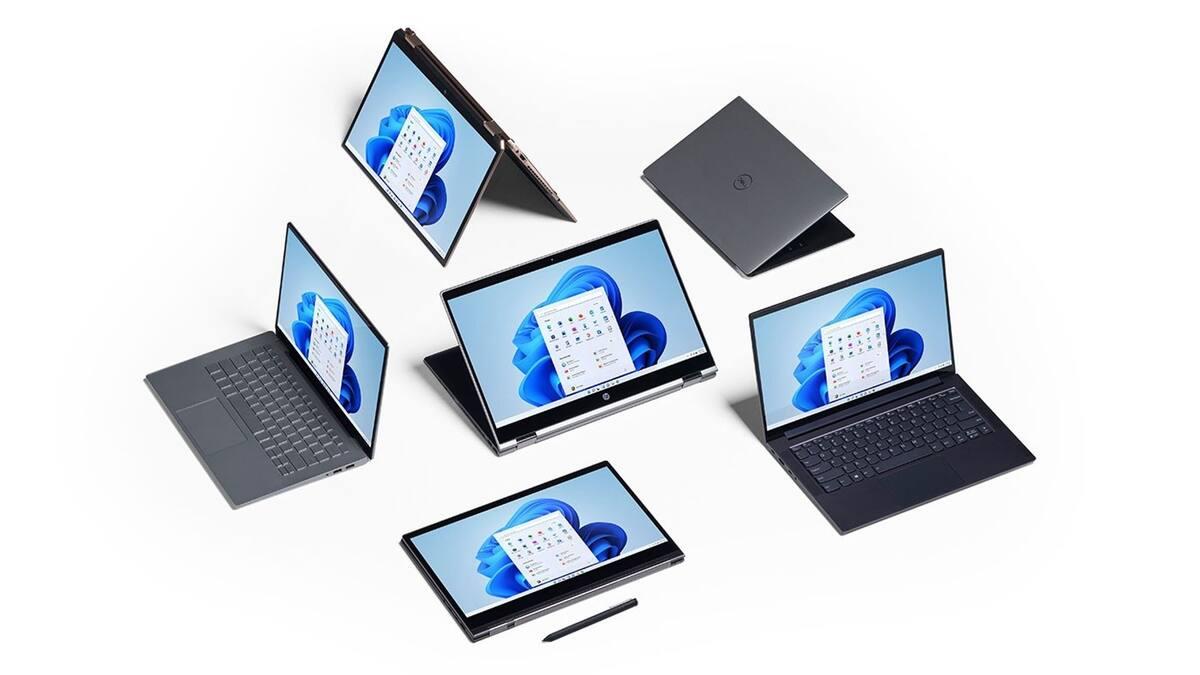
If you're still using Windows 10 on your computer, you should be aware that official Microsoft support is nearing its end . When the support end date arrives, your computer will stop receiving security patches and critical fixes, significantly increasing the risk of viruses, ransomware, data theft, or remote attacks without any remediation.
Microsoft is pushing hard to get you to upgrade to Windows 11 or buy a new PC, but millions of perfectly functional machines are being left out due to requirements like TPM 2.0 and Secure Boot . The good news is that today there are several ways to try, use, or even install Windows 11 on almost any computer, from options that don't touch your hard drive to full installations, licensed or unlicensed, and all of them are legal if you download the system from the official website.
What does the end of Windows 10 support mean and why does it affect you?
When Microsoft cuts off updates, it's not just about cosmetic improvements. Without security patches, your Windows 10 is exposed to new vulnerabilities that are never fixed , opening the door to malware infections, ransomware encryption of your files, credential theft, or even remote control of your computer. That's why it's important to know how to scan for viruses with Windows Defender and keep your system clean.
Furthermore, any serious vulnerabilities discovered after the end-of-support date will remain permanently . In other words, even if you keep your antivirus software updated, you'll still be running an operating system that, by its very nature, is no longer protected against modern threats. If you use your PC for work, managing bank accounts, or storing sensitive information, this poses a significant risk.
Microsoft's strategy is clear: it wants the majority of users to migrate to Windows 11 , either through a direct upgrade or by purchasing a new, pre-configured computer. The problem is that the "official" requirements exclude many older but perfectly capable computers: lack of TPM 2.0, unsupported CPUs, or absence of Secure Boot, among other issues.
If your computer falls into that group, it doesn't mean it's obsolete. For everyday tasks like browsing the web, watching videos, working with documents, or basic office applications, many older PCs still perform well . That's why it makes a lot of sense to look for ways to continue using them with an updated system, or at least to be able to try Windows 11 without putting your data at risk.
If you simply want to take a quick look at the new Windows 11 interface without touching your PC , there is an interesting alternative: a recreation of the Windows 11 desktop directly in the browser created by the user Blue Edge.
This web demo mimics the desktop, the centered taskbar, the redesigned Start menu, and some other visual elements of the system. It's not a real Windows 11, but a simulation designed to give you an idea of the interface's appearance and organization . You won't be able to install programs or make significant changes, and many features will be disabled, but it's a good way to get a feel for it.
It's ideal if you use a work computer or a machine with critical data and don't want to install a beta version or modify partitions or disks . Simply access it through your browser, play around with the menus, try out the shortcuts, and get a general impression without any risk.
However, this demo doesn't include advanced features like native Android app support , which Microsoft plans to integrate through the Amazon store, nor the focus and productivity tools that will be included in the full versions of Windows 11. The focus here is on aesthetics and organization, not functionality.
When Windows 11 is officially released, users upgrading from Windows 10 will have a trial period to try it out and, if they're not satisfied, revert to the previous system . This window is limited, and once it's over, reverting the upgrade isn't so simple, so trying the interface with this demo beforehand can help you decide.
Install Windows 11 on almost any PC, skipping requirements
If your goal is not just to peek at the interface, but to have Windows 11 installed on a PC that does not meet the official requirements , there are completely legal methods that allow you to do so with relative ease, as long as you start with an original Microsoft ISO image.
One of the most interesting allies is an online tool called Schneegans . There are also alternatives, such as using Flyoobe 2.0 to install Windows 11 on unsupported PCs, which offer different approaches to saving the checks.
With Schneegans, you can select options to bypass TPM checking, the Secure Boot requirement, and even the Microsoft account login requirement . The result is an XML file that, when used with the official ISO, automates the process and allows you to install the system on machines that would otherwise be rejected.
It's quite easy to use even if you're not very technical: you go to the website, choose the basic options, select your language (for example, Spanish) , indicate that you want to create a local account instead of using a Microsoft account, disable the initial privacy screens and, if you want, request that the typical factory bloatware be removed.
When you finish, the page automatically generates the custom XML file that you should save along with the Windows 11 ISO. The idea is to combine this XML with a tool to create an installation USB that "understands" that configuration file , and that's where another key piece comes into play.
To further simplify the process, you can use Rufus , a well-known program for creating bootable USB drives. All you need is a USB drive of at least 8 GB and the Windows 11 ISO downloaded from the Microsoft website.
Save the ISO and the XML generated by Schneegans in the same folder. When you run Rufus, the tool itself detects the response file and adapts the USB creation accordingly . This avoids many prompts during installation, eliminates repetitive configurations, and provides an installer that bypasses requirements like TPM or Secure Boot.
The result is a USB drive ready for a clean installation of Windows 11, without pre-installed bloatware and without forcing you to use a Microsoft account . Ideal if you want a lighter system, without applications you won't use, and with greater control over your privacy from the very first boot.
License keys, "unactivated" Windows 11, and real limitations
Another important point is understanding what happens with the license. For years, Microsoft has allowed users to download and install genuine versions of Windows 10 and Windows 11 without entering a product key . In other words, you can have the system running legally without paying upfront.
In terms of performance and basic functions, there are no significant differences between an activated Windows 11 and one in evaluation mode . You'll be able to browse the web, install programs, play games, receive security updates, and keep your system up to date through Windows Update.
The main limitations lie in customization: you won't be able to freely change the wallpaper, color theme, some aesthetic details, or even certain accessibility settings . Furthermore, you'll see the "Activate Windows" watermark in the bottom right corner, overlaid on everything you do.
This watermark also appears in full-screen games, projector presentations, screenshots, and live streams . If you stream, create content, or it simply bothers you visually, it's something to keep in mind. You'll also see periodic notifications in the settings encouraging you to enable the system.
Even so, for many home users who just want a functional PC, the unactivated version is perfectly sufficient . You can work, study, consume multimedia content, and use virtually all software without any limitations.
It's worth remembering that, although Microsoft currently allows unactivated Windows systems to continue receiving security updates , this policy could theoretically change in the future. If they were to block certain patches or features for those without a product key, the incentive to purchase a license would tip even further in their favor.
Why you might be interested in buying a Windows 11 license
At first glance, paying over one hundred euros for a license to unlock mostly customization options might seem like a bad deal for a home user . But in reality, there are several compelling reasons, especially if you're a professional or business. If you decide to take the plunge, it's worth knowing how to buy a Windows 11 license safely.
The first is legal compliance . In corporate environments, internal or external audits may require proof that all Windows installations have a valid license. Failure to keep these up to date can result in penalties, loss of trust, or legal problems.
Secondly, full licenses usually come with more robust technical support from Microsoft . If you encounter serious errors or security incidents, having official support reduces response times and gives you access to solutions that might not be available on an unactivated system.
There's also the issue of image: using legitimate software conveys seriousness and professionalism . For freelancers, SMEs, and large organizations, being able to demonstrate that all their IT infrastructure is properly licensed builds trust with clients, partners, and suppliers.
In purely practical terms, activating Windows 11 removes the watermark, unlocks all customization options, and leaves you with a fully functional system ready to work with . If it's your primary platform and you use it daily, that added convenience and legal peace of mind usually make the investment worthwhile.
If you don't want to pay the official price, some PC manufacturers and assemblers offer licenses at more competitive prices when you buy a new computer . For example, many computer configurators let you add Windows 11 Home or Pro for significantly less money than in the Microsoft Store.
When does it make sense not to activate Windows 11
Despite all of the above, there are several scenarios where not activating Windows 11 can be perfectly reasonable . One of them is the most obvious: cost. If you've just spent a good amount of money building a new PC, you might prefer to postpone purchasing the license.
Another very common scenario is for those who want to try the system before committing . If you're coming from macOS, Linux, or an older version of Windows and aren't sure whether you'll stay, you can install Windows 11 without a key, use it for as long as you like, and if you're not convinced, delete it without having paid anything.
Linux users, for example, find that while distributions like Ubuntu and Linux Mint are becoming increasingly user-friendly , there are still programs and games that only run natively on Windows. Having an unactivated Windows 11 installation can be a practical solution for these specific cases.
In the Apple ecosystem, many Mac users with ARM processors can run Windows 11 ARM using virtualization solutions like Parallels Desktop . Microsoft allows this special version to be downloaded for free in these environments, and if you only use it occasionally for software testing or occasional trials, you might not see the need to pay for a full license.
It's also common for users who already have a license to have periods with the system unactivated for technical reasons. For example, if they are diagnosing hardware problems, reinstalling the system several times, or assembling a new computer where they don't yet want to permanently associate the product key; in these cases, it can be useful to know how to transfer the Windows 11 license when the time comes.
How to safely download Windows 11 and create your installation media
Regardless of whether you plan to activate it or not, it's crucial that you download Windows 11 only from the official Microsoft website . Any ISO obtained from unofficial repositories, forums, or random links may be compromised and contain malware, ransomware, or backdoors.
On the Microsoft downloads page, you'll find several options: the Installation Wizard, the Media Creation Tool, and the full ISO image . The wizard is designed to upgrade compatible computers directly from Windows 10, while the tool and the ISO are used to create bootable USB drives or DVDs.
With the ISO file in your possession, you can use Microsoft's own tool or programs like Rufus to prepare an installation USB drive . If your PC meets the official requirements, simply boot from that USB drive and follow the standard wizard to update or perform a clean installation.
If your device isn't compatible according to Microsoft, this is where methods like Schneegans' XML combined with Rufus come in to bypass the checks . You decide how far you want to deviate from the official recommendations, but technically it's possible.
Remember that once the installation is complete, the system will remain "not activated" unless you enter a product key . You can still use it, but you'll still have the limitations mentioned in the customization section and the watermark will be visible.
Using Windows 11 on new PCs, computers without an operating system, and COOLPC
If you're thinking of buying a new computer, many stores and manufacturers offer the option of having Windows 11 pre-installed, with or without an activated license . This is very convenient if you don't want to deal with a clean installation.
On custom PC builders like COOLPC, for example, they usually install the latest version of Windows 11 Home . Then you decide whether to add the license from the store itself, buy it separately, or activate it later.
If you choose to receive the PC without a license, you'll have a fully functional Windows 11, identical in performance and daily use to the activated version , except for the aesthetic limitations and watermark. You'll continue to receive critical security updates and system improvements.
For professionals and businesses, Windows 11 Pro licenses are generally recommended, as they include more advanced administration, security, and remote management options . Although they are somewhat more expensive, distributors often offer significant discounts compared to Microsoft's official price.
If you're building a PC from scratch without an operating system, there's no free upgrade option . Your options are to use Windows 11 without activation for a while or buy a new license. Understanding this will save you from surprises when you turn on your machine for the first time.
Alternatives to Windows 11 if you don't want to upgrade
Not everything revolves around staying within the Microsoft ecosystem. If you're not convinced by Windows 11 or your computer struggles with modern versions of the operating system , there are perfectly valid alternatives that can extend the life of your computer without spending a penny on licenses.
One of the most popular alternatives is Linux . Distributions like Ubuntu or Linux Mint are especially user-friendly for those coming from Windows, include all the basics for working, browsing, streaming content, and playing certain games , and tend to run very smoothly on older computers.
For computers used only for simple tasks like browsing the web, watching Netflix, managing email, or working in the cloud, ChromeOS Flex is another very interesting option . It transforms your old PC into something similar to a Chromebook: fast boot time, a lightweight system, and a clear focus on web applications.
These types of alternatives are usually free, don't require hardware as modern as Windows 11, and are designed to make use of computers that would otherwise end up in a drawer . However, compatibility with Windows games or very specific software may be more limited.
On the other hand, if you prefer to stick with Windows 10, Microsoft has promised security updates until October 2025. If your PC is running smoothly and you don't need anything new from Windows 11, you can continue like this for a while, as long as you're aware that after that date, the situation changes and you'll have to make a decision.
Ultimately, the important thing is not to get stuck on an unsupported system without taking action . Whether you upgrade to Windows 11, use alternatives like Linux or ChromeOS Flex, or opt for hybrid solutions with virtualization, you now have more options than ever to adapt your PC to your needs.
With all these possibilities on the table, it's much easier to try Windows 11 on almost any PC, even without permanently installing anything, and calmly decide whether it's worth making the leap , investing in a license, opting for other platforms, or simply getting the most out of your current operating system safely.

Table of Contents
- 1 What does the end of Windows 10 support mean and why does it affect you?
- 2 Try Windows 11 in the browser without installing anything
- 3 Install Windows 11 on almost any PC, skipping requirements
- 4 License keys, "unactivated" Windows 11, and real limitations
- 5 Why you might be interested in buying a Windows 11 license
- 6 When does it make sense not to activate Windows 11
- 7 How to safely download Windows 11 and create your installation media
- 8 Using Windows 11 on new PCs, computers without an operating system, and COOLPC
- 9 Alternatives to Windows 11 if you don't want to upgrade