- Retail licenses can be transferred; OEM and many volume licenses do not, according to the contract.
- Linking the digital license to your Microsoft account makes reactivation easier after hardware changes.
- Activation requires maintaining the same edition (Home/Pro) and usage on only one device at a time.
- If online activation fails, the Troubleshooter and the telephone route (
slui 4They usually solve it.
If you're wondering how to transfer your Windows license from an old PC to a new one, you're not alone: it's one of the most common questions when upgrading your computer or building one from scratch . The good news is that, in many cases, you can reuse your license, avoid buying another one, and activate Windows 11 (or 10) on your new computer without any problems.
Before you begin, it's important to understand what type of key you have, what limitations Microsoft imposes, and what steps to take to avoid getting stuck. Here you'll find a complete and straightforward guide : license types (OEM, Retail, Volume), how to check yours, how to deactivate it on your old computer and reactivate it on your new one, what to do if activation fails, and real-world tips based on scenarios from users who have already gone through this.
License types and whether you can transfer them
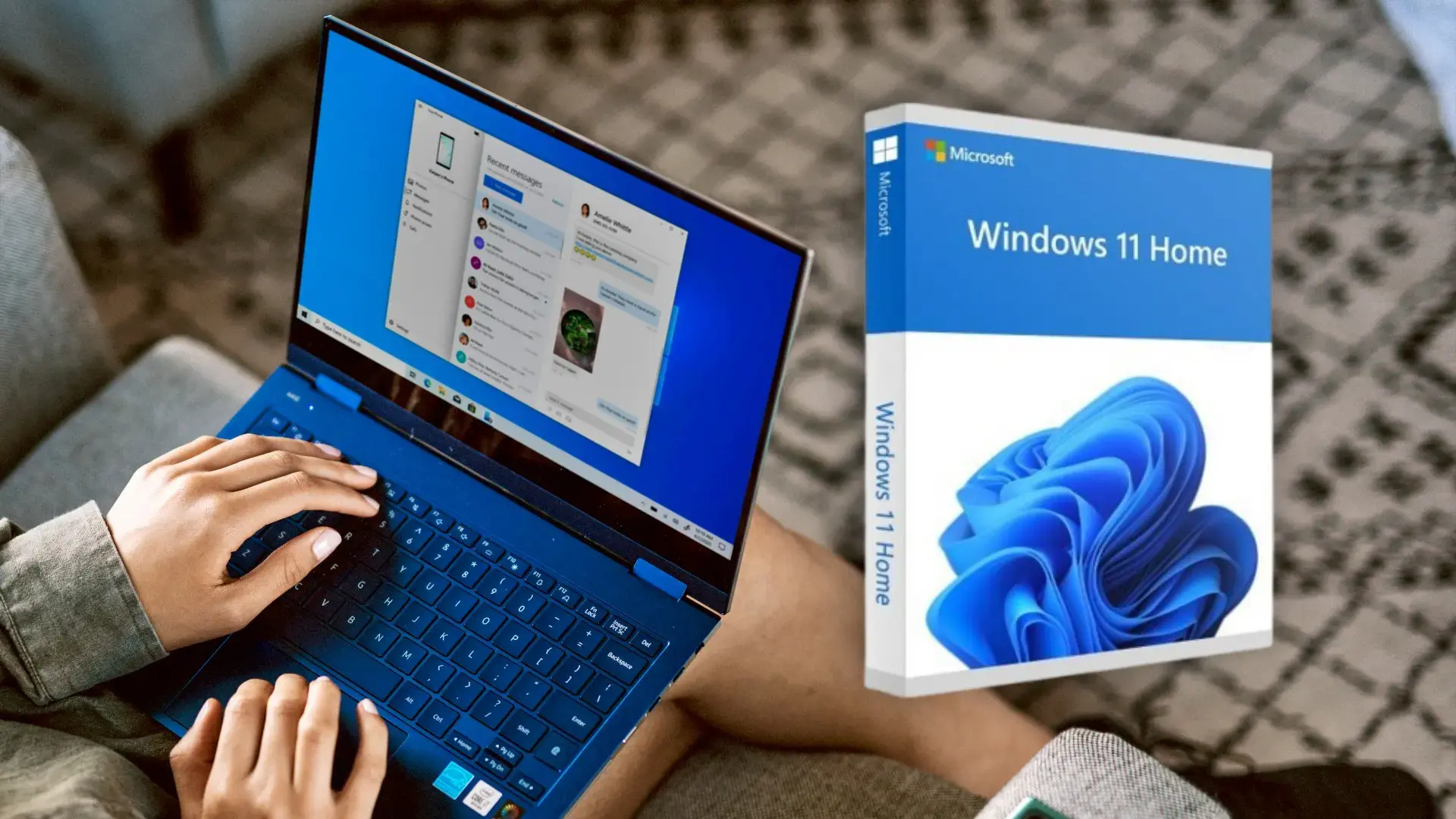
Within the Windows ecosystem, there are several licensing schemes, and not all of them allow you to move the software between computers. The golden rule is simple: Retail yes, OEM no, and volume licensing depends on the contract . Understanding this basic principle saves you time, money, and headaches.
Retail licenses: These are the ones you buy as a consumer (from Microsoft or authorized resellers). These can be transferred from one computer to another , as long as you don't try to use them on two computers simultaneously. You can activate it on the new PC after uninstalling it from the old one.
Volume licenses: designed for businesses, education, or public administration. They are managed by contract (typically 1-3 years), allow multiple activations, and their transfer between devices depends on the agreed terms . They are not governed by the same conditions as consumer retail licenses.
One nuance that many overlook: if your Retail license comes from a free upgrade from Windows 7/8/8.1 to Windows 10, that key is usually transferable, although the number of transfers may be limited . On the other hand, if it was an upgraded OEM Windows 7/8, the transfer is generally blocked because the source is OEM.
And now for the controversial issue: in theory, Microsoft distinguishes between OEM and Retail keys, but in practice, there are cases where the activation server doesn't differentiate and allows activation . Does this mean you can happily transfer an OEM key? No: the OEM contract states that you can't, and the correct procedure is to acquire a Retail license if you're going to change machines. It's another matter entirely if, on occasion, it might "get through."
Very important: the license is specific to each edition. A Home license cannot be used to activate a Pro installation (and vice versa) , and the same applies to N/Single Language and other variations. If you change editions, you need a valid key for that new edition.
Step-by-step guide to moving your license to another PC
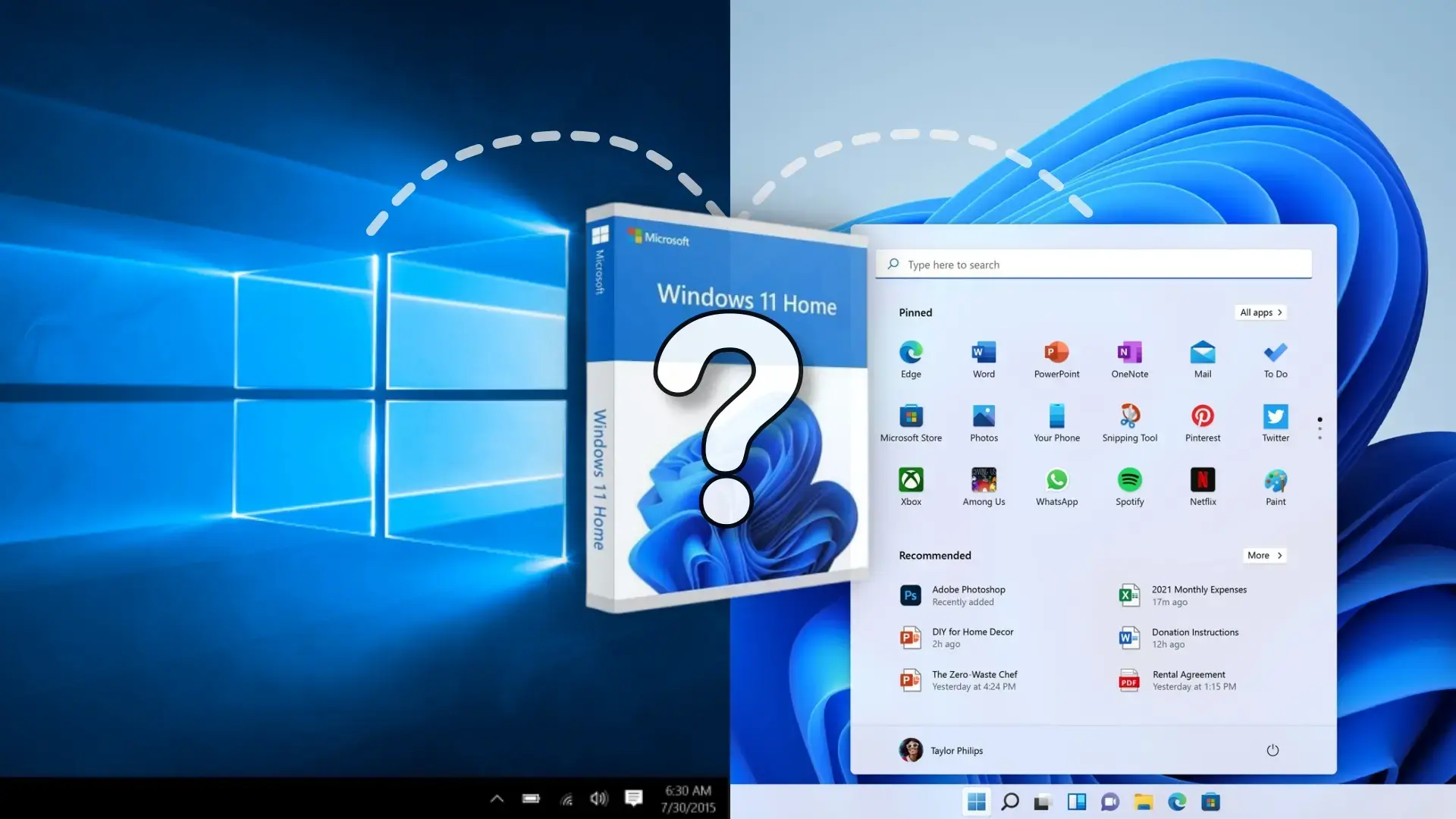
1) Check the license type and installed edition
Before you touch anything, make sure you know what you're dealing with. You can see the edition and license type directly from the system , so you'll know if it's worth continuing.
To see the edition, open Start and search for "This PC," go to Properties, and under Windows Specifications you'll see the installed edition. Confirm that you're installing the same edition on the new PC for the key to be valid.
To find out if it's Retail or OEM, open Command Prompt as administrator and run: slmgr -dli. A window will open displaying the last digits of your key and the licensing channel (RETAIL or OEM).If you see Retail, go ahead; if it says OEM, remember the previous limitation.
Another useful check is whether Windows is activated with a key or a digital license . In Settings > Update & Security > Activation , check the status. It may say "Windows is activated with a digital license" or "with a digital license linked to your Microsoft account." This detail will determine how to reactivate it later.
2) Link your Microsoft account to facilitate reactivation
Since the Windows 10 Anniversary Update (1607), Microsoft allows you to associate your digital license with your account . This is useful if you're changing your motherboard, migrating to a new PC, or if you simply prefer not to type in product keys.
Check if it's already linked in Settings > Update & Security > Activation. If the message says it's "linked to your Microsoft account," you're all set . If not, you'll need to add the account.
To link it: Sign in with an account that has administrator privileges, go to Settings > Accounts > Your info, and verify that you're using a Microsoft account (you'll see an email address above "Administrator"). Return to Activation, tap "Add an account," and sign in with your Microsoft ID . The status should change to "Digital license linked to your account."
This step is not required if you have and will use the product key, but it saves time if you later reactivate with the Troubleshooter after a major hardware change.
3) Deactivate Windows on the old PC
If the old computer will continue to be turned on (even if it is passed on to another person), uninstall the key before activating it on the new one to prevent Microsoft from detecting simultaneous use.
Open Command Prompt as administrator and run: slmgr /upk. That command uninstalls the product key and leaves the installation unactivated.Sometimes it's best to repeat the process if the uninstallation complete notification doesn't appear.
Next, clean the registry key with: slmgr /cpky. It's an extra measure to ensure no trace of the key remains in that installation.Again, run it with administrator privileges.
If you prefer a more drastic method, or if the old PC is changing hands, formatting is an option. Resetting Windows erases files, programs, and settings, protects your privacy, and prevents driver conflicts if the computer will be used with different hardware.
To format from Windows 10/11, go to Settings > Update & Security > Recovery and choose “Remove everything.” A clean install on the new PC minimizes errors, especially if you're switching to a different platform (for example, from a Phenom II to a Ryzen).
Note: Some articles mention a "Disable" option under "Change product key" in Settings. In current builds of Windows, you won't see a disable button as such.The supported method is that of slmgr /upk or a clean reset/installation.
4) Install Windows on the new PC and activate
Prepare the installation media using the Microsoft Media Creation Tool, creating a USB drive or ISO image. During installation, you can enter the product key or skip this step and activate it later from Settings.
Once the system is installed, go to Settings > Update & Security > Activation and choose "Change product key" if you're activating with a key. Enter the 25 characters carefully and double-check capitalization and hyphens to avoid mistakes.
If you prefer the command line, open CMD as administrator and use: slmgr /ipk XXXXX-XXXXX-XXXXX-XXXXX-XXXXX. You should see a notification that the key was installed successfully.Then, validate the state with slmgr /dlv and check “License status: licensed”.
Is your digital license linked to your account? Sign in with the same Microsoft ID on the new PC, go to Activation, and if it's not activated automatically, open the Troubleshooter . Choose "I recently changed the hardware on this device," sign in, select your computer from the list, check "This is the device I'm currently using," and click Activate.
If the internet or the server is unresponsive, phone activation is available. Press Windows+R, type slui 4 and choose your region. Call the toll-free number, dictate the installation ID, and write down the confirmation ID they give you.Enter that code and complete the activation. The wizard may only appear if the license is associated with your account.
5) Retrieve or locate your product key
Don't remember your key? There are several legitimate ways to find it. It might be in the purchase email, on the original packaging, stored in the UEFI, or in the system log if it was a manually entered key.
To easily extract it from the system, there are third-party tools (for example, ProduKey or migration suites that display keys). Always download them from their official website, and keep in mind that some antivirus programs flag them as potentially unwanted ; if you use them, proceed with caution.
There are commercial PC migration utilities that, in addition to moving apps and data, display Windows and Office product keys with just a couple of clicks . These are useful if you don't want to delve into the registry and need to identify licenses before migrating.
6) Particularities, limitations and good practices
Do not attempt to use the license on two computers simultaneously. Retail keys allow multiple transfers over time, but only one activation at a time . If the server detects duplicate use, it may deactivate an installation or block future activations.
If you upgrade your edition (from Home to Pro), you need a compatible key. Licenses don't transfer between editions or special variants (N, SL, Education, etc.). Make sure you install the ISO/USB with the same edition you were using.
Upgrade to Windows 11: If your license was for Windows 10 and your new hardware is compatible, you can directly install Windows 11 and activate it with your valid product key for the same edition. Activation is based on the edition, not the 10/11 version number.
There are real cases of users with older PCs incompatible with Windows 11 (due to CPU or TPM) who have built a new system and activated it without problems using their previous Retail license . The key is that the edition matches and that the source is not OEM.
Major hardware changes, such as replacing the motherboard in the same PC, can trigger deactivation. In these cases, having the digital license linked to your account speeds up reactivation with the ResolverIf that's not possible, the telephone channel with slui 4 usually solves it.
7) Alternative methods and support
If activation still doesn't work after trying online, troubleshooter, and phone activation, you'll need to contact Microsoft. Support offers online activation, automated phone activation, or activation with an agent . Have your installation ID and proof of purchase ready, if you have it.
In enterprise environments with volume licensing, the management and transfer of licenses between devices must adhere to the contract (KMS/MAK, validity period, activation count) . Consult with your organization's license administrator to ensure compliance with the agreement.
Real cases and frequently asked questions
Can I transfer an OEM motherboard from my laptop to my new PC? Officially, no. The OEM motherboard is tied to the original computer's motherboard; if you try to reactivate it, it may malfunction or become unusable . The correct procedure is to use a retail motherboard for the new computer.
If my license is a Retail license, is it enough to log in on the new PC? If the digital license is already linked to your account, then often yes. Log in, open Activation, run the Troubleshooter, and select the new device. If you use key, install it with Settings or slmgr /ipk.
“I don’t have the key, I installed it using the media creation tool”: that tool installs Windows but doesn’t “give” you the license. If your activation came from a Retail or a valid upgrade, you can reactivate with a linked account or with the recovered key.
“I’m concerned that the changes are happening too frequently”: Microsoft monitors the number of activations. After too many changes in a short period, automatic activation can be blocked . In that case, the phone method or a support agent is usually the solution.
What if my license was a free upgrade from Windows 7/8 to 10? If it was a retail license, you can transfer it to another computer . If it was a pre-installed OEM license, it's usually tied to that hardware.
A practical tip: If you're going to give away or sell your old computer, perform a clean installation or a "Remove everything" reset . It's the safest way to protect your data and avoid problems with drivers or residual activations.
Key commands and configuration paths (all at a glance)
To check the license type: slmgr -dli. It will tell you if it's OEM or Retail and will show the channel..
To uninstall the key from the old PC: slmgr /upk and, optionally, slmgr /cpky. Use it only if you are actually going to transfer the license.
To install the key on the new PC: slmgr /ipk XXXXX-XXXXX-XXXXX-XXXXX-XXXXX. Check with slmgr /dlv that the state be “licensed”.
To activate by phone: slui 4 and follow the wizard instructions. Enter the confirmation ID provided by the system.
Activation path via interface: Settings > Update & Security > Activation > Change product key. If the digital license is linked, use the Troubleshooter and the "I recently changed the hardware" option.
Notes on compatibility, editing, and hardware
Windows 11 has specific hardware requirements (TPM 2.0, supported CPU, etc.). Your old license doesn't bypass these restrictions; your new computer needs to meet them . Otherwise, you can stay on Windows 10 until support ends.
If your old PC doesn't support Windows 11 but your new one does (for example, upgrading from a Phenom II with an older graphics card to a Ryzen with a compatible GPU), install the same edition of Windows 11 and activate it with your retail license . This is a typical scenario that works without issue.
On new motherboards, some manufacturers embed an OEM key in the UEFI firmware. If you install a multi-edition ISO, it might detect this key and force an OEM edition . In that case, use media that allows you to choose the edition or enter your retail key during installation.
Keep in mind that drastic hardware changes (CPU/motherboard/storage) can trigger an activation re-evaluation. With a linked digital license, reactivation is more straightforward and less prone to errors.
Finally, if you plan to switch devices frequently, always consider purchasing a retail license. It's more flexible in the long run and avoids having to pay for new keys every time you upgrade.
Moving a Windows 11/10 license to another computer is perfectly feasible when the key is a Retail key or activation is linked to your Microsoft account, as long as you keep the same edition and don't keep it active on two computers simultaneously. With the right commands, account linking, and activation assistants (including phone activation), you can complete the transfer without incurring extra costs.