- Defender provides real-time protection and enables fast, comprehensive, customized, and offline examinations.
- Spot scans from the Explorer and exclusions with wildcards and environment variables.
- MSRT and Safety Scanner complement detection with updated manual analyses.
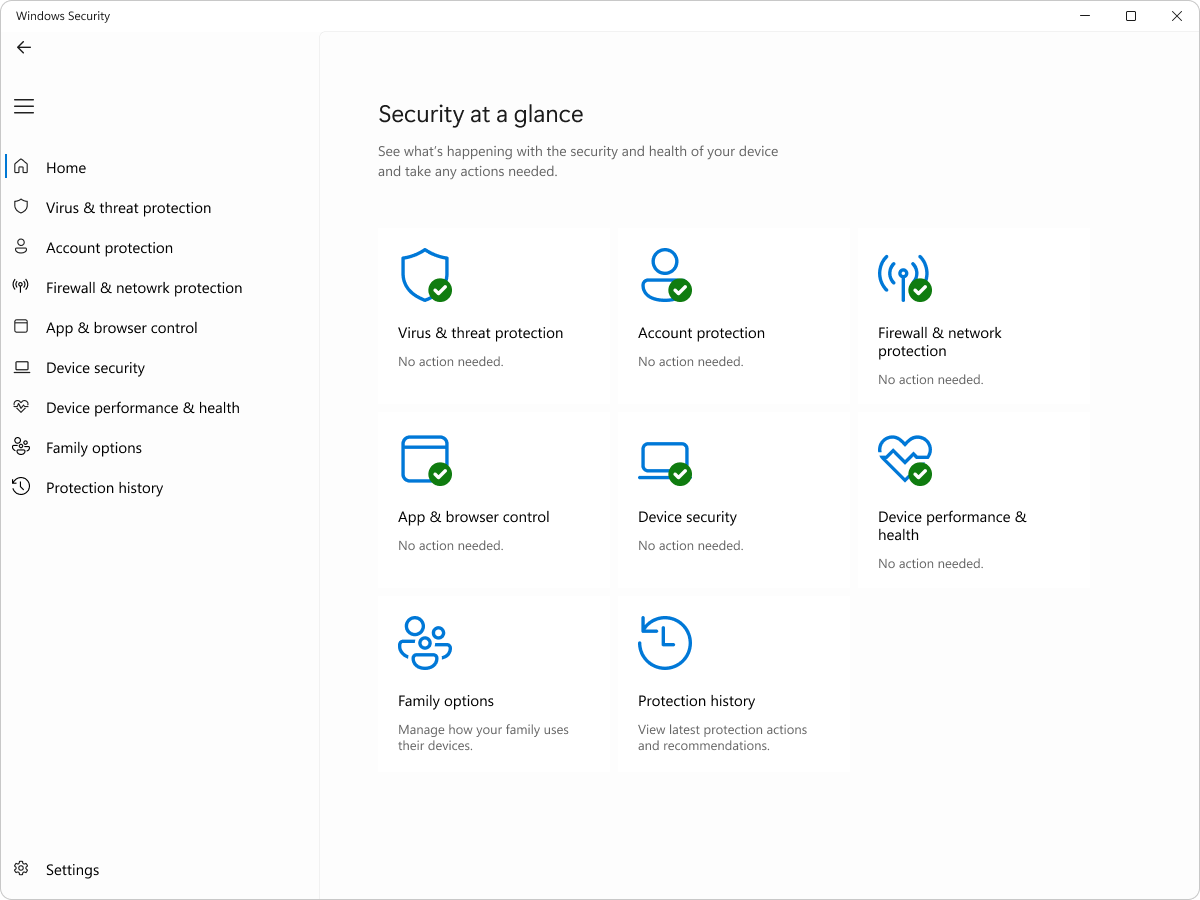
If you use Windows 11, you already have a built-in ally for keeping viruses at bay: Microsoft Defender Antivirus . This system monitors in the background and, when needed, lets you run full scans to locate and neutralize threats. Let's review everything you can do with it (and other Microsoft tools) to detect and remove malware without any hassle.
In this guide, you'll find step-by-step instructions and practical tips on how to scan your PC with Windows Defender, how to run spot scans from Explorer, when it's worth running a scan , how to create exclusions with wildcards and environment variables, and how to supplement your protection with MSRT (the tool accessible with "mrt") and Microsoft Safety Scanner (msert.exe). We also include security recommendations to prevent problems and what to do if the issue persists.
When is it advisable to take a security check?
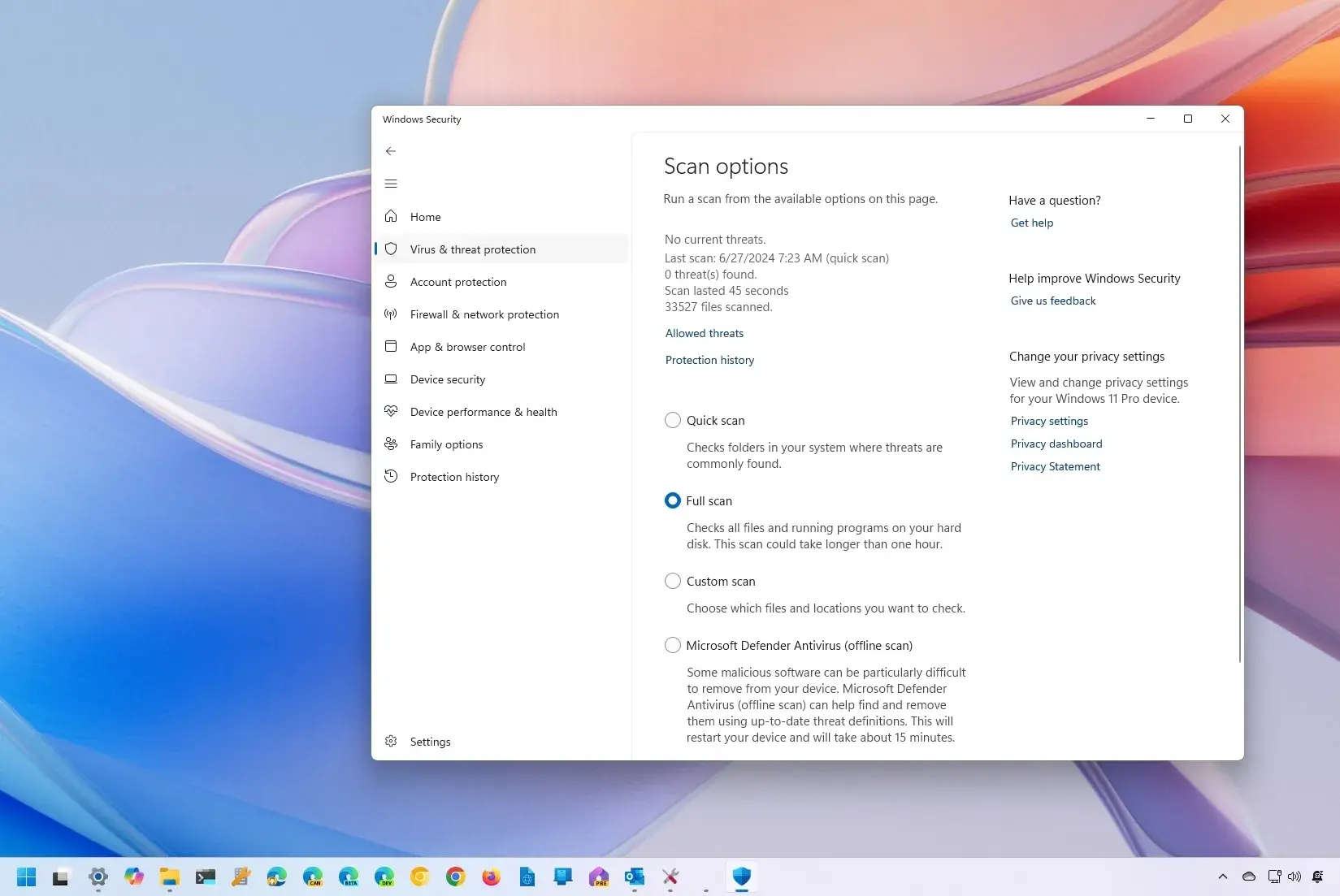
There are times when it's best to play it safe and run a manual check. If you suspect an infection or want to verify that a previous scare has cleared up, it's a good idea to run an on-demand scan . Defender will inform you upon completion if it finds anything and what action to take.
Some typical signs that something is wrong with your computer are clear: the system is running slower than usual , the battery drains faster than normal, or your data usage spikes for no apparent reason. These symptoms usually indicate that an unknown process is consuming resources in the background.
Common indicators of potential malware
-
Performance suddenly plummets, with apps taking longer to open or crashing more than expected.
-
The battery lasts significantly less than it used to, even without changes in your daily usage.
-
Unexpected data consumption, especially if you haven't installed anything new and aren't doing intensive downloads.
Other clues include persistent pop-up windows, unusual browser redirects , settings that change on their own, or programs you don't remember installing. At the slightest suspicion, examine your system.
Scan your PC with Windows Security (Microsoft Defender)
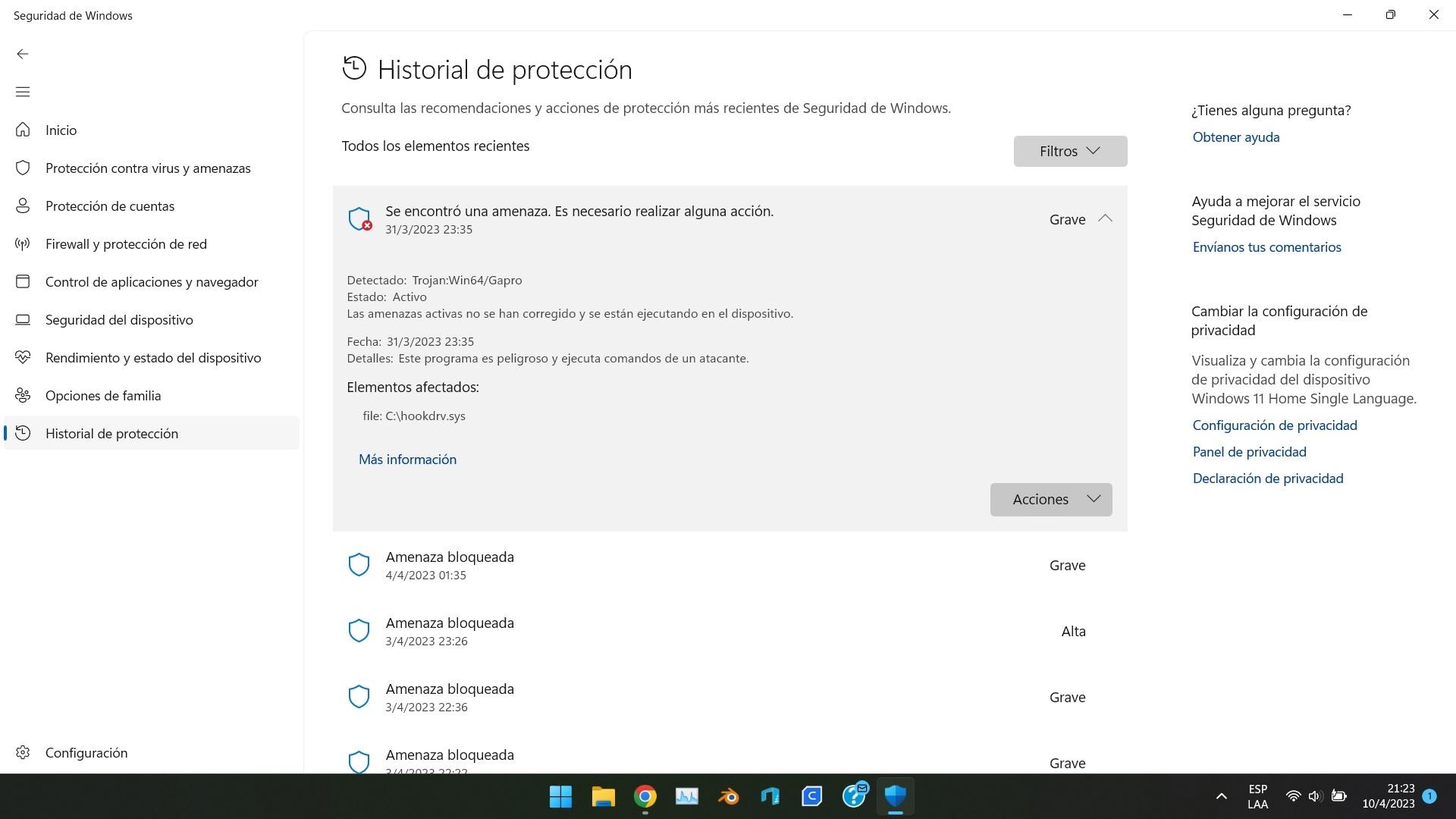
Windows 11 includes the Windows Security app , which lets you run scans at any time. Microsoft's antivirus works automatically in the background, monitoring the files and processes you open or download , but you decide when to run more thorough scans.
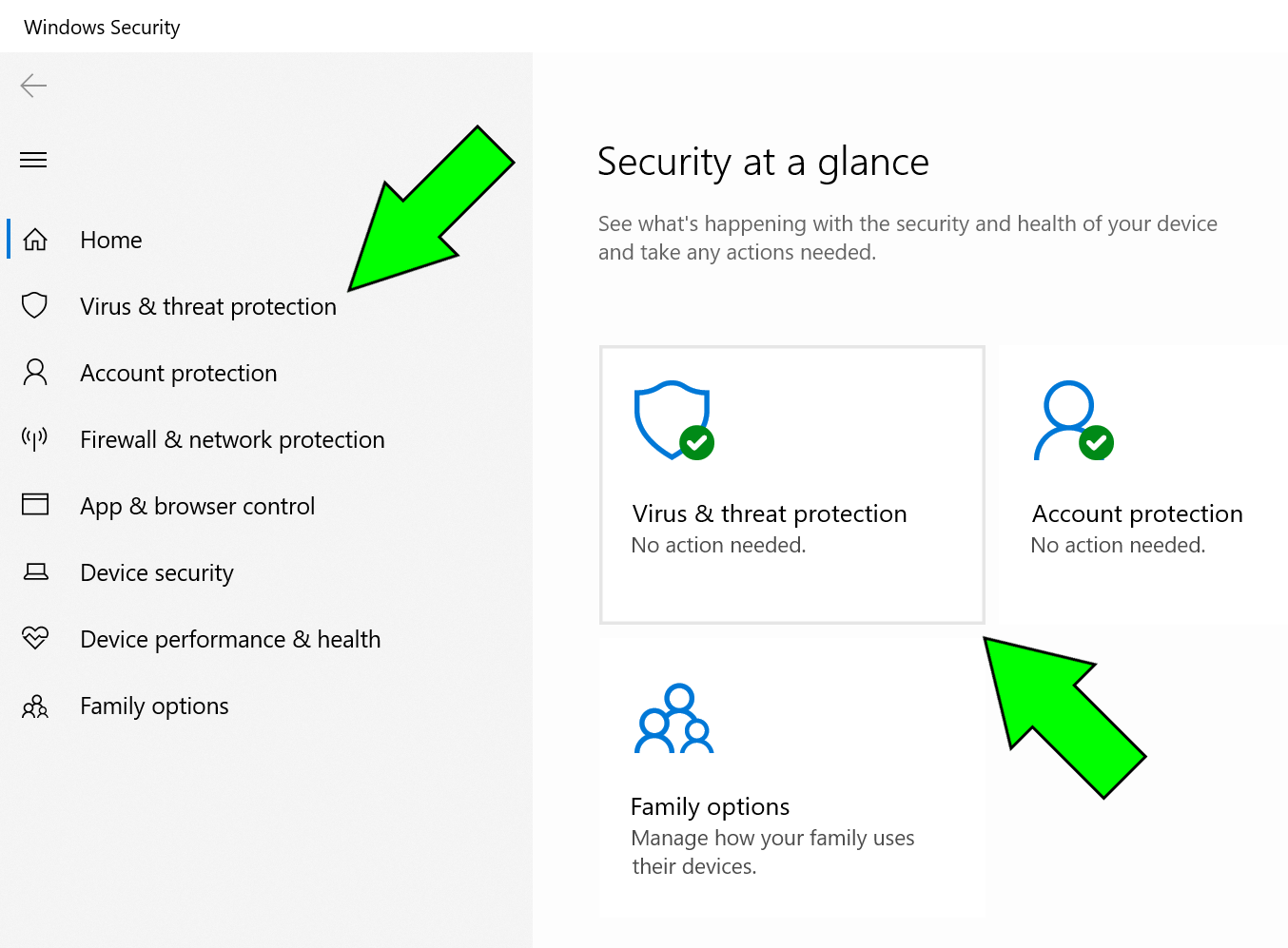
To open the console, go to Settings > Privacy & security > Windows Security, and tap "Open Windows Security." Then, go to "Virus & threat protection" and tap "Scan options" to choose how to proceed. Available scans include Quick, Full, Custom, and Microsoft Defender Antivirus's Offline mode .
The quick scan checks the most vulnerable areas; the full scan thoroughly examines every corner of the system; and with the custom scan, you choose specific folders or drives. The offline scan restarts the PC and analyzes before Windows loads , a very useful option against stubborn threats that hide during normal startup, such as UEFI bootkits.
When you tap "Scan now," Defender will analyze your files and show you if it detects anything suspicious. If it finds an infection, you can quarantine or delete the affected items , with clear recommendations for each finding. If it doesn't find anything, you'll see that immediately.
To confirm that protection is active, open the Windows Security app and go to "Virus & threat protection." In the "Who's protecting me?" section, click "Manage providers" to check your antivirus software. If you need to turn on real-time protection, go to "Virus & threat protection settings" > "Manage settings" and change Real-time protection to On.
Analyze files and folders from Explorer
Sometimes you don't want to scan the entire system, but rather a specific item that raises concerns. In that case, from File Explorer, you can right-click on any file or folder and select "Show more options," followed by "Scan with Microsoft Defender ." This is a quick way to verify if an attachment, download, or specific folder is clean.
When it's finished, you'll see the results. If it detects anything, the application will take you to the scan options page to manage the threat without wasting time . If nothing is found, you can rest assured that this element poses no known risks.
Exclusions in Microsoft Defender: When and how to configure them
In some advanced scenarios, you might not want your antivirus software monitoring a specific file, folder, or process in real time. For example, in development environments or with tools you know are safe but that generate false positives. In these cases, you can create exclusions, always with caution and only when strictly necessary.
Please note that these exclusions affect Microsoft Defender Antivirus's real-time scanning. Scheduled scans, whether from Defender itself or a third-party antimalware solution, may still scan for these items unless they are also excluded in those other products.
To add or remove exclusions, go to Windows Security > Virus & threat protection > Manage settings (under Virus & threat protection settings) and click Add or remove exclusions. You can choose from four types depending on what you need to exclude.
-
File : Excludes a specific file that you don't want checked in real time.
-
Folder : excludes a folder and all its contents, including files in its subfolders.
-
Type of file: excludes entire extensions. For example, using a pattern like
*stwill exclude.test,.past,.investand any extension that ends in “st”. -
Process : Any file opened by this process is excluded from real-time analysis. Note: These files may still be analyzed in manual or scheduled scans if they are not also excluded as a file or folder.
You can use wildcard characters to cover multiple cases with a single exclusion. An asterisk (*) replaces any number of characters. Practical examples:
-
In process:
C:\\MyProcess\\*will make all processes located inC:\\MyProcessand its subfolders are excluded from real-time analysis. -
In processes by name:
prueba.*This excludes files opened by any process whose name is "test", regardless of their extension.
Furthermore, it's possible to use environment variables to flexibly define routes. For example, an exclusion that uses %PROGRAMDATA%\\CustomLogFiles\\test.exe will allow the files opened via that specific path These will be excluded from real-time analysis. Check the list of available environment variables in the Windows documentation if you need other paths.
Removing exclusions is just as easy: go back to “Add or remove exclusions”, select the one you don't need, and tap “Remove” to revert the change . Remember to periodically review your exclusions to avoid unnecessary gaps in your protection.
MSRT (mrt): the classic tool for removing malware
In addition to Defender, Windows has included a tool for years that many overlook: the Microsoft Software Removal Tool (MSRT). It doesn't replace antivirus software or perform real-time scans, but it can detect and remove certain common malware families , including some rootkits , with a very simple manual scan.
To run it, press the Windows key + R simultaneously to open the "Run" dialog box. Type mrt and confirm with OK. Windows will ask for administrator permission; click Yes. You will see the Microsoft Malicious Software Removal Tool window, with a brief introduction and the button Next to begin.
Choose the scan type: quick, full, or custom (the latter allows you to check specific paths). The scan can take anywhere from a few minutes to over an hour, depending on the size of your disks and the number of files . When finished, MSRT will tell you if it has found anything and, if so, offer you the option to delete it.
MSRT is useful if you're overwhelmed by Defender's many options or if you're looking for a traditional manual scan . However, keep in mind that its scope is designed for common threats, and for a more thorough scan, it's best to use Defender's built-in scans, including its offline mode.
Microsoft Safety Scanner (msert.exe): Updated on-demand scan
Another official tool worth keeping an eye on is Microsoft Safety Scanner, a portable executable you can download and run whenever needed. Its purpose is to scan for and remove malware from Windows computers and attempt to revert changes caused by identified threats . It's ideal as a second opinion when you suspect something has slipped through and complements other maintenance tools and tricks.
There are several key points to keep in mind: Safety Scanner's definitions are frequently updated, and the tool expires 10 days after download . If you want to use it again after that, download the latest version and run it again to ensure it has the most up-to-date security intelligence.
Safety Scanner does not install or appear in the Start menu or on the desktop. Save the file somewhere you will remember it (usually, msert.exe) and open it to start the exam. You can choose between quick, full, or personalized exams.And at the end you will see a summary on the screen.
If you want to see the full details of the detections, check the log that the tool leaves in %SYSTEMROOT%\\debug\\msert.logTo "uninstall" it, simply delete the executable when you no longer need it. Remember: it doesn't replace your antivirus, and for real-time protection, it's recommended to keep Microsoft Defender enabled.
Best practices for preventing malware in Windows 11
No test can replace prevention. The more you reduce the attack surface, the less chance malware has of getting in. Windows 11 comes with several features and settings that, combined with common sense, represent a significant leap forward in security.
-
Keep Windows and your apps up to date : Go to Settings > Windows Update and tap "Check for updates." These patches often include security fixes that address exploitable vulnerabilities.
-
Download software only from trusted sources : ideally, the manufacturer's website or the Microsoft Store. Avoid unofficial websites or illegitimate versions of paid software, which often come with unwanted bundled products.
-
Activate the firewall on all profiles : Go to Windows Security > “Firewall and Network Protection” and review the Domain, Private, and Public networks. Enable the firewall on each one to block unauthorized access. You can also use a free program to manage the firewall.
-
Use strong, unique passwords and enable multi-factor authentication whenever possible. A password manager can make your life easier without sacrificing security.
-
Make regular backups of your important files, either on an external drive or in the cloud. In the event of a serious incident, you'll be glad you can recover your data.
-
Be careful with attachments and links in emails : verify the sender, be wary of messages that play on urgency, and avoid opening executable files you weren't expecting to receive.
If you suspect a specific file is the source of the problem, delete it and empty the Recycle Bin . If you can't delete it, see how to delete files that can't be deleted in Windows.
Recommended scans and how to respond to detections
When the problem looks serious, it's worth running a full scan with Defender followed by an offline scan . This mode restarts the system and scans before loading services and drivers, making it harder for malware to hide.
If Microsoft Defender detects malware, it will suggest actions: the most common are to quarantine or delete the file. Quarantining the file neutralizes the risk without permanently deleting it , allowing you to restore it if it was a false positive. If you don't need the file, proceed with deletion.
If you configured exclusions, remember that they only apply to real-time scans . A manual or scheduled scan might still check for excluded items, unless they are also excluded in that type of scan or in another antimalware product you have installed.
When you're finished, check the protection history in the Windows Security app (under "Virus & threat protection") to see what actions were taken and when . This record will help you understand the scope of the incident.
If the malware persists: advanced steps
There are stubborn situations where, despite scans, the system continues to misbehave. In these cases, combine several layers: run Defender's offline scan, use MSRT, and rely on a recently downloaded Microsoft Safety Scanner for up-to-date definitions. Many infections are removed with this strategy.
If nothing else works, consider a clean reinstall of Windows as a last resort. Before taking that step, copy your critical files to an external drive or the cloud. And if you need help, consult the official documentation, community forums, and your manufacturer's support to resolve specific questions.
More resources and learning
Microsoft itself offers resources to help you understand how malware infiltrates systems, what tactics it uses ( phishing , deceptive downloads, exploits), and how to reduce the risk. Explore the Microsoft Security help and learning sections to strengthen your protection habits and learn about new tools as they become available.
Remember that security isn't a button you flip and that's it; it's an ongoing process. Keep your system updated, use the built-in features of Windows 11, run regular scans , and minimize the installation of software from unknown sources.
With all of the above in mind, maintaining a healthy Windows 11 system shouldn't be a headache: Defender provides real-time protection , Explorer lets you check files on the fly, exclusions give you fine-tuned control when you need it, and MSRT and Safety Scanner offer a quick second opinion when something seems amiss. If you also keep your system updated, activate the firewall, and use caution when downloading and opening files, your computer will be much better protected against viruses and other digital threats.