- Optimize Chrome with native performance tweaks, preloading, and hardware acceleration without touching experimental features.
- Control tabs, extensions, and browsing data to reduce memory consumption and background processes.
- Take advantage of internal tools, omnibox shortcuts, and keyboard shortcuts to move faster and resolve bottlenecks.
- Replicate these tricks in the mobile version of Chrome by adjusting preloading, cache, gestures, and video previews.
If you've noticed that Google Chrome is getting slower , taking a long time to open tabs, or your laptop is running like a steam engine, you're not alone. Chrome is still the king of browsers, but it's also one of the biggest resource hogs if you leave it running with a thousand tabs, extensions, and years of accumulated data.
The good news is that you can significantly speed up Chrome by simply tweaking native settings, without installing any unusual software or messing around with experimental options that could break something. This guide offers a comprehensive collection of tips, tweaks, and best practices (for both desktop and mobile) to get your browser running as smoothly as the day you bought it… or even better.
1. Keep Chrome up-to-date and well-maintained.
Before we delve into advanced settings, the most important thing is to make sure Chrome is up to date . Each new version includes performance improvements, security enhancements, and bug fixes that might be exactly what's slowing down your browser.
To manually check for a new version , open the three-dot menu (top right), go to Help > About Google Chrome , and wait a few seconds. The browser will automatically search for, download, and install updates; you'll usually just need to restart it. If you tend to ignore notifications, this quick check ensures you're always using the latest version.
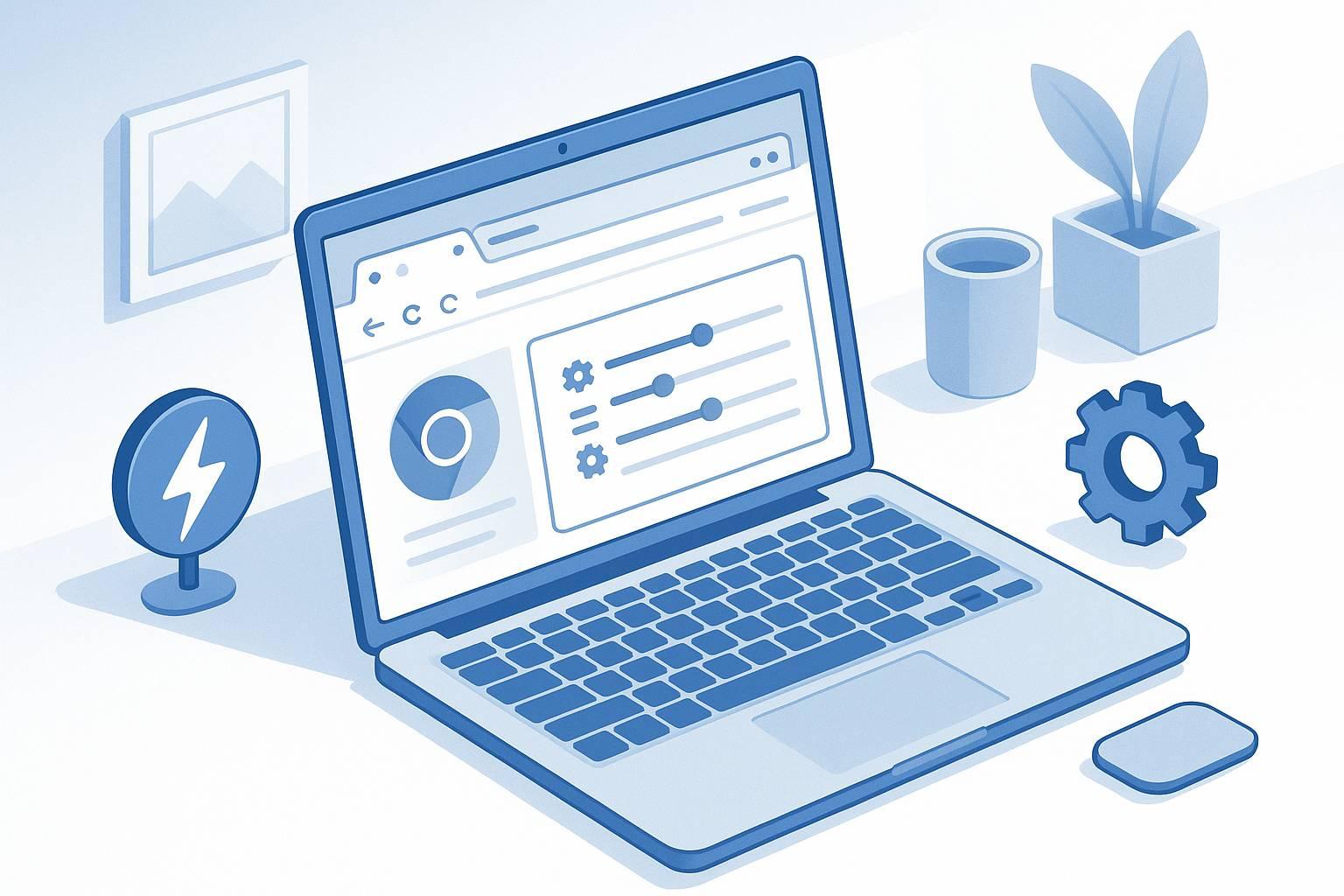
If your browser is still running slowly after trying many different settings , a drastic but very effective solution is to reinstall it from scratch. Uninstall Chrome from your system, download the latest version from the official website, and perform a clean install. This will immediately remove any corrupted configurations or leftover extensions that might be causing problems in the background.
2. Native performance settings: where it really makes a difference
Chrome includes a powerful performance dashboard that most users never even look at. From there you can monitor memory usage, GPU usage, background processes, and page preloading.
Memory saving and energy saving
The Memory Saver feature automatically frees up RAM by suspending tabs you haven't used in a while, so the ones in the foreground run much more smoothly. When you return to a "sleeping" tab, it reloads and you're good to go.
To activate it, go to Settings > Performance (or type chrome://settings/performance in the address bar) and turn on Memory saver . From there you can also select websites you want to keep active at all times (for example, a music app, email, or video calling app).
On laptops, you'll also be interested in Power Saving mode , which reduces background activity and some visual effects when you're on battery power. This not only extends battery life but also helps your browser run more smoothly when your computer is running low on resources.
Chrome can anticipate and load pages it thinks you're going to visit based on your browsing habits and the links you usually click. This makes many sites seem to open almost instantly.
Go to Settings > Performance or Privacy and security and look for the Preload pages option for faster browsing and searching . You can leave it on standard preloading or switch to extended preloading, which uses more data and Google servers for even faster speeds. If you have a metered connection or a limited data plan, you should consider the balance between speed and data usage.
Hardware acceleration and background processes
Hardware acceleration allows the graphics card to handle some of the work of rendering videos, animations, and other resource-intensive content, freeing up the CPU. On most computers, this improves speed, but on older machines or those with problematic drivers, it can cause stuttering or graphical glitches.
You can enable or disable this option in Settings > System by checking or unchecking "Use hardware acceleration when available" . If you suspect your graphics card is malfunctioning, go to chrome://gpu to check its status and try disabling acceleration as a test.
In that same System section, you'll see the option " Continue running background apps when Google Chrome is closed ." If you don't need Chrome apps running when you close the browser, disable it: you'll free up memory and truly close all processes when you exit.
Choose carefully how Chrome starts up
Many users have Chrome configured to open all the tabs they were last using. If we're talking about 100 tabs, the startup process can take forever. From Settings > On opening the browser, you can choose between opening the new tab page, restoring the previous tab, or loading a specific set of lightweight pages.
A convenient strategy is to save unread items to your Reading List or bookmarks, instead of leaving them open indefinitely. This way, Chrome starts up quickly and you only open what you actually need in each session.
3. Master the tabs without killing your memory
Chrome struggles, especially when we accumulate tabs like there's no tomorrow . Each tab is a process with its own memory consumption, and if you add extensions and background videos to that, the result is a sluggish browser.
Group, pin, and move tabs like a pro
Tab groups are a fantastic way to stay organized . Right-click on a tab and choose Add tab to new group . You can name it, choose a color, and collapse the group to free up space in the toolbar. Then, drag other tabs into the same group or create more groups as needed for your projects.
If you also pin your essential tabs (mail, messaging, key tools), they'll always be on the left, taking up less space and preventing accidental closures. Right-click on the tab > Pin , and it will stay attached to the bar, even between sessions if you've configured it that way.
When working with many tabs , you can select and move several at once. Hold down Ctrl and click on the tabs you want, or use Shift to select a range. Then, drag the group to reorder them or move them to a new window.
Close, mute, and discard resource-intensive tabs
The simplest but also the most effective solution: close what you don't need . Every tab left open "just in case" is wasted RAM and wasted performance. In Windows, you can quickly close them with Ctrl + W , and if you make a mistake, restore the last tab with Ctrl + Shift + T.
If a tab suddenly starts playing sound and you can't identify it , look for the speaker icon in the tab bar. Right-click on that tab and select "Mute site" to silence all playback on that website without having to hunt for the player within the page.
For situations where memory is limited , type chrome://discards in the address bar. You'll see a list of tabs with their resource usage and a Discard button to manually dismiss them. They remain visible, but their content is unloaded from memory and reloaded when you return, which is very helpful on computers with limited RAM.
Centralized multimedia control
If you have music, podcasts, or videos open in multiple tabs , you don't need to pause them one by one. To the right of the address bar, you'll see a musical note icon. Clicking it opens a panel where you can pause, resume, skip tracks, or even pop the video into a floating window—all without switching tabs.
Reading list and pages for later
Many of us accumulate tabs simply because "I'll read them later ." It's better to use the bookmarks feature and the Reading List. Click the star in the address bar and choose whether you want to save the page to your bookmarks or add it to your Reading List.
The Reading List shows you which articles are pending and which you've already read , automatically marking them as you open them. This way you don't need to have 30 tabs open "waiting" and Chrome runs much more efficiently.
4. Extensions and apps: remove anything that doesn't add value
Extensions are great until you have too many . Each one adds processes, scripts, and constant resource consumption, even if you barely use them. This is one of the most common reasons why Chrome becomes sluggish.
Audit and clean your extensions
Go to chrome://extensions to review everything you have installed . Ask yourself, without hesitation, what you actually use on a daily basis. Turn off what you don't need with the switch and remove extensions you haven't touched in months with " Remove extensions."
An effective technique is to uninstall almost everything and reinstall extensions one by one, testing how the browser responds. As soon as you notice Chrome slowing down again after installing a specific extension, you've found the culprit.
If a function of an extension already exists natively in Chrome (pop-up blocking, autocomplete, password management , etc.), it is usually better to use the built-in function, which is more optimized and consumes fewer resources.
Separate profiles and guest mode
Creating separate profiles for work and personal use is a highly underrated trick . Each profile has its own set of extensions, history, and settings. You can have a very lightweight one for work, with only the tools you really need, and a fully loaded one for your personal use.
If you want to diagnose why Chrome is running slowly , open a window in Guest Mode . In this mode, your extensions and data won't load. If the browser runs quickly there, the problem is almost certainly with an extension, website storage, or your settings.
Web applications and shortcuts
Many web services offer a Progressive Web App (PWA) version that integrates better with the system and is usually lighter than having the website open in a separate tab. When a website allows it, Chrome will display an installation icon in the address bar with an "Install" option.
You can also create shortcuts from More tools > Create shortcut . You can make it open in a separate window like a desktop app, ideal for email, notes, or task managers.
5. Cleaning up data, cache, and permissions
Over time, Chrome accumulates a lot of cache, cookies, and website data that can cause slow performance, strange errors, or pages that don't load properly. Regular cleanup keeps the browser running smoothly and reduces problems.
You can open the deletion window directly with the shortcut Ctrl + Shift + Delete . Select the time range (from the last hour to all time ) and check at least Cached images and files and Cookies and other site data . If you want to go further, in the Advanced settings tab you can add saved passwords, autofill data, etc.
If only one specific website is giving you problems (it doesn't load properly, it's excessively slow, it freezes, etc.), you don't need to delete everything. Go to chrome://settings/siteData , find the domain you're interested in, and delete only the storage for that site.
Third-party cookies are often used to track you and load ads , and can generate significant background activity. Go to Settings > Privacy and security > Cookies and other site data and consider blocking third-party cookies, at least in incognito mode.
From Site Settings, you can go further and control permissions for notifications, camera and microphone access, pop-ups, JavaScript, and even images. On slow connections, a radical but effective option is to block image loading: the visual experience suffers, but pages load incredibly fast.
If you ever accepted notifications from heavy or annoying websites , you can also revoke those permissions from Site Settings, preventing them from activating background processes when you don't even have them open.
Chrome security and internal cleanup
Chrome has its own built-in tool to scan for harmful software that might be affecting performance. Go to Settings > Reset and clean up > Clean up computer and click Search . The browser will scan your system for problematic programs related to Chrome.
In that same section, you can reset the settings using the "Restore original default settings" option . This returns your homepage, search engine, and pinned tabs to their initial state, disables extensions, and clears temporary data, while keeping bookmarks, history, and passwords.
6. Internal tools to get the most out of Chrome
Chrome hides several very useful internal pages to see what's happening inside when the browser is slow.
Pressing Shift + Esc opens Chrome's Task Manager , where you'll see all tabs, extensions, and processes along with their CPU, memory, and network usage. Sort by the CPU or Memory column to pinpoint what's consuming your performance.
Select any item and click End Process to close it instantly. This is much more accurate than closing the entire browser and helps you identify websites or extensions that have become erratic.
Key internal URLs
If you want to tinker a bit more, there are several very practical internal addresses :
- chrome: // discards: to dismiss tabs and see how Chrome manages memory.
- chrome: // gpu: information about hardware acceleration and GPU status.
- chrome: // settings / siteData: site-specific storage, ideal for cleaning up specific websites.
- chrome: // chrome-urls: complete list of all available internal URLs.
Use them wisely, as some are designed for advanced users . Even so, you don't need to tweak experimental flags to see a huge improvement: these standard tools are usually more than enough.
7. Omnibox tricks and shortcuts that save a lot of time
Chrome's address bar (omnibox) is much smarter than it seems . It's not just for entering URLs or performing searches; it also launches direct actions and internal searches.
Chrome actions and shortcuts with @
If you type things like "clear browsing data," "open incognito window," or "translate this page ," you'll see that the omnibox itself suggests an action with a button. You click it, and Chrome makes the adjustment without you having to navigate through menus.
Additionally, you can use the commands @tabs, @history, and @bookmarks . Type one of them, press space, and then your search. This will find previously opened tabs, pages you've visited, or saved links, preventing duplicates from being opened and saving memory.
Search within websites from the search bar
For many websites with an internal search engine (YouTube, Amazon, Wikipedia, etc.) , simply type their domain (for example, youtube.com ) and press the Tab key . You'll see an indicator that you're searching "within" YouTube, and what you type next will be sent to their search engine without going through the homepage.
You can create custom search engines from Settings > Search > Manage search engines , assigning short keywords to your favorite sites. This allows you to launch specific searches with very few keystrokes.
Essential keyboard shortcuts
Getting used to a few shortcuts saves you dozens of clicks a day and makes the browser feel much more responsive:
- Ctrl + T: open new tab.
- Ctrl + W: close current tab.
- Ctrl + Shift + T: reopen the last closed tab.
- Ctrl + Tab / Ctrl + Shift + Tab: move between tabs.
- Ctrl + 1…8: jump to a specific tab; Ctrl + 9 It's the latest.
- Ctrl + L o Alt + D: focus on the address bar.
- Ctrl + F: search for text within the current page.
- Ctrl + P- Print or save as PDF.
On macOS, most of these shortcuts change Ctrl to Command , and Shift to Caps Lock, but the logic is the same.
8. Chrome on mobile: settings and gestures that make a difference
All of the above is very helpful on a computer, but there's also room for improvement on mobile . Chrome for Android and iOS includes several options designed to speed up browsing and reduce data consumption.
Page preloading and caching on mobile
From the Chrome menu on your mobile device, go to Settings > Privacy and security and enable Preload pages for faster browsing and search . If you choose extended preloading, Chrome will use Google's servers to load pages in advance, which is very convenient if you browse a lot while connected to Wi-Fi.
Clearing your phone's cache and cookies also makes a difference . Go to History > Clear browsing data , choose the time range (if you want, All time ) and select cached images and files, as well as cookies and website data. Accepting this will free up space and may prevent many crashes and errors.
Videos and previews: don't let them slow you down
Video previews consume data and resources even if you don't play them. From the Google app, go to google.com/preferences , then to Other settings , and turn off Autoplay video previews . Your browsing will be smoother, and you'll use less data.
Quick gestures to move between tabs
On Android, the address bar also functions as a trackpad . You can swipe left or right on it to switch between tabs, pull down to see the tab switcher, or drag down on a page to quickly reload it.
On long pages, using these gestures combined with the browser cache makes moving and reloading much faster than constantly using the interface buttons.
Read mode, downloads and data
Chrome for mobile offers a Simplified View in the Accessibility settings, which displays a much lighter reading mode. Use it for long articles with lots of ads or resource-intensive elements; the text loads faster and you use fewer resources.
If you know you'll be in an area with poor internet coverage , you can download entire web pages from the Download menu . They then open almost instantly in your browser, just like local content, which is very useful on trains, subways, or in areas with weak signal.
With this set of tweaks, tricks, and good habits, you can completely transform the perceived speed of Google Chrome, both on your computer and mobile device. Reducing tabs, managing extensions, taking advantage of the performance dashboard, and clearing data from time to time will make the browser run smoothly, stably, and without lag, even on older devices.
