- An eGPU combines a desktop chassis, power supply, and GPU to provide extra graphics power to laptops and mini PCs via Thunderbolt, M.2, or OCulink.
- Performance is very high, but always somewhat lower than that of a desktop PC due to bandwidth limitations and latency of external connections.
- eGPU cases and DIY assembly allow you to choose the power supply, size, and connectivity, although the total cost (chassis + GPU) is usually high.
- External graphics cards make sense especially for ultrabooks, MacBooks, and mini PCs without a dedicated GPU, when you're looking for maximum performance at home while maintaining portability.
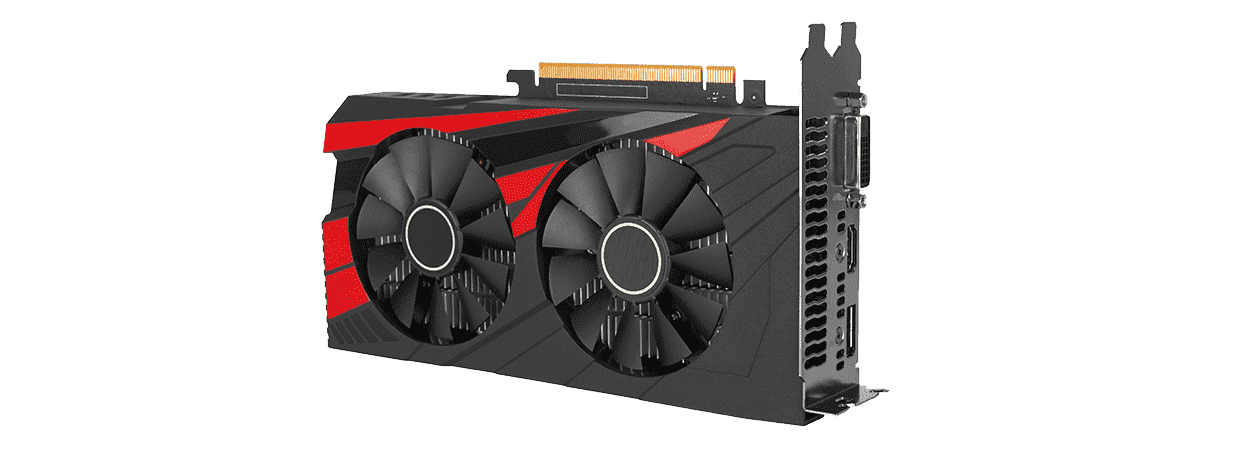
If your laptop starts struggling to breathe every time you open a demanding game or edit high-resolution video , it doesn't necessarily mean it's time to give up. Check out " Why is my laptop so noisy?" to diagnose ventilation and performance issues. In many cases, the bottleneck is in the graphics card and can be fixed without replacing the entire computer. That's where external graphics cards, also known as eGPUs, come in.
An eGPU is, simply put, like putting a high-end engine in a city car without changing the chassis . You continue using your lightweight laptop for everyday tasks, but when you get to your desktop, you connect it to an external enclosure with a powerful GPU and get desktop-level performance (with some caveats). Let's take a closer look at what they are, how they work, what you need, how much performance they actually offer, and in what situations it's worthwhile to install an external graphics card for your laptop.
What exactly is an external graphics card (eGPU)?
When we talk about an external graphics card, we're not just referring to a loose GPU connected by a strange cable. A modern eGPU is a complete system consisting of an enclosure or chassis, a powerful power supply, and a standard PCI Express graphics card like those found in desktop PCs.
That chassis acts as a small "graphics PC": inside it is a piece of motherboard with a PCIe slot, the circuitry needed to communicate with the laptop, and the power supply . From the outside, you only see a more or less compact box with a few ports and ventilation.
Instead of being directly connected to the motherboard, the GPU communicates with the laptop via a high-speed link . Traditionally, this is done using Thunderbolt 3 or Thunderbolt 4 over USB-C, although there are also solutions based on M.2 PCIe or OCulink, especially in the world of mini PCs and home builds.
The great advantage of this approach is that we can use "normal" desktop graphics cards (NVIDIA or AMD) outside of the laptop , without having to rely on mobile graphics chips soldered to the motherboard and without buying a huge and heavy gaming laptop.
How an eGPU works and what you need
In practical terms, it's quite simple: you connect the eGPU enclosure to a power source, plug the Thunderbolt cable (or the appropriate cable) into your laptop, and the operating system detects the new GPU . From that moment on, games and programs can use it as if it were already integrated into the computer.
On a technical level, what happens is that all the graphics instructions and data previously handled by the integrated or dedicated internal GPU now travel via the Thunderbolt connection to the eGPU. The eGPU processes the graphics and sends the video signal to an external monitor or back to the laptop, depending on the configuration.
For all of this to work smoothly, you need three basic components: a compatible laptop or mini PC, an eGPU enclosure, and a graphics card compatible with that enclosure . It seems obvious, but not everything works with everything, so it's worth checking carefully:
- The laptop portIdeally, you would use Thunderbolt 3 or 4. You can also use M.2 PCIe or OCulink in more advanced configurations.
- The box power supplyIt has to supply the power required by your GPU and, if you want, charge the laptop (60-100W Power Delivery).
- The interior space of the chassis: current graphics cards can be gigantic, up to 3 slots thick.
In practice, many commercially available eGPUs come ready to plug in; simply connect a single cable to your laptop and forget about it . DIY setups with PCIe support and ATX power supplies involve more cables, are bulkier, and slightly less convenient, but can also save you a significant amount of money.
Advantages and disadvantages of using an external graphics card
The main reason for installing an eGPU is obvious: to gain significant graphics power without sacrificing a lightweight and quiet laptop for work or study . When you sit down to play games or edit video at home, you simply plug in the enclosure and you're good to go.
In terms of user experience, the difference is remarkable. Games that used to be choppy now run smoothly, rendering times decrease, and the laptop no longer feels like a jet engine taking off . And since the weight and heat are distributed outside the main unit, the internal temperature also improves; to avoid problems, see common errors that shorten the lifespan of your PC and how to mitigate them.
Another strong point is flexibility: you can upgrade the external GPU over the years without changing your laptop , just like you would with a desktop computer. Furthermore, there are enclosure models that add extras such as USB ports, Ethernet, or even space for SATA drives.
However, all that glitters is not gold. eGPUs are still bulky systems (large cases plus power supply) , require a power outlet, and aren't exactly cheap. Between the case and the graphics card, the budget isn't small.
It's also important to keep in mind that performance is never identical to that of the same GPU installed in a desktop PC . Communication via Thunderbolt or USB4 has less bandwidth than a direct PCIe 4.0 x16 connection and adds some latency, resulting in a slight loss of FPS.
External graphics card connections and compatibility
Most commercial laptop eGPU solutions are based on Thunderbolt 3 or Thunderbolt 4, which use a USB-C connector and offer up to 40 Gbps of bandwidth . This equates to about 5 GB/s spread over two logical communication lines.
Thunderbolt 3 and 4 not only transfer data, they can also carry DisplayPort video signals for high-resolution monitors (5K, 6K or 8K depending on the implementation) and deliver power to the laptop via Power Delivery (typically 60, 85 or 100 W).
In addition to the main connection port, many eGPU enclosures include extra USB ports, Gigabit Ethernet, and sometimes SATA drive bays . This compensates for the loss of ports on the laptop when using the dedicated Thunderbolt connector for the external graphics card.
Another sensitive issue is compatibility with operating systems and GPUs. Windows 10 and Windows 11 offer fairly good support for eGPUs , while macOS is more restrictive and primarily works with compatible AMD graphics cards (RX 560, 570, 580, and later models in some cases).
You should also check the laptop's Thunderbolt firmware: it must be up to date and, in many models, at least version 16 to avoid bandwidth errors and outdated limitations . Previous generations had bugs (like the infamous H2D bug) that capped performance at 1000 MB/s; manufacturers have fixed this in recent revisions.
Real-world performance of an eGPU versus an internal GPU
Although Thunderbolt's performance figures may seem high, they still fall short of what a PCIe 3.0 x16 or PCIe 4.0 x16 slot connected directly to the motherboard offers . This means that, with the same graphics card, an eGPU will always perform somewhat worse than in a desktop PC.
To give you an idea: Thunderbolt 3/4 offers a theoretical 40 Gbps (about 5 GB/s), while PCIe 3.0 x16 is around 16 GB/s and PCIe 4.0 x16 reaches 32 GB/s . That's a fraction of the total bandwidth, which is especially noticeable with very powerful graphics cards.
In practice, with mid-range GPUs like the Radeon RX 580, GTX 1070, or RTX 2060, the performance loss is usually around 10-20% compared to their desktop performance. With high-end models like the RTX 2080, higher-end RTX 30/40 series, or Radeon 6800/6900, the reduction can be greater, as these cards utilize the bus more efficiently.
The underlying reason is that the GPU needs a huge amount of data for each frame: display lists, textures, models, shaders… All of this travels from the system RAM to the VRAM via the connection (Thunderbolt or external PCIe). The more bandwidth and latency are affected, the more the FPS drops.
In home solutions based on USB-C without Thunderbolt or in intermediate adapters, the limitations are even more pronounced : USB 3.2 Gen 2×1 (10 Gbps) or Gen 2×2 (20 Gbps) clearly fall short for high-end graphics cards, so they only make sense for modest GPUs or less demanding games.
Connection options: Thunderbolt, M.2 PCIe and OCulink
Besides commercial Thunderbolt enclosures, there are some more DIY setups that utilize exposed M.2 PCIe slots found on mini PCs and some laptops . These use an adapter that converts the M.2 slot into an external PCIe x16 connector for the GPU.
With this system, the graphics card can communicate at almost its native speed, especially if the M.2 slot is PCIe 4.0 x4 or higher . However, you lose the slot for the NVMe SSD, forcing you to use a second slot or switch to SATA storage.
Another option that's starting to appear in mini PCs and certain advanced systems is OCulink. OCulink is an interface specifically designed to bring PCIe lines to the outside with good bandwidth , reaching up to 64 Gbps without an adapter or around 32 Gbps with certain configurations.
On conventional laptops, however, Thunderbolt 3/4 and USB4 remain the de facto standard for connecting eGPUs . OCuLink is very interesting, but currently it's limited to very specific niches.
In any case, it's helpful to know the approximate speeds of each port:
- USB4 / Thunderbolt 4: 40 Gbps (≈ 5 GB/s).
- USB 3.2 Gen 2×2 / Thunderbolt 3: 20 Gbps (≈ 2,5 GB/s).
- USB 3.2 Gen 2 × 1: 10 Gbps (≈ 1,25 GB/s).
- OCulink: up to 64 Gbps without adapter.
DIY builds: PCIe brackets, ATX power supplies, and Dell chargers
Beyond commercial cases, many people choose to build their own eGPU "out in the open" with a PCIe bracket and a PC power supply , especially when they want to push the budget or experiment with mini PCs.
These brackets typically include a small plate with a PCIe x16 slot, power connectors for the GPU, a cable or ribbon cable that plugs into the M.2 PCIe slot , and some screws to secure the card. Versions are available with a direct M.2 output, a USB-C port, or even OCUlink.
Before buying one, it's a good idea to check things like the maximum output port speed (PCIe 3.0 or 4.0), the length of the M.2 cable, and the required power connectors . Depending on the input connector (M.2, USB-C, OCulink), there will be more or less performance loss compared to a native solution.
As for power, the simplest option is to use a standard ATX power supply , either new or recycled. There's a wide variety available on the market; they're inexpensive and come with all the necessary cables (24-pin, 8-pin CPU, PCIe 6+2 connectors for the graphics card).
If you want something more compact, you can also use used Dell external 216W (12V 18A) power supplies . These can power GPUs up to around 200W TDP; for low-power cards, you'll also find PicoPSUs or other miniaturized solutions.
Featured models of commercial eGPU enclosures
If you prefer something ready to use, the market offers several reputable eGPU cases with good ventilation and compatibility . Most come empty (without a GPU), although some compact solutions do include integrated graphics.
Among the options with a pre-installed GPU, the Sonnet Breakaway Puck stands out . This very compact enclosure (approximately 15 × 13 × 5 cm) is designed to sit next to your laptop without taking up much of your desk. It features well-designed cooling and a full range of connections: USB 3.2 Gen1, DisplayPort up to 8K@30Hz, HDMI 4K@60Hz, and two Thunderbolt 3 ports supporting 6K@60Hz or dual 4K monitors , as well as 60W Power Delivery.
This Puck is offered with AMD Radeon RX 5500 XT (4 GB) and RX 5700 GPUs in some variants, supporting both Windows and Apple computers as long as they have Thunderbolt. However, eGPUs with integrated graphics are losing market share to laptops with powerful mobile GPUs and more versatile empty enclosures.
In the realm of cases without a dedicated GPU, we find models like the Razer Core X , AKiTiO Node Titan , Cooler Master MasterCase EG200 , and the Sonnet eGFX Breakaway Box (550 and 750ex) . All of these are designed to house full-size graphics cards and robust power supplies.
The Razer Core X, for example, is a large aluminum case weighing around 6,5 kg that houses a 650W power supply and supports graphics cards up to three slots thick, and even 120mm radiator builds. It doesn't include any extra USB ports: its focus is on providing space and power to the GPU and delivering up to 100W of charging to the laptop via Thunderbolt 3.
The AKiTiO Node Titan also boasts a 650W PSU and 500W available for the graphics card, with two PCIe 6+2 connectors and an internal PCIe 3.0 x4 link. Its SECC steel chassis includes a very practical carrying handle, although it forgoes additional USB ports and focuses on being a pure eGPU case.
Cooler Master, with its MasterCase EG200, offers a more comprehensive approach : a steel and plastic structure, a large side vent, two pre-installed 92mm fans , space for GPUs up to 325 × 141 × 54 mm, and the ability to install an internal SATA hard drive. The PSU is 550W (V Gold SFX), and the front panel adds three USB 3.2 Gen1 Type-A ports and one Micro-USB-B port, as well as Thunderbolt 3 with 60W Power Delivery.
The Sonnet eGFX Breakaway Box 550 and 750ex are NAS-style chassis , quite spacious and ready for long graphics cards . The 750ex model also includes four USB 3.2 Gen1 ports and an RJ-45 Gigabit Ethernet port , while the 550 version is simpler. Both support Thunderbolt 3 and offer 550W or 750W power supplies depending on the model, sufficient to power almost any current GPU and, in the case of the 750ex, to supply approximately 85W to the laptop.
Actual cost of assembling an external graphics card
When you add up the numbers, it becomes clear that an eGPU isn't a cheap solution , especially if you're starting from scratch and need both a modern case and graphics card. The price range for empty docks typically goes from around €200 to nearly €400 , depending on the brand, power supply wattage, size, and additional connectivity.
To that you have to add the price of the GPU. If you choose a mid-to-high-end card, the whole setup can easily cost 700-900 euros or more . In many cases, the extra cost you pay for the case and power supply is around 200 euros on top of the price of the graphics card alone.
That's why it makes sense to stop and compare: how much would a gaming laptop with an equivalent dedicated GPU cost versus a laptop + eGPU combo? If the eGPU combo is too expensive and you don't prioritize absolute portability, a gaming laptop or even a desktop PC might be a better option.
The recycling factor should also be considered: if you already have a graphics card gathering dust from an old desktop computer, installing an eGPU can be a very interesting way to make use of it with a mini PC or laptop , significantly reducing the final cost.
Cases in which it makes sense to use an external graphics card
An eGPU isn't for everyone. It shines especially in users who need a lot of graphics power at home, but a lightweight system outside . For example:
- who has a ultrabook with Thunderbolt and integrated graphics onlyBut he wants to play games or edit 4K video on his desktop.
- Users of MacBook or very thin Max-Q laptops that do not support internal dedicated GPUs but do support Thunderbolt 3/4.
- People who work with AI, LLM models, or GPU-intensive computing and prefer not to set up a fixed workstation; for example, to learn to transform your PC into an AI lab.
- Owners of mini PCs or consoles ASUS ROG Ally or similar who want more graphic muscle when playing at home.
On the other hand, if you already have a gaming laptop with a decent dedicated GPU, it usually doesn't make much sense to spend money on an eGPU, unless it's severely limited by thermal or power constraints . It's also not the best option if you only play occasionally and are satisfied with cloud gaming services like NVIDIA GeForce NOW, where the GPU is remotely managed.
Another important factor is that an eGPU will never perfectly match the performance of a desktop PC with the same graphics card . The performance loss can range from 5% to 30% depending on the game, the type of connection, the card's power, and even the cable used. Even so, the improvement over the laptop's integrated graphics is usually significant.
Finally, it's worth noting that eGPUs require a bit of attention in terms of compatibility, firmware, cable length (ideally no longer than 50 cm), and updated drivers . It's not as plug-and-forget as a console, but it's not rocket science either if you follow the manufacturers' recommendations.
External graphics cards have established themselves as a powerful but niche solution, ideal for those who highly value the combination of portability and high graphics performance . They require investment, desk space, and some patience to fine-tune the configuration, but in return, they allow you to transform a standard laptop or a modest mini PC into a highly capable machine for gaming, content creation, or artificial intelligence projects without sacrificing everyday mobility.
