- Laptop noise is usually due to overworked fans, internal dirt, aged thermal paste, or faulty mechanical hard drives.
- Adjusting software, power plans, and airflow reduces the thermal load and allows fans to operate at lower revolutions.
- Regular cleaning, changing the thermal paste, and, when necessary, replacing the fan or HDD are key to extending the life of the equipment.
- Keeping the system free of malware and bloatware helps make the laptop quieter and maintain stable performance.
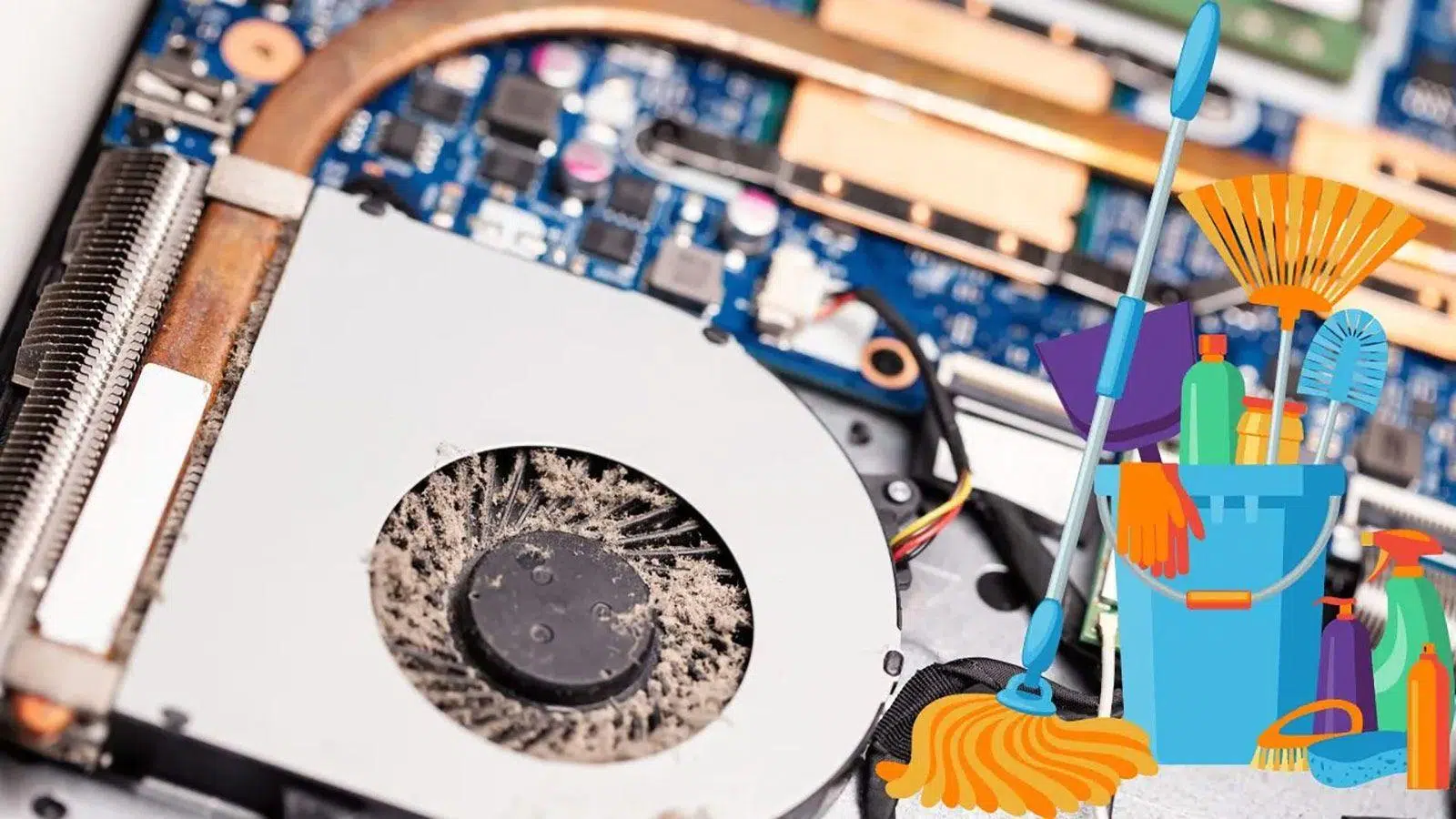
If you suddenly notice your laptop sounds like a plane about to take off , you're not alone. That constant buzzing, rattling, or small squeaking noises are signs that something is wrong, whether it's due to overheating, dust, aging hardware, or even software that's putting too much strain on the computer.
The good news is that most of the time the noise has a perfectly logical explanation and, with a little care, it can be greatly reduced or even eliminated. In this guide, you'll find all the common causes of noise in a laptop (fan, hard drive, speakers, BIOS, dust, thermal paste, etc.) and what you can do in each case, from simple Windows adjustments to more advanced cleaning or component replacement solutions.
Why laptops make so much noise: an overview
A laptop makes noise primarily because some component with moving or electronic parts is working harder than normal. The culprits are almost always fans, hard drives, speakers, or internal circuitry , and often the real cause is heat or an excessive software workload.
When the internal temperature rises, the fans speed up to expel hot air. If there is also dust, clogged vents, or dried-out thermal paste , cooling becomes more difficult and the computer enters a vicious cycle: it gets hotter, the fan spins faster, and the noise increases.
It can also happen that the noise comes from an aging magnetic hard drive that starts to make clicking noises, from interference in the speakers, from BIOS beeps that indicate hardware failures, or from an electrical phenomenon in coils and capacitors that produces fine buzzing sounds.
Laptop fan noises and their causes
Fan noise is by far the most common complaint. Sometimes it's a constant whirring, other times a metallic clatter, or a sudden increase in speed when you've barely opened your browser. All of this is usually related to temperature, wear, bearings, dirt, and performance settings.
In a chassis as thin as a laptop's, manufacturers often use small blower -type fans , which need to spin at high revolutions per minute to move enough air. This means that as soon as the CPU or GPU is under stress, the noise level skyrockets.
There are four main reasons why a laptop fan makes more noise than normal:
- Worn bearings: Over the years, the fan shaft develops play or gets dirty, and a constant rattling or squeaking noise appears.
- High temperatures: When the processor or graphics card is working at full capacity (games, video editing, heavy programs), the system increases the fan speed to the maximum.
- Aged thermal paste: The layer that joins the processor to the heatsink hardens and transmits heat less effectively, forcing the fan to working at the limit even with moderate loads.
- Accumulation of dust and dirt: The air stops circulating properly, the heatsink fins become clogged, and the cooling system becomes very inefficient.
It's also common for the laptop fan to be quiet when you first turn it on, but then after a few minutes it starts roaring even though you don't seem to be doing anything special. In many cases, this indicates that the temperature is rising quickly due to a lack of cleaning or an overly aggressive power plan.
How to make your laptop quieter: software settings
Before opening the laptop or thinking about replacing parts, it's best to tackle the simplest things: everything related to programs, background processes, and Windows settings . Often, the computer is running at 100% capacity simply because we're unknowingly pushing it too hard.
The first step is to check which applications are using the most CPU, RAM, or disk space. In Windows, you can open Task Manager (right-click on the taskbar > Task Manager) and look at the "Processes" tab. If you see a program using 100% of the CPU or disk space, close it by clicking "End task."
Another source of noise is browsers overloaded with tabs. Each tab consumes memory and CPU, and if you overdo it, your laptop will get incredibly hot. A good practice is to close tabs you don't need or use the "Save all tabs" option to keep them readily available while freeing up resources.
It's also advisable to uninstall bloatware, utilities you don't use, and programs that start automatically with Windows. For this, you can use optimization software capable of removing temporary files, putting unused applications to sleep, and cleaning your hard drive without having to search for everything manually.
An important point is malware: certain viruses, especially those related to cryptocurrency mining, push your CPU and GPU to their limits to mine cryptocurrency at your expense, and can slow down your computer . If you notice the fan running at full speed even with everything closed, it's worth running a full scan with a good antivirus program to rule out infections.
Windows power plan and performance control
Windows includes several power plans that directly affect how the processor behaves and, therefore, the fan noise. The power saving, balanced, and high performance modes are typically the default settings.
In High Performance mode, the processor maintains high frequencies almost all the time, resulting in very fast response times, but increased power consumption and temperature force the fan to spin faster. Conversely, Power Saver mode reduces CPU power to a minimum to extend battery life and generate less heat.
For light tasks like browsing the web, writing documents, or answering emails, it makes perfect sense to use the Power Saver or Balanced power plan , even with your laptop plugged in. You won't notice any lack of power, and the cooling system will breathe much more efficiently.
When you want to push the computer to its limits (playing games, editing video, rendering 3D, etc.), you can temporarily switch to maximum performance mode, knowing that the fan noise will be higher during that heavy work session.
Some high-end or gaming laptops include their own software with profiles like "Silent," "Balanced," and "Turbo." These profiles adjust CPU and GPU frequencies and fan behavior. Silent mode significantly reduces performance to make the computer much quieter , Balanced mode offers a compromise, and Turbo mode cranks everything up to the max without hesitation.
Specific fan adjustment via software
If your laptop doesn't have its own fan control utility, there are third-party tools like Fan Control or SpeedFan (the latter being more geared towards advanced users) that allow you to modify fan curves and maximum speeds.
The usage is generally similar: the program detects the fans, displays their RPM in real time, and lets you define the temperature at which they should increase or decrease their speed. This translates to configuring a quieter profile in exchange for slightly higher temperatures.
You have to be extremely careful here: if you lower the fan speed too much without improving external cooling (for example, with a cooling pad), you can cause serious overheating and permanent damage to the processor or graphics card. In a laptop, this type of failure almost always means replacing the entire motherboard or even the whole computer.
That's why it's advisable to make only the necessary adjustments or limit yourself to using these programs when you're also using a good cooling pad that provides extra airflow from below.
Improve airflow: location and cooling bases
A fan can only work properly if air can flow freely in and out. Something as simple as using a laptop on a duvet, blanket, or your lap for hours can block ventilation grilles and air intakes , causing the temperature to rise.
Ideally, you should always place your laptop on a firm, flat surface (table, board, rigid stand) and leave free space around it, especially at the back and sides, where the air vents are usually located. If you put it in a bag while it's still on, you'll be creating a portable oven.
For laptops that run hot (gaming, editing, mobile workstations), a good option is to buy a cooling pad with fans . These pads slightly elevate the laptop, improve airflow, and push cool air towards the bottom.
It's important to choose a cooling pad that aligns well with your laptop's air intakes. Before buying, check the location of the bottom vents and look for a model with fans positioned in those areas. Ideally, use the pad with an external keyboard and mouse for more comfortable work or gaming.
In very powerful laptops, it is common to notice that, when using a good cooling pad, the internal fan no longer has to run at full speed as often, resulting in less noise and a longer lifespan for the cooling system.
Cleaning the fan and the inside of the laptop
Over time, dust accumulates inside laptops, especially on the fan and heatsink fins. In many cases, the real reason your laptop is so noisy is that air can barely flow through the cooling area.
The most effective solution involves opening the laptop's bottom cover and accessing the fan area. Before doing anything, disconnect the laptop from the power outlet and remove the battery if it's removable. Always working with the laptop turned off and disconnected from the power supply is essential.
Once opened, you can use compressed air to expel most of the dust. Then, for a finer cleaning, cotton swabs lightly moistened with isopropyl alcohol work very well . Carefully remove any remaining dirt from the fan blades, the fan frame, and the heatsink fins.
Never spin the fan with compressed air like a windmill: you can damage the bearings. Hold the blades or lock the fan while blowing. Also, don't hold the spray nozzle too close to avoid condensation or physical damage to delicate components.
If you're not comfortable opening your laptop yourself, you can always take it to a trusted repair shop. Even so, it's worth understanding that regular internal cleaning is essential to prevent your computer from overheating after just a few minutes of use.
How often should you clean your laptop?
There's no fixed rule, because it depends a lot on where you live and your habits, but some general guidelines can be given to keep your refrigeration system in good condition :
- Rural or dusty areas: Ideally, an internal cleaning should be done approximately every 6 months.
- Near the coast or the beach: The combination of sand and saltpeter requires cleaning every 3 months.
- With pets at home: Hair ends up inside the laptop, so it's a good idea to clean it every 3-6 months.
- If smoking occurs near the equipment: Ash and particles get through the grates; it's best to check every 3 months.
- Cities and standard cases: With normal use of 3-4 hours a day, cleaning every 6-12 months is usually sufficient.
If you spend more than 6 hours a day in front of your laptop, it's advisable to cut that time in half . The computer will run cooler, the fan will work less, and all the internal components will benefit from this maintenance.
What to do if your laptop won't open easily
Some modern models use a unibody design or very compact casings that make it nearly impossible to open the device without tools and experience. In these cases, the only DIY option is usually to use cans of compressed air applied from the outside.
The idea is to gently blow through the air intake and exhaust vents to loosen dust from the heatsink fins and improve airflow . This method doesn't remove the dust from the inside; it simply moves it around and, hopefully, clears obstructed air passages.
It's an emergency solution, not proper maintenance. In the long run, the dust will remain inside and could spread to other areas, potentially falling onto delicate components. Ideally, whenever possible, someone with experience should open the laptop and clean it thoroughly.
Change the thermal paste to reduce noise
Thermal paste is the material placed between the surface of the processor (or GPU) and the base of the heatsink. Its function is to fill the microscopic imperfections on both surfaces and improve heat transfer . Over time, this paste dries out, cracks, and loses effectiveness.
When this happens, the CPU reaches high temperatures much sooner than when the computer was new, forcing the fan to speed up immediately . This is a very common reason why laptops, even with light tasks, start blowing as if they were rendering a movie.
On many standard laptops (not ultrabooks), changing the thermal paste isn't overly complicated: simply remove the bottom cover, detach the heatsink, clean off any old residue with isopropyl alcohol, and apply a thin, even layer of new, high-quality thermal paste . Then reassemble everything, respecting the order and tightening torque of the screws.
In very compact or cutting-edge systems, accessing the CPU and GPU can be quite complex. In these cases, it's advisable to use official technical support or a specialized repair shop , because an error when installing the heatsink or handling components can be costly.
Done correctly, a thermal paste change usually results in lower temperatures and a quieter fan , especially in laptops that are a few years old.
When to replace your laptop fan
There comes a point where neither cleaning nor thermal paste solves the problem: the fan continues to make a very annoying mechanical noise, with squeaks, knocks, or an irregular buzzing that doesn't go away. In that situation, the most sensible thing to do is usually to replace the fan with a new one.
Some users choose to disassemble the fan, grease the bearings, or replace internal parts. Technically, this is possible, but between finding the correct bearing diameter and the work involved, it's almost always more practical to replace the entire assembly with an equivalent one.
To do this, you need to locate your laptop's exact model and find a compatible fan. Ideally, you should buy the replacement directly from the manufacturer or from trusted suppliers that offer original or equivalent parts. Many models share fans across several generations, so replacements are often available at a good price.
When installing the new fan, pay attention to the arrows on the casing that indicate the airflow direction. Make sure it's blowing hot air towards the exhaust area, and if the design allows, use rubber mounts or bushings instead of metal screws to prevent vibrations from being transmitted to the chassis.
A new, properly installed fan usually makes the laptop run quieter than before and reduces the chance of dust quickly clogging the air vents again.
Noises in mechanical hard drives of the laptop
If your laptop still uses a mechanical hard drive (HDD) instead of an SSD, it's normal to hear small clicks or buzzes when it's reading or writing data. However, if you suddenly start noticing loud clicks, bangs, or other strange noises , it's time to be concerned.
Mechanical hard drives have moving parts (platters, heads, motors) that wear out over time. A louder, repetitive noise that differs from the typical operating sound may indicate that the drive is beginning to fail seriously.
In these situations, there's not much room for maneuver at home: the absolute priority should be to make an urgent backup of all your important data to another drive (external SSD, another hard drive, the cloud, etc.). A hard drive that starts to sound bad can remain viable for weeks… or die in a matter of hours.
Once you've backed up your data, the best course of action is to replace that HDD with an SSD . You'll notice a much faster and quieter computer , and you'll avoid future problems. If you don't know how to install one, any repair shop can do it for you and, if you want, clone the contents of the old drive as long as they're still readable.
Interference and noise in headphones or speakers
Not all annoying noise comes from inside the laptop. Sometimes what you hear is interference, crackling, or popping in the headphones or speakers, even when the computer is idle.
The first step is to rule out a problem with the headphones or the speaker itself. Connect them to another device (phone, tablet, another PC) and see if the noise persists. If it still sounds bad, the problem is likely with the cable or the speaker.
When the noise originates in the cable, there are often areas where, by bending it slightly, the noise changes or intensifies. In that case, the solution is to replace the cable or the entire headset , depending on the design.
If they sound perfect with other devices but you hear a buzzing sound on your laptop, the problem is most likely with the sound card (usually integrated into the motherboard) and interference from the power supply, graphics card, or the motherboard itself.
A typical test is to move the mouse, open a game or a demanding graphics application, and listen to see if the noise changes in intensity. If it does, the interference almost certainly comes from the GPU or the power supply . You can try using a different audio jack on the laptop (front, rear, or side) or use USB headphones or speakers, which have their own built-in digital sound card and are usually much less susceptible to this type of interference.
Electrical buzzing and chirping in internal circuits
Some computers produce a high-pitched buzzing or whistling noise that seems to originate from the motherboard, graphics card, or power supply. This phenomenon is related to the so-called inverse piezoelectric effect in inductors, capacitors, and other power components.
When the electrical load is high or varies very rapidly (for example, in demanding games, benchmarks, or intensive tasks), certain coils and components can vibrate at audible frequencies. This is commonly called " coil whine ," and while it's annoying, in most cases it doesn't indicate an immediate failure.
The problem is that it's very difficult to identify at a glance which specific component is producing that sound, and even more so in a laptop. It could be the motherboard, the integrated graphics card, a power module… or a specific combination of parts.
Quality manufacturers typically use solid capacitors and inductors with resins or encapsulated components to minimize this noise, but occasionally a particularly noisy unit slips through. If the hum is unbearable and the equipment is under warranty, the most practical course of action is to contact technical support to assess the possibility of a replacement.
If you assemble or choose your own equipment, it is advisable to ensure that critical components (motherboard, power supply, graphics card) use good quality solid capacitors and ferrite coils , which tend to have fewer electrical noise problems.
BIOS beeps when turning on the laptop
Another type of noise that can be quite alarming is the beeping your laptop makes as soon as you turn it on, before the Windows logo appears. These sounds come from the BIOS or UEFI , which performs a quick system check (POST) and alerts you if it detects any hardware errors.
Depending on the number of beeps, their duration, and the pattern they follow, the message means one thing or another: problems with the RAM, CPU failures, errors with the graphics card, the hard drive, or other critical components. Each manufacturer uses its own beep codes , so there is no universal standard.
To correctly interpret those beeps, you need to know which BIOS your computer uses (for example, AMI, Award, Phoenix, etc.). Programs like CPU-Z can help you identify it, and then you can look up the corresponding code table in the official documentation.
In any case, if the BIOS is beeping, it's because something important isn't working properly . Often, you won't be able to use your laptop normally until you replace or repair the indicated component, so it's best not to ignore these warnings.
Regular maintenance for a quieter laptop
Beyond simply turning off specific applications or cleaning up once every few years, what really makes the difference is assuming that the laptop, like any machine, needs regular maintenance at both the software and hardware levels.
On the software side, it's worth taking some time every now and then to uninstall programs you no longer use, clean up temporary files, check what starts with Windows, and run an antivirus scan. Keeping your system lightweight and free of junk reduces the workload on the CPU and, consequently, the fan.
On the physical side, cleaning dust, checking the condition of the fan, monitoring the thermal paste and taking care of the environment (not covering vents, using suitable surfaces, considering a cooling pad) are actions that greatly extend the useful life of the equipment and maintain reasonable noise levels.
And if you want to go a step further, there are optimization tools that take care of many of these tasks automatically: they uninstall bloatware, put heavy applications to sleep when not in use, organize the disk, and help keep the system in a state closer to that of a newly installed system.
With a little care, combining good usage practices, regular cleaning, and occasional maintenance (such as changing the thermal paste or the fan when needed), it's perfectly possible for your laptop to stop sounding like a jet engine and become a quiet and reliable work companion for many years to come.
