- Burn-in is an uneven wear of organic pixels that leaves permanent ghost images on the screen.
- Effective detection requires the use of solid color and gray backgrounds to contrast with possible static markings.
- There are maintenance tools such as pixel refresh that help mitigate temporary image retention.
- Prevention is based on avoiding prolonged static elements and adjusting the panel's brightness.

If you've treated yourself to a new monitor or OLED TV, it's normal to feel that constant fear of wear and tear . That feeling of paranoia about seeing an image permanently etched on the screen is something many of us share, especially when we spend hours gaming or working with the same windows open. Luckily, you don't need to be an electronics expert to know if your screen is healthy or if time has already started to take its toll.
To put your mind at ease, the best course of action is to perform a thorough check to differentiate between a simple visual glitch and permanent damage to the panel . This isn't just about playing a colorful video on YouTube, but about carefully analyzing how the pixels react to different tones to ensure there are no ghost images lurking in the corners of your screen.
What on earth is burn-in and why does it happen?

To put it simply, OLEDs use organic light-emitting diodes (OLEDs). The problem arises because these materials degrade with use . When we leave a static image on for a very long time, like a news channel logo or the Windows taskbar, those specific pixels wear out faster than the surrounding ones. The result is a permanent mark , that famous "ghost image" that remains visible even when you change the content.
It's important not to confuse this with temporary image retention. While retention is like a stain that disappears after a while, burn-in is irreversible physical damage . Don't worry too much if you see something fleeting, but if the mark remains no matter what, then we have a problem with organic wear.
How to do a burn-in test step by step
If you want to check the status of your device, it's best to follow a structured procedure to avoid jumping to conclusions. First, thoroughly clean the screen; it might seem trivial, but a speck of dust can look like a dead pixel and give you an unnecessary scare. Next, turn off the lights in the room so the contrasts are more apparent.
- Solid color backgrounds: It uses full screens in red, green, blue, white, and black. This helps isolate subpixel defects and detect areas with uneven brightness.
- The trick of gray: Gray tones are best for detecting burn-in. Look for recognizable shapes, like a video game HUD or a mobile phone keyboard, that are visible. lighter or darker than the rest of the fund.
- Searching for rogue pixels: Take this opportunity to locate dead pixels (black dots that don't light up) or stuck pixels (colored dots that don't turn off), which are manufacturing defects common.
Once you're in full-screen mode, don't just look at the center. Pay special attention to critical areas : the top status bar on mobile devices, the edges where logos usually appear on TVs, and the bottom where the taskbar is located on computers.
Differentiating the damage: Is it burn-in or is it something else?
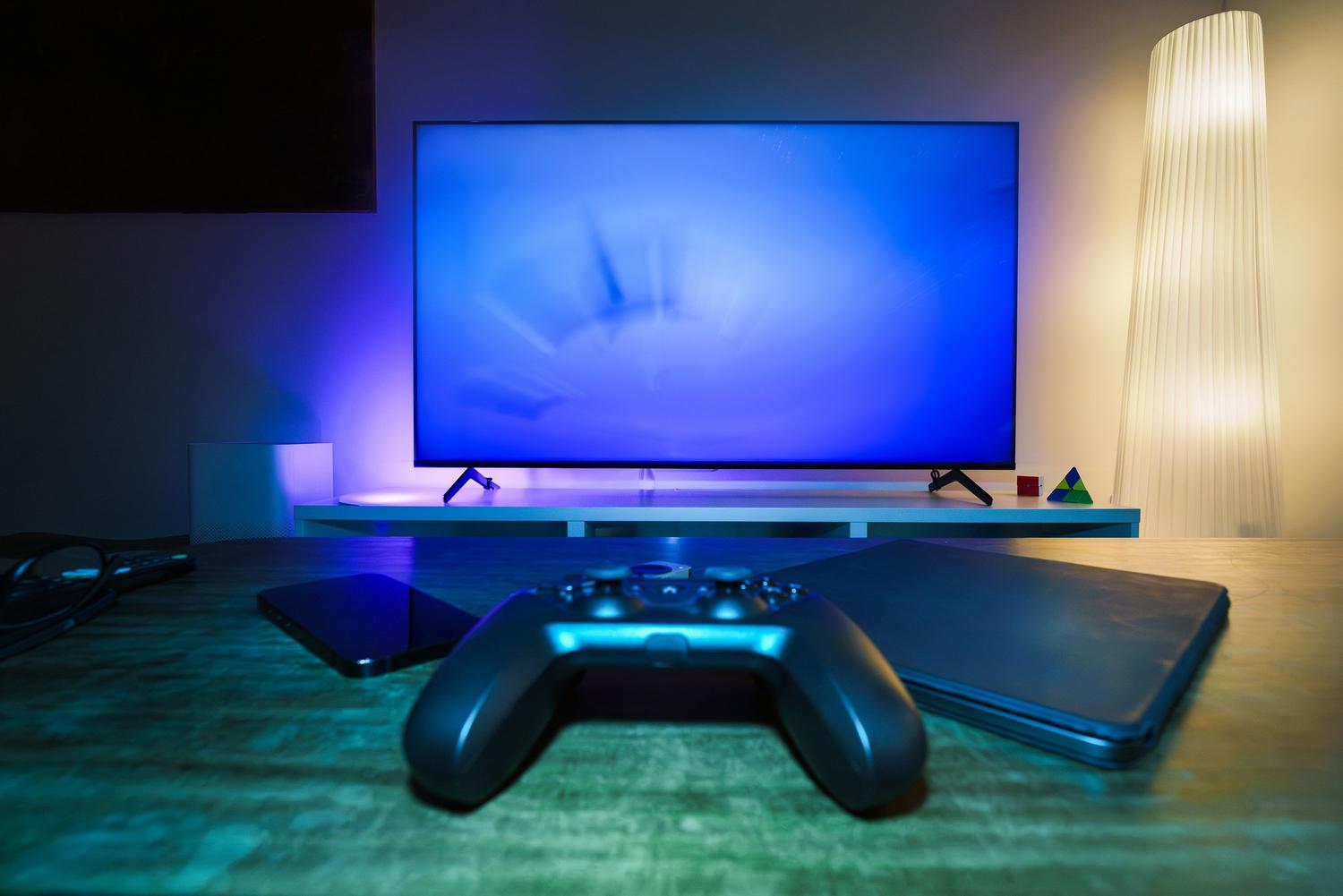
Not everything that glitters is gold, and not every stain is burn-in. Sometimes, what we see is a software artifact or an HDMI cable issue. To be sure, change the input source or open a different application. If the mark remains in the exact same physical position on the panel, then it's very likely a hardware problem.
There are also other defects that can be confused with them. A perfectly straight vertical or horizontal line usually indicates a problem with the panel controller, not static image wear. On the other hand, bruise-like spots are usually damage caused by physical pressure on the screen, something completely different from organic wear of the diodes.
Golden tips to prevent your screen from dying
The good news is that modern manufacturers include features like pixel refresh and logo dimming to extend screen lifespan. Even so, certain habits make a difference. For example, slightly reducing brightness not only reduces eye strain but also slows the degradation of organic materials.
For gamers and office workers, the most basic solution is to set up an active screensaver or reduce the monitor's timeout. Preventing the taskbar from always being visible (by hiding it) is a masterstroke to prevent the bottom edge of your screen from wearing out faster than the rest.
Maintenance and warranties
If you detect a problem, the first thing to do is check the warranty. Many manufacturers have specific policies regarding the number of dead pixels acceptable before they will replace the unit. To make a claim, do not take screenshots, as these record the video signal and not the physical damage. Use an external camera and take clear photos, without flash, that show the brand and the screen's frame for context.
Regarding solutions, there are videos that promise to "cure" burn-in by rapidly moving colors. Be careful: this might temporarily fix the problem, but physical wear and tear won't be erased with a video. Only use the manufacturer's official pixel cleaning functions and don't overuse them , as some manuals warn that running them too often can shorten the panel's lifespan.
Caring for an OLED screen requires a balance between enjoying its infinite contrast and being mindful of static elements. By combining regular checks with solid backgrounds , using official refresh tools, and simple habits like lowering the brightness, it's possible to maintain image quality for years, ensuring that any anomalies are detected early enough to claim the warranty before it's too late.