- 1 TB SSDs offer much higher speeds, lower power consumption and greater shock resistance, but at a higher cost per gigabyte than HDDs.
- 1TB HDDs remain unbeatable in price and capacity for backups and mass storage of infrequently used data.
- For most users, the best practical option is to combine SSD for system and programs with HDD for large files and backups.
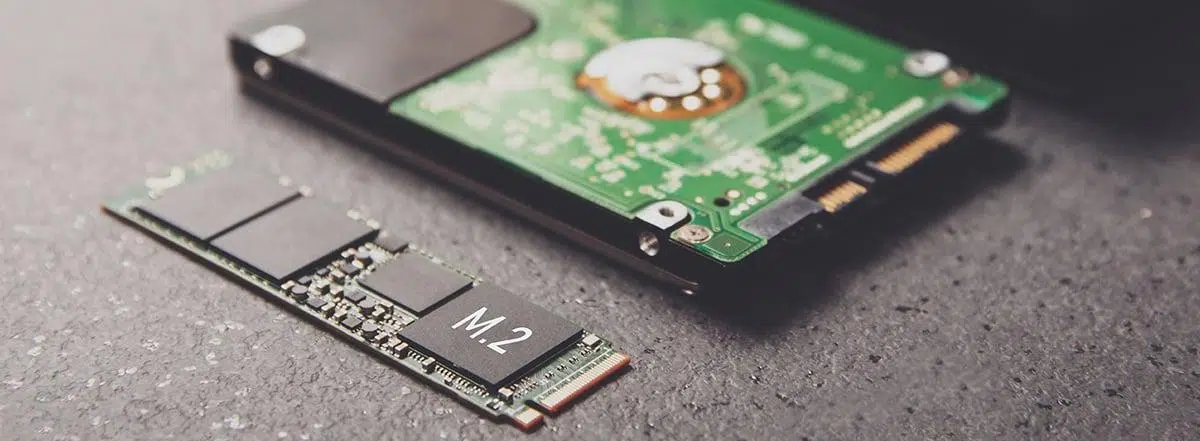
If you're thinking about upgrading your computer's storage and are torn between an SSD and a 1TB HDD , you're not alone. It's one of the most common decisions when we want to improve PC performance, expand storage for games, photos, and videos, or simply extend the life of a computer that's a few years old.
Throughout this article, we'll calmly break down the real differences between a 1TB SSD and a 1TB HDD : how they work, their speed, their lifespan, their cost, which is better for gaming, laptops, long-term backups, and which combination offers the best practical value. The goal is for you to finish reading with a clear answer to the key question: Is an SSD, an HDD, or both the best option for me?
What is a 1 TB HDD and how does it work?
A mechanical hard drive, or HDD (Hard Disk Drive), is the classic storage device that computers have used for decades . Its function is to permanently save your data: operating system, programs, documents, photos, games… everything you don't want to lose when you turn off your computer.
Inside, a hard disk drive (HDD) consists of one or more rigid platters that spin at high speed within a metal casing. A read/write head moves across the surface of these platters to store or retrieve information using magnetism. It's a mechanism very similar to that of a record player, but miniaturized and operating at thousands of revolutions per minute.
Rotational speed is key to performance: consumer HDDs typically operate at 5.400 or 7.200 RPM , while in professional environments there are models that reach 10.000 or even 15.000 RPM. The higher the revolutions per minute, the less time it takes the read/write head to access the data, and therefore, the faster the read and write operations.
In terms of physical format, HDDs are primarily manufactured in 2,5" and 3,5" sizes . 3,5" drives are mainly used in desktops and NAS devices; 2,5" drives in laptops and as external drives. For the same capacity, 3,5" drives are generally somewhat cheaper and offer better sustained transfer speeds, especially in high-capacity models. Interfaces for external drives, such as the eSATA port , are also available.
Their biggest advantage lies in their price and storage capacity: a 1 TB HDD is significantly cheaper than a 1 TB SSD , and if you increase the capacity to 2, 4, 6, 8, or 10 TB, the cost difference per gigabyte becomes even more pronounced in favor of the HDD. This is why they remain the preferred option when you need a lot of storage at minimal cost, for example, for backups, large photo or video libraries, or network storage.
What is a 1 TB SSD and how is it different?
Solid State Drives (SSDs) are the modern evolution of storage disks . Unlike HDDs, they have no moving mechanical parts: data is stored on flash memory chips, similar to those used in USB flash drives or SD cards, but much faster and better managed.
In an SSD, information is stored in NAND flash memory cells , which retain data even when the drive is powered off. Instead of platters and read/write heads, there is an electronic controller that decides which cells to write data to, how the data is organized internally, how to clean up unused blocks, and how to distribute wear and tear across all available cells.
This controller is the "brain" of the drive and largely determines its final performance: a good controller can significantly increase actual speed , reduce latency, improve wear resistance, and optimize error handling. This explains why two seemingly similar SSDs (same size, same interface) can behave very differently.
Most consumer SSDs use 2D or 3D NAND flash memory. In 3D NAND technology, the cells are stacked in multiple layers , which allows for a significant increase in capacity without drastically increasing the chip's physical size. Within this technology, there are several cell types: SLC (Single Level Cell), MLC (Multi Level Cell), TLC (Triple Level Cell), and QLC (Quad Level Cell). SLC cells are more expensive but very durable and fast; QLC cells are cheaper and denser, although less resistant to intensive write operations.
In practice, almost all 1TB consumer SSDs for PCs use TLC or QLC memory , supported by techniques such as dynamic SLC caching and wear leveling to extend the drive's lifespan and maintain high performance during most light home and professional use.
Types of 1TB SSDs: SATA, NVMe, and M.2
When we talk about 1TB SSDs, not all of them are created equal. There are differences in connection type, physical form factor, and communication protocol that greatly influence the final speed and compatibility with your computer.
The most classic type is the 2,5″ SATA SSD . It has the same physical form factor and connector as a laptop HDD, so it can be installed almost like a simple plug-and-play in many computers, directly replacing the old mechanical hard drive. In terms of speed, a SATA SSD is limited by the interface to around 500-550 MB/s sequential read and write speeds, which is already several times faster than a typical HDD.
One step up are NVMe (Non-Volatile Memory Express) SSDs , which connect via PCI Express lanes. This avoids the SATA bus bottleneck and allows speeds of several gigabytes per second: many current mid-range models already achieve read speeds of 3.000-3.500 MB/s , with some top-of-the-line models exceeding this limit. They are ideal for demanding tasks such as video editing, working with virtual machines, intensive gaming, or large databases.
The most common physical format for these modern SSDs is M.2 , a small, elongated card that installs directly onto the motherboard, without cables. A single M.2 slot can accept either SATA M.2 SSDs or NVMe M.2 SSDs, depending on the slot type. Therefore, it's crucial to check your motherboard's compatibility before buying: not all M.2 drives are the same, and not all ports support NVMe.
In addition to performance, M.2 SSDs are notable for their tiny size , making them the preferred choice for thin laptops, high-performance Mini PCs, and compact systems. Many current mid-range and high-end configurations already include a 1TB NVMe M.2 SSD as the primary drive.
1TB HDD vs SSD: Key Differences
The big question is: if we compare a 1 TB HDD to a 1 TB SSD , what exactly changes in day-to-day use? Beyond the theory, there are several very clear points where the experience with one versus the other is completely different.
In terms of speed, SSDs are in a completely different league. A typical home HDD can move between 30 and 150 MB/s depending on the model and the area of the disk; a SATA SSD is around 500 MB/s, and an NVMe SSD jumps to 3.000-3.500 MB/s or more. In practice, this means that booting Windows with an SSD can take about 7-10 seconds , while with an HDD it can easily take half a minute or more.
The difference is also noticeable when opening demanding programs, loading game levels, opening video editing projects, or importing/exporting large clips. In standard tests, an SSD has been shown to triple or more the read and write speeds of a 7.200 RPM HDD, and as a result, everything feels more responsive and fluid.
In terms of power consumption and noise, the SSD wins again: with no moving parts, it's silent, barely vibrates, and consumes less energy . In a laptop, this means longer battery life and less heat; in a desktop, a quieter machine. An HDD, on the other hand, generates the typical whir of spinning platters and clicking read/write heads, although current models are relatively quiet.
In terms of maximum capacity per unit, HDDs still have the advantage today. It's easy to find 4, 6, 8, 10 TB or larger HDDs at reasonable prices, while high-capacity SSDs still have a much higher cost per gigabyte. For example, a 250 GB SSD can cost about the same as a 3 TB HDD, clearly illustrating the price difference for storage.
Durability, reliability and useful life
One of the most frequently asked questions is the lifespan of SSDs versus HDDs . The first SSDs on the market had a reputation for failing quickly, but technology has evolved significantly, and the situation is quite different now.
In a hard disk drive (HDD), the weak point is the mechanical components : platters, motor, read/write head, and arm. A hard knock, a drop while the drive is powered on, or continuous vibrations can physically damage the mechanism and render the drive unusable. However, when an HDD fails mechanically, it is sometimes possible to recover the data in specialized laboratories by disassembling the drive piece by piece.
In an SSD, information is stored in memory cells that can only be written to a limited number of times . Each erase and write cycle slightly degrades the cells. To minimize this wear, SSD controllers implement wear-leveling techniques, which distribute writes evenly across all available cells.
Endurance studies have shown that a standard consumer SSD can withstand massive amounts of data before failing. For example, a Samsung 850 Pro model was tested to write 2,4 PB (2.457,6 TB) before the drive became unusable. In normal home use, writing that much data in just a few years is virtually impossible.
Today , the average lifespan of a modern SSD is considered similar to that of an HDD , around 5 years of typical use, with many real-world cases easily exceeding 7-10 years. Furthermore, SSDs include spare blocks to replace cells that degrade over time (bad block management), which further extends their effective lifespan.
However, SSDs have a potential Achilles' heel in scenarios of sudden electronic failure: if the controller or the NAND chip suddenly dies, data recovery is more complicated and expensive than with an HDD. On the other hand, in environments with shocks, vibrations, or temperature changes, an SSD is generally more reliable because there are no parts that can become misaligned or bent.
SSD or HDD for backups and cold storage?
A very common question is which drive to choose for long-term storage , such as backups of family photos that we want to keep for years and years, using them only occasionally. Here, it's not so much about speed, but about reliability and cost.
If your plan is to keep a hard drive on a shelf and connect it a couple of times a year to copy new photos or videos, the ideal combination is redundancy plus good storage care . That means at least two copies on different devices (for example, an external HDD and another copy on a different computer, or a cloud backup ).
Hard disk drives (HDDs) have more than proven their ability to preserve data for many years if used and stored correctly. It's not uncommon to find drives that are 7-10 years old and still working without problems. However, it's advisable to power them up occasionally and check their health with SMART tools to detect bad sectors early.
With SSDs, there's a concern about long-term data retention when the drive is powered off for extended periods. Theoretically, if an SSD is left without power for years, the cells can lose charge, increasing the likelihood of read errors. In practice, with modern, high-quality SSDs and reasonable storage temperatures, this problem is much less pronounced, but it remains a concern for storage "on the shelf" for many years without being powered on.
In terms of price, a 1 TB HDD remains the logical choice for large backups and cold storage: it offers plenty of capacity at a low cost and predictable performance. An SSD can be useful as a secondary storage device for critical backups, thanks to its shock resistance and fast restore speeds, but it will rarely be the most cost-effective option as your sole backup solution.
Advantages of a 1 TB SSD in everyday use
Beyond theory, installing a 1TB SSD as the primary drive radically changes the feel of any computer. Even a machine from a few years ago with a decent processor and sufficient RAM can be completely revitalized simply by replacing the HDD with an SSD.
You'll notice it when the system starts up (Windows, macOS, or Linux), which goes from minutes to seconds; when opening heavy applications like video editors, audio software, office suites, browsers with many tabs; during system updates; when installing programs; and, in general, in any task that involves reading or writing a lot of data.
In gaming, a 1TB SSD drastically reduces loading times for levels, maps, and textures. Titles that take more than two minutes to load on an HDD can load in 20-30 seconds on an NVMe SSD . This is especially noticeable in open-world games and games with constant data streaming. It doesn't increase FPS, but the overall experience is infinitely smoother.
Another strength is multitasking: being able to open several resource-intensive programs simultaneously, switch between large projects, or move files tens of gigabytes in size is much easier with an SSD. Random read and write speeds, where HDDs truly struggle, are tens or even hundreds of times faster on an SSD , eliminating common bottlenecks.
Furthermore, a 1TB SSD allows you to have your operating system, work programs, a good collection of games, and your main documents all on the same drive without constantly checking for storage space. It's a sweet spot, perfectly balanced between capacity and performance for most demanding users.
Advantages of a 1 TB HDD versus a 1 TB SSD
Although SSDs seem to be dominating the market, HDDs still have their strengths, especially when it comes to price, capacity, and specific uses . They're far from dead; they've simply repurposed themselves into different roles.
The first factor is cost. A 1TB internal HDD can be found for a fraction of the price of an SSD of the same capacity. That difference increases as you move up to 2, 4, or more terabytes. If your absolute priority is having plenty of gigabytes to store everything without worrying about space, an HDD remains the cheapest way to achieve that.
The second point is that, for certain scenarios, you don't need the speed of an SSD . For example, as an external drive where you only store regular backups, as storage for movies and TV shows, or as a drive for documents that are rarely opened. In these cases, the extra performance of an SSD offers little benefit, and the additional cost isn't worth it.
Furthermore, while modern SSDs are highly reliable, HDDs have a historical advantage: their failure behavior is typically more gradual and predictable . They may start exhibiting bad sectors, strange noises, or performance drops before failing completely, sometimes providing enough time to clone the drive and recover data. With a sudden electronic failure in an SSD, the outcome can be much more abrupt.
Finally, in environments like home or small office NAS setups, many users still opt for multi-terabyte HDDs in RAID configurations to combine high capacity, redundancy, and low cost . While SSDs can be used as cache, the bulk of the storage typically remains on mechanical platters.
Which is better for a laptop: HDD or SSD?
In laptops, the balance tips almost entirely in favor of SSDs. The absence of moving parts makes these drives much more resistant to shocks and movement , a key factor in a device that is carried around, used on the train, on the sofa, or in a backpack.
By consuming less energy, an SSD helps increase battery life and reduce internal heat, which also means the fans don't have to run at full speed for as long. The user experience with a laptop with an SSD is noticeably more pleasant: it boots up quickly, wakes from sleep mode instantly, and there are no noises from a spinning disk or read/write heads searching for data.
For these reasons, most current mid-range and high-end laptops now come with SSDs as standard. You might still find HDDs in very inexpensive models, but this is more a matter of cost-cutting than technical preference. If you have a laptop with an HDD and a compatible slot, upgrading to an SSD is probably the best upgrade you can make.
Some laptops allow for a hybrid configuration: an M.2 SSD as the primary drive and an additional 2,5" HDD for mass storage. If your laptop supports it, this is an ideal combination for getting the best of both worlds: system speed and affordable storage for your data.
Which is better for gaming: an SSD or a 1TB HDD?
If you enjoy PC gaming or use current-generation consoles, an SSD is practically essential. Modern games handle tens of gigabytes of textures, models, and data that are constantly being loaded. An HDD can handle this, but with much longer wait times and a higher likelihood of stuttering when the game needs to load something new on the fly.
Practical examples: loading times for huge worlds like in GTA V go from over two minutes on an old HDD to around 25 seconds on an NVMe SSD. Other titles with many loading screens and zone changes also see wait times reduced to a fraction. You don't gain FPS, but you do gain overall smoothness and less waiting.
New consoles like the PlayStation 5 and Xbox Series X come standard with SSD storage, and many developers are starting to design games with this speed as the standard. This means there will be more and more games optimized to read data quickly from SSDs, and HDDs could become a major bottleneck in the medium term.
For a budget-conscious gaming PC, a good strategy is to use a 1TB SSD for the operating system and your most frequently used games, and an HDD for the rest of your library, recordings, screenshots, etc. This way, you get fast boot times and loading times without sacrificing affordable storage space.
Ultimately, for a gamer who can afford it, an SSD isn't a luxury, it's practically a necessity. Waiting times are reduced so drastically that going back to an HDD feels like taking a step backward several generations.
Price: real difference between an SSD and a 1 TB HDD
The flash storage market is highly volatile, but one thing remains constant: SSDs always cost more per gigabyte than HDDs . Although SSD prices have dropped significantly in recent years, the gap is still considerable, especially at the terabyte level.
As a typical reference, a 1TB internal HDD usually costs a very low price, while a 1TB internal SSD is significantly more expensive . This difference is also true for external drives: a 1TB USB HDD is noticeably cheaper than a portable SSD of the same capacity.
This means the decision largely depends on your budget and priorities. If you want maximum system performance , a 1 TB SSD is a very solid choice. If you primarily need storage space for large amounts of data (backups, raw videos, huge libraries), a 1 TB HDD is more cost-effective, and it might even be worth upgrading directly to 2 or 4 TB.
In many cases, the smartest solution is not to choose between one or the other, but to combine them according to their strengths : SSD for system and programs; HDD for mass storage and backups.
Which disc should you choose depending on how you intend to use it?
The ideal choice between a 1TB SSD and a 1TB HDD depends, above all, on how you use your computer and what bothers you more : the time wasted waiting or the money spent on hardware.
If you download a lot of content, collect movies and TV series, or have huge photo and video libraries, and you're on a tight budget, a 1TB HDD (or even larger) is still a very sensible option. It's also perfectly adequate as an external drive for regular backups and "cold" storage.
If, on the other hand, you value a fast computer that boots up instantly, opens applications without delay, and loads games and demanding projects in a flash, then a 1 TB SSD is the way to go as your main drive. It's especially recommended if you work with multimedia editing, programming, virtual machines, or if you're a serious gamer.
For most users with a desktop PC or a laptop that allows multiple drives, the ideal configuration is hybrid: SSD for the operating system and main programs, and HDD for large files such as photo libraries, finished projects, backups, and content that doesn't need ultra-fast access.
Whichever option you choose, it's always a good idea to have at least one additional backup of your important data, whether on another physical drive or in the cloud. No storage medium is foolproof, and the only thing that truly protects your data is redundant copies.
A 1TB SSD gives you brutal speed, silence, shock resistance, and a far superior user experience , while a 1TB HDD provides a lot of capacity at a low cost and known performance for long-term storage ; if your budget allows, opting for an SSD for the system and supporting the rest with one or more HDDs is still the most balanced way to get the most out of your computer without breaking the bank.