- Combining cloud and external drive with the 3-2-1 rule offers the greatest resilience.
- The cloud provides remote access, synchronization, and scalability; the SSD provides speed and control.
- Define RPO/RTO, encrypt data, and automate backups to meet objectives and audits.
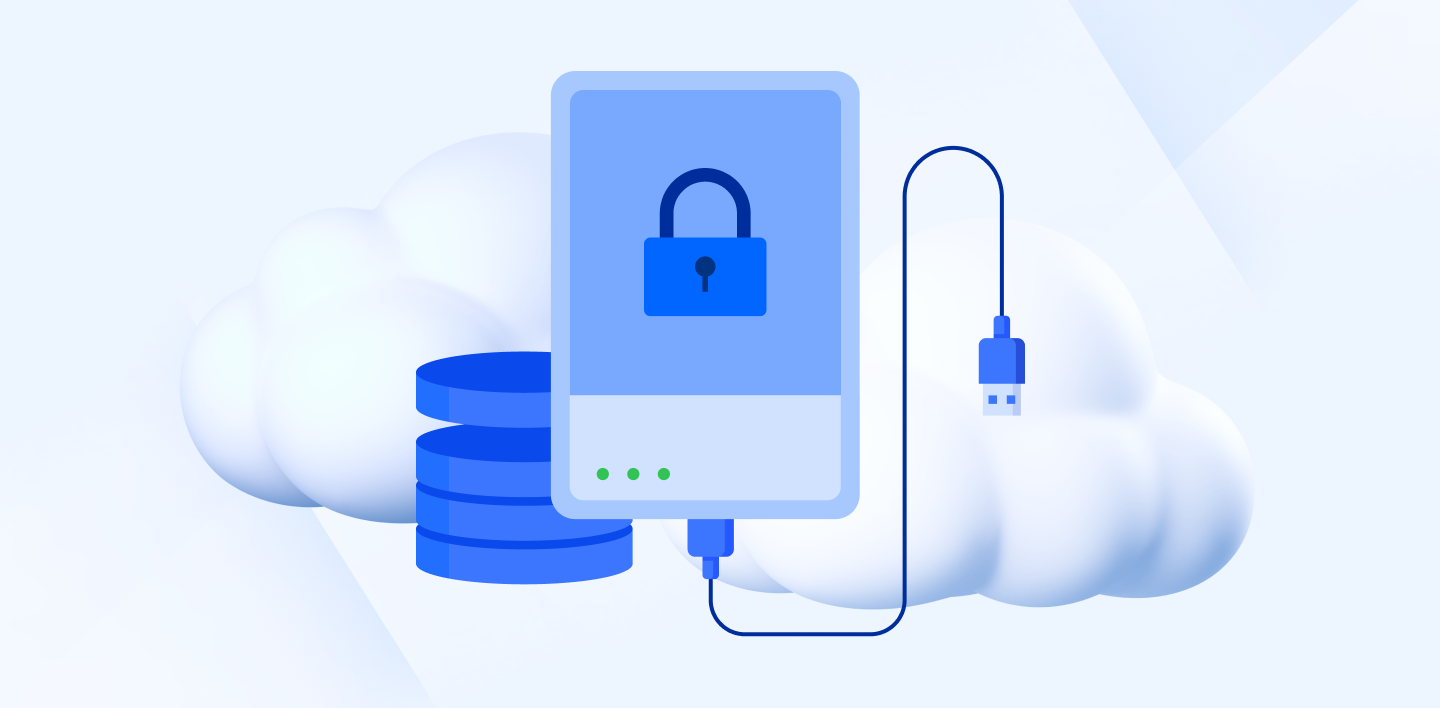
We're glued to our devices and store more and more personal and professional information on them every day; a single failed update or theft is all it takes for everything to fall apart, and I say this from personal experience after a scare with a Windows 11 laptop. In this context, choosing between a cloud backup or an external hard drive is not a minor issue: it's key to your peace of mind and continuity.
Both options have advantages and disadvantages, and the key is to understand their differences, when one or the other is more suitable, and why a combined strategy is often the smartest approach. In the following lines, you'll find a practical and comprehensive guide , complete with real-world use cases, pros and cons, and even recommendations for different business types, so you can make the best decision based on reliable information.
Cloud storage and external drives: the basics you need to know
When we talk about the cloud, we mean storing your files on remote servers managed by a provider, accessible via the internet. This means you're no longer tied to a single computer or physical storage and can access, sync, and collaborate from anywhere. In practice, your content is hosted in redundant data centers to ensure distributed copies and fault tolerance.
An external hard drive, on the other hand, is a physical device (HDD or SSD) that you connect via USB or other interfaces to store your data locally. SSDs have gained ground due to their speed, shock resistance, and low power consumption, while HDDs continue to offer large capacities at a good price. Here, you're in charge: you retain absolute control over the storage device , its location, and who accesses it.
The cloud shines thanks to automatic synchronization , collaborative work, and on-demand scalability; external hard drives, thanks to their sustained performance, connection independence, and one-time payment. However, security, availability, and the actual cost depend on how you configure the system and your usage habits: there's no silver bullet, only informed decisions.
As a concept, the digitization of storage has transformed the way we work: you can start a document on your laptop, review it on your mobile device, and finish it on your desktop, with a change history and granular access permissions in the cloud. In contrast, an external hard drive is useful when you need to move large volumes quickly or make complete backups without relying on the internet. The question isn't just what to choose, but what for and in what specific scenario.
Advantages of cloud storage
Remote and multi-platform access
With an internet connection, your documents are available on any device, which is especially useful if you frequently switch between the office, home, and mobile work. Furthermore, modern services allow you to share files via links, control permissions, and see who has done what; in short, seamless remote work.
Automatic synchronization
Changes you make on one computer are replicated across all others, ensuring you always use the latest version without having to forward files via email or USB drives. This synchronization can also be selective, allowing you to choose which folders are updated or downloaded, saving local space and preventing duplicates and version conflicts.
Scalability on demand
If you need more storage, upgrade your plan; if less is enough, downgrade. This flexibility prevents you from buying extra hardware "just in case" and allows you to align cost with actual usage. Providers typically offer various options to adjust capacity to your growth, resulting in operational and financial flexibility.
Backup and versioning
Many services include automatic backups, restoration of previous versions, and even recovery of files deleted for a certain period. These features protect you against human error and hardware failures, adding an extra layer of resilience.
Real-time collaboration
Editing simultaneously, commenting, assigning tasks, viewing change history, and integrating online office tools are part of our daily routine. In distributed teams or with clients, this streamlines projects and reduces downtime, significantly boosting productivity.
Points to watch in the cloud
Connectivity dependency
Without a reliable internet connection, access can be slow or impossible. In areas with poor coverage or congested networks, plan for offline syncing or pre-downloading critical files to avoid last-minute bottlenecks.
Security and privacy
Reputable providers use robust encryption (AES-256), secure transport, and, in many cases, zero-knowledge models, but you should always review policies, data location, and legal compliance. Enable MFA, use unique passwords , and consider encryption at the source if you handle particularly sensitive information.
Limitations of free plans
Free accounts usually come with limited storage and reduced features; for heavy workloads or large teams, a paid subscription becomes necessary. Carefully consider the TCO (total cost of ownership) before deciding, because sometimes cheap options end up being expensive in the long run.
Integrations and compatibility
Some local applications don't work as smoothly with remote storage, and in specific environments, friction may occur. It's advisable to test the entire workflow and, if necessary, use desktop clients or official connectors for a smoother experience.
Normative compliance
If you operate in regulated sectors or handle sensitive data, verify jurisdictions, contractual clauses, and audit controls. Legal nuances matter, and a preliminary check can prevent serious problems; choose providers who clearly document their compliance practices.
What SSDs offer and where their limits lie
Speed and response
SSDs have no moving parts and offer near-instant access and transfer rates far superior to traditional HDDs; this speeds up large backups, restores, and working with large files. In short, they're lightning fast.
Durability and resistance
Lacking mechanical parts, they are more resistant to shocks and vibrations, which is a welcome feature when on the go. They also consume less energy and generate less heat, making them a reliable and efficient choice for laptops and demanding environments.
Cost per gigabyte
Although prices have dropped, high-capacity SSDs are still more expensive than HDDs if you only consider euros per GB. If you need terabytes upon terabytes, do the math because an HDD for general storage and an SSD for active work might offer the best value.
Writing and degradation cycles
Flash memory has a finite number of write cycles; with current management techniques (TRIM, wear leveling) the actual impact is less, but under intensive write loads, it's advisable to monitor health and free space. At maximum capacity, performance may suffer, so leave some breathing room for the drive.
External hard drives in detail: connectivity, risks and encryption
USB connectivity reigns supreme due to its compatibility and ease of use: simply plug and play on almost any computer, and even some OTG-enabled mobile phones. Its portability is its greatest strength: if your primary device fails, you can access your data from another in seconds.
With the drive offline, the risk of remote spying is drastically reduced because it's "not visible" on the internet. Even so, the recommendation is clear: encrypt the contents and store the device in a safe place when not in use, so that prying eyes have no chance.
All physical storage media fail sooner or later: impacts, power surges, defects, humidity… and if there's no backup, recovery can be extremely expensive and not always feasible. Therefore, rely on external hard drives as part of a broader system and never as your sole line of defense.
Encryption on external drives isn't always a standard feature, nor is it easy to set up. Tools like BitLocker or VeraCrypt can help, but they require careful key management: losing your keys means losing access forever. Clear procedures and secure backups of your keys are just as important as the encryption itself.
Business strategy: from proactive protection to recovery plan
Data loss doesn't just hurt the bottom line: it impacts reputation, compliance, and business continuity; many SMEs never recover from a serious incident. Protection must be proactive and strategic, not a technical patch, with defined roles, processes, and testing; in short, true data governance.
Ransomware is now targeting backups; protect them with segmented networks, strong authentication, immutable storage, and privilege separation. Add AES-256 encryption in transit and at rest, MFA, and regular audits to ensure no one touches what they shouldn't.
Apply the 3-2-1 rule: three copies, on two different media types, and one off-site. This classic remains relevant because it minimizes the single point of failure; even if the source and one copy go down, you still have the remote copy to keep the business running smoothly.
Define RPO (your risk tolerance) and RTO (your return to trading). An RPO of 4 hours implies backups at least every 4 hours; an RTO of 2 hours requires technology and processes capable of restoring within that timeframe. Adjust technology, frequency, and automation to meet your own objectives.
Recommended frequencies: critical data, continuous or hourly; office files, daily; information that changes little, weekly. Automate to avoid oversights and use alerts, reports, and integrity verification so you don't discover the failure when restoring.
What to choose based on your type of business
If you're self-employed, you'll likely prioritize mobility, simplicity, and cross-device synchronization. Cloud solutions like Dropbox let you create, edit, and access everything from any device, with instant synchronization. The Dropbox Essentials plan offers 3 TB for a single user with unlimited device synchronization —ideal if you're constantly on the go and don't want to carry around hard drives.
For small businesses with a physical location (florist, pet shop, etc.), you can manage backups on an external drive as long as you adhere to the 3-2-1 rule and have clear processes in place. Alternatively, you can use cloud storage to share with your team or clients, access it from anywhere, and back up your computers and physical drives. Start with a free account, such as Dropbox Basic with 2 GB, or consider team plans if you have three or more employees.
If your business is purely digital, the cloud is the clear choice due to its ubiquitous access, collaboration capabilities, and scalability, especially with team plans that unify security and administration. Here, the ability to centralize permissions and audit activities provides peace of mind and control.
For medium and large businesses, seamless growth is the priority. Dropbox Business Plus starts with 15 TB of cloud storage for a minimum of three users, with security monitoring, management tools, and up to one year of recovery for deleted files. Add to that an easy-to-use sharing and privacy service, and you can forget about managing a menagerie of external drives.
Personal use: a real-world case study with SSD, Time Machine, and cloud
After a good scolding from a security-expert friend, I got to work on my personal files: individual photos, raw video footage, audio files, PDFs, duplicate documents with the dreaded (1), (2), (3)... Nearly 40 GB of chaos. First, order: tags, cleanup, and grouping , so that backing up would actually make sense.
I bought a 500GB portable SSD (around €190 in my case, a Samsung model) and set up regular backups. On macOS, Time Machine works perfectly for incremental cloning; on Windows 10, File History from Settings does the job. With the external drive, I have speed, internet independence, and a clear plan for regular full backups.
Then I added cloud storage for everyday use. I hesitated between Google Drive and Dropbox and opted for Google Drive because of its free 15GB plan (compared to Dropbox's 2GB) and integrated document collaboration. If I need more storage, the options are around €9,90 per month for 1TB or €99,90 per year; in Windows environments, OneDrive is also an option with 5GB free. The key was enabling selective sync.
Why selective? To decide which folders to sync and avoid uploading everything. This way I keep presentations, documents, and a reasonable number of photos in the cloud, but I reserve the SSD for large files, especially Full HD video , where uploading can take hours or be interrupted.
With this setup, the SSD becomes the storage for full backups and large files, while the cloud is used for daily work and mobile phone camera data. It's not black and white: everything has its place.
Head-to-head: cloud vs external hard drive
Access: the cloud gives you access from any connected device; the disk, via USB or another port, with the advantage that you do not depend on the Internet.
Security: In the cloud, strong encryption (AES-256), secure transport and, depending on the provider, zero knowledge; on the disk, the risk of remote hacking is low when it is disconnected, but if you lose it or it is stolen, without encryption and good key management you are left exposed.
Synchronization: the cloud updates itself in the background; the disk can be automated, but it requires connecting it and verifying that the plan is running, so operational discipline matters more to avoid breaking the chain.
Cost: Cloud services are subscription-based (prices fluctuate based on usage), while hard drives are a one-time purchase with a finite lifespan. For very high capacities, HDDs are cheaper per GB, although SSDs offer better performance. Consider the total cost of ownership (TCO): storage, energy, maintenance, and time spent.
Ownership: with an external hard drive, full custody; in a public cloud, review the terms because some usage clauses may apply to content, without relinquishing copyright. If you're concerned, consider encryption at the source or opting for a private or hybrid cloud.
Reliability: A hard drive can fail due to physical causes; a cloud service can experience outages, but this is mitigated by storage in multiple locations and redundancy. That's why the 3-2-1 rule, combining both, is so effective in practice.
| On the cloud | External disc | |
| Access | Multi-device and remote | Direct connection (USB, etc.) |
| Security | Strong encryption; it depends on policy. | Offline; risk if lost without encryption |
| Synchronization | Automatic and continuous | Automatic when connecting/scheduling |
| Ribs | Scalable subscription | One-time payment; limited useful life |
| Property | Managed by provider | Full user custody |
| Reliability | Multi-site redundancy | Physical risk (bumps, failures) |
So why choose? Use both with the right tool.
A combined approach gives you the best of both worlds: fast local backups for urgent restores and remote backups for disasters or theft. Solutions exist that facilitate this dual protection seamlessly, without duplicating efforts or manually monitoring processes; automation means peace of mind.
Acronis True Image, for example, offers local and cloud backups in a single dashboard, with support for external drives, NAS, and USB, in addition to its own Acronis Cloud service. It allows for full or mirrored backups, restoring the entire system or a single file, and hot cloning of disks without restarting. It also includes active ransomware protection with artificial intelligence that detects, stops, and reverts malicious changes from encrypted and clean backups.
If you're looking for a cloud and local backup solution with a simple workflow, Wondershare UBackit stands out for its value proposition: backup of files, folders, partitions, and disks in three steps, automatic scheduling, filters by type (documents, photos, audio, video), keyword search in one second, and storage monitoring with smart notifications. Powered by AI, it promises to speed up the process by up to 30 times.
And if you ever need to recover data, there are solutions that boast extensive capabilities and a high success rate: restoration from over 2000 devices, support for 1000+ formats with a verified 99,5% success rate, and coverage of 500+ scenarios, with a user base of around 1.965.475. While hopefully you won't need it, it's always good to have a recovery tool on hand to help when things go wrong.
The decision isn't binary. With an SSD for regular full backups and working with large files, and the cloud for syncing, collaboration, and off-site redundancy, you've got speed, security, and availability covered. Add the 3-2-1 rule, source-level encryption where appropriate, MFA, restore testing, and a well-tested recovery plan, and you have a robust system that can handle both everyday tasks and unexpected events.
